
4 Options: Transfer Data from realme to Samsung S26/S25/Note/Tab
"I'm expecting my new Galaxy S26 Ultra to be delivered tomorrow (super excited) and I'm looking for the best and easiest way to transfer all my data from my old realme phone." -- from Reddit
A move from a realme phone to a Samsung device often brings excitement, but transferring all personal data can feel challenging. With the data already on the new Samsung phone, users can continue using various apps, accounts, and settings immediately.
Several methods make the transfer straightforward and secure. This guide explains how to transfer data from realme to Samsung in 4 reliable ways, giving users practical options for a smooth transition.
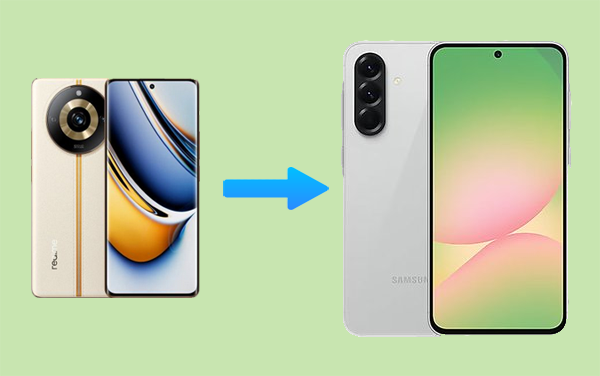
Solution 1: Transfer Data from realme to Samsung in One Click [Worry-free]
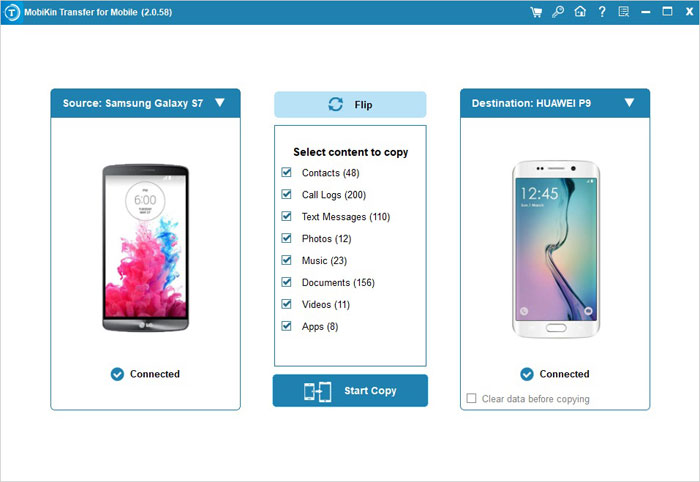
Moving content between two Android brands can be completed smoothly with MobiKin Transfer for Mobile (Windows/Mac), which supports direct data migration from realme to Samsung. The program links both phones to a computer and displays transferable categories such as contacts, messages, photos, videos, and apps.
You can simply choose the items they want and start the copying process with one click. The procedure keeps existing files intact and works with a wide range of Android models.
|
Core Features - MobiKin Transfer for Mobile
|
Key Details
|
|
realme to Samsung Data Transfer |
Move important content such as contacts, text messages, photos, videos, music, and call logs directly from a realme phone to a Samsung device without complicated setup. |
|
Cross-Platform Phone Transfer |
Supports data migration between different systems, including Android to Android, iPhone to iPhone, Android to iPhone, and iPhone to Android. |
|
One-Click Data Copy |
After connecting both phones to the computer, users can select the file types and complete the transfer with a single click. |
|
Multiple File Types Supported |
Handles a variety of data categories, including contacts, SMS, photos, videos, music, call logs, and other common mobile files. |
|
Broad Device Compatibility |
Works with many Android brands such as Samsung, realme 16/15/14/13/C/GT, Samsung Galaxy S26/S25/S24/S23/S22, etc. |
|
Secure and Lossless Transfer |
Moves data without overwriting existing files on the target device and keeps the original content intact during the process. |
|
Simple Connection Methods |
Allows phones to be linked via USB cables, making the transfer process stable and easy to control. |
How-to Guide:
- Download and install the trial version of MobiKin Transfer for Mobile, then launch it on your computer to view the initial interface.
- Connect both of your realme and Samsung phones to the PC using USB cables, and the tool will quickly detect them.
- Subsequently, you will see the transferable files listed in the menu below.
- Tap "Flip" when the target phone isn't the connected Samsung.
- Select the file types you wish to transfer.
- Then, click Start Copy to initiate the data transfer from realme to Samsung.


Video Directions:
See More: Want to hard reset your realme phone after the transfer? Here are the 4 most efficient ways.
Solution 2: Transfer Data from Old realme to New Samsung via Smart Switch
When upgrading to a Galaxy device, many people rely on Smart Switch to move files from a realme phone. The app establishes a connection through Wi-Fi or a USB cable and detects compatible content automatically.
Contacts, call logs, images, videos, and selected applications can be selected before the transfer begins. Once confirmed, the Samsung phone imports the data and organizes it within the system.
How-to Guide:
- Install or open Samsung Smart Switch on both the realme and Samsung phones (Samsung devices usually have it pre-installed, while realme users can download it from the Google Play Store).
- Launch the Smart Switch app on the Samsung phone and tap Receive data.
- Choose Android as the source device.
- Open Smart Switch on the realme phone and tap Send data.
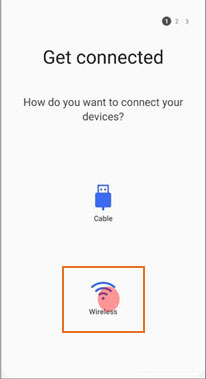
- Select Wireless as the transfer method.
- Allow the two phones to connect through Wi-Fi Direct and confirm the connection request on the realme device.
- Choose the types of data you want to move, such as contacts, messages, photos, videos, apps, call logs, and documents.
- Tap Transfer to begin moving the selected files to the Samsung phone.
- Wait until the transfer finishes and tap Done on the Samsung device to complete the process. (What if Smart Switch gets stuck?)
Why can't my realme phone connect to the Samsung phone through Smart Switch? Connection issues may occur if Wi-Fi or Bluetooth is disabled, the app is outdated, or the phones are too far apart. Updating the app, enabling wireless connections, and restarting both devices may help fix the issue.
Solution 3: Transfer Files from realme to Samsung with Send Anywhere
Wireless file sharing between Android devices can also be handled through Send Anywhere, which uses a temporary key or QR code to link two phones. After selecting files on the realme device, the app generates a secure code for the receiving Samsung phone. Entering that code immediately begins the transfer without requiring a cable or account login. Media files, documents, and other common data types can be moved this way.
How-to Guide:
- Install Send Anywhere on both the realme and Samsung phones from the Google Play Store and open the app.
- On the realme phone, tap the Send tab and choose the files you want to transfer, such as photos, videos, music, or documents.
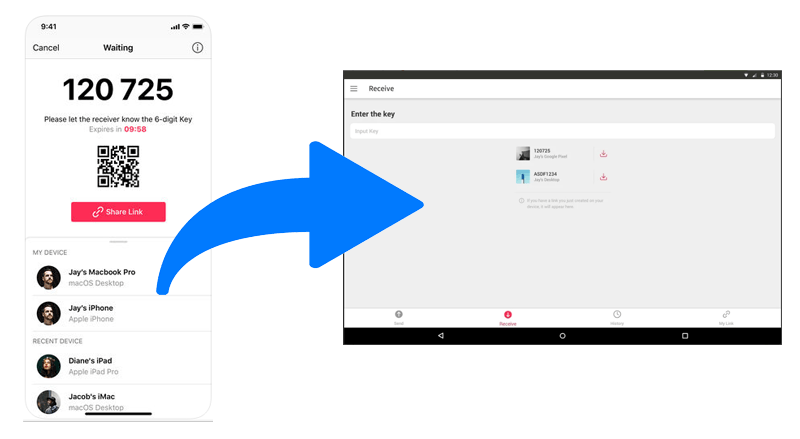
- Tap Send to generate a 6-digit key or QR code for the transfer.
- On the Samsung phone, open the app and tap Receive.
- Enter the 6-digit key or scan the QR code displayed on the realme device.
- Wait while the files transfer directly between the phones.
- After the transfer completes, the received files will be saved in the Send Anywhere folder on the Samsung device.
Note: Direct transfers using the 6-digit key typically do not have strict file size limits. However, cloud sharing links may have certain size restrictions depending on the service. Further, slow transfer speeds may occur due to weak Wi-Fi signals, background apps, or unstable connections. Keeping both phones close together and ensuring a stable network can help improve the transfer process. (Send Anywhere failed to work?)
Solution 4: Transfer All Data from realme to Samsung Phone by Bluetooth
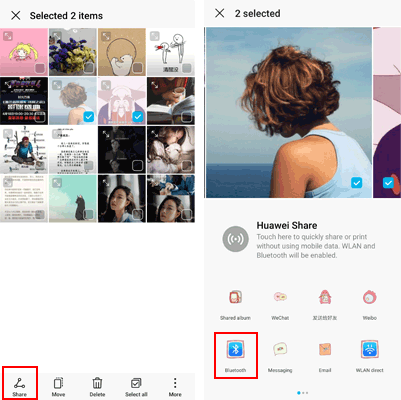
A simple option available on nearly every phone is Bluetooth, which allows nearby devices to exchange files directly. After pairing the realme phone with the Samsung handset, the sender can choose items from the share menu.
The receiving device confirms the request and begins downloading the selected files. This method works reliably for photos or documents, although larger files may take longer to finish transferring.
How-to Guide:
- Turn on Bluetooth on both the realme and Samsung phones from Settings > Bluetooth.
- On one device, scan for nearby devices and select the other phone to start pairing.
- Confirm the pairing code on both phones and tap Pair.
- On the realme phone, open the file you want to transfer (photos, videos, music, or documents).
- Tap the Share icon and choose Bluetooth from the sharing options.
- Select the Samsung phone from the list of paired devices.
- On the Samsung device, tap Accept to receive the files.
- Wait for the transfer to complete; the files will be saved on the Samsung phone.
In Conclusion
The journey from a realme phone to a Samsung device doesn't have to be a leap into the unknown. Whether using Smart Switch, Send Anywhere, Bluetooth, or MobiKin Transfer for Mobile, the choice depends on your pace, file size, and preferred level of control. In the end, the new Samsung phone becomes more than just a device - it carries the continuity of your digital life, ready to pick up exactly where the old phone left off.
Related Articles:
4 Easy Options: How to Screen Mirror realme to PC [Latest]
4 Practical Ways to Recover Deleted Photos on realme Internal Storage
How to Manage Samsung Galaxy Apps on Computer? 5 Verified Methods
