
4 Practical Ways to Recover Deleted Photos on realme Internal Storage
Photos on a realme phone can disappear unexpectedly, especially when you didn't back up data to realme Cloud, Dropbox, or other services, making recovery more urgent. Accidental deletion, system glitches, or a mistaken factory reset can leave users searching for ways to recover deleted photos from realme internal storage.
This guide explains practical methods to restore lost images safely, helping you regain both memories and important files without unnecessary stress.
- #1: Retrieve Deleted Pics on realme Internal Storage via Recycle Bin
- #2: Recover Permanently Deleted Photos from realme via Google Photos Sync
- #3: Recover Deleted Photos from realme Internal Storage via DigDeep Image Recovery
- #4: Recover Deleted Photos on realme Internal Storage Expertly [No Worries]
#1: Retrieve Deleted Pics on realme Internal Storage via Recycle Bin
Deleted photos on realme GT, Number, C, Neo, and Narzo series can sometimes be restored easily if they are still stored in a temporary folder. The Recycle Bin in the Gallery or File Manager keeps recently deleted images for a limited time before permanent removal.
Users can open the Recycle Bin, select the photos they wish to recover, and tap restore to return them to their original album. This method works best for recent deletions and does not require any additional apps or an internet connection. Below is how:
- Open the Gallery app on your realme phone and go to Albums or the main photo view.
- In some versions of realme UI, you may need to tap Utilities or a menu icon to find additional options.
- Look for a folder named Recycle Bin, Recently Deleted, or Trash - this is where deleted photos are temporarily stored before being permanently erased.
- Browse the deleted photos and select the ones you want to recover.
- Tap Restore (or a similar button) to return them to your gallery or original folder.

#2: Recover Permanently Deleted Photos from realme via Google Photos Sync
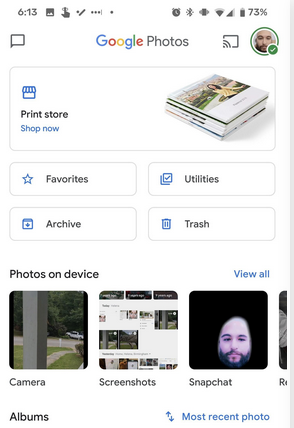
When photos were backed up to the cloud, recovery becomes straightforward using Google Photos Sync. By signing in to the same Google account and accessing the Trash folder, users can view deleted images stored for up to 60 days.
Selecting and restoring these photos brings them back into both the Google Photos library and the phone's gallery. However, this method cannot recover files that were never backed up or those already removed from the Trash. Here's how:
- Open Google Photos and sign in to the same Google account that was linked to your realme device - this lets you access any backed-up media saved in the cloud.
- Tap Library at the bottom, then choose Trash (or Bin) - Google Photos keeps recently deleted backed-up photos here for up to 60 days (longer than the phone's local trash).
- If you see the photos you want, select them and tap Restore - this will bring them back into your Google Photos library and also restore them to your phone's gallery app. (What if Google Photos doesn't show up all the photos?)
Note: If Google Photos Sync doesn't work, try recovering via Google Photos Trash: open the app and go to Library > Trash (Bin), where deleted backup photos are stored for 30-60 days. Select the photos you want and tap Restore to return them to your library and gallery. Even if Sync didn't show the photos in your main library, Trash can often recover them before permanent deletion.
You May Also Like: 5 Ways on How to Transfer Photos from realme to Computer 2026
#3: Recover Deleted Photos from realme Internal Storage via DigDeep Image Recovery
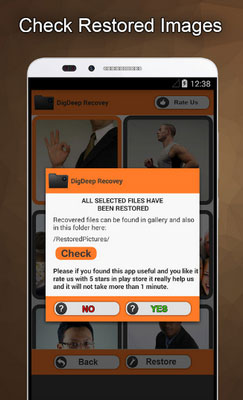
For deeper recovery from internal storage, DigDeep Image Recovery offers a scanning solution for deleted media. After installing the app, it scans the internal memory for lost photos, displaying them in organized folders. Users can preview the recoverable images and restore selected ones back to the device. The success rate depends on how recently the files were deleted and whether their storage space has been overwritten. Here are the steps:
- Install and Open DigDeep Image Recovery from the Play Store on your realme device. The app will automatically start scanning your phone's internal storage (and SD card if present) for deleted images - this can take some time depending on how much memory you have.
- Once the scan finishes, you'll see a list of folders showing recoverable pictures grouped by location - browse through these folders to find the deleted photos you want to retrieve.
- Select the photos you want to recover and tap the Restore button; the app will save the restored images back to your device's gallery or another folder you choose.
#4: Recover Deleted Photos on realme Internal Storage Expertly [No Worries]
When other methods fail, MobiKin Doctor for Android (Windows/Mac) provides a more advanced recovery approach. It can scan both internal memory and SD cards to locate deleted photos, contacts, messages, and other data.
This tool efficiently recovers deleted photos from realme internal storage without needing a backup. It supports almost all realme/Android models (The latest realme 16 is included) and lets you preview and select images before restoring them in their original quality. The recovery process is error-free and ensures full privacy protection.
Here's how to use MobiKin Doctor for Android for photo recovery from realme internal storage:
- Start by installing the utility on your computer when the free download is done.
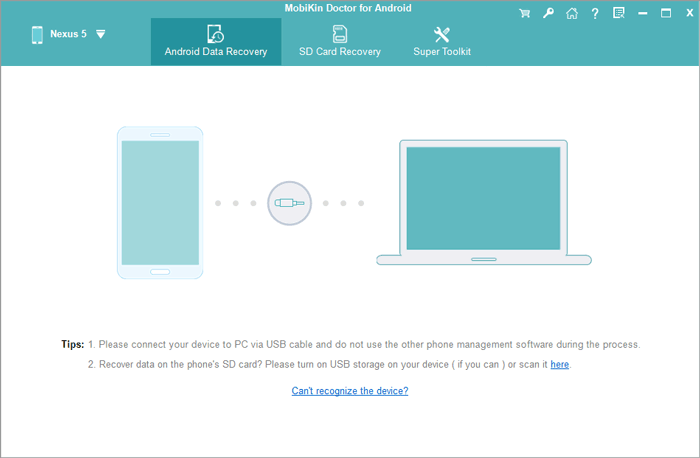
- Once this is done, connect your realme device to the computer using a USB cable.
- Ensure that the phone is rooted and that USB debugging is enabled, as per the instructions, to allow the tool to recognize the connected device.
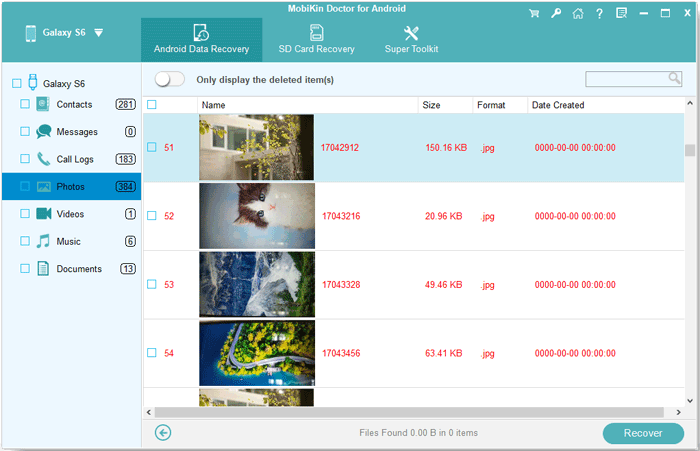
- Select "Photos" and then click on "Next" to begin the scanning process, which will retrieve all lost content.
- Once the scanning is finished, preview the recovered images and choose the items you wish to restore.
- Finally, click on the "Recover" button to transfer the restored content to your computer.


Video Directions:
1. Stop using your phone when the images are lost from your device (Avoid data being overwritten). 2. The duration depends on the number of photos and storage size, but it typically completes within minutes for standard internal storage scans. 3. The program guarantees that all your data remains private and is not uploaded to any server.
Words in the End
For retrieving photos from realme internal storage, MobiKin Doctor for Android remains the most reliable tool. It provides a clear preview of recoverable images, allowing you to restore only what is needed. With support for nearly all realme models and the ability to recover photos in their original quality, it ensures fast and safe recovery every time.
Related Articles:
How to Unlock realme Phone with/without Losing Data? 6 Methods Included
How to Hard/Factory Reset realme 16/15/14/13/12/11 Quickly
4 Easy Options: How to Screen Mirror realme to PC [Latest]
4 Handy Ways to Transfer Data/Files from realme to realme [Latest]
