
How to Transfer Data from Redmi to iPhone [Full Guide]
Transferring data from an Android device to an iPhone can feel cumbersome because the two systems run on different operating systems. However, once you understand the right approach, the process becomes much easier. Redmi has become one of the most popular smartphone brands, yet many users still choose to switch to an iPhone for its smooth system performance and strong security features. Today, we will share several effective methods to help you transfer data from Redmi to iPhone with ease.

Part 1: Transfer Data from Redmi to iPhone with Transfer for Mobile
To transfer all your phone data from Redmi to iPhone, you can use a handy phone transfer tool called MobiKin Transfer for Mobile. It is a professional iOS and Android data synchronization tool that allows you to transfer messages, contacts, music, videos, audio files, and other data between iOS and Android devices with just a few clicks. It supports multiple operating systems, which means you can transfer data from Android to Android, Android to iOS, iOS to iOS, and iOS to Android with ease.
Key Highlights of Transfer for Mobile:
- Transfer contacts, messages, music, photos, videos, apps, notes, eBooks, and more.
- One click to transfer data between iOS and Android, iOS and iOS, and Android and Android.
- Selectively transfer phone data between two devices without any quality loss.
- User-friendly interface, making it suitable for all experience levels.
- Fully compatible with almost all iPhone and Redmi models, including iPhone 17, 16, 15, 14, 13, 12, 11, X, 8, 7, and 6, as well as popular Redmi devices such as Redmi Note 13, Redmi 13C, Redmi K70, and more.


Here are the detail steps to switch from Redmi to iPhone by using Transfer for Mobile.
Step 1: Install and launch Transfer for Mobile
Download and install the Redmi to iPhone Transfer tool on your computer. Launch the program, then connect your Redmi phone and iPhone to the computer using USB cables.

Step 2: Select the data for transfer
Once connected, both devices will be detected by Transfer for Mobile. Make sure your Redmi phone appears on the left as the source device and your iPhone is on the right as the target device. If needed, click the "Flip" button in the middle to switch their positions.
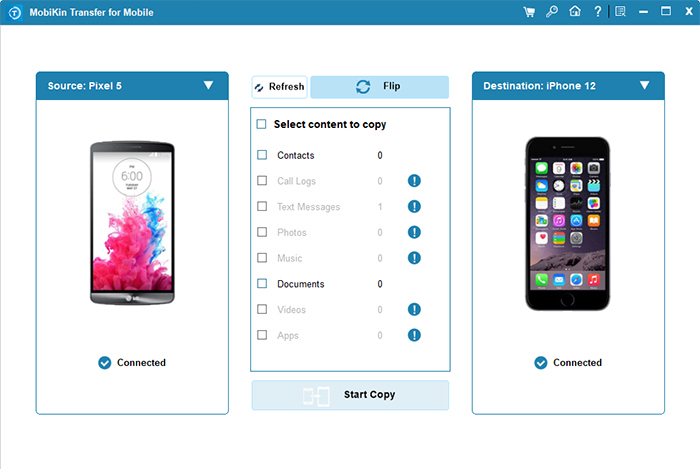
Step 3: Start the Redmi to iPhone transfer
Select the data you want to transfer, such as contacts, documents, and more, from your Redmi Android phone to your iPhone. After making your selection, click "Start Copy" to begin the transfer.
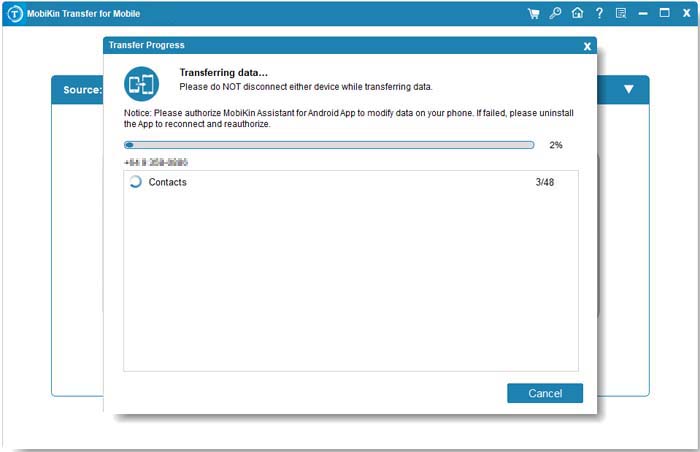
Keep both phones connected to the computer during the process and wait patiently until it is complete. When finished, your data will be successfully transferred from your Redmi phone to your iPhone.
Video Guide:
Part 2: Copy Data from Redmi to iPhone Using Move to iOS
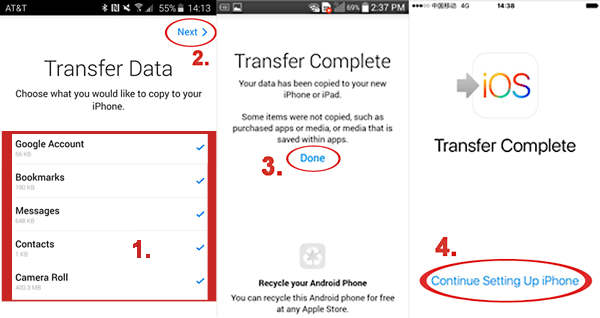
Move to iOS is a free, built-in solution developed by Apple. Android users can download the Move to iOS app from the Play Store. It is especially useful when you need to move system settings and other data from a Redmi phone to a new iPhone. If you do not have a computer and prefer to transfer data over Wi-Fi, Move to iOS is a good choice.
Step 1: Install "Move to iOS" on Redmi
Check the Wi-Fi connection and battery level on both phones. Make sure they are sufficiently charged and that the network connection is stable. Then install "Move to iOS" on your source device, the Redmi phone, in advance.
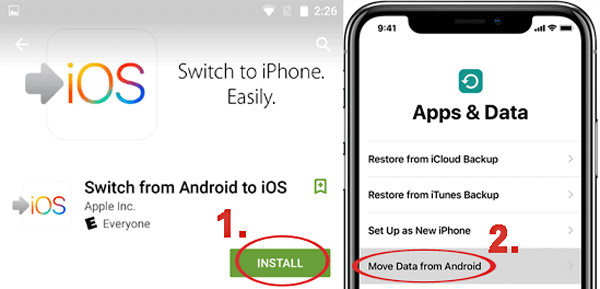
Step 2: Establish a secure connection
Launch "Move to iOS" on your Redmi phone, then turn on your iPhone and complete the initial setup. Follow the on-screen instructions and tap "Continue" when prompted to confirm your data transfer choice. A one-time code will appear on your iPhone. Enter this code on your Android device to create a secure connection between the two phones.
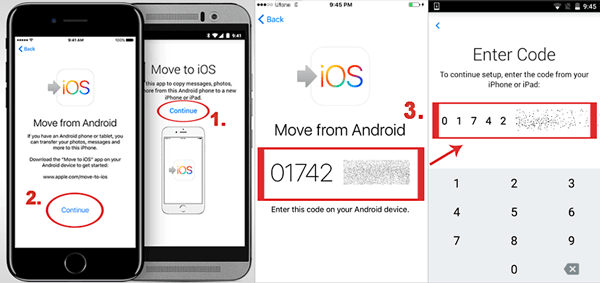
Step 3: Select content to transfer
Keep both devices connected to the same Wi-Fi network. Once the connection is established, you can select the content you want to transfer. Start the transfer and wait patiently. It is recommended to keep both phones unlocked and check the progress from time to time. After that, the selected data will be transferred from your Redmi phone to the iPhone.
Read If You Like:
Part 3: Move Data from Redmi to iPhone with iTunes
If you do not mind a more complex and time consuming method, you can transfer music, photos, and videos from your Redmi phone to your iPhone using iTunes or Finder. To begin, download and install the latest version of iTunes on your Mac or PC.
Note: Syncing data through iTunes will remove the existing content on your iPhone or iPad. Make sure you back up your device before starting the Redmi to iPhone transfer.
Step 1: Install and Launch iTunes
Go to the official Apple website and download the latest version of iTunes for your computer. Create an Apple ID if needed, but do not sign in yet.
Step 2: Copy Data from Redmi to Computer
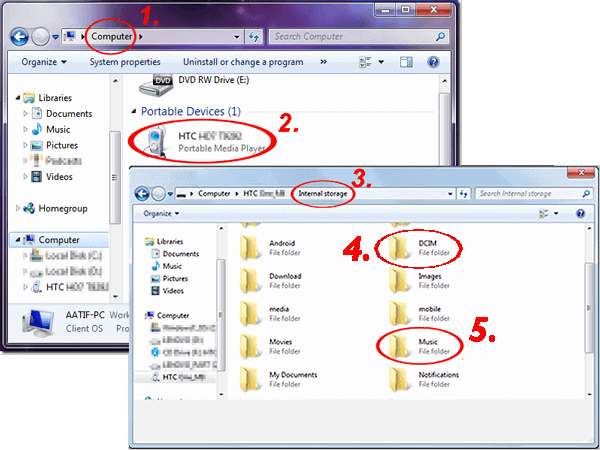
Connect your Redmi phone to the computer. Once it appears in File Explorer or Finder, create a new folder on your computer and drag the music, photos, and videos you want to transfer into that folder. This step is straightforward and usually only takes a few minutes.
Step 3: Sync Music to iPhone
In iTunes, click "File" and choose "Add Folder to Library." Select the folder you created to import your music into the iTunes library.
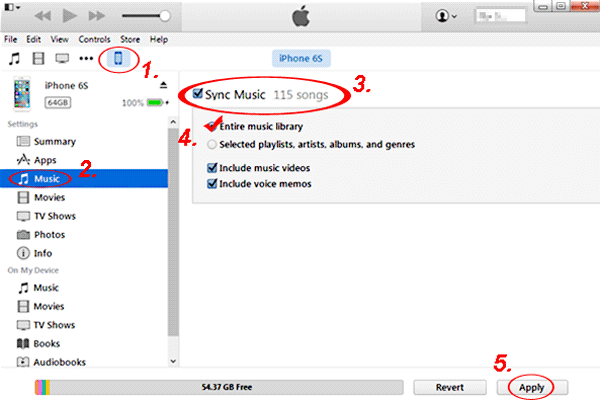
Next, click the "Device" icon, go to "Music," and choose whether to sync the entire library or selected songs only. Click "Apply" to start syncing.
Step 4: Sync Photos and Videos to iPhone
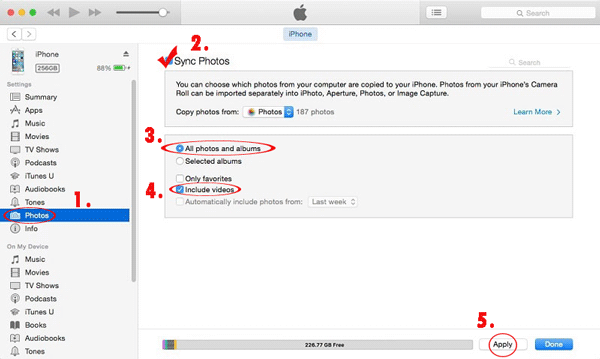
Click the "Device" icon again and select "Photos." Enable "Sync Photos" and choose the folder you created on your computer. Select "All folders" and check "Include Videos," then click "Apply" to complete the transfer.
Part 4: Sync Data from Redmi to iPhone via Google Drive
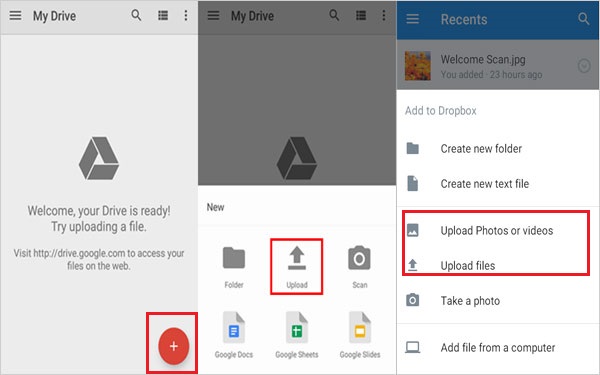
Google Drive is a convenient way to back up and move data between Android and iOS devices. With this method, you can transfer data from Android to iPhone without resetting your iPhone. Here is how to do it:
- On your Android phone, install Google Drive from the Play Store and sign in with your Google account.
- Open Google Drive, go to the "Backup" settings, and choose the data you want to back up.
- Once the backup is finished, install Google Drive from the App Store on your iPhone and sign in using the same Google account.
- Access your backup in Google Drive and restore the data to your iPhone.
FAQs about Redmi to iPhone Transfer
We hope this guide helps you successfully transfer data from Android to iPhone. Below, we answer some commonly asked questions about the process.
Q1: Will I lose any data during the transfer?
Yes, when using "Move to iOS" or other free methods, there might be certain data that doesn't transfer. This includes:
- Purchased apps
- Free apps that aren't available in the iOS App Store
- In-app purchases
- Accessibility and display settings
- Messages from certain messaging apps
Q2: Can I use the "Move to iOS" app after setting up my iPhone?
No, the "Move to iOS" app is only available for use before setting up the iPhone. If you've already set up the phone and need to transfer data, you can either restore data from Google Drive or use "MobiKin Transfer for Mobile" to move all your data from Android to iPhone.
Q3: How can I transfer WhatsApp data from Android to iPhone?
There are several methods to transfer WhatsApp data from Android to iPhone. Whether you want to transfer your WhatsApp messages without backup, freely, or without using a computer, you can check out this article for all the details on transferring WhatsApp data from Android to iPhone.
The Bottom Line
That's everything for transferring data from a Redmi to an iPhone. Which method do you prefer? Whether you want to transfer all your data from a Redmi Android phone or selectively transfer specific files, you can try MobiKin Transfer for Mobile for free to make the switch from Redmi to iPhone. If you have any questions, feel free to leave a comment, and we'll assist you as soon as possible.
Related Article:
How to Transfer Data from POCO to iPhone [Updated Guide]
How to Transfer Contacts from Android to iPhone? (4 Quick & Safe Ways)
Best 5 Ways to Transfer Music from Android to iPhone In Minutes
[Fast Transfer] Top 8 Ways to Send Video from Android to iPhone
