
How to Transfer Data from POCO to iPhone [Updated Guide]
Just unboxed a brand-new iPhone? Welcome aboard! While the excitement is real, one challenge often follows-moving your data from your old POCO phone to your new iPhone. Switching from one iPhone to another is usually smooth and fast, but transferring files from a POCO (Android-based) device to iOS can feel confusing and time-consuming at first.
The good news is that you don't have to struggle. There are several practical and reliable ways to transfer your photos, contacts, messages, and more from a POCO phone to an iPhone without losing important data. In the following sections, we'll walk you through the most effective methods one by one.
- Method 1: Transfer Data from POCO to iPhone with Move to iOS
- Method 2: Move Data from POCO to iPhone via Transfer for Mobile [HOT!]
- Method 3: Copy Data from POCO to iPhone with iTunes/Finder
- Method 4: Transfer Files from POCO to iPhone Using Google Drive
- Method 5: Move Data from POCO to iPhone via Email
Method 1: Transfer Data from POCO to iPhone with Move to iOS
One of the quickest and most convenient ways to move your data from a POCO phone to an iPhone is by using Apple's Move to iOS app. Keep in mind that this method only works during the initial setup of your iPhone. If your iPhone has already been set up, you'll need to erase it and start the setup process again.
Below is a step-by-step guide to help you through the process:
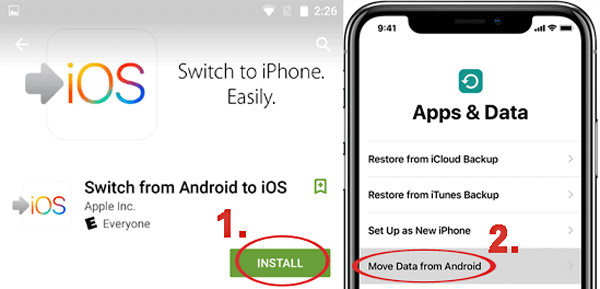
- Download the Move to iOS app from Google Play on your POCO phone.
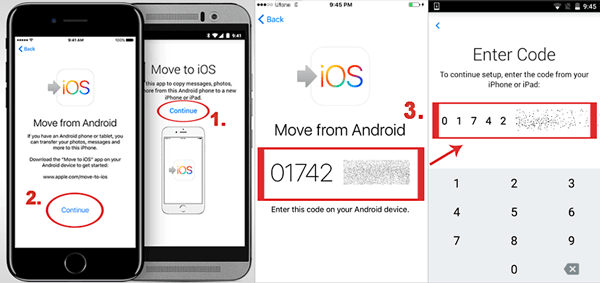
- Open the app, tap "Continue", review the terms and conditions, and tap "Agree" to proceed.
- Launch the Move to iOS app on your POCO device.
- Turn on your iPhone and navigate to the "Apps & Data" screen, then choose "Move Data from Android".
- A 6-digit or 10-digit code will appear on your iPhone. (If your POCO phone shows a warning about a weak internet connection, you can safely ignore it-this is a known issue.)
- Enter the displayed code on your POCO phone.
- Your iPhone will generate a temporary Wi-Fi network. When prompted, tap "Connect" on your POCO phone to join it.
- Wait until the Transfer Data screen appears on your POCO device.
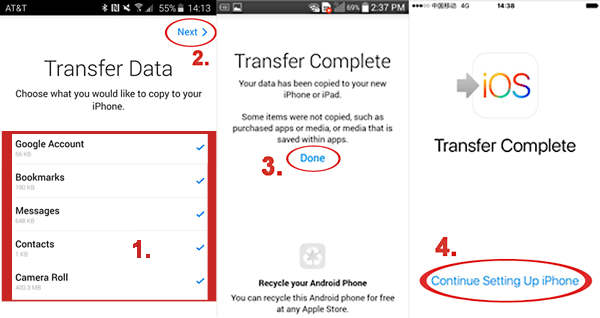
- Select the types of data you want to move-such as contacts, photos, or messages-then tap "Continue".
- Keep both devices close to each other and connected to power until the progress bar on your iPhone finishes. Depending on the data size, this process may take 30 minutes or more.
- Once the transfer completes, tap "Done" on your POCO phone. Then tap "Continue" on your iPhone and follow the on-screen instructions to complete the setup.
If you need additional guidance, you can also refer to a detailed tutorial on What to Do before Getting a New iPhone for a smoother experience.
Method 2: Move Data from POCO to iPhone via Transfer for Mobile
To move all your phone data from a POCO device to an iPhone, you can rely on a powerful phone transfer solution - MobiKin Transfer for Mobile. This all-in-one mobile management tool is designed for seamless data syncing, backup, and migration between iOS devices, Android phones, and computers. With just a few clicks, you can transfer essential data such as contacts, messages, call records, music, videos, and more. It supports cross-platform transfers, allowing data movement between Android and Android, Android and iOS, as well as iOS to iOS.
Key Features of Transfer for Mobile:
- Seamlessly transfers data between POCO and iPhone.
- Move contacts, SMS, call logs, WhatsApp data, music, photos, videos, apps, Safari history, bookmarks, notes, eBooks, and other files.
- One-click solution for fast data transfer between iOS and Android devices.
- Allows selective data migration while preserving original file quality.
- Fully compatible with mainstream iOS and Android devices, including iPhone 17/16/15/14/13/12/11/X/8/7/6 and popular POCO models such as POCO X7 (Pro), X6, F7 (Pro), F6, C75, and more.


Here are the detailed steps to move data from a POCO phone to an iPhone using Transfer for Mobile.
Step 1: Install and open Transfer for Mobile
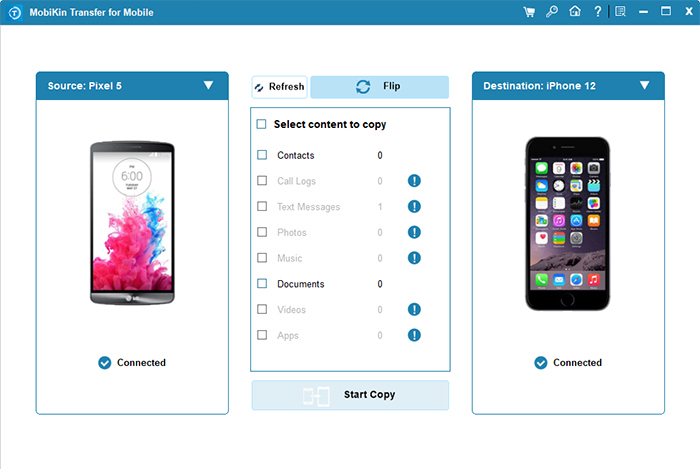
First, download and install MobiKin Transfer for Mobile on your computer. After launching the software, connect your POCO device and iPhone to the computer using USB cables. Once both devices are detected, the program will show a list of data types that can be transferred.
Step 2: Choose the content you want to move
Check whether the POCO phone is set as the source device. If not, click the "Flip" button to switch the device positions. Then, select the files you want to transfer, such as contacts, photos, messages, and other supported data.
Step 3: Begin transferring data from POCO to iPhone
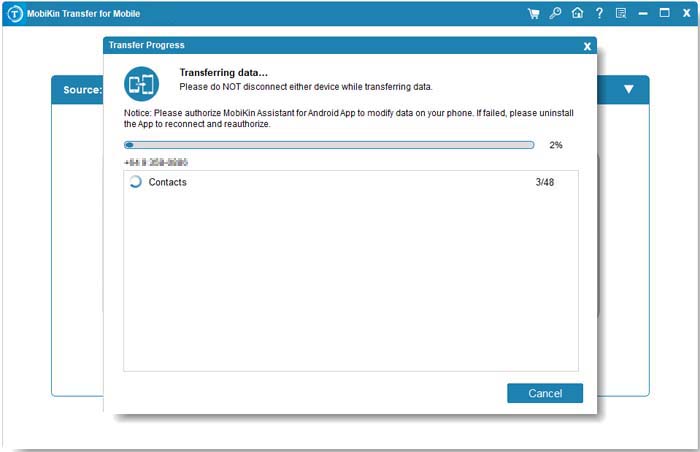
After making your selections, click "Start Copy". The software will start moving the chosen data from your POCO phone to the iPhone automatically. Keep both devices connected until the process is complete.
Video Guide:
Read If You Like:
Method 3: Copy Data from POCO to iPhone with iTunes/Finder
If you don't mind a more manual and slightly longer process, you can move media files such as music, photos, and videos from your POCO phone to your iPhone using "iTunes" (on Windows or older macOS) or "Finder" (on newer macOS versions). To begin, make sure you have the latest version of iTunes installed on your computer.
Note: Syncing content through iTunes or Finder will replace the existing media on your iPhone. To avoid unexpected data loss, it's strongly recommended that you back up your iPhone before proceeding with the POCO-to-iPhone transfer.
Step 1: Download and Open iTunes
Go to Apple's official website and install the newest version of iTunes on your Windows PC or Mac (if required). Create an Apple ID if you don't already have one, but hold off on signing in for now.
Step 2: Copy Files from POCO to Computer
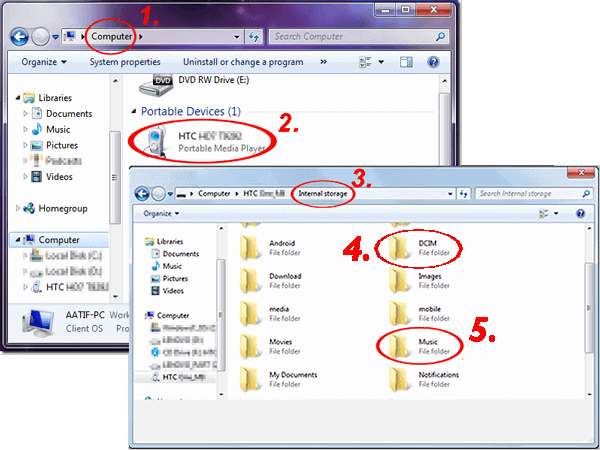
Connect your POCO phone to the computer using a USB cable. Once detected, open the file explorer and access your POCO's storage. Manually copy the music, photos, and videos you want to move, then paste them into a dedicated folder on your computer. This step is straightforward and usually finishes quickly.
Step 3: Sign In to iTunes
Launch iTunes and sign in with the Apple ID you created earlier. This will allow you to manage and sync content to your iPhone.
Step 4: Sync Music to Your iPhone
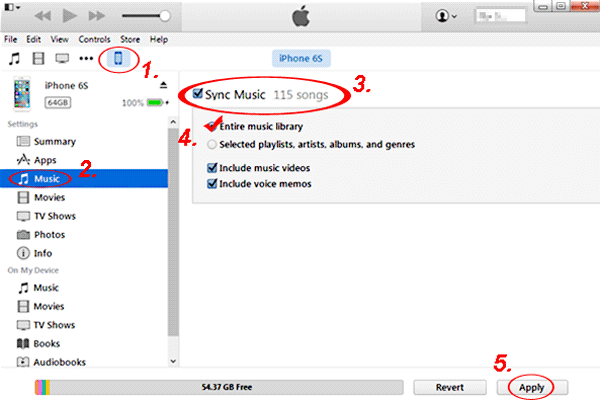
In iTunes, click "File" > "Add Folder to Library" and select the folder that contains your music files. After the music is added to the library, connect your iPhone and open the "Device" section. Choose "Music", decide whether to sync the entire library or selected tracks, and then click "Apply" to start syncing.
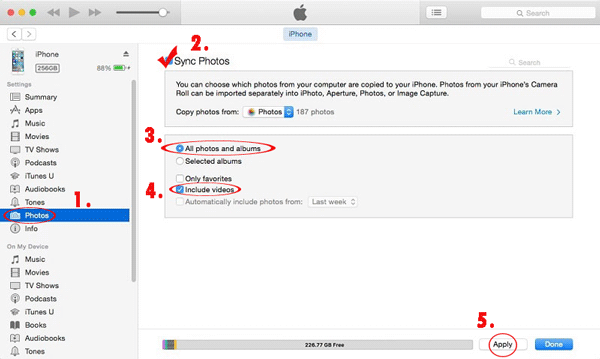
Step 5: Sync Photos and Videos to iPhone
Still in the "Device" section, switch to "Photos". Enable "Sync Photos", select the folder you created earlier, and choose "All folders". Make sure "Include Videos" is checked if needed. Click "Apply" to complete the transfer of photos and videos to your iPhone.
Read If You Like:
Method 4: Transfer Files from POCO to iPhone Using Google Drive
Google Drive is a powerful cloud storage platform that comes free with any Google (Gmail) account. It allows you to safely back up and store a wide range of files, including documents, photos, and videos. When you need a convenient way to move photos or other files from a POCO phone to an iPhone, Google Drive provides a straightforward and reliable cloud-based option.
To transfer files from POCO to iPhone using Google Drive, follow the steps below:
Step 1: Upload files from your POCO phone
Check whether Google Drive is installed on your POCO device. If it isn't, download it from the Google Play Store. Next, locate the files you want to transfer on your POCO phone, tap Share, and select Save to Drive. The selected files will then be uploaded to your Google Drive account.
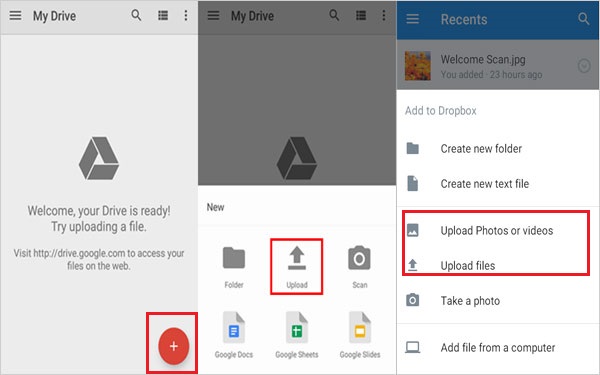
Once the upload is complete, switch to your iPhone.
Step 2: Install Google Drive on your iPhone
Go to the App Store and download the Google Drive app on your iPhone.
Step 3: Download files to your iPhone
Open Google Drive on your iPhone and sign in with the same Google account used on your POCO phone. You will see all the uploaded files there, and you can then download them directly to your iPhone.
Method 5: Move Data from POCO to iPhone via Email
Using email is a quick and easy way to send small files from a POCO phone to your iPhone. While this method isn't suitable for transferring large amounts of data, it works perfectly if you just need to share a few photos or short videos. Here's a step-by-step guide showing you how to send photos from your POCO device to your iPhone via email.
Step 1: Create a new email on your POCO phone
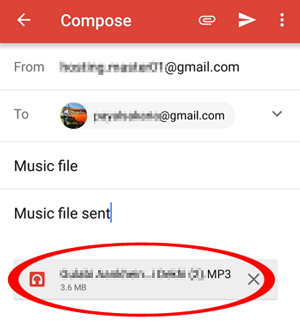
Open the email app on your POCO device and tap "Compose" or "New Mail". In the "To" field, enter your own email address or the recipient's email address.
Step 2: Attach and send the photos
Tap the "Attachment" icon (usually shown as a paperclip), then choose the photos you want to transfer from your POCO phone. After attaching the selected images, tap "Send" to deliver the email.
Step 3: Download the photos on your iPhone
Sign in to the same email account on your iPhone. Open the email containing the photo attachments and download them to your iPhone to finish the transfer.
The Bottom Line
Moving data from a POCO phone to an iPhone doesn't have to be complicated. With the right method, you can quickly transfer photos, contacts, and other important files in just a few minutes. The solutions mentioned above cover different needs and situations, so all you need to do is pick the one that works best for you. Once chosen, you'll be ready to enjoy your new iPhone without missing a thing.
Related Article:
Smart Switch Failed to Connect the Device? 8 Optimal Solutions Here
5 Easy Options: How to Transfer Photos from POCO to Mac
