
How to Transfer Music from Huawei to iPhone [Simple Guide 2026]
Switching from a Huawei phone to an iPhone is exciting, but moving your favorite music can feel tricky. Unlike Android and iOS systems, they don't naturally sync with each other, making manual transfers seem complicated. Whether you have hundreds of songs stored on your Huawei device or playlists you want to keep, it's essential to find a method that's fast, safe, and avoids data loss.
In this guide, we'll show you step-by-step how to transfer music from Huawei to iPhone using multiple methods, including third-party tools, computer transfers, and cloud solutions, so your tunes follow you seamlessly.
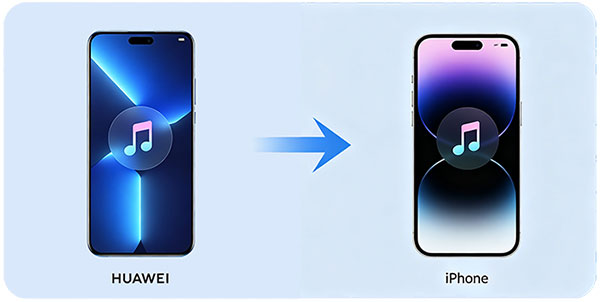
Way 1: Transfer Music from Huawei to iPhone with Phone Transfer
Switching from a Huawei device to an iPhone doesn't have to mean leaving your favorite songs behind. With Phone Transfer, moving music is fast, safe, and straightforward. This tool works across different operating systems, letting you transfer not only music but also photos, contacts, videos, and other files without any compatibility problems.
Key Benefits of Using Phone Transfer:
- Seamlessly move music from Huawei to iPhone.
- Backup and restore your phone data without relying on iTunes.
- Manage contacts, photos, and videos on your device.
- Automatically convert media files that aren't compatible with iOS.
- Preview songs and choose exactly what to transfer.
- Supports a wide range of models, including iPhone 17/16/15/14/13/12/11/X/8/7/6 and Huawei Mate 80/70/60, P80/70/60, Nova 15/14/13/12/11, and Y series devices.


Steps to transfer music from HONOR to iPhone using Phone Transfer:
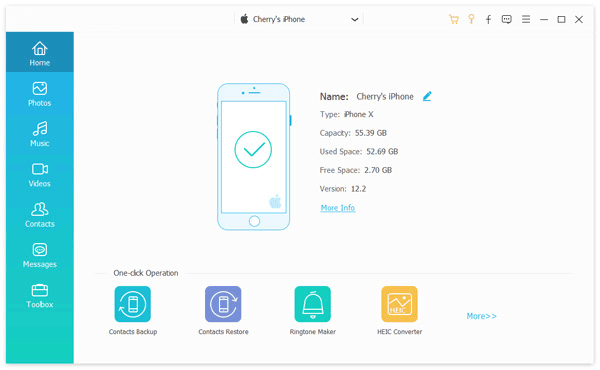
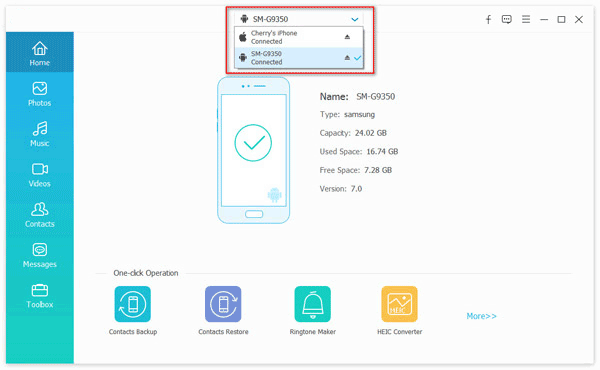
Step 1. Connect both your Huawei phone and iPhone to your PC using USB cables. Launch Phone Transfer, and it will detect both devices automatically.
Step 2. Open the "Music" tab on your Huawei device within the program. Browse your library and select the songs you want to move.
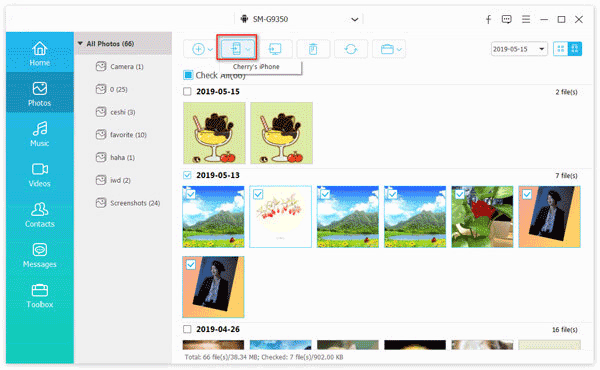
Step 3. Click "Export to Device" and pick your iPhone as the destination. The software will handle the transfer, ensuring your music appears on your iPhone without any issues.
After the process finishes, safely unplug both phones. Your Huawei music collection is now ready to enjoy on your iPhone.
You May Also Like:
Way 2: Move Songs from Huawei to iPhone via iTunes
Although iTunes cannot directly access music on a Huawei phone, you can still move your songs to an iPhone by using your computer as a bridge. This method works well if you have a moderate music library and want to organize your songs carefully before syncing to iPhone.
Steps to transfer music from Huawei to iPhone via iTunes:
- Connect your Huawei phone to your computer using a USB cable.
- Open the Huawei device folder on your computer and navigate to the Music folder.
- Copy the songs you want and paste them into a new folder on your computer for easy access.
- Open iTunes (or Apple Music on Mac), then go to "File" > "Add File to Library" or "Add Folder to Library".
- Select the folder containing your Huawei songs and import them into iTunes.
- Connect your iPhone to the computer with a USB cable.
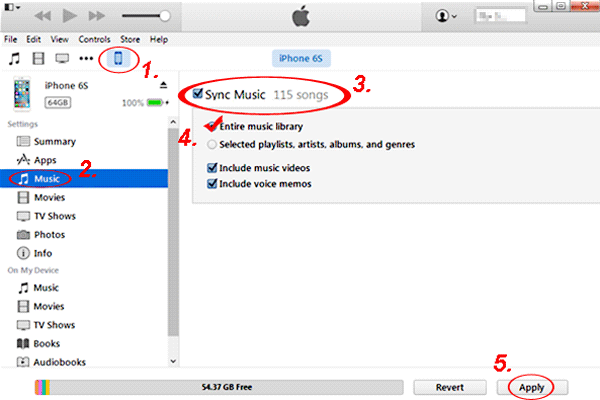
- Click the iPhone icon in iTunes, go to the Music section, and choose "Sync Music."
- Select the songs or playlists you want to transfer from iTunes to your iPhone, then click "Apply"/"Sync".
iTunes won't sync music to iPhone? Here are several tips to fix iTunes not syncing songs to iPhone issue and the alternative way to transfer iTunes music to iPhone.
Way 3: Sync Huawei Music with iPhone via Google Drive
Using cloud storage is another convenient way to transfer music from a Huawei phone to an iPhone. This method is ideal if you want to avoid connecting cables or installing additional software. By uploading your songs to a cloud service, you can access them on your iPhone anytime, anywhere. Google Drive, Dropbox, and iCloud are all popular options, each with its own advantages depending on your storage needs. Here we take Google Drive as an example.
Steps to transfer music using Google Drive:
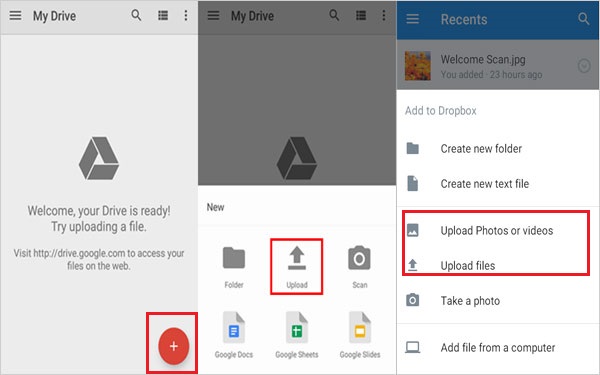
- Open the Google Drive app on your Huawei phone and sign in.
- Create a new folder for your music files to keep them organized.
- Select the songs you want to transfer and upload them to the folder. (How to Back Up to iCloud from Android?)
- On your iPhone, install and open the Google Drive app, then sign in with the same account.
- Navigate to the music folder and either stream the songs directly or download them to your iPhone.
- Once downloaded, you can enjoy your Huawei music through the Google Drive app or import them to your iPhone Music app.
The Bottom Line
Transferring music from Huawei to iPhone doesn't have to be difficult. Whether you prefer a direct phone transfer tool, a computer-based iTunes method, or a cloud service like Google Drive, each option allows you to keep your favorite songs safe and organized. Choose the method that fits your needs and enjoy your Huawei music seamlessly on your iPhone.
Hot Articles:
6 Error-free Ways: How to Back Up & Restore Huawei Phone
How to Transfer Contacts from iPhone to Huawei in 2026
