
How to Transfer Music from IQOO to IQOO? [Way 1 Is Ideal]
A new iQOO phone brings excitement, but many users soon face the challenge of preserving their music library. When they want to keep their music collection without redownloading everything, knowing how to transfer music from iQOO to iQOO becomes essential. This guide introduces 4 fabulous ways to transfer music, ensuring favorite tracks move smoothly from one device to another without any hassle.
#1: How to Transfer Music from IQOO to IQOO via MobiKin Software [Quick]
Moving songs from one iQOO phone to another can be completed quickly with MobiKin Transfer for Mobile (Windows/Mac). This desktop program connects both devices and copies music directly without complicated setup. It allows users to move songs in batches while keeping the original quality and file names. The process is stable and usually finishes within minutes even when transferring a large music library.
Beyond music, it can copy contacts, SMS, call logs, photos, videos, apps, and more, supporting transfers between Android and iOS in both directions.
The IQOO sync manager also offers options to erase target device data, works quickly and securely, and runs smoothly on a wide range of iQOO models, including Number 15–9, Z5–Z9, Neo 6–9S Pro, U3–U5e, and Legend 5–12 Legend.


User Manual:
Step 1. Begin by executing this efficient tool on your computer - First, install MobiKin Transfer for Mobile on your computer and launch it. Subsequently, you will observe the initial interface of this application.
Step 2. Connect IQOO devices to the PC - Utilize appropriate USB cables to connect the two IQOO phones to the computer. Following detection, you will see them displayed on either side of the window. Adjust their positions by clicking "Flip" if the recipient is not your intended destination IQOO.
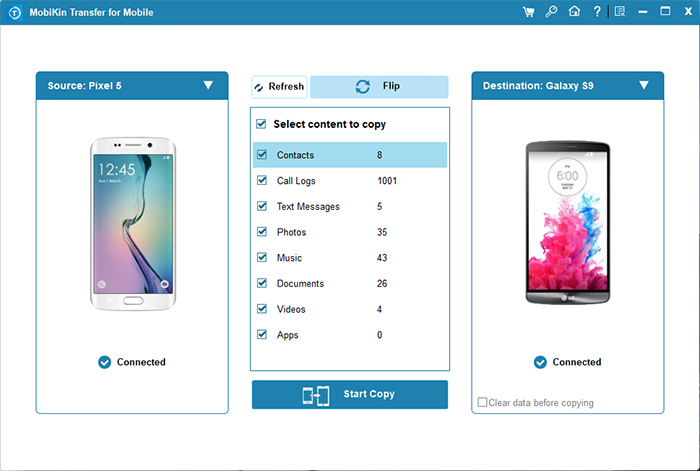
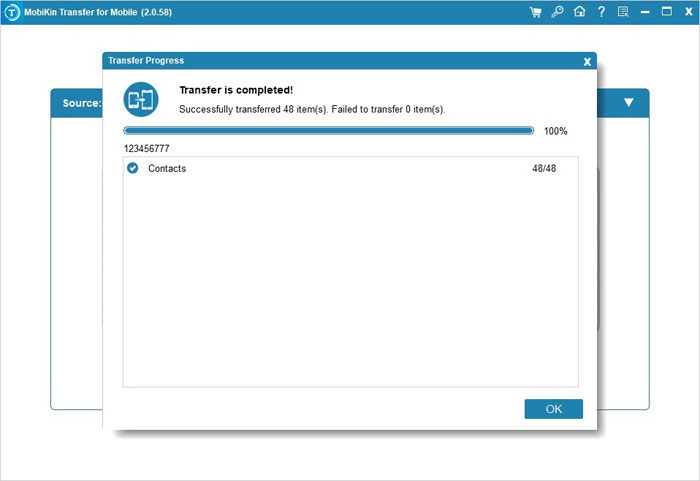
Step 3. Transfer Music from IQOO to IQOO - Select the "Music" option and then click the "Start Copy" button to initiate the transfer process. After a brief period, you will find the transferred music on your new IQOO.
Video Instructions:
You May Also Like: How to Recover Deleted Music Files from IQOO Phone? 4 Trusted Means
#2: How to Transfer Music to a New IQOO Phone Using EasyShare
A built-in sharing feature on vivo and iQOO devices also makes music transfer simple through EasyShare. Once both phones enable the feature, they can detect each other through a wireless connection. Songs can then be selected and sent in bulk without using mobile data. The transfer speed is generally faster than traditional wireless methods.
User Manual:
- Install and open EasyShare on both the old phone and the new iQOO phone from Google Play.
- On the old phone, tap Send.
- On the new iQOO phone, tap Receive to allow incoming files.
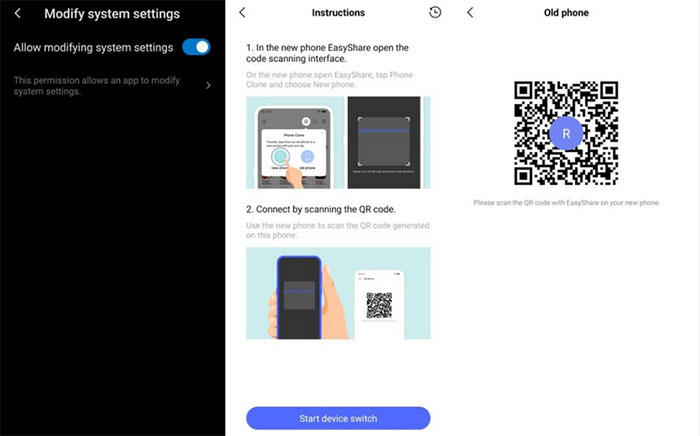
- Wait for the receiving phone to appear on the screen, then tap the device name or scan the QR code to connect.
- After the devices connect successfully, open the Music/Audio category.
- Select the songs you want to transfer to the new iQOO phone.
- Tap Send to begin the transfer process.
- Accept the transfer on the new iQOO phone if prompted.
- Wait for the transfer to complete; the music files will be saved automatically to the phone storage.
- Open your Music player on the new iQOO phone to confirm the songs were transferred successfully. (EasyShare refuses to work?)
#3: How to Share Music in IQOO via File Manager & Bluetooth
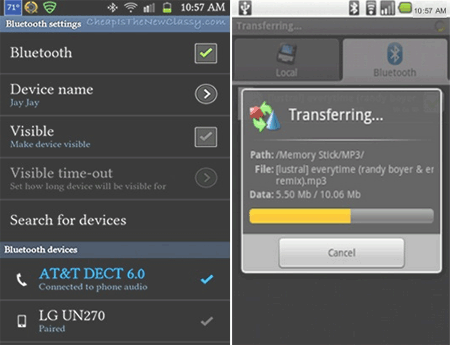
Wireless exchange between two nearby phones can also rely on Bluetooth. After pairing the two iQOO devices, music files can be selected and shared through the Bluetooth menu. This method does not require extra apps or cables. However, the sending speed may be slower when many songs are involved.
User Manual:
- Turn on Bluetooth on both iQOO phones from Settings > Bluetooth and make sure the devices are visible to each other.
- Pair the devices by selecting the receiving phone from the Bluetooth list and confirming the pairing request on both phones.
- Open the File Manager app on the sending iQOO phone.
- Navigate to Audio/Music or the folder where your songs are stored.
- Long-press the music file you want to share to select it.
- Tap the Share icon at the bottom or top of the screen.
- Choose Bluetooth from the sharing options.
- Select the paired iQOO device from the Bluetooth device list.
- On the receiving phone, tap Accept when the Bluetooth transfer request appears.
- Wait for the transfer to finish; the music file will be saved in the Bluetooth or received files folder on the receiving phone.
Learn More: How to Transfer Music from iQOO to iPhone: Guide in 2026
#4: How to Send Music to Another IQOO via SuperBeam
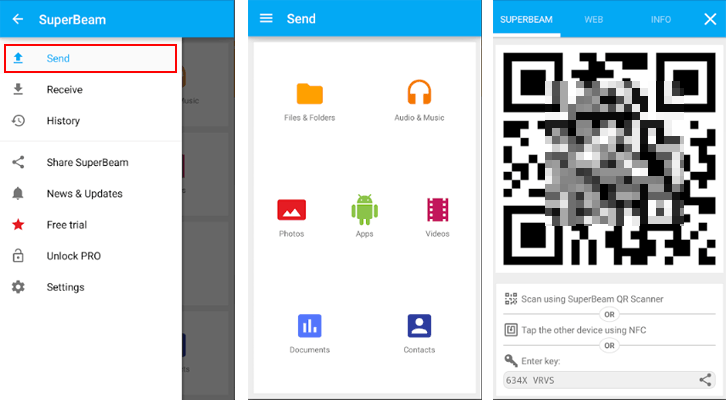
Another option is file sharing through SuperBeam, which uses Wi-Fi Direct to move data between phones. Users simply select the songs and connect the devices by scanning a QR code or tapping them together. With this EasyShare replacement, you can create a direct wireless link, which helps speed up the transfer process. Large music collections can be delivered more quickly compared with Bluetooth.
User Manual:
- Install SuperBeam on both iQOO phones from the Google Play Store.
- Open the SuperBeam app on the sending phone.
- Tap Send and choose the Audio/Music category.
- Select the music files you want to share.
- Tap the Send arrow to generate a QR code or sharing key.
- Open SuperBeam on the receiving iQOO phone and tap Receive.
- Tap the QR code scanner and scan the code shown on the sending phone.
- Wait for the two phones to connect through Wi-Fi Direct.
- The music files will start transferring automatically.
- After the transfer finishes, find the songs in the SuperBeam folder on the receiving phone.
FAQs for Transferring Music from IQOO to IQOO
Q1. Why is the music transfer between iQOO phones slow?
Transfer speed depends on the method being used. Bluetooth normally takes more time, especially when many songs are involved. Wi-Fi–based sharing tools usually provide faster performance. Weak signals or background apps may also slow down the process.
Q2. What music formats can be transferred from one iQOO phone to another?
Most common audio formats are supported. Files such as MP3, AAC, WAV, and FLAC can usually be shared without compatibility problems. As long as the songs are stored locally on the phone, they can be transferred. Music from subscription streaming apps may be restricted.
Q3. Will transferring music affect the audio quality?
Normally, the quality remains unchanged after the transfer. File-sharing methods simply copy the original music file to the new device. The bitrate and format stay exactly the same. Any quality issue usually comes from the source file itself.
Q4. Where will the transferred songs appear on the receiving iQOO phone?
The files are often saved in the Music folder or the Downloads directory. You can locate them through the File Manager app. Some sharing tools create their own folders for received files. Once found, the songs can be played or organized in the music player.
Q5: Which is the best method to transfer music from IQOO to IQOO?
In this article, several methods can move songs between two iQOO phones, including EasyShare, Bluetooth, and other wireless sharing tools.
However, MobiKin Transfer for Mobile is often considered the most efficient option because it allows direct device-to-device transfer with stable performance and batch copying. With a computer connection, it can move a large music library from one iQOO phone to another quickly while keeping the original files intact.
Related Articles:
How to Recover Deleted Music Files from IQOO Phone? 4 Trusted Means
Top 8 Best Android Music Managers You Should Never Miss [Updated]
5 Tried-and-true Methods to Unlock IQOO Phone without Effort
IQOO Mobile Hard Reset: 4 Options to Factory Reset IQOO Phones
