Android Mi Themes Fingerprint Lock: Download, Solutions, & Lock Bypass
TL;DR:
Android Mi Themes Fingerprint Lock lets Xiaomi, Redmi, and POCO users customize fingerprint animations and lock-screen visuals through MIUI/HyperOS Themes without replacing the phone's actual biometric security.
- The guide explains how to download, install, change, and troubleshoot these themes, while noting that compatibility depends on device model, system version, and theme source.
- For users locked out by fingerprint issues, it also outlines safe bypass options like Android Lock Wiper, emphasizing authorization, data-loss risk, and using such tools only on owned or permitted devices.
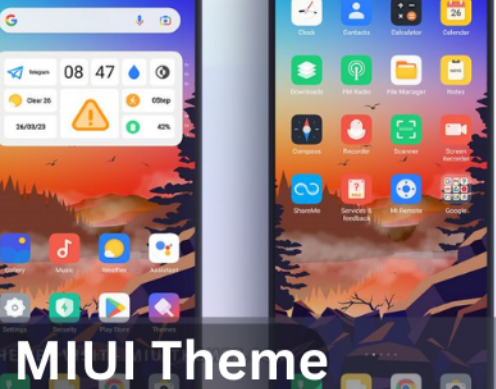
Many users search for new MIUI/HyperOS themes to change wallpapers, icons, and overall phone appearance, while others look for ways to adjust fingerprint animations or solve theme-related issues. This passage covers something about Android Mi themes fingerprint Lock.
Plus, for those who cannot unlock their Xiaomi phone because of fingerprint lock problems, check out a practical solution here when you cannot access your Xiaomi device due to fingerprint lock.
- Section 1: What Is Android Mi Themes Fingerprint Lock
- Section 2: How to Download & Install Mi Themes Fingerprint Lock
- Section 3: How to Change Mi Themes Fingerprint Lock
- Section 4: How to Fix Mi Themes Fingerprint Lock Effect Errors
- Section 5: How to Bypass Android Mi/Xiaomi Fingerprint Lock Safely
- FAQs about Android Mi Themes Fingerprint Lock
Section 1: What Is Android Mi Themes Fingerprint Lock
Android Mi Themes Fingerprint Lock refers to customized fingerprint animation effects and lock screen designs available through Xiaomi's MIUI/HyperOS Themes app. It allows users to change the appearance of the fingerprint unlock interface with different icons, animations, wallpapers, and visual styles. It does not replace the phone's fingerprint security system but only modifies the way the unlock process looks.
|
Feature
|
Description
|
|
Fingerprint Animation Effects |
Adds animated fingerprint icons, glowing rings, neon effects, or other visual styles when unlocking the phone. |
|
Customized Lock Screen |
Changes lock screen elements such as wallpapers, clock styles, widgets, and layouts. |
|
Charging Animation |
Provides unique charging effects that appear when the device is connected to a charger. |
|
New App Icons |
Replaces default app icons with themed designs to create a consistent interface style. |
|
Home Screen Personalization |
Modifies wallpapers, widgets, and overall home screen appearance. |
|
MIUI/HyperOS Theme Support |
Works through Xiaomi's Themes framework on compatible Xiaomi, Redmi, and POCO devices. |
|
Easy Theme Switching |
Allows users to apply or change visual styles through the Themes app without modifying system files. |
|
Visual Fingerprint Experience |
Makes fingerprint unlocking look more dynamic while keeping the actual biometric authentication controlled by the phone system. |
Note: Android Mi Themes Fingerprint Lock does not add a fingerprint sensor or replace Android's fingerprint security. It only changes the visual layer of the unlocking experience.
You Might Also Like: Xiaomi This Device Is Locked? Try the 12 Easy & Quick Fixes Now
Section 2: How to Download & Install Mi Themes Fingerprint Lock
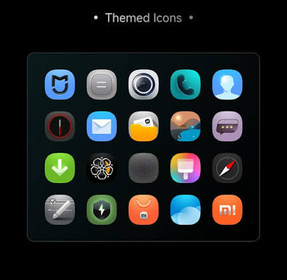
Mi Themes Fingerprint Lock effects are usually obtained through the Xiaomi Themes app or compatible MIUI/HyperOS theme resources. Before applying a theme, make sure your Xiaomi, Redmi, or POCO device supports fingerprint animation customization.
- Launch the Themes app on your Xiaomi device.
- Sign in with your Xiaomi account if required.
- Tap the search bar and enter keywords such as "Fingerprint Lock," "Fingerprint Animation," or "MIUI Fingerprint Theme."
- Browse available themes and preview their lock screen effects.
- Select your preferred fingerprint lock theme.
- Tap Download and wait for the theme package to complete.
- Open the downloaded theme.
- Tap Apply to activate the lock screen style, fingerprint animation, and related visual effects.
- Lock your phone and place your finger on the fingerprint sensor.
- Confirm whether the new animation appears correctly.
Click to Learn: Top 5 Best Xiaomi Phone Repair Software/Tools You'd Better Know
Section 3: How to Change Mi Themes Fingerprint Lock
You can change the fingerprint lock effect by applying another compatible MIUI/HyperOS theme or modifying individual theme elements.
- Open the Themes app on your Xiaomi phone.
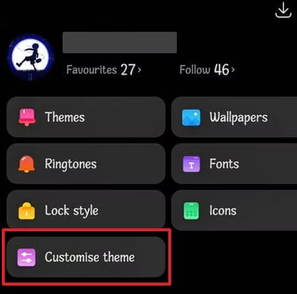
- Tap Profile or My Page and select Themes.
- Choose a downloaded theme that includes a fingerprint animation effect.
- Tap Customize Theme (if available).
- Select specific components, such as:
- Lock screen style
Wallpaper
Icons
Fingerprint animation
Always-On Display (AOD) - Tap Apply to save the changes and activate the new fingerprint lock style.
Section 4: How to Fix Mi Themes Fingerprint Lock Effect Errors
If the fingerprint animation does not appear or works incorrectly after applying a theme, try the following solutions:
|
Problem
|
Possible Fix
|
|
Fingerprint animation does not show |
Check whether your phone supports fingerprint effects and whether the theme is compatible with your MIUI/HyperOS version. |
|
Theme cannot be applied |
Restart the device and try downloading the theme again from the Themes app. |
|
Fingerprint effect disappears after updates |
Reapply the theme or check for a newer compatible version. |
|
Theme app crashes or freezes |
Clear the Themes app cache and reopen it. |
|
Fingerprint unlock works but animation fails |
Confirm that fingerprint unlock is enabled in Settings > Passwords & Security > Fingerprint Unlock. |
|
MIUI/HyperOS Theme Support |
Works through Xiaomi's Themes framework on compatible Xiaomi, Redmi, and POCO devices. |
|
Third-party theme does not work |
Use themes from trusted sources and ensure they match your device model and system version. |
Section 5: How to Bypass Android Mi/Xiaomi Fingerprint Lock Safely
For users who need to remove Android screen locks, Android Lock Wiper provides a way to bypass Android Mi/Xiaomi fingerprint locks safely when the device is locked or the fingerprint option is unavailable.
It supports removing various Android lock methods, including fingerprints, PINs, passwords, and patterns, through a straightforward process. The tool helps users regain access to their devices while recommending use only on phones they own or have permission to unlock.
Android Lock Wiper - Key Features:
- Bypass Android Mi/Xiaomi Fingerprint Lock Safely - Removes Xiaomi fingerprint locks when access issues occur on authorized devices.
- Remove Screen Locks - Unlocks patterns, PINs, passwords, and fingerprints.
- Support Multiple Brands - Works with Xiaomi, Samsung, Huawei, LG, Motorola, and more.
- FRP Lock Removal - Helps bypass Google FRP locks on supported devices.
- Easy Operation - Provides step-by-step unlocking instructions.
- Wide Android Compatibility - Supports many Android versions and models.
- Fast Access Recovery - Helps users regain access to locked devices quickly.
- USB Connection Support - Unlocks devices through a computer and USB cable.
- High Success Rate - Provides a reliable unlocking process with a high success rate across supported Android devices.
- Privacy Protection - Does not collect users' personal data during the unlocking process and focuses only on removing device locks.
NOTE: Before using this tool, please confirm that you own the device or have obtained the necessary permission to remove the fingerprint lock. Thank you for your understanding and cooperation.
Safe Download (Clean):

How to fix Xiaomi/Mi fingerprint lock efficiently with Android Lock Wiper?
- Start by downloading and installing Android Lock Wiper on your computer.
- Open the program, choose Remove Screen Lock, and click Start.
- Be aware that unlocking your Xiaomi/POCO/Redmi phone may erase the data stored on it.
- Connect your Xiaomi device to the computer using a USB cable.
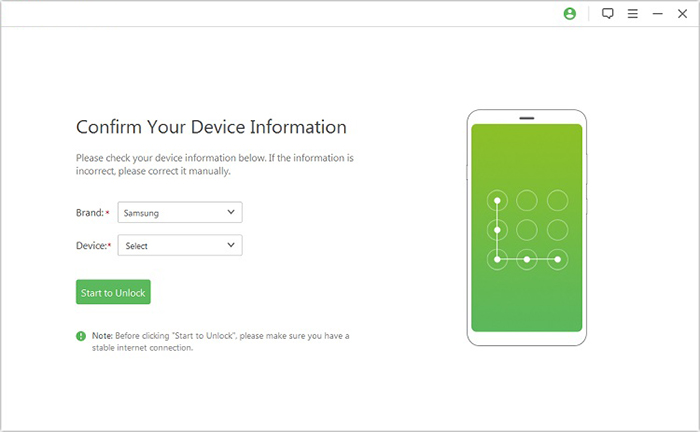
- The software should detect your device information automatically.
- Check that the displayed details are correct.
- If anything is inaccurate, adjust the information manually, then click Start to Unlock.
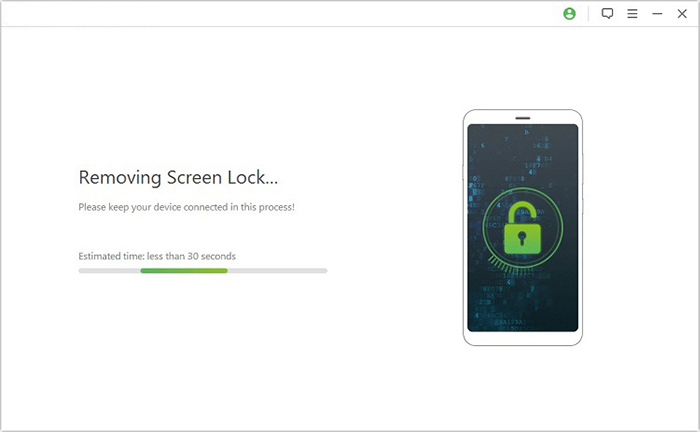
- The application will download the required data package and transfer it to your Xiaomi.
- After that, follow the on-screen prompts to reset your device.
- The unlocking process will begin.
- Keep your Xiaomi connected throughout the entire procedure.
- Once it finishes, the passcode will be successfully removed from your device.
FAQs about Android Mi Themes Fingerprint Lock
Q1: Are Android Mi Themes Fingerprint Locks Safe?
Yes, Android Mi Themes Fingerprint Locks are generally safe when downloaded from trusted sources such as the official Xiaomi Themes app. These themes mainly change the visual appearance of the lock screen and fingerprint animation, while the actual fingerprint authentication is still managed by the phone's built-in security system.
However, downloading random Fingerprint Lock Themes APK files from unknown websites may carry risks, as some unofficial apps can request unnecessary permissions or include unwanted software. Before installation, check the developer, user reviews, requested permissions, and whether the theme matches your Xiaomi device and MIUI/HyperOS version.
Q2: Are There Any Other MI Phone Themes Fingerprint Locks?
Yes. Xiaomi users can find various fingerprint-style themes with different lock screen designs, fingerprint animations, icons, wallpapers, and charging effects. Popular options include themes such as Ronix, Origin-style themes, and other MIUI/HyperOS fingerprint animation themes available through Xiaomi's Themes ecosystem or third-party theme collections.
Some common types of MI phone fingerprint themes include:
|
Theme Type
|
Description
|
|
Neon Fingerprint Themes |
Add glowing fingerprint rings and futuristic effects. |
|
3D Fingerprint Themes |
Provide animated fingerprint icons with depth effects. |
|
Minimal Fingerprint Themes |
Use simple icons and clean lock screen layouts. |
|
Gaming Fingerprint Themes |
Include colorful animations and dynamic wallpapers. |
|
AMOLED Fingerprint Themes |
Optimize dark backgrounds and bright fingerprint effects for AMOLED screens. |
Keep in mind that theme compatibility depends on your Xiaomi, Redmi, or POCO model, MIUI/HyperOS version, and region settings.
Q3: Can Mi Themes Fingerprint Lock Add a Real Fingerprint Sensor to My Phone?
No. A Mi Themes Fingerprint Lock only changes the visual fingerprint effect or lock screen style. It cannot add fingerprint hardware or turn a regular display into an in-display fingerprint scanner. The actual unlocking process still depends on the phone's existing fingerprint sensor.
Q4: Do Mi Themes Fingerprint Locks Work on All Android Phones?
No. Xiaomi MIUI/HyperOS fingerprint themes are mainly designed for Xiaomi, Redmi, and POCO devices. Other Android brands, such as Samsung, Google Pixel, or OnePlus, may not support Xiaomi theme packages because they use different system interfaces and customization frameworks.
Q5: Why Is My Fingerprint Animation Not Showing After Applying a Theme?
Possible reasons include:
- The theme does not support your phone model.
- Your MIUI/HyperOS version does not support the fingerprint effect.
- Only the wallpaper or icons were changed instead of the lock screen style.
- The theme requires a compatible fingerprint animation setting to be enabled.
Try reapplying the theme, restarting your phone, or switching back to the default theme and applying it again.
Q6: Should I Download a Fingerprint Lock Theme APK Instead of Using the Xiaomi Themes App?
It is recommended to use the built-in Xiaomi Themes app whenever possible. Third-party APK files may not be verified and can request permissions unrelated to theme customization. If an APK is required, download it only from a reliable source and review its permissions before installation.
Q7: Can I Remove Mi Themes Fingerprint Lock and Return to the Default Style?
Yes. Open the Themes app, go to your downloaded or applied themes, select the default Xiaomi theme, and tap Apply. This will restore the original lock screen appearance and fingerprint animation settings.
Additional Tips
Before applying any Android Mi Themes Fingerprint Lock or installing third-party theme files, check whether the theme matches your Xiaomi model and MIUI/HyperOS version. Keep your device data backed up and only use unlocking tools or methods on phones you own or have proper authorization to access.
Related Articles:
Xiaomi 17 vs iPhone 17: In-depth Comparison in 6 Dimensions
Xiaomi Mi Phone Not Connecting to PC/Computer? 12 Easy Solutions
How to Hard Reset Xiaomi/Redmi/Mi with/without Computer? 6 Options
Mi Data Recovery: 4 Ways to Recover Deleted Files from Mi Phone