9 Reliable Fixes for Custom Binary Blocked by FRP Lock [Latest]
TL;DR:
This article explains what "Custom Binary Blocked by FRP Lock" means, why Samsung phones show it, and how the listed fixes can help restore normal access.
- Android Lock Wiper is a solid pick for Samsung users facing Custom Binary Blocked by FRP Lock.
- Recovery mode, download mode, and device details all form part of its step-by-step FRP removal process.
- For anyone who wants a trusted tool for FRP bypass or lock screen removal, Android Lock Wiper is a practical option to try.
Please note: We encourage lawful and appropriate use of FRP bypass tools and stand against any unauthorized use. Thank you for your cooperation.
"My phone is stuck in a boot loop with this "Custom Binary Blocked by FRP Lock" message, and I cannot access anything past the boot logo." -- from Reddit
What does"Custom Binary Blocked by FRP Lock"mean?
"Custom Binary Blocked by FRP Lock" means that a Samsung phone has detected an unauthorized or modified firmware component and blocked it from booting because Factory Reset Protection (FRP) is active. In simple terms, the device's security system is preventing custom software from loading until the required security or account verification conditions are satisfied.
Today, we shall walk you through why the issue happen and how to fix it with a few productive ways.
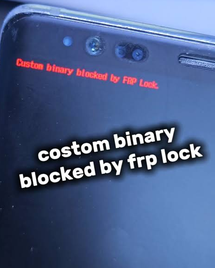
- Part 1: Why Is Custom Binary Blocked by FRP Lock
- Part 2: How to Fix Custom Binary Blocked by FRP Lock in 8 Ways
> Way 1: Sign in with the previously synced Google account
> Way 2: Check whether OEM unlocking was previously enabled
> Way 3: Hard reset/force restart your Samsung phone
> Way 4: Factory reset your Samsung device
> Way 5: Remove FRP lock/Google account
> Way 6: Flash Stock Firmware via Odin
> Way 7: Ask the previous owner to unlock it
> Way 8: Contact Samsung or the authorized service center - Part 3: Use a Professional Tool to Fix Custom Binary Blocked by FRP Lock [Secure]
- Summary - A Quick Comparison
Part 1: Why Is Custom Binary Blocked by FRP Lock
The "Custom Binary Blocked by FRP Lock" error can occur for several reasons, especially when a Samsung device detects unauthorized or modified firmware. Below are the common causes that may trigger this security restriction.
- A custom ROM or recovery was flashed: Installing TWRP, a custom ROM, or another modified system component without properly unlocking the bootloader can trigger the block.
- An incorrect firmware was flashed: Firmware intended for a different model, region, or binary version may be rejected by the device.
- Rooting or bootloader modification: Attempts to modify the bootloader or system partitions can cause the device to block unsigned or unauthorized binaries.
- FRP remained enabled: If a Google account and device protection remain active, the security mechanism can prevent unauthorized software from being flashed or booted.
- A factory reset was performed under protected conditions: Resetting a protected device without properly authenticating the previously associated account can leave security restrictions active.
- Corrupted or incompatible system files: A failed flashing process or modified system image can also leave the phone unable to boot normally.
Part 2: How to Fix Custom Binary Blocked by FRP Lock in 8 Ways
> Way 1: Sign in with the previously synced Google account
If the phone is asking for the Google account previously associated with it, enter that account and password during setup. Samsung notes that after a reset, FRP may require verification of a previously registered Google account before the device can be used again.
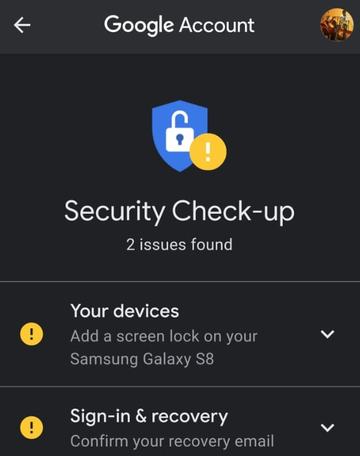
If you are the legitimate owner but cannot remember the Google credentials previously used on the phone, recover access to that Google account before trying additional resets or firmware changes. Once you regain access, use the recovered credentials when the device requests the previously associated account during setup. Google provides official account-management guidance for adding and removing accounts on Android.
> Way 2: Check whether OEM unlocking was previously enabled
On supported Samsung models, OEM unlocking can affect whether the bootloader accepts modified software. If you had already enabled it before the problem occurred, check the device's bootloader/developer-option status; availability varies by model, region, carrier, and software version, so do not assume the option exists on every Galaxy phone.
> Way 3: Hard reset/force restart your Samsung phone
A force restart is worth trying first because it does not normally erase your personal data.
- Press and hold Power + Volume Down for about 5–7 seconds.
- Keep holding until the phone restarts.
- Allow the device to boot normally and check whether the message disappears.
- If the same error returns, move to the recovery or firmware options below.
> Way 4: Factory reset your Samsung device
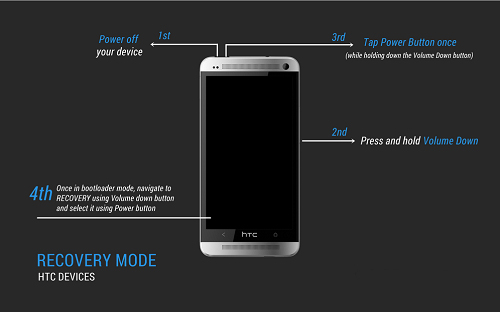
A factory reset can clear corrupted or problematic user data, but it does not necessarily remove FRP. Samsung specifically warns that FRP may still require verification of the previously registered Google account after a reset. If you cannot access Settings:
- Turn off the Samsung phone completely.
- Press and hold the appropriate Power + Volume key combination for your model to enter Recovery Mode. Newer models may also require connecting the phone to a computer with a USB cable first.
- Use the Volume keys to highlight Wipe data/factory reset.
- Press the Power/Side key to select it.
- Select Factory data reset or Yes when prompted.
- After the process finishes, select Reboot system now.
- When setup starts again, enter the Google account previously synced with the phone if FRP verification is requested.
> Way 5: Remove FRP lock/Google account
If you still have access to the phone, removing the Google account before performing a reset or modifying the software can prevent FRP-related ownership verification from being triggered later.
- Android 14 and up: Go to Settings > Passwords & accounts (the wording can vary), select the Google account, and tap Remove account.
- Android versions before Android 14: The menu may instead appear under Settings > Accounts, Users & accounts, or Manage accounts. Select the Google account and choose Remove account. You may need to enter the device PIN, pattern, or password to confirm the removal.
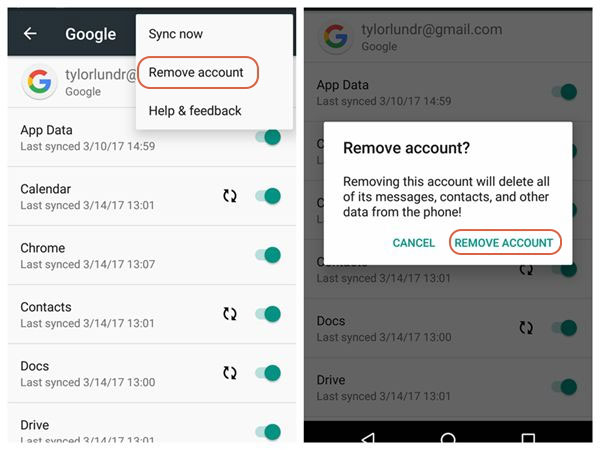
Google's current instructions confirm that the exact account-menu names vary by Android version and device.
Important: If you are already locked at the FRP verification screen, simply removing an account through Settings is generally not possible; use the previously synced account or the manufacturer's authorized support route instead.
> Way 6: Flash Stock Firmware via Odin
If the error resulted from modified or corrupted firmware, restoring the correct official stock firmware may resolve the software problem. The referenced guides describe using Odin with the appropriate firmware files and Download Mode.
- Identify the exact Samsung model number and obtain the matching official stock firmware.
- Enter Download Mode according to your model's instructions.
- Launch Odin on a Windows PC and connect the phone with a USB cable.
- Load the appropriate firmware components, such as AP, CP, and CSC, as applicable.
- Verify the files and model carefully before starting the flash.
- Start the process and wait for Odin to report completion before disconnecting the phone.
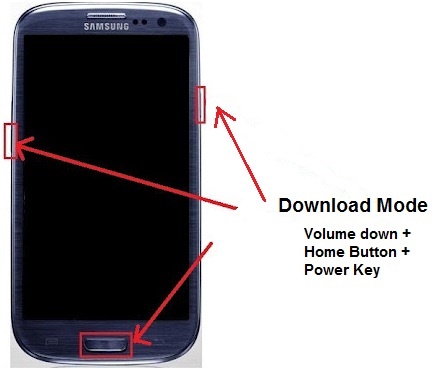
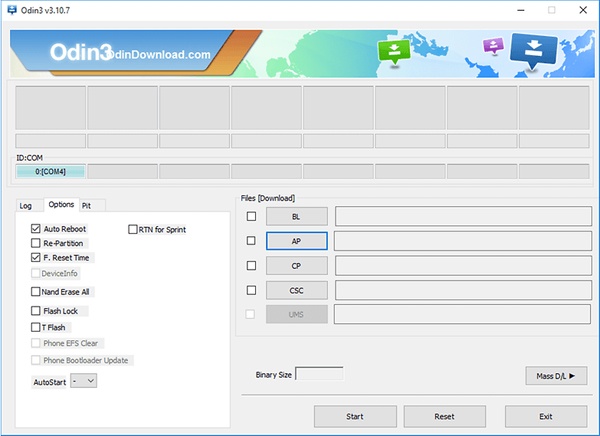
NOTE: Flashing the wrong firmware or interrupting the process can create additional problems, and restoring stock firmware does not necessarily remove an existing FRP ownership requirement.
> Way 7: Ask the previous owner to unlock it
For a second-hand Samsung phone, the previous owner can authenticate the device with the Google account that was previously synced to it. If you bought the device legitimately, asking the seller to complete the required ownership verification is preferable to attempting to circumvent FRP.
> Way 8: Contact Samsung or the authorized service center
If you cannot complete Google verification or the phone remains blocked after restoring official software, contact Samsung Support or an authorized service center. Samsung's current guidance specifically recommends a service center when you cannot remember the Google account password or cannot complete Google account verification after a reset.
Part 3: Use a Professional Tool to Fix Custom Binary Blocked by FRP Lock [Secure]
A locked Samsung device showing Custom Binary Blocked by FRP can be restored with the help of Android Lock Wiper, which bypasses the Google account verification tied to FRP. The program guides the user through recovery and download modes, allowing the blocked firmware to be cleared. Once the process finishes, the phone regains normal access without the FRP restriction.
This product supports various Android screen locks, including PINs, passwords, patterns, and fingerprints. It provides guided on-screen instructions and supports a range of Samsung and other Android devices. The tool also offers a relatively straightforward interface, making the unlocking process easier for users with limited technical experience.
Free & Safe Download:

User Guide:
01: Install and Launch Tool
- Download and install Android Lock Wiper on your computer.
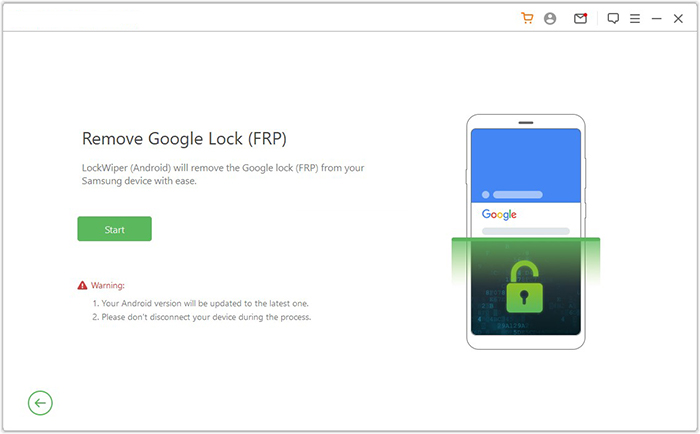
- Open the program and select Remove Google Lock (FRP).
- Choose Advanced Mode.
- Connect your Samsung device via USB and click Start.
02: Provide Device Information
- Follow the prompts to input device information.
- Enter recovery mode as instructed.
- Select the correct PDA, country, and carrier.
- Click Download to obtain the required package.
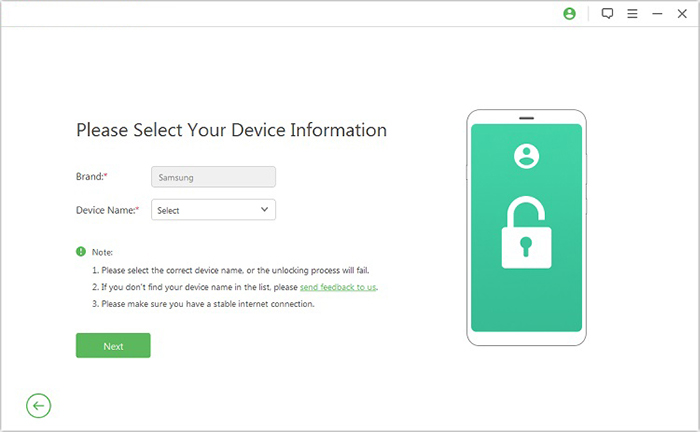
03: Extract and Prepare
- Click Start to Extract to unpack the package.
- Follow on-screen instructions to enter Download Mode.
- Enable USB debugging and OEM unlock options.
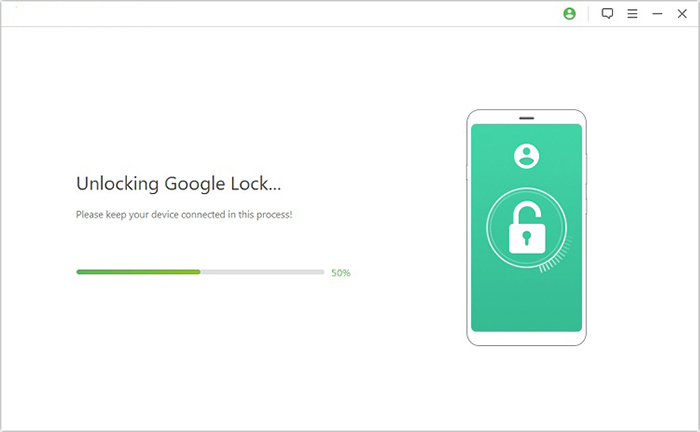
04: Complete FRP Unlock
- Let the software finish removing the Google lock.
- Allow the program to run the unlocking process.
- Wait until confirmation appears.
- Your Samsung device will be free of the FRP lock.
Summary - A Quick Comparison
The following table provides a quick comparison of the available ways to fix the "Custom Binary Blocked by FRP Lock" error. It summarizes the main approach and key advantages or limitations of each method to help you choose a suitable solution.
|
Method
|
Key Advantage/Limitation
|
|
Way 1: Sign in with the previously synced Google account |
Official ownership verification; requires access to the previously synced account. |
|
Way 2: Check whether OEM unlocking was previously enabled |
Useful for firmware modification or restoration; availability depends on the device and prior settings. |
|
Way 3: Hard reset/force restart your Samsung phone |
A simple first step that normally does not erase data, but may not resolve FRP restrictions. |
|
Way 4: Factory reset your Samsung device |
Can clear device data and certain software issues, but does not necessarily remove FRP. |
|
Way 5: Remove FRP lock/Google account |
Removing the Google account before a reset can help prevent FRP from being triggered; requires access to the device. |
|
Way 6: Flash stock firmware via Odin |
Can restore modified or corrupted firmware, but requires the correct firmware and some technical knowledge. |
|
Way 7: Ask the previous owner to unlock it |
A suitable option for second-hand devices when the previous owner's account remains associated with the phone. |
|
Way 8: Contact Samsung or an authorized service center |
An official option when you cannot complete account verification or resolve the software issue yourself. |
|
Way 9: Use Android Lock Wiper |
Provides a guided workflow for supported Android screen-lock and FRP-related scenarios, offering a more convenient alternative to complicated manual procedures. |
Additional Tips to Keep from Custom Binary Blocked by FRP Lock Error:
1. Always verify your Google account credentials and remove the account properly before performing a factory reset or flashing firmware.
2. Keep your device's firmware and bootloader changes within supported procedures, and avoid installing unofficial or incompatible firmware.
3. Before making major system changes, back up important data and check your Samsung model and firmware version to prevent compatibility issues.
Related Articles:
How to Recover Data from Samsung Phone That Won't Turn on? 5 Tactics
Top 5 Best Samsung Data Recovery Tools You Should Never Miss
Downloading Do Not Turn Off Target? 7 Quick Ways & 1 Expert Solution
5 Verified Ways: How to Recover Data after Factory Reset on Samsung