[Solved] How to Remove Apple ID from a Stolen iPhone Without Password?
"How to sign out an Apple ID from a stolen iPhone? I would like you to help me remove an Apple ID from a device so that find my iPhone can be disabled. Your help will be highly appreciated."
-- From Apple Support Community
A stolen iPhone creates two problems at once: the device is no longer in your hands, but your Apple ID and personal data may still be tied to it. Simply removing the device from your account isn't always the safest move, especially when Activation Lock is involved. Depending on whether you're dealing with your own lost iPhone, a recovered device, or a second-hand iPhone linked to someone else, the right solution can be quite different. This guide walks you through the available options and what to avoid.
Part 1: Remove Apple ID from Stolen iPhone Without Password Using iOS Unlock
If you no longer have access to the Apple Account password linked to an iPhone, removing the account through Apple's normal settings may not be possible. For an iPhone you own or are authorized to manage, a dedicated iOS unlocking tool can provide an alternative way to handle Apple ID-related lock issues. iOS Unlock is designed to help users remove an Apple ID and associated iCloud account from supported iOS devices without entering the account password.
Key Features of iOS Unlock:
- Remove Apple ID: Remove the Apple Account and iCloud account from a supported iPhone, iPad, or iPod touch when you have authorization to manage the device.
- Handle Forgotten Credentials: Get rid of an Apple ID or iCloud account when you no longer remember the required password.
- Unlock iOS Devices: Unlock various screen security methods, including passcodes, Face ID, and Touch ID.
- Clear Screen Time Restrictions: Remove forgotten Screen Time or Restrictions passcodes without complicated operations.


How to Remove Apple ID from a stolen iPhone without password?
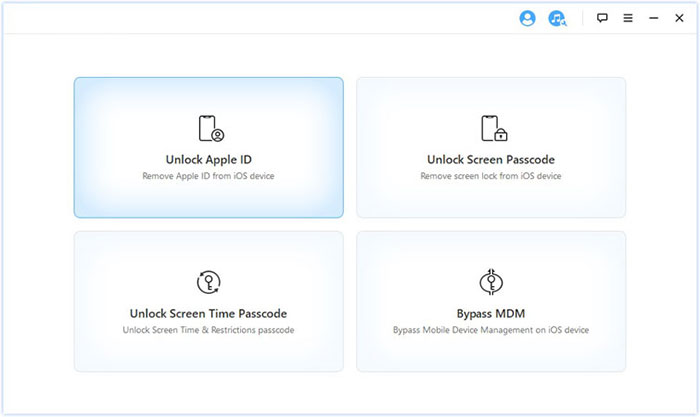
Step 1: Download and install the appropriate version of iOS Unlocker on your Windows PC or Mac. Once installed, launch the program and prepare your iPhone for connection. From the main interface, choose "Remove Apple ID". Connect the iPhone to the computer using a compatible USB cable.
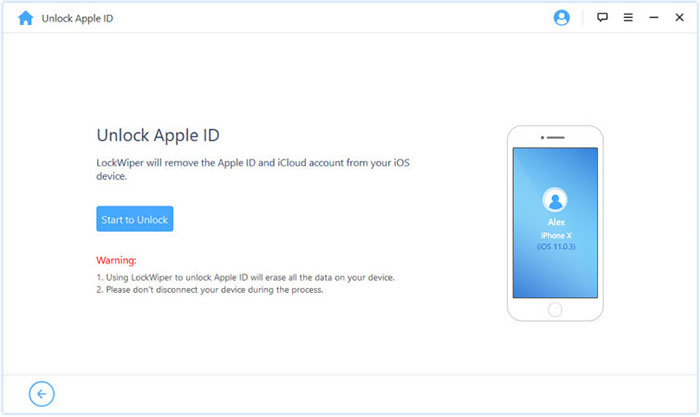
Step 2: Once the software detects the iPhone, check the displayed device information and click "Start to Unlock". The program will then begin processing the Apple ID removal on the connected device.
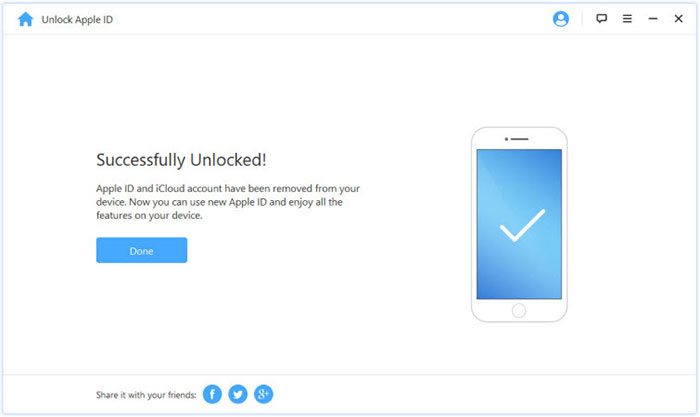
Step 3: Wait until iOS Unlocker completes the operation. When the Apple ID removal is finished, click "Done" to exit the process.
Beyond Apple ID removal, iOS Unlocker also provides solutions for other common iPhone lock issues. If you cannot access an iPhone because you forgot its screen passcode, or you need to clear a forgotten Screen Time password, you can use its corresponding unlocking features to regain access to the supported device.
Part 2: Remove iPhone Activation Lock with the Previous Owner
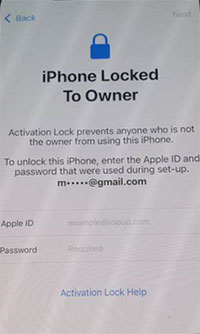
If a used iPhone is still linked to the previous owner's Apple Account, you may see the "iPhone Locked to Owner" screen during setup. In this case, the seller or previous owner needs to remove the device from their account before you can activate it with your own Apple Account. If the previous owner agrees to help, they can remove the Activation Lock remotely without handing over their password.
- Ask the previous owner to open a browser and visit iCloud Find Devices. They should sign in with the Apple Account currently linked to the iPhone.
- After signing in, select "Find My" or "Find Devices" and access the list of devices associated with the Apple Account.
- Choose the iPhone that was sold to you from "All Devices". If the device has already been erased, select the option to "Remove This Device" or "Remove from Account", depending on the interface shown. Follow the onscreen instructions to complete the removal.
Once the previous owner has successfully removed the iPhone from their Apple Account and Find My, Activation Lock will no longer prevent you from setting up the device. You can then turn on the iPhone and activate it with your own Apple Account.
Part 3: How to Remove Apple ID from a Stolen iPhone Remotely
If your iPhone has been stolen and you no longer have the device in your hands, you can still take action remotely to protect your personal information. Instead of trying to sign out of the Apple ID directly, use Apple's Find My service to mark the iPhone as lost or erase it remotely. This lets you secure your data while keeping Activation Lock enabled.
Step 1. Open Find My
On another iPhone, iPad, or computer, open the Find My app or visit the Find Devices page through iCloud. Sign in with the Apple Account linked to your stolen iPhone.
Step 2. Select the Stolen iPhone
Open "All Devices" and choose the iPhone that was stolen. If the device is online, you may be able to see its current or last known location.
Step 3. Mark the iPhone as Lost
Select "Mark as Lost" and follow the onscreen instructions. You can add a phone number or message so that someone who finds the iPhone can contact you. Lost Mode also locks the device and helps prevent others from accessing your personal information.
Step 4. Erase the iPhone Remotely
If you don't expect to recover the device, select "Erase This Device" and confirm the action. This will remotely erase the data stored on the iPhone when it connects to the internet.
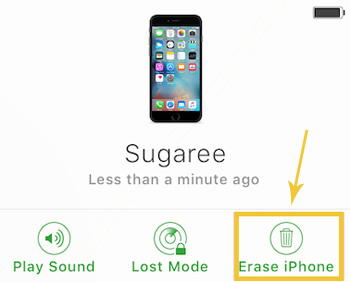
Keep in mind that remote erasure is different from removing the iPhone from your Apple Account or Find My. Do not select "Remove This Device" simply because the iPhone was stolen. Keeping the device linked to your account helps maintain Activation Lock and makes it harder for someone else to use or resell the phone.
Step 5. Secure Your Apple Account
After dealing with the stolen iPhone, review the security of your Apple Account. If you believe someone may know your password or have accessed your account, change the password and check your trusted devices and phone numbers.
That's it. If your main goal is to protect your information after an iPhone is stolen, remotely marking it as lost or erasing it is safer than simply removing the device from Find My. Once the iPhone is removed from Find My, its Activation Lock can also be removed, which is not what you want for a stolen device.
Part 4: FAQs About Removing Apple ID from a Stolen iPhone
Q1. Should I remove a stolen iPhone from Find My?
No. If the iPhone was stolen, you should generally keep it in Find My. Removing it from Find My can disable Activation Lock and make it easier for someone else to activate and use the device.
Q2. Does remotely erasing a stolen iPhone remove Apple ID?
No. Remote erasure deletes the data stored on the iPhone, but it does not automatically remove the device from your Apple Account or disable Activation Lock.
Q3. How can I remove Activation Lock from a used iPhone?
If the iPhone belongs to you, sign in with the Apple Account previously linked to it and follow the onscreen instructions. If you purchased it from someone else, ask the previous owner to remove the device from their Apple Account. If you cannot contact them, you can contact Apple Support and provide valid proof of purchase when applicable.
Q4. Can the previous owner remove Apple ID from an iPhone remotely?
Yes. If the previous owner still has the device linked to their Apple Account, they can use Find My to select the iPhone and remove it from their account when the applicable options are available. This allows the new owner to activate the device with their own Apple Account.
Q5. What should I do if my stolen iPhone appears in an unknown location?
Don't try to recover it yourself if you believe it has been stolen. Mark the iPhone as lost, contact your carrier, and report the theft to the appropriate local authorities. Avoid sharing your passcode, Apple Account password, or verification codes with anyone claiming to have found the device.
Q6. Can I remove Apple ID from a stolen iPhone after I recover it?
Yes, if the iPhone is yours and you can access it, you can sign out of your Apple Account through Settings and turn off Find My when required. If you plan to give the device to someone else, erase it only after completing the appropriate account sign-out steps.
Q7. Can iOS Unlocker bypass Activation Lock on a stolen iPhone?
iOS Unlocker should not be used to bypass Activation Lock on a stolen device or a device that you do not own or have permission to manage. Its Apple ID removal features should only be used in supported and authorized scenarios.
The Bottom Line
Removing an Apple ID from a stolen iPhone isn't always about making the account disappear. In many cases, keeping the device linked to Find My is what protects it from unauthorized use. If you own the device, use an appropriate unlocking solution when applicable; if it's a used iPhone, involve the previous owner; and if it's still missing, prioritize Lost Mode and remote erasure.
Related Articles:
4 Ways to Remove iCloud from iPhone with/without Password
How to Sign Out of Apple ID without Password [5 Smart Ways]