How to Fix Samsung Cloud Something Went Wrong? 11 Tested Solutions
TL;DR:
When Samsung Cloud throws "Something Went Wrong", especially during data restore, this guide moves from simple fixes to FRP bypass and a no-cloud backup route:
- For a Samsung phone stuck on Google FRP during a Cloud restore, Android Lock Wiper is the tool to use.
- Its FRP removal mode clears the Google account verification after you select the Android version and enable USB debugging.
- Once that lock is gone, setup can finish without the Samsung Cloud error blocking the restore.
NOTE: Before trying any solution, make sure you are the lawful owner of the phone or have proper authorization to remove the FRP lock, as this issue may be related to the Samsung Cloud Something Went Wrong error. Thank you for your cooperation.
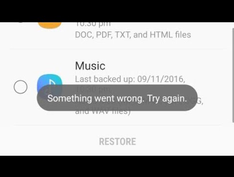
The Samsung Cloud Something Went Wrong error can appear when you least expect it. The alert is vague and appears at the worst moment - during backup, restore, sync, or sign-in - without an error code explaining what failed. If you're facing this frustrating notification, this guide explains how to fix the error with 11 simple solutions, from basic checks to more advanced fixes.
- Part 1: Fix Samsung Cloud Something Went Wrong in 4 Easy Ways
> 1.1 Bypass Google FRP on Samsung without Samsung Cloud Errors [Most Efficient]
> 1.2 Use TalkBack
> 1.3 Force the Samsung Restore Option to Appear
> 1.4 Use the Samsung Restore Data Timing Trick - Part 2: Other 7 Fixes for Samsung Cloud Something Went Wrong
> 2.1 Restart Your Samsung Device and Try Again
> 2.2 Grant All Required Permissions
> 2.3 Check Available Samsung Cloud Storage
> 2.4 Enable the Universal Switch Button
> 2.5 Clear the Samsung Account Cache
> 2.6 Update Samsung Cloud to the Latest Version
> 2.7 Perform a Hard Reset on Your Samsung Device - Part 3: Back Up and Restore Samsung without Samsung Cloud [No Errors]
Part 1: Fix Samsung Cloud Something Went Wrong in 4 Easy Ways
> 1.1 Bypass Google FRP on Samsung without Samsung Cloud Errors [Most Efficient]
Bypassing the Google Factory Reset Protection lock on a Samsung handset becomes necessary when a forgotten account credential blocks access after a factory reset, and Android Lock Wiper addresses this scenario through a dedicated FRP removal mode.
Its standard unlock routine guides users through selecting the correct Android version and enabling USB debugging, after which the tool strips the Google account verification layer without requiring the original password.
The practical outcome is that a Samsung device stuck on the account verification screen during a Cloud restore sequence can be freed from that loop entirely, allowing the setup process to finish without the FRP checkpoint interrupting the flow.
Android Lock Wiper - Main Features:
- Remove Google FRP: Bypass FRP on supported Samsung and other Android devices.
- Fix Samsung Cloud Errors: Remove FRP to resolve Cloud restore access issues.
- Remove Screen Locks: Unlock PINs, passwords, patterns, fingerprints, and face locks.
- Unlock Samsung without Data Loss: Remove supported Samsung screen locks without erasing data.
- Wide Brand Support: Supports Samsung, Xiaomi, Motorola, Huawei, vivo, and more.
- Multiple FRP Modes: Offers Standard and Advanced modes for Samsung FRP removal.
- Guided Process: Provides step-by-step instructions throughout the unlocking process.
- Highly Secure: It won't track your private data.
Safe Download (No ads, no bundles, no background uploads):

How to fix Samsung Cloud something went wrong by bypassing FRP lock on Samsung with Android Lock Wiper?
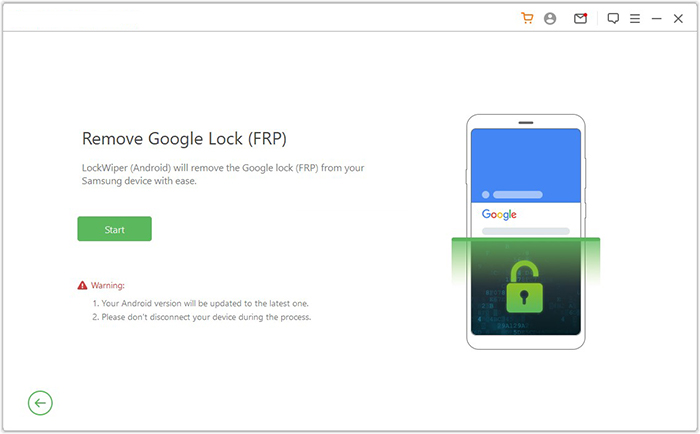
Step 1. Prepare the utility - Install the program on a computer, open it, and select "Remove Google Lock (FRP)" followed by "Advanced Mode." Link the Samsung phone through USB, then press "Start."
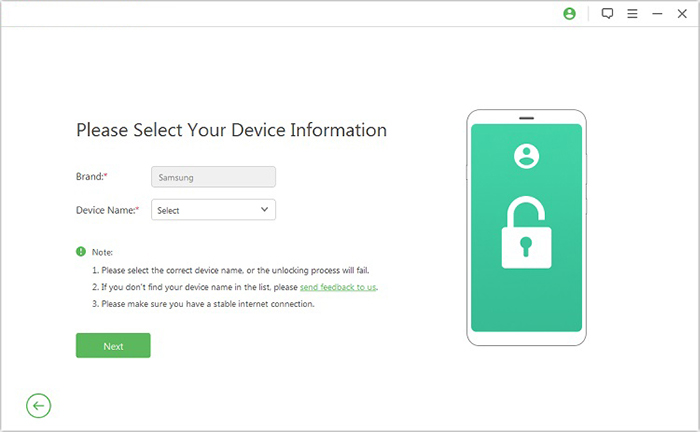
Step 2. Provide handset information and grab the needed package - Follow the on-screen directions to enter the Samsung device details, boot into recovery mode, choose the proper PDA, country, and carrier, and then let the required package download.
Step 3. Carry out the FRP removal - Unpack the downloaded package, follow the prompts to switch into Download Mode, switch on USB debugging and OEM unlock, and allow the software to finish clearing the FRP lock.
> 1.2 Use TalkBack
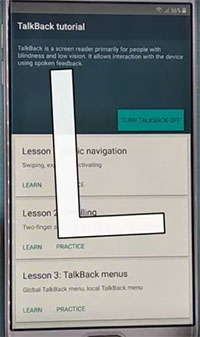
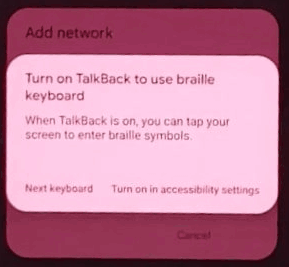
This method uses Samsung's accessibility features, including TalkBack, Google Assistant, and Universal Switch, to navigate the device settings. Follow the steps in order and carefully confirm each prompt to ensure the required accessibility options are enabled.
- Press and hold Volume Up + Power together. When the "Use Volume Keys for TalkBack" prompt appears, tap Use.
- Press Volume Up + Power again to enable TalkBack.
- Swipe across the screen from right to left, then swipe upward to draw an "L" gesture.
- Select "While using the app", then double-tap the screen to confirm.
- Select "Use Voice Command" and double-tap the confirmation dialog.
- Say "Google Assistant" clearly when prompted.
- Press Volume Up + Power together again to turn off TalkBack.
- Type "Settings" and open the device's Settings menu.
- Go to Accessibility > TalkBack and review the available TalkBack shortcut settings.
- Return to the main Accessibility screen and select Interaction and dexterity.
- Open Universal Switch and proceed through the setup screens by selecting Next until you reach Done.
- Enable the available Universal Switch shortcut and select Allow when the permission prompt appears. (The TalkBack method doesn't work?)
> 1.3 Force the Samsung Restore Option to Appear
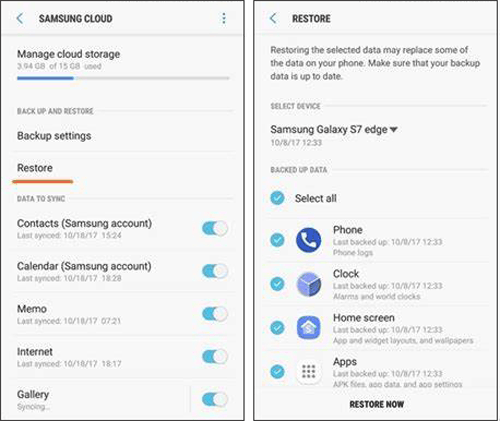
This method focuses on accessing the Restore Data options when Samsung Cloud displays the "Something Went Wrong" error. The key is to perform the button and on-screen selections at the same time and repeat the process if the first attempt does not work. To do this:
- Go to Settings > Account and backup > Restore data on your device. Do not tap "Update." If you select it, you may need to reset the device again.
- If an "Update" message appears after you tap "Restore data," press Volume Up + Power while tapping "Restore data" at the same time. If timed correctly, you may be taken to the device restore options.
- If the device instead asks you to select a device model after tapping "Restore data," press Volume Up + Power while tapping the device model simultaneously.
- Repeat the appropriate sequence until the restore options appear. Once they do, tap "Restore" to continue.
> 1.4 Use the Samsung Restore Data Timing Trick
This trick uses precise timing between the on-screen options and hardware buttons to access the Restore Data options when the "Something Went Wrong" message appears. Follow the appropriate sequence based on whether you see an "Update" prompt or a device model selection screen:
- If an "Update" message appears after you tap "Restore Data," press and hold the Human icon, then tap "Restore Data" once.
- If the device asks you to select a device model after tapping "Restore Data," press Volume Up + Power while tapping the device model at the same time.
- Alternatively, select the Model Number and Human icon simultaneously, as shown in the image below.
- Wait approximately 5 seconds, then tap the Back arrow. Tap the Back arrow once more if necessary, and then select "Restore."
- Once the restore process is completed, the data should be restored and the "Something Went Wrong" error may be resolved.
Part 2: Other 7 Fixes for Samsung Cloud Something Went Wrong
> 2.1 Restart Your Samsung Device and Try Again
A simple restart is worth trying first when Samsung Cloud shows the "Something Went Wrong" message. To accomplish it:
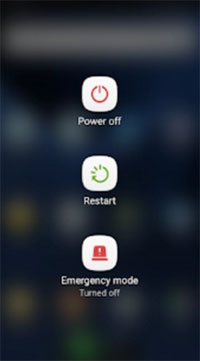
- Press and hold the Power button.
- Tap Restart when the power menu appears.
- Wait for the Samsung device to boot completely.
- Open Samsung Cloud and try the backup or restore operation again.
> 2.2 Grant All Required Permissions
Samsung Cloud may not work properly if the related services do not have the permissions they need. To do it:
- Open Settings on your Samsung phone.
- Go to the relevant app or system-service permission page.
- Review the permissions associated with Samsung Account and Samsung Cloud.
- Allow the required permissions.
- Restart the device and try Samsung Cloud again.
> 2.3 Check Available Samsung Cloud Storage
Insufficient cloud space can prevent Samsung Cloud from completing a backup or synchronization. Check your stored backup data and remove unnecessary items when space is limited. Below is how:
- Open Settings and select your Samsung account.
- Go to Samsung Cloud and review the available backup options.
- Check whether unnecessary data is being backed up.
- Turn off backup for items you no longer need.
- Remove unwanted backup data where the current Samsung Cloud interface allows it.
- Retry the backup or restore operation.
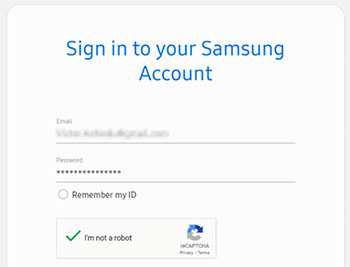
> 2.4 Enable the Universal Switch Button
If the error appears while trying to restore a Samsung Cloud backup, enable Universal Switch under Samsung's accessibility settings before returning to the restore screen:
- Open Settings > Accessibility > Interaction and dexterity.
- Select Universal switch.
- Follow the on-screen setup prompts by tapping Next until the setup is completed.
- Turn on the Universal switch shortcut.
- Return to Accounts and backup > Restore data.
- Continue with the restore process and select the backup items you want to recover.
> 2.5 Clear the Samsung Account Cache
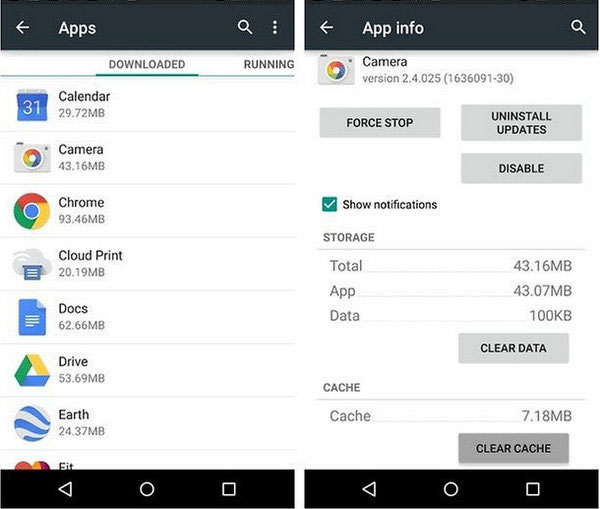
A damaged or outdated cache can interfere with Samsung Account and Cloud-related operations. Here's how to clear it up:
- Open Settings and go to Apps.
- Find and select Samsung Account.
- Tap Storage.
- Select Clear cache.
- Return to Samsung Cloud and try the operation again.
> 2.6 Update Samsung Cloud to the Latest Version
An outdated Samsung Cloud component may cause problems during backup or restore. To update it:
- Open the Galaxy Store.
- Check the available updates for Samsung Cloud or related Samsung services.
- Install the available update.
- Restart the phone after the update finishes.
- Open Samsung Cloud and try the operation again.
> 2.7 Perform a Hard Reset on Your Samsung Device
A factory reset is a much more drastic option because it removes data stored locally on the phone. To do it:
- Back up any important local data first, if you can still access the device.
- Open Settings.
- Go to General management > Reset.
- Select Factory data reset.
- Review the information shown on the screen.
- Confirm the reset and wait for the device to restart.
- Set up the phone again and try restoring the available Samsung Cloud backup.
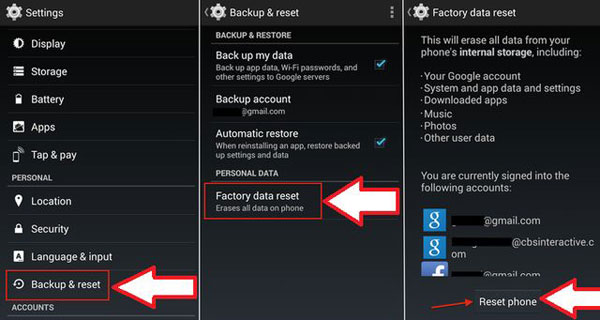
Important: A factory reset erases data stored on the device. It does not remove Google FRP; after the reset, you may be required to verify the Google account previously associated with the phone.
Part 3: Back Up and Restore Samsung without Samsung Cloud [No Errors]
For Samsung users tired of cloud syncing quirks, Mobikin Backup Manager for Android (Windows/Mac) copies contacts, messages, photos, videos, and app data straight to a computer. Backups made this way can be put back onto the phone later, with no Samsung Cloud account and no error messages interrupting the transfer.
Free & Safe Download (Clean):

Because everything stays local, a restore that would normally fail through Samsung Cloud can finish cleanly on the same device or a replacement.
This top-tier Android backup solution lets you save and recover Samsung content with a single tap, detecting the handset through USB or Wi-Fi while covering contacts, texts, call history, photos, videos, music, apps, and more. It runs reliably across 8,000+ Android models - including Galaxy S26/S25/S24/S23/S22/S21/S20 series - and remains completely straightforward and safe to use.
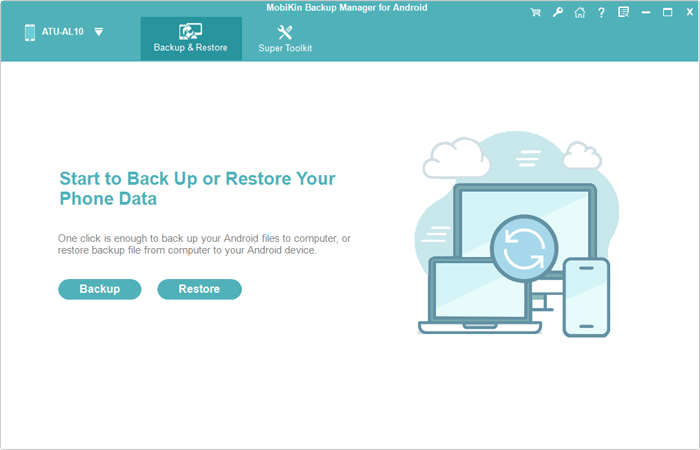
How to use the best Samsung backup and restore tool without Samsung Cloud? Check out the Video Tutorial below:
Additional Tips
If the error shows up while restoring important data, avoid repeatedly resetting your Samsung phone or deleting cloud data. Confirm that the correct Samsung account is signed in and that the phone has a stable connection, then try the simpler fixes before taking any step that could affect existing data. If the error continues, sign out and back into your Samsung account only after confirming that your important cloud data is still accessible.
Related Articles:
How to Fix "Samsung Cloud Backup Failed" Efficiently? [2026 Latest]
All You Want to Know about Samsung Account Backup/Restore [Updated]
5 Verified Ways: How to Recover Data after Factory Reset on Samsung
Top 5 Best Samsung Data Recovery Tools You Should Never Miss