ASUS FRP Bypass: 4 Creative Ways That Deserve Your Attention
TL;DR:
The choice among these manual and tool-based methods ultimately comes down to your device's Android version, the availability of the original Google account, and your willingness to accept potential data loss. From my point of view:
- Enjoying almost the highest success rate, Android Lock Wiper offers a systematic, PC-driven alternative that can handle FRP removal across various Android versions without requiring the original account.
- A careful check of your specific ASUS model against the tool's compatibility list remains essential, because the unlocking process may erase all existing data on the device.
Reminder: FRP (Factory Reset Protection) is a Google security feature designed to prevent unauthorized access after a factory reset. These steps are only valid if you're the rightful previous owner of the ASUS phone.
* How Does FRP Work on ASUS Phones/Tabletes?
- Trigger: reset via Recovery without signing out.
- Verification: enter last Google account credentials after reboot.
- Storage: account info in separate partition unaffected by normal reset.
- Unlock: only correct credentials work; else device remains locked.
- Purpose: anti-theft - prevents reuse after wipe.
Factory Reset Protection often locks ASUS users out of their own phones after resets or second-hand purchases. Traditional free tools are difficult to apply to FRP locks on ASUS with increasingly strengthened patches, so many once-reliable methods no longer work. This post addresses ASUS FRP Bypass via 4 viable approaches and let's move on for more details.
- Part 1: Bypass ASUS FRP via Google Account Recovery Page (For Previous Owners)
- Part 2: Bypass ASUS Phone FRP via FRP Bypass.apk (For Android 6.0 - 9.0)
- Part 3: Perform ASUS FRP Bypass Using TalkBack (For Android 10 - 12+)
- Part 4: Bypass ASUS FRP Lock via SIM Contact & YouTube (For Android 10 & Up)
- Part 5: Use the Best Tool for ASUS FRP Bypass (For Various Android Versions)
- FAQs about ASUS FRP Bypass
- Conclusion - Which Method to Pick? A Comparison Table
Part 1: Bypass ASUS FRP via Google Account Recovery Page (For Previous Owners)
Requirements:
- Google account - The Gmail linked to the ASUS ZenFone/FonePad.
- Internet - Wi-Fi or mobile data.
- Recovery options - Phone, email, or security questions set up.
- Verification - Ability to confirm identity.
- Password reset - If old password is forgotten.
- Device access - To enter recovered credentials.
- Account removal - Delete the account from the phone after unlocking.
How-to Guide:
- Visit Google Account Recovery - Go to the official recovery page in any browser.
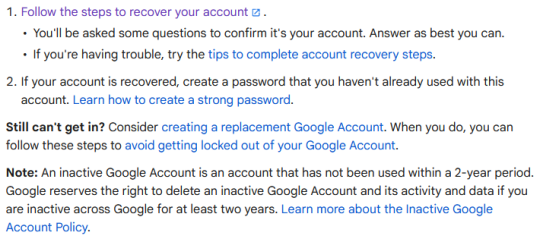
- Enter your Gmail address - Use the same Google account that was previously synced on the ASUS device.
- Verify your identity - Google may ask for:
Password (current or last remembered)
SMS/email verification code
Security questions or backup codes. - Reset your password - If you don't remember the old one, set a new password once verification succeeds.
- Log in on the ASUS device - On the FRP screen, enter the recovered account credentials. The phone will accept them since it matches the previously linked account.
- Remove the account before handing over - After unlocking, go to Settings → Accounts → Google → Remove account. This ensures the new owner won't be blocked again.
To remove Google FRP lock from an ASUS phone, you must first sign in with the original Google account linked to the device, or use the official Google Account Recovery process if you've forgotten the credentials. Once the phone is unlocked, you can go into Settings → Accounts → Google and remove the account directly from the device. This ensures the FRP lock won't trigger again.
You May Also Like: ASUS Backup & Restore: 5 Ways to Back Up & Restore ZenFone
Part 2: Bypass ASUS Phone FRP via FRP Bypass.apk (For Android 6.0 - 9.0)
Requirements:
- ASUS ZenFone/FonePad - Must be running Android 6.0 to 9.0.
- FRP Bypass.apk file - Stored on a USB, SD card, or OTG drive.
- OTG cable or SD card - To connect external storage to the APK.
- File manager access - To locate and install the APK.
- Unknown sources enabled - Required for installing third-party apps.
- Internet connection - Needed for signing in after bypass.
- New Google account - To register on the device once bypass is complete.
How-to Guide:
- Download a trusted FRP Bypass.apk - Save the file to USB, SD card, or OTG.
- Connect OTG or insert SD - Attach the storage with the APK to the locked ASUS phone.
- Open File Manager - Navigate to the APK file location.
- Enable Unknown Sources - Allow installation of apps outside the Play Store.
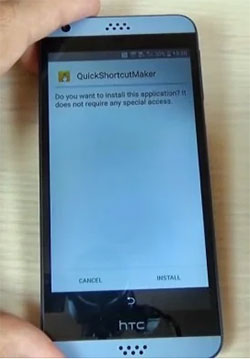
- Install FRP Bypass.apk - Run the APK to launch the decent bypass tool.
- Access Settings - The tool opens a shortcut into device settings.
- Add a new Google account - Sign in with a fresh Gmail account.
- Restart device - Reboot; FRP lock should be cleared with the new account active.

Part 3: Perform ASUS FRP Bypass Using TalkBack (For Android 10 - 12+)
Requirements:
- ASUS phone - Must be running Android 10, 11, or 12.
- TalkBack accessibility feature - Needed to trigger accessibility shortcuts.
- Internet connection - Required for downloading tools and signing in.
- YouTube app access - Used as a gateway to browser access.
- Browser access - Chrome or another browser to download APK.
- FRP Bypass.apk file - The tool needed to bypass FRP.
- Unknown sources enabled - Required to install the APK.
- New Google account - To register on the device after bypass.
How-to Guide:
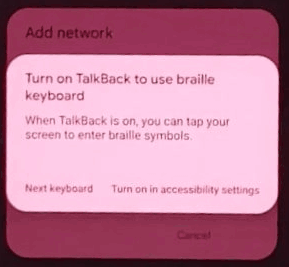
- Turn on TalkBack - On the FRP screen, hold two fingers on the screen or press both volume keys to activate TalkBack.
- Open TalkBack settings - Use gestures or voice commands to access TalkBack settings.
- Suspend TalkBack - Temporarily disable TalkBack to allow easier navigation.
- Access Help menu - From TalkBack settings, open the Help & Feedback section.
- Launch YouTube link - Tap a YouTube tutorial link to open the YouTube app.
- Open browser - Use the Share option in YouTube to open Chrome or another browser.
- Download FRP bypass tool - Navigate to a trusted site and download FRP Bypass.apk.
- Install APK - Enable "Unknown sources" and install the APK.
- Access Settings shortcut - The tool opens a path into device settings.
- Add new Google account - Sign in with a fresh Gmail account.
- Restart device - Reboot; FRP lock should be cleared with the new account active.
Part 4: Bypass ASUS FRP Lock via SIM Contact & YouTube (For Android 10 & Up)
Requirements:
- ASUS phone - Running Android 10 or higher.
- SIM card with contacts - Needed to access the contacts menu.
- Internet connection - Required for YouTube and downloading tools.
- YouTube app access - Used as a gateway to reach browser options.
- Browser access - Chrome or another browser to download APK.
- FRP Bypass.apk file - The bypass tool to install.
- Unknown sources enabled - Required to install the APK.
- New Google account - To sign in after bypass is complete.
How-to Guide:
- Insert SIM card - Place a SIM with saved contacts into the locked phone.
- Open SIM contacts - Access the contact list from the emergency call or SIM menu.
- Choose a contact - Select a contact and tap the message or call option.
- Use YouTube link - Send or open a link that redirects to YouTube.
- Access YouTube settings - From YouTube, go to account or help options.
- Open browser - Use the Share option in YouTube to launch Chrome or another browser.
- Download FRP bypass tool - Navigate to a trusted site and download an FRP Bypass.apk.
- Install APK - Enable "Unknown sources" and install the bypass app.
- Access Settings shortcut - The tool opens a path into device settings.
- Add new Google account - Sign in with a fresh Gmail account.
- Restart device - Reboot; FRP lock should be cleared with the new account active.
Part 5: Use the Best Tool for ASUS FRP Bypass (For Various Android Versions)
Requirements:
- ASUS phone - The device must be locked with Google FRP.
- Windows computer - Android Lock Wiper runs on a PC, not directly on the phone.
- USB cable - To connect the ASUS phone to the computer.
- Android Lock Wiper software - Installed on your computer.
- Internet connection - Required for downloading the program.
Key Features:
> Screen Lock Removal - Removes PIN, pattern, password, fingerprint, and face ID locks from Android devices.
> ASUS FRP Bypass - Unlocks ASUS phones by bypassing Google FRP lock without needing the original account.
> Broad Device Support - Works with 8,000+ Android models, including ASUS, Samsung, Xiaomi, Huawei, and more.
> Data Retention Options - Unlocks certain devices (like Samsung) without data loss, depending on the model.
> Quick Factory Reset - Performs a full reset in minutes to restore usability.
> Ease of Use - Simple step-by-step interface; no technical expertise required.
> Regular Updates - Continuously updated to support new Android versions and security patches.
> Lawful Use Requirement - Intended only with the informed consent of the device's rightful owner.
How-to Guide:
01: Download and Install
- Download the installer on your computer from below.
- Run the setup and complete the installation.

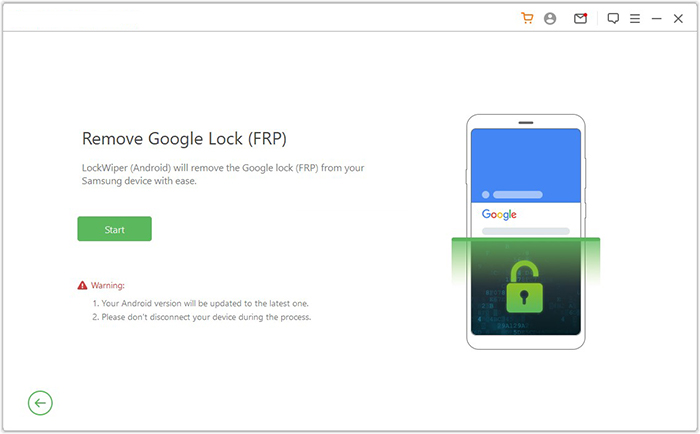
02: Select FRP Option
- Launch the program.
- Select Remove Google Lock (FRP).
- Switch to Advanced Mode.
03: Connect and Configure
- Connect your ASUS phone/tablet via a USB cable.
- Click Start and back up data if needed.
- Enter phone information and press Next.
- Follow prompts to boot into recovery mode.
- Select PDA, country, and carrier, then download the data package.
04: Extract and Unlock
- Start extraction and put the phone into Download Mode.
- Enable USB debugging and OEM unlock.
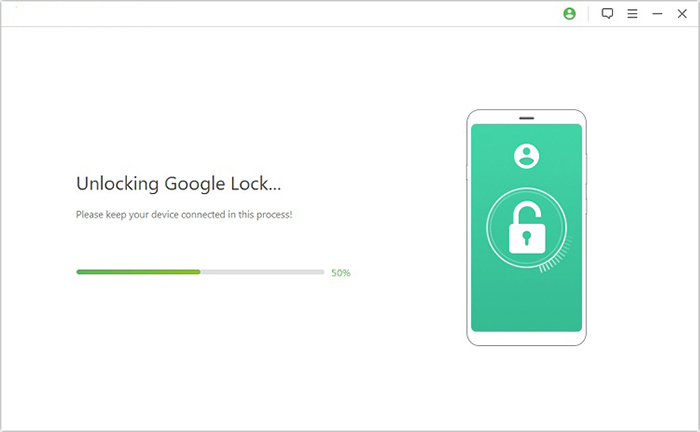
- Allow the tool to process the firmware.
- Wait until FRP lock is fully removed.
FAQs about ASUS FRP Bypass
Q1. Can I use another Google Account to unlock ASUS FRP?
Yes, but only if that account was previously added and synced to the device.
Q2. Does changing the Google Account password remove FRP?
No. Changing the password does not itself remove the Google Account previously associated with the device.
Q3. Can I remove ASUS FRP with a factory reset from Settings?
If you can access Settings, first remove the Google Account and then perform the reset. This prevents the previous account from remaining associated with the device.
Q4. What should I do if I forgot my ASUS FRP Google Account?
Try recovering the original Google Account. If recovery fails, contact ASUS support or an authorized service center with proof of ownership.
Q5. Is ASUS FRP the same as a screen lock?
No. A screen lock protects normal device access, while FRP verifies ownership after certain factory-reset scenarios.
Q6. Does ASUS FRP affect ROG Phone models?
ROG Phones using Android with Google device protection can require previously synced Google Account credentials after certain factory-reset scenarios.
Q7. Can I use Emergency Information to bypass ASUS FRP?
Some older online guides describe this approach, but it is not an official Google-supported FRP solution and may not work on current ASUS firmware.
Conclusion - Which Method to Pick? A Comparison Table
The table below compares several ASUS FRP bypass methods, highlighting their main advantages and potential drawbacks. It can help you assess which approach is more suitable based on safety, convenience, compatibility, and data-loss concerns.
|
Method
|
Pros & Cons
|
|
Google Account Recovery Page (For previous owners) |
Pros: Official and safest approach; no third-party tool; follows the legitimate ownership process. Cons: Requires access to the previously synced Google Account. |
|
FRP Bypass.apk (Android 6.0-9.0) |
Pros: May work on some older ASUS devices; does not require paid desktop software. Cons: APK sources may be unreliable; compatibility is limited; potential security risks exist. |
|
TalkBack Method (Android 10-12+) |
Pros: Does not require a dedicated desktop program. Cons: The process can be complicated; accessibility features and setup flows vary across firmware; newer updates may block the method. |
|
SIM Contact & YouTube (Android 10 and up) |
Pros: Uses features available on the phone; no dedicated FRP program is required. Cons: Involves multiple steps; menus may differ by device; newer firmware may prevent access to Settings. |
|
Android Lock Wiper (Almost all Android versions) |
Pros: PC-based and relatively straightforward; provides a guided workflow; can simplify FRP/screen lock removal on various phone brands. Cons: Requires a computer and may erase device data; ASUS support should be verified for the specific model before recommending it. |
Related Articles:
iCloud DNS Bypass Full Guide: Unlock iPhone/iPad Activation Lock
[2026 HOT] How to Transfer Files from Android to iPhone?
5 Tactics to Recover Formatted Data from Android Phone with/without Backup
How to Recover Data from a Broken/Damaged Phone? 5 Little-known Ways