GSM Prime Tool Review: Is This Unlock Tool Worth Your Time? [Solved]
TL;DR:
GSM Prime Tool is a free Windows utility for FRP bypass, flashing, unlocking, and repair on Android, mainly Samsung.
- It supports many brands, but compatibility depends on model, chipset, and Android version - newer devices often struggle.
- It suits experienced users, not beginners, due to the technical steps.
- Risks include bricking if the firmware is wrong.
- For screen-lock or FRP removal, Android Lock Wiper is simpler, with guided modes and data preservation for some Samsung models.
NOTE: We advocate the legal use of these tools for reasonable purposes and oppose their use in any unauthorized activities.
A GSM Prime Tool review can help Android users decide whether this utility is a practical choice before putting it to work on their phones. This article examines its features, compatibility, ease of use, and potential risks, with particular attention to whether it can truly handle tasks such as FRP servicing, firmware flashing, or network unlocking.
If you are searching for a GSM Prime Tool review to determine whether the tool is reliable and worth trying, the following sections provide a closer look.
- Part 1: What Is GSM Prime Tool
- Part 2: GSM Prime Tool - Supported Devices
- Part 3: Is GSM Prime Tool Safe & Free to Use
- Part 4: How to Download & Use GSM Prime Tool
- Part 5: GSM Prime Tool - Pros & Cons
- Part 6: Best Replacement for GSM Prime Tool [Tested]
- Part 7: FAQs about GSM Prime Tool
- Summary - GSM Prime Tool vs. Android Lock Wiper
Part 1: What Is GSM Prime Tool
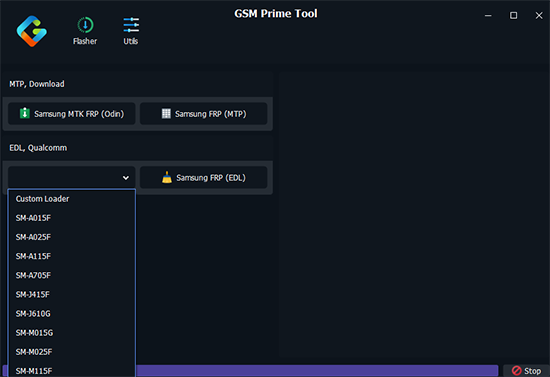
GSM Prime Tool is a Windows-based Android servicing utility mainly used for FRP bypass, firmware flashing, network unlocking, and system repair on supported devices. It supports various service modes and can work with certain Samsung and other Android phones, depending on the model, chipset, firmware, and security patch.
However, its compatibility is limited, and users should download it only from trustworthy sources to reduce security and device-bricking risks.
Key Features of GSM Prime Tool
|
Feature
|
Key Details
|
|
FRP Bypass |
Bypasses Factory Reset Protection on supported Samsung devices with Qualcomm and MediaTek processors. |
|
Firmware Flashing |
Flashes or restores supported devices using BL, AP, CP, and CSC files. |
|
Network Unlock |
Removes certain SIM/network restrictions to allow use with different carriers. |
|
System Repair |
Helps address issues such as bootloops, soft bricks, and other Android system glitches. |
|
Multiple Service Modes |
Supports service methods such as MTP, Download/Odin, and EDL, depending on the device. |
|
Windows Support |
Runs as a Windows-based phone servicing utility rather than a mobile Android app. |
|
Qualcomm & MTK Support |
Supports FRP-related operations on Samsung devices powered by Qualcomm and MediaTek chipsets. |
|
Odin/Download Mode Support |
Allows certain Samsung servicing operations through Odin or Download Mode. |
You May Also Enjoy: Direct Open FRP MobileTech Review: Is This Tool Now Obsolete?
Part 2: GSM Prime Tool - Supported Devices
GSM Prime Tool does not support every Android phone, and its compatibility varies by brand, model, chipset, and Android version. The table below summarizes some of the devices and Android versions reported as supported by the referenced sources:
|
Brand
|
Supported Devices/Models
|
Supported Android Versions
|
|
Samsung
|
Galaxy A02, A02s, A03, A03s, A04, A04e, A05, A05s, A06, A10s, A11, A20s, A32 |
Android 5-13 |
|
Samsung
|
SM-A015F, SM-A025F, SM-A115F, SM-A705F, SM-J415F, SM-J610G, SM-M015G, SM-M025F, SM-M115F |
Android 5-13 |
|
Xiaomi/Redmi
|
Redmi A1, A2, A3, 9A, 10, 12C, 13C, 14C, Redmi Note 12S |
Android 11-15 |
|
Motorola
|
Moto E22, E22i, G05, G15 |
Android 12-15 |
|
MediaTek Devices
|
Various Android phones using MediaTek chipsets |
Varies by model |
|
Qualcomm Devices
|
Various Qualcomm-based Android smartphones |
Varies by model |
Part 3: Is GSM Prime Tool Safe & Free to Use
GSM Prime Tool is free to use, according to several trusted sources, so users generally do not need to pay for the tool itself. However, its safety depends largely on where it is downloaded, as unofficial, modified, or cracked versions may contain security threats or trigger antivirus warnings. Therefore, users should obtain it from a reliable source, scan the installation package, and avoid suspicious versions to minimize potential risks.
Further Exploration: Is there any other tool similar to GSM Prime Tool? Check out this GSMneo FRP review now.
Part 4: How to Download & Use GSM Prime Tool
Downloading and using GSM Prime Tool requires several steps, from obtaining the tool and installing the necessary drivers to connecting your Android phone and selecting the appropriate service option. The following guide explains how to download GSM Prime Tool and use it for supported tasks such as FRP servicing, firmware flashing, and network unlocking:
Step 1: Download GSM Prime Tool - Visit a reputable source that provides the latest version of GSM Prime Tool and download the installation package to your Windows PC. Avoid modified or cracked versions, as they may contain security risks.
Step 2: Extract and Install the Tool - If the downloaded file is compressed, extract it with a suitable archive utility. Open the extracted folder and run the setup or executable file, following the on-screen instructions to complete the installation.
Step 3: Prepare Your Android Phone - Charge the phone sufficiently and install the appropriate Samsung USB drivers if required. Connect the device to the computer with a compatible USB cable and select the service mode required by your specific model.
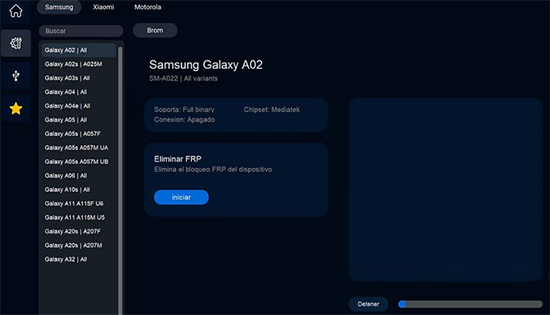
Step 4: Launch GSM Prime Tool - Open GSM Prime Tool on the Windows computer and allow it to detect the connected phone. Choose the appropriate operation, such as FRP-related servicing, firmware flashing, or network unlocking, based on your device and the supported functions.
Step 5: Start the Selected Operation - Follow the instructions displayed by the tool and wait for the process to finish without disconnecting the phone. Once completed, restart the device and check whether the selected operation was successful.
Note: The exact procedure varies considerably by device, chipset, Android version, firmware, and security patch. Before proceeding with FRP or firmware operations, make sure you own the device or have authorization to service it, and back up important data whenever possible.
Part 5: GSM Prime Tool - Pros & Cons
Positive Aspects
- Works with a wide range of Android brands and chipsets.
- Provides several servicing options, such as FRP removal, screen-lock bypass, flashing, and system repair.
- Available as a free tool with a straightforward installation process.
- Supports Samsung and various other compatible Android models.
- Offers a variety of device servicing functions in one utility, reducing the need to switch between different tools.
Negative Aspects
- Requires a Windows computer to run.
- May have limited support for newer Android devices and system versions.
- Certain download packages may trigger security warnings in Chrome.
- Some advanced operations require technical experience.
- Unofficial or modified versions can expose users to malware and other security threats.
- Some features may require specific device models, chipsets, or connection modes to work properly.
Part 6: Best Replacement for GSM Prime Tool [Tested]
How to Resolve Common GSM Prime Tool Problems?
- Device not detected: Reinstall USB drivers and try another cable or port.
- "Waiting for Device" error: Reconnect the phone and select the correct mode.
- FRP bypass fails: Check the model, Android version, and security patch.
- Tool gets stuck: Restart the tool and phone, then reconnect them.
- Download Mode fails: Follow the correct key combination for your model.
- Activation or loader failure: Use a legitimate, compatible tool version.
- Firmware flashing fails: Confirm the firmware matches your exact model.
- Device info cannot be read: Reconnect the phone and reinstall drivers.
- Invalid Download Port: Check the USB connection and drivers.
- Program crashes: Restart Windows and try a compatible version.
- FRP remains active: Verify that the method supports your firmware.
- Chrome blocks the download: Use a trusted source instead of bypassing security.
- Phone is unsupported: Check its model, chipset, Android version, and patch.
- USB debugging prompt is missing: Enable USB debugging if the phone is accessible.
- Phone becomes unstable: Stop and verify the firmware before trying again.
What Could Be Better than GSM Prime Tool?
Forgotten passwords, PINs, patterns, or other screen locks can make an Android phone inaccessible, and Android Lock Wiper can help remove these locks on supported devices. It also handles Google FRP removal and supports various brands, including Samsung, Xiaomi, Redmi, OnePlus, POCO, and Motorola.
Several unlocking modes are available for different situations, including a data-preserving option for some Samsung models, while its guided steps walk users through the process, though certain methods may erase device data.
Free Download:

How to bypass FRP lock on Android using Android Lock Wiper?
01: Prepare - Download and install the tool, then select "Remove Google Lock (FRP)" > "Advanced Mode." Connect your Android phone via USB, click "Start," and perform a full backup to safeguard your data against any potential loss.
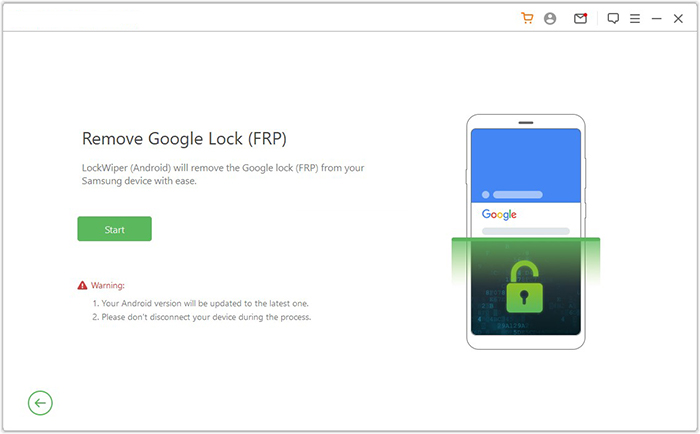
02: Download - Follow the on-screen prompts to input your phone details and access recovery mode. Select the correct PDA, country, and carrier, then click "Download" to retrieve the required data package.
03: Extract - Unzip the downloaded file and, following the provided instructions, switch your device into Download Mode to prepare for the unlocking process.
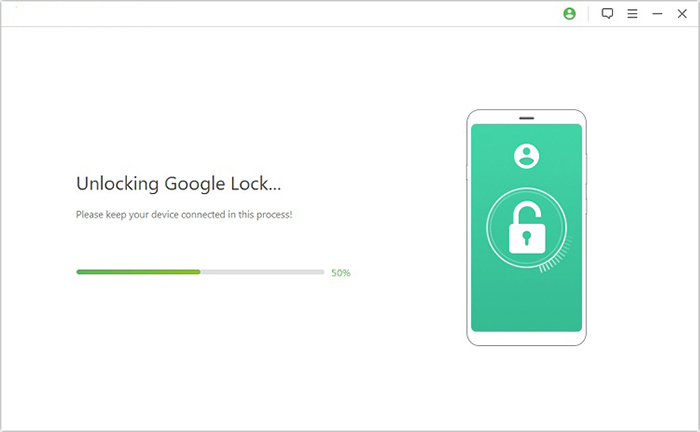
04: Unlock - Activate USB debugging and OEM unlock, extract the firmware files, and complete all remaining critical tasks. The software will then instantly remove the FRP lock from your TCL device.
Part 7: FAQs about GSM Prime Tool
Q1. Does GSM Prime Tool support the latest Android versions?
Its compatibility with newer Android versions can be limited because security updates and newer chipsets may block older servicing methods.
Q2. Does GSM Prime Tool work on Mac?
No. The tool is intended for Windows computers and does not have native macOS support.
Q3. What Android modes does GSM Prime Tool support?
Depending on the device and operation, it may work through modes such as MTP, Download Mode, and EDL Mode.
Q4. Do I need USB drivers to use GSM Prime Tool?
Usually, yes. Appropriate device drivers can be necessary for the computer to recognize the connected Android phone and communicate with it correctly.
Q5. Why does GSM Prime Tool fail to detect my phone?
Common causes include missing drivers, an unsuitable USB cable or port, an incorrect device mode, and unsupported phone firmware or chipset.
Q6. Can GSM Prime Tool brick a phone?
There is a risk of software problems if an unsupported firmware file is flashed or the process is interrupted. Using the correct files and following device-specific instructions can help reduce the risk.
Q7. Is GSM Prime Tool suitable for beginners?
It is better suited to experienced users and repair technicians because many operations involve drivers, service modes, firmware files, and device-specific procedures.
Summary - GSM Prime Tool vs. Android Lock Wiper
|
Feature
|
GSM Prime Tool
|
Android Lock Wiper
|
|
Primary purpose
|
Broad Android servicing, including FRP, flashing, and other repair-related operations |
Focused on removing Android screen locks and Google FRP locks |
|
Screen-lock removal
|
Available on some supported devices and versions |
Removes PINs, passwords, patterns, fingerprints, and face locks |
|
FRP removal
|
Supports FRP-related servicing on certain devices |
Provides dedicated Standard and Advanced FRP removal modes |
|
Data preservation
|
Depends on the operation and device |
Offers a no-data-loss screen-lock mode for supported Samsung models |
|
Device coverage
|
Support can vary according to model, chipset, firmware, and tool version |
Supports a broad range of Android brands, with FRP and screen-lock support varying by function |
|
Best suited for
|
Users who need a multi-purpose Android servicing tool |
Users looking for a more straightforward solution specifically for Android lock and FRP removal |
Overall, Android Lock Wiper has an advantage when the main goal is removing screen locks or FRP rather than performing broader phone-servicing tasks. Its dedicated unlocking modes, guided workflow, and no-data-loss option for certain Samsung devices make it a more accessible choice for users who are less familiar with technical servicing procedures.
Related Articles:
SIM Unlock: 4 Hot Tips to Unlock SIM Card on Android Mobile Phones
Recovery Mode on Android Devices: Full Explanation & Helpful Tips
5 Tactics to Recover Formatted Data from Android Phone with/without Backup
[4 Methods] How to Remove iCloud from iPhone with or without Password?