Dr.Fone Screen Unlock for iOS Review: Is It the Best iPhone Unlock Tool?
TL;DR:
If you forgot your iPhone passcode, Dr.Fone Screen Unlock (iOS) and iOS Unlock can help remove different iOS locks through a computer-based process.
- Dr.Fone Screen Unlock (iOS) helps unlock disabled iPhones, forgotten passcodes, and other lock issues without the original password.
- Its workflow is simple: open "Toolbox" > "Screen Unlock", connect your device, download firmware, and click "Unlock Now".
- The tool is easy to use but will erase existing iPhone data during the unlocking process.
- Dr.Fone supports various iPhone/iPad models but requires a paid license for full unlocking features.
- iOS Unlock is an alternative that provides similar functions, including screen passcode removal and a guided unlock process.
Getting locked out of an iPhone or iPad can be frustrating, especially when you forget the screen passcode or the device becomes disabled. Dr.Fone Screen Unlock (iOS) is one of the tools designed to help users regain access without complicated steps. In this review, we will look at its main features, unlocking process, advantages and limitations, and a reliable alternative to help you decide whether it is the right choice for your iOS device.

- Part 1: What Is Dr.Fone Screen Unlock (iOS)?
- Part 2: Key Features of Dr.Fone Screen Unlock for iOS
- Part 3: How to Use Dr.Fone Screen Unlock for iOS?
- Part 4: Dr.Fone Screen Unlock iOS Review: Pros and Cons
- Part 5: Best Dr.Fone Screen Unlock iOS Alternative: iOS Unlock
- FAQs About Dr.Fone Screen Unlock for iOS
Part 1: What Is Dr.Fone Screen Unlock (iOS)?
Dr.Fone Screen Unlock (iOS) is a tool from Wondershare designed to help users unlock iPhone, iPad, and iPod touch when they cannot access the device. It is mainly used for situations like forgetting a screen passcode, getting locked out after too many failed attempts, or being unable to use Face ID/Touch ID.
Unlike Apple's official methods that usually require a reset through Finder, iTunes, or iCloud, Dr.Fone provides a more guided unlocking process. Users only need to connect their iOS device to a computer, download the required firmware package, and follow the on-screen instructions to remove the lock.
However, it is important to note that removing the screen lock may erase existing data on the device, so users should make sure they understand the risks before starting the process.
You May Also Like:
Part 2: Key Features of Dr.Fone Screen Unlock for iOS
Dr.Fone Screen Unlock (iOS) offers several features for dealing with different iPhone and iPad lock issues. Here are its main functions:
- Remove iPhone Screen Passcode: The tool can remove common iOS screen locks, including 4-digit passcodes, 6-digit passcodes, Face ID, and Touch ID-related locks. It can be helpful when users forget their password and cannot open their device.
- Unlock Disabled or Unavailable iPhone: If an iPhone becomes disabled after entering the wrong passcode too many times, Dr.Fone Screen Unlock can help remove the lock and restore access to the device.
- Support iPhone, iPad, and iPod touch: The software supports various iOS devices, allowing users to unlock different Apple products through a similar process.
- Simple Unlock Process: Dr.Fone provides step-by-step guidance, making the process easier for users without technical experience. The basic workflow includes connecting the device, downloading firmware, and starting the unlock process.
- Handle More iOS Lock Situations: Besides screen passcodes, Dr.Fone Screen Unlock also includes additional unlocking options, such as Screen Time passcode removal, Apple ID/iCloud-related unlocking features, and MDM removal in supported cases.
- No Need to Remember the Original Passcode: One of its main advantages is that users can start the unlocking process without knowing the current screen password, which is useful for locked or inaccessible devices.
Part 3: How to Use Dr.Fone Screen Unlock for iOS?
Dr.Fone Screen Unlock (iOS) provides a simple process to remove an iPhone or iPad screen lock. Before starting, make sure your device has enough battery power and keep a USB cable ready. Also, note that unlocking the screen passcode will erase all existing data on the device, similar to a factory reset.
Follow the steps below:
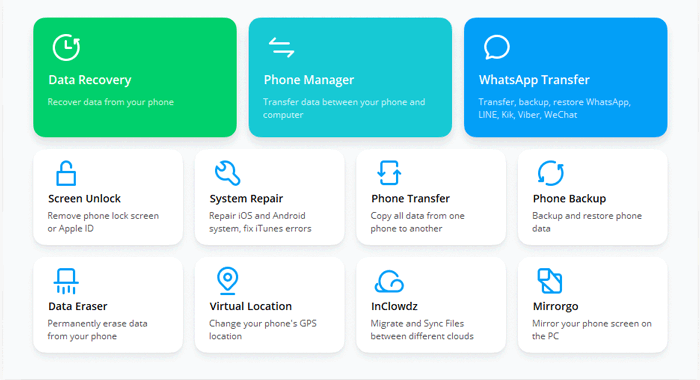
- Download and install Wondershare Dr.Fone on your computer. Open the program, go to "Toolbox" > "Screen Unlock", and select the iOS option.
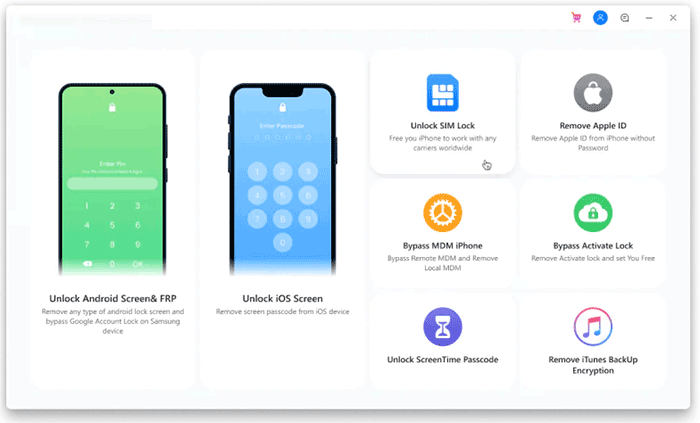
- Connect your locked iPhone, iPad, or iPod touch to the computer with a USB cable. Then choose "Unlock iOS Screen" to start the unlocking process.
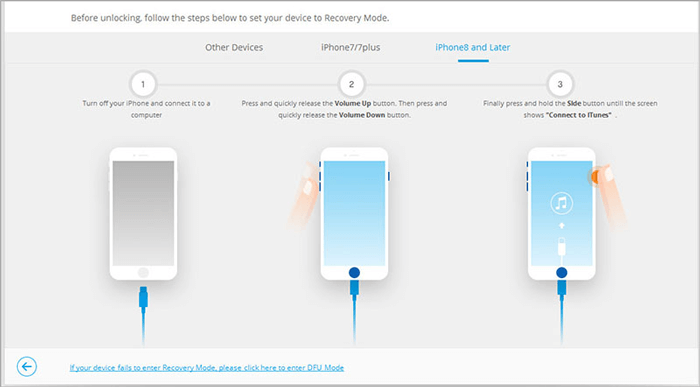
- Click "Start" and follow the on-screen instructions to put your device into Recovery Mode. If Recovery Mode does not work, you can try entering DFU Mode instead.
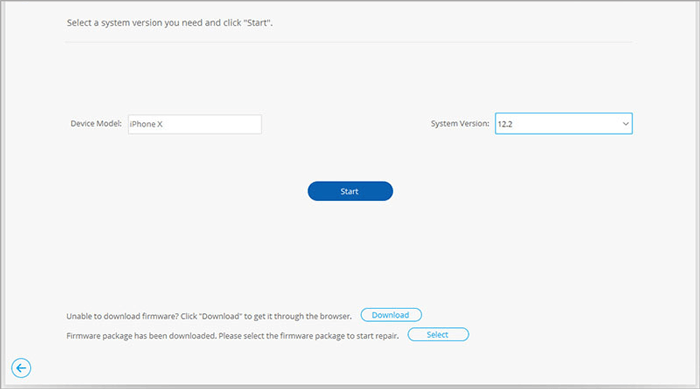
- After the device is detected, Dr.Fone will display the device model and available firmware information. Check the details and click "Start" to download the matching iOS firmware package.
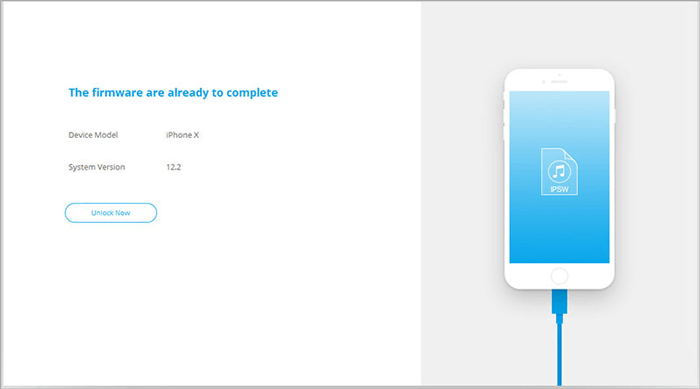
- Once the firmware package is downloaded and verified, click "Unlock Now" to begin removing the screen lock. You may need to enter a confirmation code before continuing.
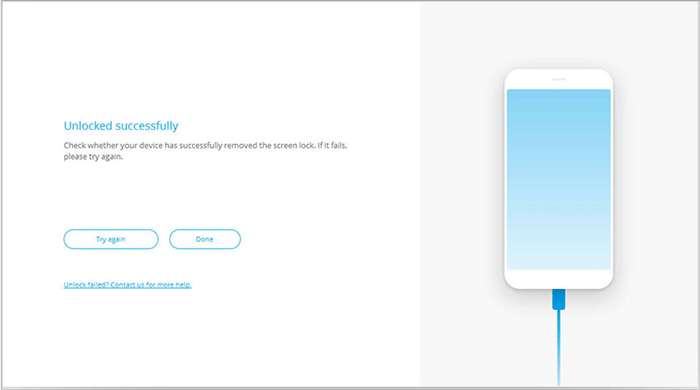
- Keep your iPhone connected during the entire process. Dr.Fone will install the firmware and remove the screen lock automatically. When the process finishes, click "Done" to complete the operation.
Read Also:
Part 4: Dr.Fone Screen Unlock iOS Review: Pros and Cons
Pros:
- Supports unlocking common iOS screen lock issues, including forgotten passcodes and disabled devices.
- Works with a wide range of iPhone, iPad, and iPod touch models.
- Does not require the original screen passcode to start the unlocking process.
- Provides multiple unlocking tools for different iOS lock situations.
Cons:
- Unlocking the device will erase all existing data, and there is no guarantee of data recovery.
- A computer connection and firmware download are required, which may take some time.
- Some features are only available after purchasing the full version.
- It cannot unlock every type of iOS lock, and some situations may still require Apple's official solutions.
Part 5: Best Dr.Fone Screen Unlock iOS Alternative: iOS Unlock
If you are looking for a Dr.Fone Screen Unlock iOS alternative, iOS Unlock is another tool worth considering. It is designed to help users remove different types of iOS locks, including screen passcodes, Apple ID issues, Screen Time passcodes, and MDM restrictions. With a simple interface and step-by-step process, iOS Unlock allows users to unlock an iPhone or iPad without complicated operations.
Key Features of iOS Unlock:
- Remove Apple ID from iPhone/iPad without entering the password in supported situations.
- Help remove an old Apple ID linked to your device when you cannot access the account.
- Unlock Apple ID-related restrictions and regain control of your device.
- Support various iPhone and iPad models with different iOS versions.
- Provide a simple interface that guides users through the unlocking process step by step.
- Allow you to sign in with another Apple Account after the removal process is completed.


How to Use iOS Unlock to Unlock iPhone Screen Passcode:
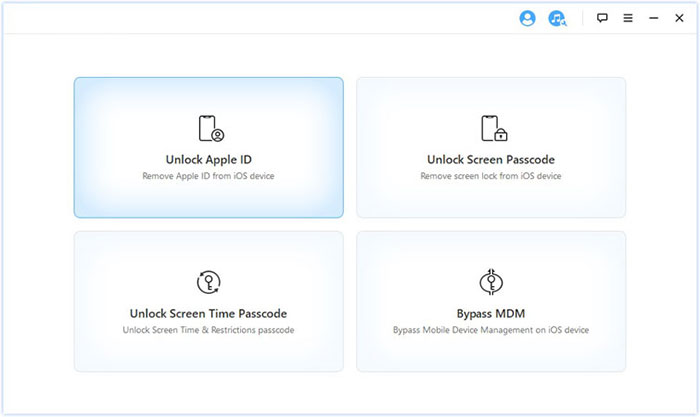
Step 1: Download and install iOS Unlock on your computer. Launch the program and select "Unlock Screen Passcode".
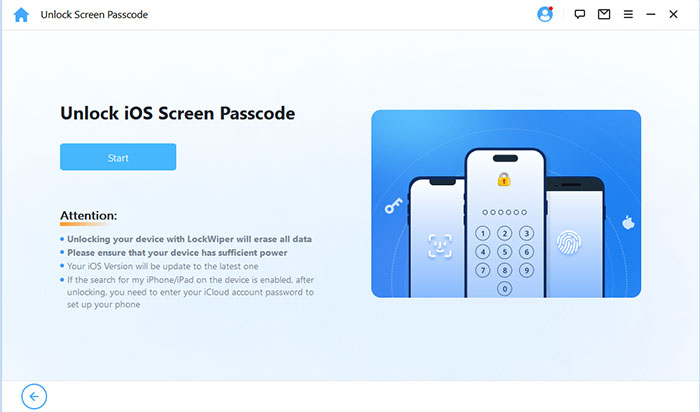
Step 2: Connect your iPhone, iPad, or iPod touch to the computer using a USB cable. Click "Start" and follow the instructions to put your device into Recovery Mode or DFU Mode if needed.
Step 3: After the device is detected, iOS Unlock will automatically display the device information. Download and verify the matching firmware package.
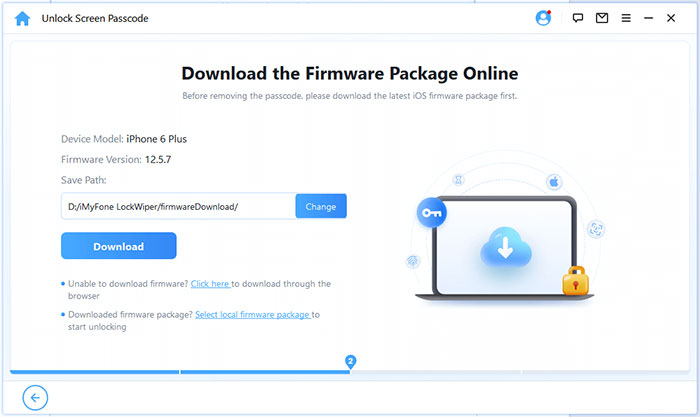
Step 4: Once the firmware is ready, click "Unlock" and enter "000000" to confirm the operation.
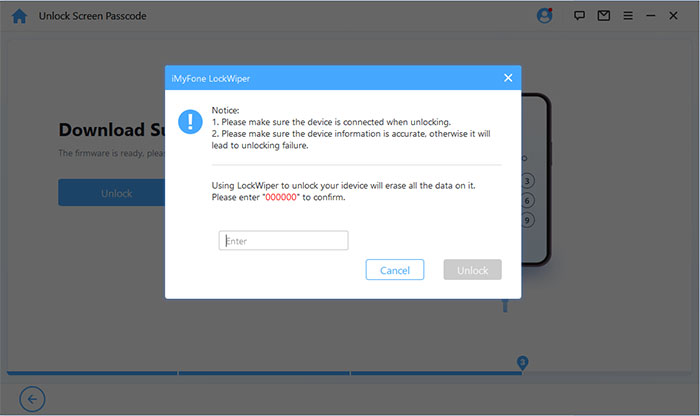
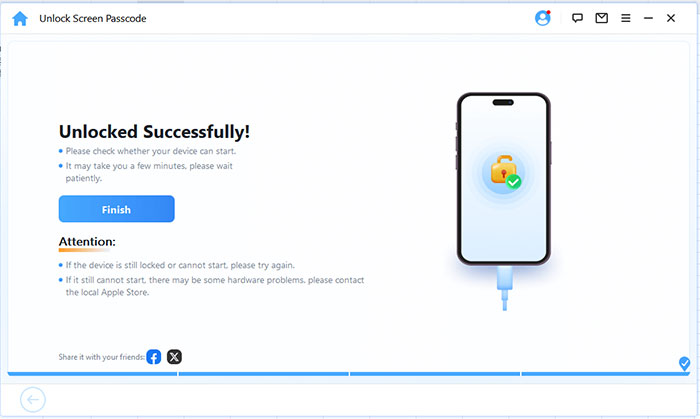
Step 5: Keep your device connected during the unlocking process. After a few minutes, the screen passcode will be removed, and you can set up your iPhone again.
FAQs About Dr.Fone Screen Unlock for iOS
Q1: Is Dr.Fone Screen Unlock for iOS free to use?
Dr.Fone Screen Unlock offers a free trial version that allows users to check its features, but a paid license is required to complete the full unlocking process. The price may vary depending on the selected plan and features.
Q2: Does Dr.Fone Screen Unlock erase iPhone data?
Yes. Unlocking an iPhone screen passcode will erase all existing data and settings on the device. If you have an available backup, you can restore your data after completing the unlock process.
Q3: Can Dr.Fone unlock an iPhone without a passcode?
Yes. Dr.Fone Screen Unlock can remove the screen passcode when you forget it or cannot access your iPhone. However, the process requires resetting the device, so the original data cannot be kept.
Q4: Is Dr.Fone Screen Unlock safe for iPhone?
Dr.Fone Screen Unlock is generally safe when used properly. It does not damage the device hardware, but users should download it from the official source and understand that the unlocking process may cause data loss.
Q5: Does Dr.Fone Screen Unlock work with all iPhone models?
Dr.Fone Screen Unlock supports many iPhone models, including older and newer devices. However, support may depend on the specific iPhone model and iOS version, so it is recommended to check compatibility before starting.
Conclusion
Dr.Fone Screen Unlock (iOS) provides a simple way to remove iPhone and iPad screen locks with a guided process. However, it also has limitations, such as possible data loss and paid features. If you need another option, iOS Unlock offers similar unlocking functions with an easy-to-follow workflow. Before using any unlocking tool, make sure you understand the risks and back up your data whenever possible.
Related Articles:
How to Unlock iPhone without Passcode or Face ID [6 Methods]
6 Ways to Unlock iPhone without Swiping Up [2026 Updated]