
Android Multi Tools Not Working? Reasons & 6 Scientific Solutions
Android Multi Tools has been widely used to manage Android devices through a computer, helping users perform tasks like unlocking screens, rebooting systems, or checking device information. However, many report that the program may encounter errors during unlocking, rebooting, or data management tasks, which prevent it from functioning as expected.
This guide explores common causes behind these problems and provides practical fixes to Android Multi Tools not working.
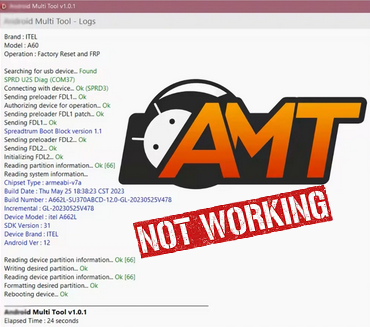
Part 1: Why Is Android Multi Tools Not Working
Android Multi Tools can sometimes be unpredictable, leaving users unsure why it isn't functioning properly. Understanding the common causes behind these failures can help troubleshoot the problem more effectively. Here are some of them:
- USB Connection Issues: Poor cable, faulty port, or improper connection mode.
- USB Debugging Disabled: The phone doesn't allow ADB commands without it.
- Missing or Wrong Drivers: The PC cannot communicate with the device properly.
- Device Not Supported: The tool may not recognize newer Android versions or certain models.
- Software Conflicts: Antivirus, firewall, or other ADB tools interfere with operation.
- Outdated or Corrupt Multi Tools Version: The installed version may be buggy or incompatible.
- Device in Wrong Mode: The phone is not in the correct mode for the desired action (ADB/Fastboot).
- System Resource Limitations: Low RAM or CPU resources can cause crashes during operations.
Part 2: Android Multi Tools Not Working? 6 Cases & Scientific Solutions
Case 1: Multi Tools Crashes on Launch
- Firstly, try running the program as an Administrator to ensure it has full system permissions.
- Then, make sure your computer has all the required frameworks installed, such as Java or .NET.
- If the problem persists, download a stable, updated version of Multi Tools and reinstall it in a clean folder.
Case 2: Device Not Detected
If Android Multi Tools doesn't detect your device, first ensure USB Debugging is enabled on your phone and the USB cable is properly connected. Install the official drivers for your phone model and try using a different USB port or cable. Restart both the phone and computer, then reconnect to see if the tool can recognize the device.
Case 3: Device Busy Error
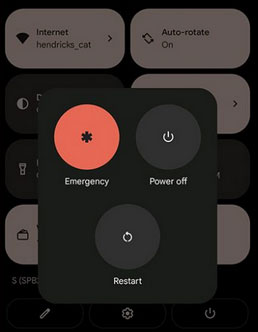
- Start by disconnecting and reconnecting your phone, then toggle USB Debugging off and on.
- Make sure the device is in the correct mode, such as ADB or MTP (File Transfer), depending on the operation.
- Close any other programs that may be using ADB, then restart both the phone and PC before trying again.
Case 4: Stuck at Command Prompt
- Run the tool as Administrator to ensure it has full system permissions.
- Check your USB connection and ensure the phone is properly recognized by the PC.
- Make sure USB Debugging is enabled and the device is in the correct mode (ADB or Fastboot).
- Close other programs that might interfere with ADB, then restart both your phone and computer before attempting the operation again.
Case 5: ADB Device Not Found
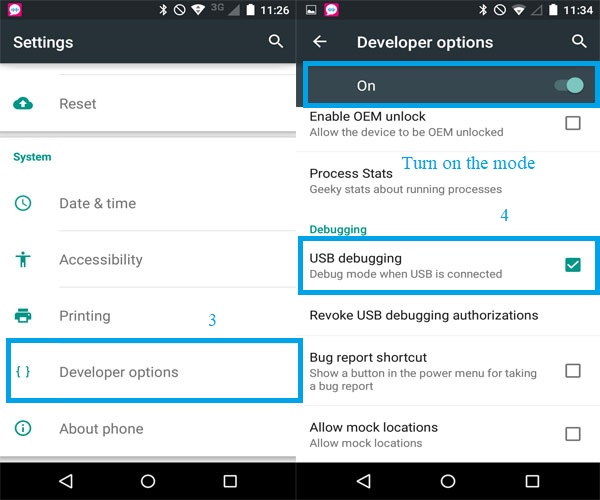
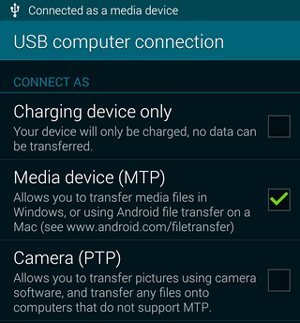
If Android Multi Tools shows "ADB Device Not Found," first ensure USB Debugging is enabled on your phone and the PC has authorized the connection. Install or update the official USB drivers for your device, and try using a different USB cable or port. Make sure the phone is in the correct connection mode, such as MTP (File Transfer) or ADB. Restart both the phone and computer, then reconnect to see if the tool can detect the device.
Case 6: Insufficient Permissions
If Android Multi Tools isn't working because of insufficient permissions, try launching the tool with Administrator rights on your computer. Ensure that your phone accepts the USB Debugging connection when prompted. On some systems, you might need to adjust security settings or temporarily disable restrictions that block driver access. After making these changes, restart both the phone and PC to apply them properly.
Part 3: FAQs about Android Multi Tools
Q1. Which Android versions does Multi Tools support?
Not all devices are supported; newer models or heavily customized Android versions may not be compatible. For unsupported phones, consider using professional alternatives.
Q2. Why isn't my device detected by Multi Tools?
Not all devices are supported; newer models or heavily customized Android versions may not be compatible. For unsupported phones, consider using professional alternatives.
Q3. Is it safe to use Android Multi Tools?
It's generally safe if downloaded from a trusted source, but improper use may erase data or cause system issues, so always back up important information first.
Q4. Can I recover data with Android Multi Tools?
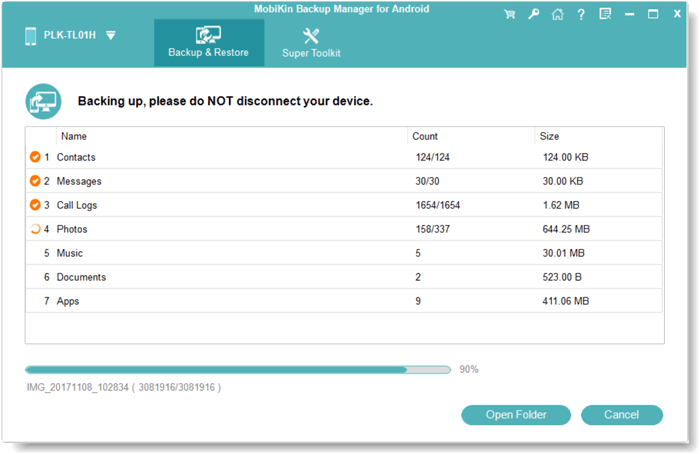
No, Multi Tools is not a data recovery tool; it's mainly for resetting, unlocking, or troubleshooting. Use dedicated recovery software if you need to restore lost files.
Q5. Can Android Multi Tools remove Google FRP lock?
Some versions claim to remove FRP locks, but success depends on the device model and Android version, and it may not work on newer phones.
Q6. How do I update Android Multi Tools?
You need to download the latest version from a trusted source, as the tool doesn't have an automatic update feature.
Q7. Will using Multi Tools void my warranty?
Performing certain actions like unlocking or factory resetting may affect your warranty, so it's best to check your device policy before use.
Part 4: Android Multi Tools Still Doesn't Work? Try the Best Replacement
When common fixes fail to troubleshoot Android Multi Tools, Android Lock Wiper offers a direct way to regain access to an Android device. This tool allows users to remove screen locks such as PINs, passwords, patterns, fingerprints, and face locks.
It can also bypass FRP without requiring the original Google account credentials. With its guided PC-based process, users can resolve access issues and regain control of their Android devices more easily.
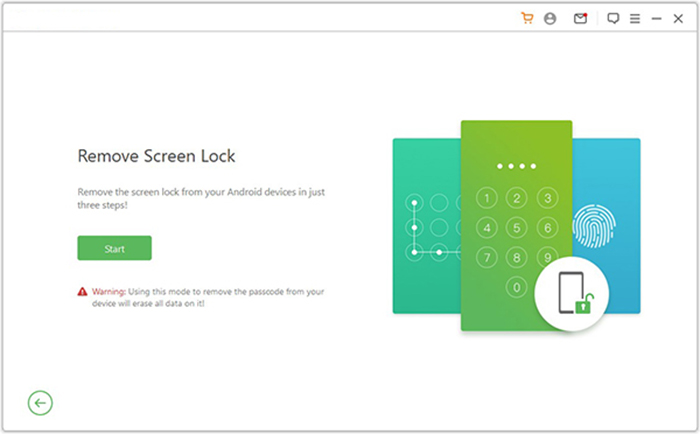
How-to Guide - Now let's take frp unlocking as an example to illustrate how Android Lock Wiper works:
- Download and install Android Lock Wiper on your computer.
- If you are utilizing a Samsung device, select "Remove without Data Loss" and adhere to the on-screen instructions. (For other brands, opt for "Remove Screen Lock" and press "Start." Given that non-Samsung devices might incur data loss, it is advisable to back up essential files in advance.)
- Connect your phone to the computer using a USB cable.
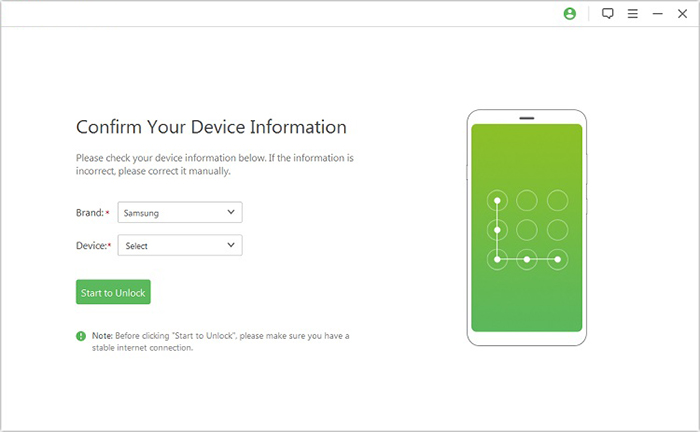
- The software will automatically recognize your device information.
- Verify that all details are accurate, and if necessary, adjust them manually prior to clicking "Start to Unlock.
- The program will download and transmit the necessary data package to your device.
- Subsequently, follow the on-screen instructions to reset your phone.

In Closing
If Android Multi Tools still fails after troubleshooting, switching to another unlocking utility can save time and effort. Android Lock Wiper offers a straightforward way to remove screen locks and bypass FRP on many Android devices. Its guided steps, broad device support, and stable unlocking process make it a reliable option when Android Multi Tools cannot complete the job. Any queries? Feel free to leave your comments below.
Related Articles:
Forgot Android PIN? Try the 6 Basic Solutions & 1 Ultimate Way
[Fixes in 2026] How to Unlock iPhone with Unresponsive Screen?
5 Tactics to Recover Formatted Data from Android Phone with/without Backup
10 Solutions to Fix Process System Isn't Responding on Android
