
How to Unlock BLU Phone without Difficulty? 5 Proven Approaches
"How can I unlock a BLU phone without losing pictures. I can't unlock it to get that information." -- from Reddit
Getting locked out of a BLU phone often happens when users forget the PIN, screen password, or pattern, which prevents normal access to the phone's data and apps. Once this occurs, normal access to apps, messages, and stored data becomes restricted. But fret not! This passage explains how to unlock BLU phone in 5 verified solutions, offering practical ways to regain access safely and effectively.
- Section 1: How to Unlock BLU Phone Easily & Safely
- Section 2: How to Unlock a BLU Phone via Recovery Mode
- Section 3: How to Unlock BLU with Google Find Hub
- Section 4: How to Unlock a BLU Device via Android Smart Lock
- Section 5: How to Unlock BLU by Contacting BLU Customer Support
- FAQs about Unlocking BLU Phone
Section 1: How to Unlock BLU Phone Easily & Safely
One widely discussed option for unlocking a BLU phone is Android Lock Wiper, which is designed to remove screen locks when normal access is unavailable. It is often promoted for working without needing the original password, which makes it attractive for users locked out of their devices.
The process usually involves connecting the phone to a computer and following guided steps in the software. However, results can vary depending on the model and Android version, and it is not an official BLU solution.
What can Android Lock Wiper do for you?
|
Feature
|
Description
|
Ability to Unlock BLU Phone
|
|
Screen Lock Removal
|
Removes pattern, PIN, password, fingerprint, face lock |
Unlocks various BLU phones when credentials are forgotten |
|
One-Click Process
|
Simple guided steps on PC |
Makes BLU unlocking quick and easy |
|
FRP Bypass
|
Helps remove Google verification after reset |
Regains access on locked BLU devices |
|
Wide Support
|
Works with many Android brands/models |
Compatible with several BLU phones |
|
No Skills Needed
|
Automatic step-by-step interface |
Easy for non-technical users |
|
PC-Based Tool
|
Requires USB connection to computer |
Unlocks BLU via desktop setup |
|
Multiple Scenarios
|
Works for forgotten lock or used phones |
Handles different BLU lock situations |
Free Download:

How can you unlock a BLU N4, G75, N3, F5 5G, Bold K10, or even newer BLU models, etc., with Android Lock Wiper? Follow these steps:
Step 1: Start by downloading and installing the software on your Windows PC. Once the installation is complete, choose "Remove Google Lock (FRP)" > "Advanced Mode." Connect your BLU phone to the computer using a USB cable, and then click "Start."
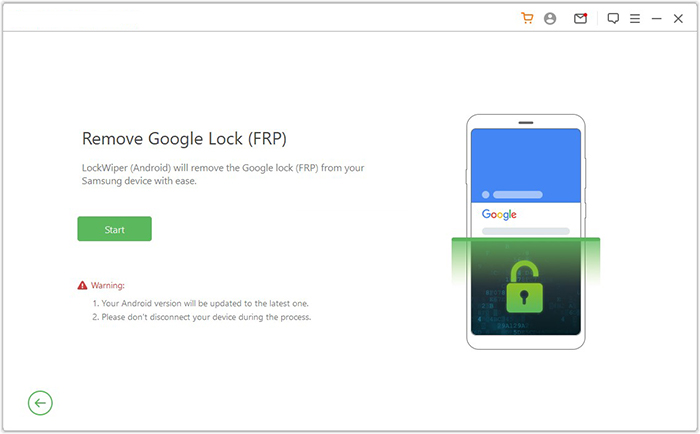
Step 2: Create a backup of your device to avoid any possible data loss during the FRP bypass procedure. Follow the prompts to input the required information about your BLU and click "Next." Adhere to the on-screen instructions to enter recovery mode on your BLU.
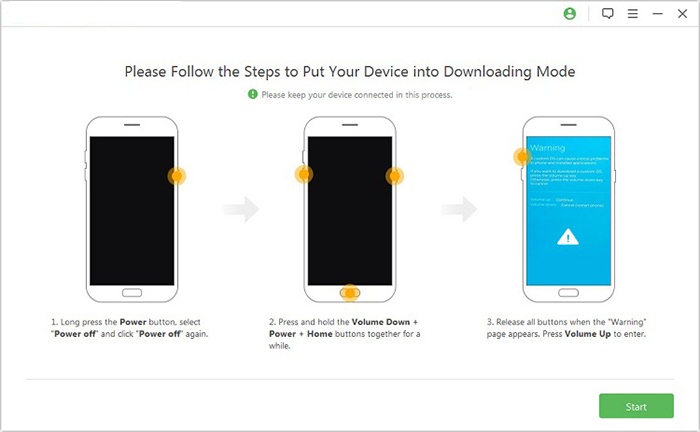
Step 3: On the next screen, select the correct PDA, country, and carrier, then click "Download" to retrieve the necessary data package. After that, click "Start to Extract," and follow the on-screen prompts to put your smartphone into Download Mode.
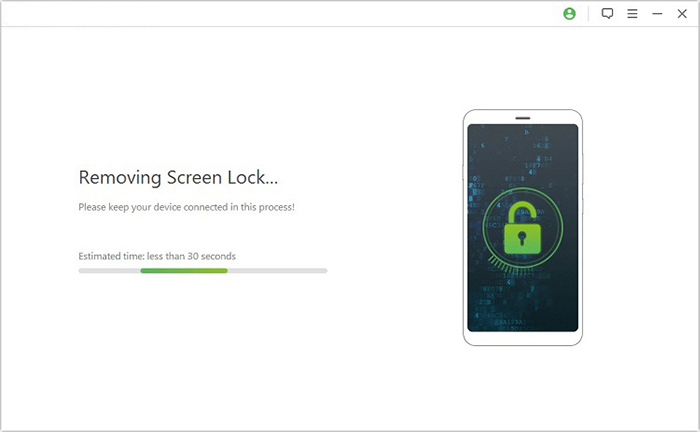
Step 4: Activate USB debugging on your BLU, enable OEM unlock, extract the firmware along with other essential tasks, and commence the FRP process.
Click to Explore: BLU FRP Bypass: 6 Wise Tactics to Bypass Google FRP Lock on BLU
Section 2: How to Unlock a BLU Phone via Recovery Mode
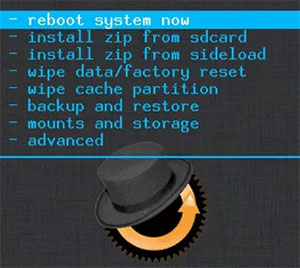
Another common approach is entering Recovery Mode, which allows a full reset of the device when you cannot access the screen. This method works by using hardware buttons to reach the system recovery menu. From there, a factory reset can erase the lock screen and restore access. It is reliable, but all personal data on the phone will be removed. Here's how it works:
- Power off your BLU phone completely, then press and hold Power + Volume Up (or Volume Down on some models) until the Recovery Mode screen appears.
- Once in Recovery Mode, use the volume buttons to navigate and the power button to select options.
- Choose "wipe data/factory reset" to start removing all user data and the screen lock.
- Confirm the action by selecting "Yes" or "Factory data reset".
- After the process finishes, select "Reboot system now" to restart your phone in an unlocked state (note that all data will be erased and you may need to complete Google FRP verification afterward).
Section 3: How to Unlock BLU with Google Find Hub
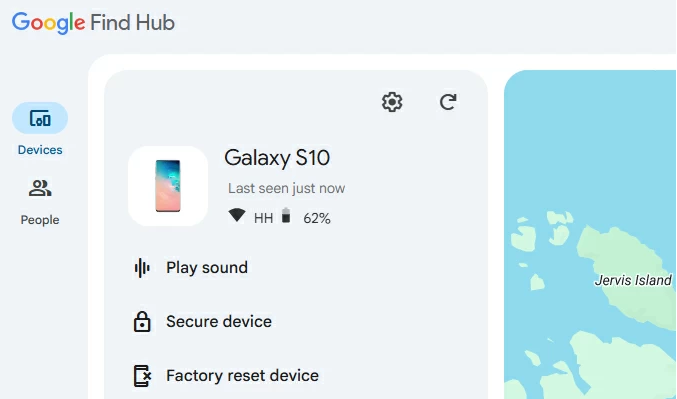
A cloud-based method involves Google Find Hub, which can remotely manage Android devices linked to a Google account. Through this service, a user can locate the phone and trigger a remote erase if needed. After the reset, the device becomes accessible again once the correct Google credentials are entered. It is effective but depends on having internet access and account login details. Here's what you can do with it:
- First, open a browser on another phone or computer and go to Google Find Hub (formerly Find My Device), then sign in with the same Google account linked to your BLU phone.
- From the device list, select your locked BLU phone so the system can locate and connect to it remotely.
- Click the option "Factory reset device" depending on your situation, since Find Hub does not directly remove screen locks but controls access remotely.
- If you choose factory reset, confirm the action and enter your Google password when prompted to verify ownership.
- Wait for the command to execute - if the phone is online, it will reset immediately; if offline, it will activate once it reconnects.
- After reset, restart the BLU phone and sign in with the same Google account to complete setup and regain access.
Click to Learn: How to Remove Google FRP Lock on Any Phone? 5 Reliable Methods
Section 4: How to Unlock a BLU Device via Android Smart Lock
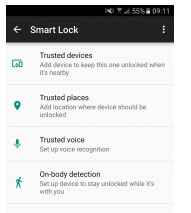
Another built-in feature is Android Smart Lock, which keeps the device unlocked under trusted conditions like a safe location or paired Bluetooth device. It is convenient for everyday use, especially when set up in advance. However, it cannot help if it was not enabled before the phone became locked. Here's how to do it:
- First, make sure Android Smart Lock was already enabled before your phone got locked, since it cannot be activated after the lock screen appears.
- If you set a trusted location, go to that exact place (such as your home), turn on GPS, and wake the phone - the device may unlock automatically.
- If you set a trusted Bluetooth device, turn on Bluetooth and connect to that device (like earbuds, smartwatch, or car system) to trigger automatic unlocking.
- If on-body detection was enabled, simply pick up and carry your phone while it detects movement, and it may stay unlocked.
- Once the trusted condition is no longer active (for example, you leave the location or disconnect Bluetooth), the phone will lock again for security.
Section 5: How to Unlock BLU by Contacting BLU Customer Support
Support from BLU Customer Support provides an official route for unlocking assistance when other options fail. Users may need to verify ownership with an IMEI number and proof of purchase. Once verified, support can guide through approved unlocking steps or account recovery procedures. This approach is secure, but it may take more time compared to other methods. Here's how:
- First, gather important details such as your IMEI number (dial *#06#), serial number, and proof of purchase, because BLU support needs to verify you are the rightful owner before helping with any unlock request.
- Next, contact BLU support through their official channels such as phone or email and clearly explain that your device is locked and you need assistance unlocking it.
- Then, provide all requested information (IMEI, model, purchase details) so the support team can check your device status and eligibility.
- After verification, the support team may guide you with specific unlock instructions or provide an official unlock code, depending on the type of lock on your BLU phone.
- Finally, follow their instructions carefully to complete the unlocking process, which may involve entering a code or resetting the device.
FAQs about Unlocking BLU Phone
Q1. Can I unlock a BLU phone without losing data?
In most cases, no. Only features like Smart Lock (if previously enabled) may allow access without data loss; otherwise, a reset is required.
Q2. What is Factory Reset Protection (FRP) on BLU phones?
FRP is a security feature that requires the original Google account after a reset to prevent unauthorized access to the device.
Q3. What is the easiest way to unlock a BLU phone?
The easiest method is using your Google account after multiple failed attempts or performing a Recovery Mode factory reset if you cannot remember the password.
Q4. What is the most worry-free way to unlock BLU?
The most worry-free way to unlock a BLU phone is still using Android Lock Wiper, which is used to unlock various smart devices professionally. Although it is not an official solution, it doesn't require specific conditions, setup steps, or lead to FRP-related limitations. Because of that, it can be considered truly "without prerequisites" or "no worries" than other recovery methods.
Related Articles:
SIM Unlock - 4 Hot Tips to Unlock SIM Card on Android Mobile Phones
How to Recover Data from Phone That Won't Turn on? Solved with 4 Solutions
4 Ingenious Methods to Format Android Phone without Errors
3 Most Marvelous Means to Back Up Android Phone with Broken Screen
