GSMneo FRP Review: Can It Safely Remove FRP Locks? Deep Analysis
TL;DR:
GSMNeo FRP may help some users bypass FRP locks, but its limited compatibility, complicated steps, and security concerns can make the process challenging. For a more reliable solution with wider compatibility, Android Lock Wiper is recommended as it provides a simpler and more guided way to remove FRP locks and other screen locks on various Android devices.
NOTE: It should be noted that we do not recommend using the unlocking tools outlined in this article for unauthorized activities.
When Android users encounter a Factory Reset Protection (FRP) lock, many turn to online forums and search engines for solutions. Among the various methods discussed, GSMneo FRP frequently appears as a free, web-based option that promises to bypass Google account verification without requiring a computer.
This GSMneo FRP review examines whether the tool actually works, what risks it carries, and what alternatives exist if it falls short.
- Part 1: What Is GSMneo FRP
- Part 2: Main Highlights of GSMneo FRP
- Part 3: GSMneo FRP - Compatibility Tests & Feedback
- Part 4: GSMneo FRP - Advantages & Disadvantages
- Part 5: Is GSMneo FRP Safe & Free
- Part 6: How to Use GSMneo FRP
- Part 7: GsmNeo FRP Doesn't Work? Try a Trusted Alternative [Always Works]
- People Also Ask about GSMneo FRP
- Summary - Android Lock Wiper vs. GSMneo FRP [Unbiased]
Part 1: What Is GSMneo FRP
Based on trusted sources, GSMneo FRP is a web-based platform that provides a collection of third-party APK tools designed to bypass the Factory Reset Protection (FRP) lock on Android devices. While it offers a cost-effective solution for users who have forgotten their Google account credentials after a reset, its operation is notoriously complex.
Furthermore, the tool carries significant risks due to its anonymous developer, lack of official support, and reliance on downloading APKs from unknown sources, which could potentially expose users to malware.
You Might Also Enjoy: Want to learn more about FRP bypass tools? Click to learn - Android Novo Tools FRP v1.2 Review: Detailed Evaluation 2026
Part 2: Main Highlights of GSMneo FRP
GSMneo FRP provides various third-party APK tools to bypass Factory Reset Protection on Android devices. The table below summarizes its key features, operational methods, and important limitations based on expert reviews.
|
Feature Category
|
Specific Details & Description
|
|
Core Function |
Primarily bypasses FRP and Google account verification to regain device access. Also hosts tools for rooting and mobile games. |
|
Operation Method |
A website providing third-party APKs, not standalone software. The process is done directly on the locked device without a PC by manually installing APKs via accessibility features like TalkBack. |
|
Support |
No official support—developer is anonymous, and guidance relies on community forums, posing security risks. |
|
Removes Google Verification |
Can remove persistent Google account verification prompts using specific APKs like XMLDisabler and Disabler. |
|
Provides Utility APKs |
Offers APKs like QuickShortcutMaker, Apex Launcher, and Technocare to create shortcuts to restricted system settings blocked by FRP. |
|
Exploits System Loopholes |
Bypasses FRP by exploiting Android vulnerabilities in accessibility and system permissions, not through official channels. |
|
Disables Google Services |
Often requires temporarily disabling Google Play Services and Find My Device, which may affect device functionality and security. |
Click to Learn: 10 Tested Android Backup Software/Apps You Should Never Miss
Part 3: GSMneo FRP - Compatibility Tests & Feedback
Based on community feedback and tests, the success rate of GSMneo FRP varies significantly by Android version:
- Android 5-7: High success rate.
- Android 8-9: Medium success rate.
- Android 10-13: Low success rate
- Android 14 and above: Not supported.
Other important compatibility points from the reviews include:
- Supported brands: Works with major brands like Samsung, Xiaomi, OPPO, Huawei, and Vivo.
- Unreliable for newer devices: Compatibility issues are likely with newer Android versions, confirming the tool is not a dependable option for modern devices.
Part 4: GSMneo FRP - Advantages & Disadvantages
The Good:
- No Computer Required: As a web-based platform, all bypass steps can be performed directly on the locked Android device without needing a PC or USB cable.
- Bypasses FRP and Verification: It can effectively bypass both the initial FRP lock and persistent Google account verification prompts.
- No Rooting Required: The bypass process does not require rooting the device, which helps maintain the manufacturer's warranty.
- Offers Additional Features: The website also hosts tools and APKs for other purposes, such as rooting devices and accessing mobile games.
The Bad:
- Complex and Confusing Process: The bypass method is complicated, requiring users to manually combine multiple apps and navigate system settings.
- Limited Android Version Support: It only works on Android 13 and earlier and does not support Android 14, 15, or 16. Performance drops significantly on Android 13+.
- Varying Success Rates: Based on community tests, the success rate is low for Android 10-13 and only high for older Android 5-7 versions.
- No Official Support: The developer remains anonymous, and there is no official customer support, tutorials, or troubleshooting assistance.
- Outdated Links and APKs: Some APK links provided on the website are reportedly outdated.
Part 5: Is GSMneo FRP Safe & Free
Before using GSMneo FRP, it's crucial to evaluate both its cost and the potential risks involved. The table below summarizes its safety and pricing based on expert reviews.
|
Aspect
|
Evaluation
|
|
Cost |
Completely Free. The tool and all its associated APK files are available at no cost. |
|
Safety (General) |
Use with Caution. The tool is popular but carries inherent risks due to its nature. |
|
Security Risks |
Relatively High. It requires downloading third-party APKs from an external website, which poses a risk of malware or modified apps. |
|
Privacy Concerns |
Significant. The app may request extensive permissions (like accessibility access) that could be misused to collect personal data. |
|
System Stability |
Risky. The process exploits system vulnerabilities and disables core Google services (like Play Services and Find My Device), which can lead to device instability, feature loss, or even a "bricked" phone if not done correctly. |
|
Developer Transparency |
None. The developer remains anonymous, and there is no official customer support, making it difficult to assess trustworthiness or get help. |
|
Legal Status |
Conditional. Bypassing FRP is only legal and permissible on devices that you personally own. Using it on lost or stolen devices is illegal. |
Part 6: How to Use GSMneo FRP
Based on the detailed guides from authoritative sources, here is a list of steps to use GSMneo FRP to bypass FRP lock on an Android phone or tablet:
- Connect to Wi-Fi: Turn on your FRP-locked Android device and connect it to a stable Wi-Fi network.
- Enable TalkBack: On the welcome or startup screen, simultaneously press and hold the Volume Up and Volume Down buttons for a few seconds until TalkBack is activated.
- Open a Browser: Use the TalkBack feature to open the Chrome browser. A common method is to draw an upside-down "L" on the screen, use voice commands via Google Assistant, or navigate through settings like "About" > "YouTube Terms of Service" to reach a search page.
- Disable TalkBack: Press both volume buttons again to disable TalkBack for easier navigation.
- Visit GSMneo Website: In the browser, search for "GSMneo FRP" and go to the official GSMneo FRP Tools website.
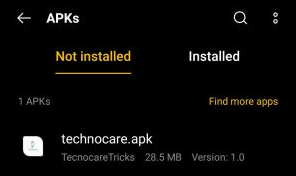
- Download an APK: From the website, choose and download a FRP bypass APK file (such as Apex Launcher, Technocare, or FRPbypass).
- Allow Unknown Sources: Before installing, you must enable the "Install from unknown sources" permission. You can usually find this in Settings > Apps > Special App Access > Install Unknown Apps, and enable it for your browser or file manager.
- Install the APK: Locate the downloaded APK file (often in the Downloads folder) and install it.
- Run the App and Follow Instructions: Open the installed FRP bypass app. It will provide specific on-screen instructions tailored to your device model and Android version. Follow these steps carefully.
- Add a New Google Account: The process will likely guide you to the Accounts settings to add a new Google account to your device.
- Restart Your Device: Once the bypass is complete, restart your Android phone. You should now be able to set it up without being prompted for the previous Google account credentials.
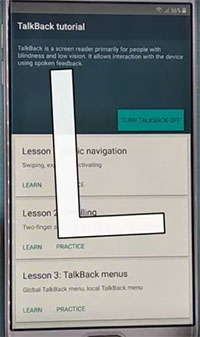
What should I do if TalkBack gestures don't work during the process? If the TalkBack gesture (like drawing an upside-down "L") fails, you can try holding the Volume Up and Volume Down buttons for a few seconds instead. If it still doesn't work, restart the device and retry during the setup screen. (What if FRP bypass TalkBack doesn't work?)
Part 7: GsmNeo FRP Doesn't Work? Try a Trusted Alternative [Always Works]
What if GsmNeo FRP doesn't work? Fix it with the solutions first:
- Check Compatibility - Ensure your device is supported.
- Update GSMNeo FRP - Use the latest version.
- Use a Good USB Cable - Try another cable or USB port.
- Install USB Drivers - Update the required device drivers.
- Disable Antivirus - Turn off security software temporarily.
- Run as Administrator - Launch the tool with admin rights.
- Use the Correct Device Mode - Enter the required USB or boot mode.
- Restart Devices - Reboot both the phone and computer.
- Try Another Method - Switch to a different supported bypass option.
Unable to fix the issue or want a program with greater compatibility? Use a Reliable Alternative Tool:
A comprehensive tool known as Android Lock Wiper offers solutions for two common mobile access issues. Its capabilities extend to circumventing the Google FRP lock, allowing users to bypass account verification without the original credentials.
Additionally, the software is capable of removing various forms of screen security, including PINs, patterns, and fingerprint locks.
Free & Secure Download:

How to use the best GSMNeo FRP alternative for FRP bypass on Android devices? Check out the steps below:
Step 1: Install and launch the software on your computer, then select the "Remove Google Lock (FRP)" feature and switch to "Advanced Mode" for a more thorough process.
Step 2: Connect your Android phone via USB cable and click "Start." It is highly recommended to back up your device beforehand to safeguard your data.
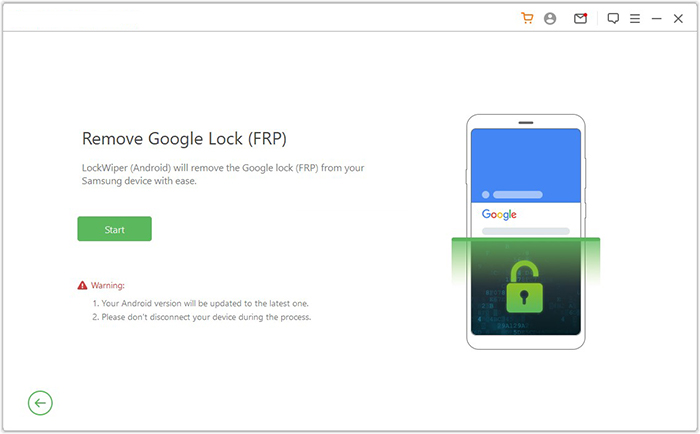
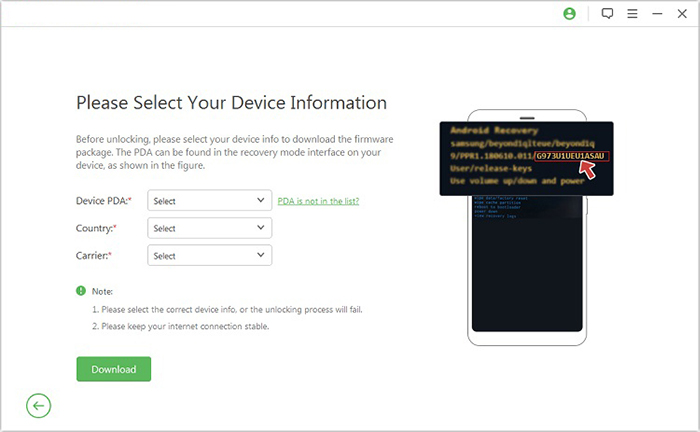
Step 3: Follow the on-screen prompts to enter your phone's details, then proceed to put the device into Recovery Mode. Next, select the correct PDA, country, and carrier, and click "Download" to obtain the necessary firmware package.
Step 4: Extract the downloaded files and follow the instructions to enable USB debugging and OEM unlock, then put your phone into Download Mode. The software will then automatically begin the FRP unlocking process. (Can I retrieve data from my Android phone after a reset?)
People Also Ask about GSMneo FRP
Q1. Why doesn't GSMneo FRP support newer Android versions?
The developer is anonymous, and the reason for not updating to support newer Android versions is unknown. The existing methods likely exploit vulnerabilities that have been patched in later operating systems.
Q2. What should I do if an APK from GSMneo FRP won't install?
You need to enable the "Install from unknown sources" permission in your device settings for your browser or file manager. You may also need to temporarily disable Google Play Protect.
Q3. Does GSMneo FRP remove Google account verification permanently?
It can bypass the verification for initial setup. However, the process often involves disabling Google Play Services, which may affect device functionality and could cause verification prompts to reappear later.
Q4. Do I need an internet connection to use GSMneo FRP?
Yes, a stable Wi-Fi or internet connection is required on the locked device to access the GSMneo website, download APK files, and complete the bypass process. Some reviews also mention that a PC version may need internet for updates.
Q5. Can GSMneo FRP also remove the screen lock (PIN, password, pattern)?
No, its primary function is only to bypass the Google FRP lock (account verification). It is not designed to remove other types of screen locks like PINs, passwords, or patterns.
Q6. Will using GSMneo FRP void my device warranty?
While the process does not require rooting (which typically voids warranties), the act of disabling core Google services and exploiting system vulnerabilities could still potentially affect your warranty status. It is a risk.
Q7. How long does the FRP bypass process typically take?
The process is manual and can be time-consuming, often requiring multiple steps and app installations. Reviews describe it as complicated, and it may take significant time, especially if you encounter issues and need to repeat steps.
Q8. Why might Google Play Services fail to disable during the process?
On some devices, the option to disable Google Play Services may be locked by system restrictions. The recommended workaround is to first "Force Stop" the app and then clear its cache before attempting to disable it.
Summary - Android Lock Wiper vs. GSMneo FRP [Unbiased]
Android Lock Wiper offers a more polished and secure experience compared to the free, community-driven GSMneo FRP. The table below outlines the comparison by drawing from its official features and expert evaluations.
|
Feature
|
Android Lock Wiper
|
GSMneo FRP
|
|
Core Focus
|
All-in-one tool for FRP bypass and screen lock removal (PIN, pattern, password, fingerprint, face). |
Primarily a free FRP bypass tool. Other functions are limited. |
|
FRP Bypass
|
High success rate and supports various mobile brands/models. |
Supports some brands but with variable, often lower success rates, especially on newer Android versions. |
|
Screen Unlock
|
Dedicated and effective screen lock removal. Can remove locks without data loss on some Samsung devices. |
Offers very limited to no screen lock removal capabilities. |
|
Ease of Use
|
Beginner-friendly with an automated, guided process. |
Complex and technical. |
|
Data Safety
|
Offers a data-loss-free mode (for supported Samsung devices). |
Can be risky; may require disabling Google Play Services and potentially lead to data loss. |
|
Cost
|
Paid software (with a free trial). |
Free to use. |
|
Security
|
Highly secure. |
High risk of malware due to downloading APKs from third-party sources. |
Related Articles:
4 Ingenious Methods to Format Android Phone without Errors
5 Ideal Solutions to Simulate GPS Movement on Android/iOS
[Top 10 List] Want the Best Android Data Recovery Software? See Here
How to Hard Reset Android Phone in 4 Simple Ways [Must-read]