iCloud Greyed Out? 17 Simple Fixes 2026 [Based on Our Tests]
TL;DR:
You will learn the possible causes of iCloud being greyed out and find the 18 optimal solutions to resolve the issue.
- Use iOS Lock Wiper if the built-in fixes fail, as it can remove Apple ID locks, Screen Time restrictions, and MDM profiles that other methods cannot bypass.
- Download the software on your computer, select "Unlock Apple ID," connect your device, and follow the prompts to regain full access to your iCloud settings.
"My iCloud and find my is greyed out in my settings, I am on a iPhone 17 Pro Max, my software is up to date with 17.2.1". -- from discussions.apple.com
What Does "iCloud Greyed Out" Mean?
"iCloud greyed out" means the iCloud settings on your iPhone or iPad are disabled and cannot be accessed or changed. It usually happens due to restrictions, account sign-in problems, or device management policies. Some people may also face a similar issue, with their Apple account/ID grayed out in Settings.
No worries! This guide covers the possible reasons for iCloud greyed out and offers 18 most dependable solutions to fix the issue in time.
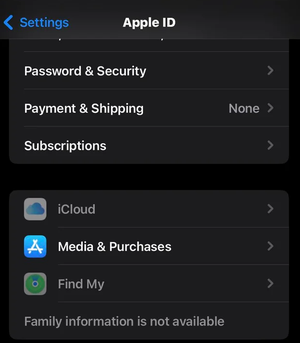
Part 1: Why Is iCloud Greyed Out
Several factors can cause the iCloud option to appear grayed out on an iPhone, including account, network, software, and device management issues. The most common causes include:
- Apple Account isn't fully signed in or requires password verification.
- Poor or unstable internet connection prevents communication with Apple's servers.
- Apple's iCloud servers are temporarily unavailable due to maintenance or outages.
- Screen Time restrictions block account changes and disable iCloud settings.
- Mobile Device Management (MDM) policies restrict iCloud access on work or school devices.
- Configuration profiles limit access to Apple Account or iCloud features.
- Stolen Device Protection temporarily prevents changes to Apple Account settings.
- New Apple Terms & Conditions haven't been accepted.
- An outdated iOS version contains software bugs affecting iCloud.
- Apple Account password or security verification requires updating.
- Network configuration issues interfere with Apple's online services.
- VPN or proxy services disrupt the connection to iCloud servers.
- Corrupted iCloud sign-in session requires signing out and back in.
- Insufficient iCloud storage causes certain iCloud features to malfunction.
- Temporary system glitches that can usually be fixed with a restart or software reset.
You Might Also Like: Messages Not Restored from iCloud Backup? Causes & 14 Easy Solutions
Part 2: 16 Quick Fixes to iCloud Greyed Out
Way 1: Check iCloud Account Login
If your Apple Account isn't fully signed in or needs verification, iCloud settings may become unavailable. Open Settings, tap your Apple Account, and complete any pending verification requests or password prompts before checking iCloud again.
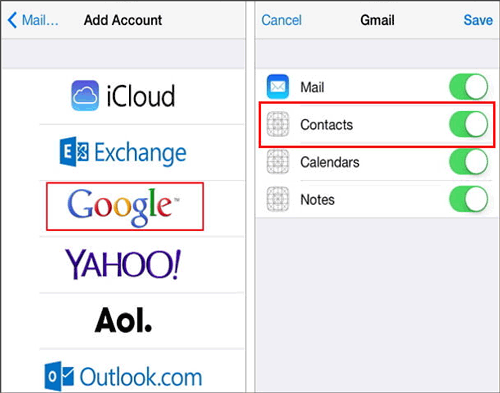
Way 2: Add Apple Account to Mail
Adding your iCloud email account to the Mail app can refresh your Apple Account connection and restore access to iCloud settings.
- Open Settings > Apps > Mail > Mail Accounts.
- Tap Add Account.
- Choose iCloud.
- Sign in with your Apple Account.
- Restart your iPhone and check whether iCloud is still grayed out.
Way 3: Check Internet Connection
iCloud requires a stable internet connection to communicate with Apple's servers. Switch between Wi-Fi and cellular data, restart your router if necessary, and make sure Airplane Mode is turned off before trying again.
Explore More: How to Recover Lost Voice Memo Files from iCloud Backup? [4 Tactics]
Way 4: Reset Network Settings
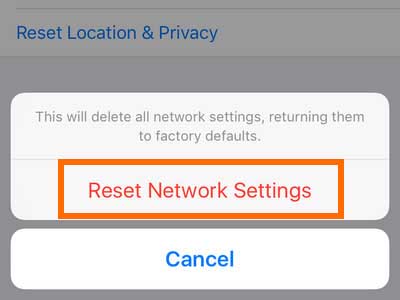
Network configuration problems can prevent your iPhone from connecting to iCloud services. Resetting network settings removes saved Wi-Fi passwords and network preferences but keeps your personal files intact.
- Open Settings > General.
- Tap Transfer or Reset iPhone.
- Select Reset.
- Tap Reset Network Settings.
- Enter your passcode and confirm the reset.
- Reconnect to Wi-Fi and check iCloud again.
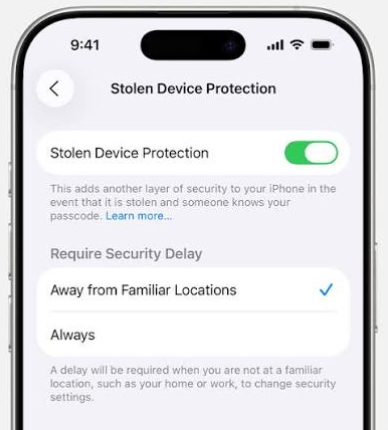
Way 5: Turn Off Stolen Device Protection
Stolen Device Protection can restrict certain account-related settings, including iCloud. Disabling it restores access to locked menus.
- Go to Settings → Privacy & Security.
- Tap Stolen Device Protection.
- Turn it Off.
- Enter your device passcode.
- Reopen iCloud settings.
Way 6: Agree to New iCloud Terms & Conditions
If Apple has updated its iCloud terms, you must accept them before accessing iCloud settings. The menu stays grayed out until you do.
- Open Settings.
- Tap your Apple ID banner.
- Look for a Terms & Conditions prompt.
- Tap Agree.
- Return to iCloud.
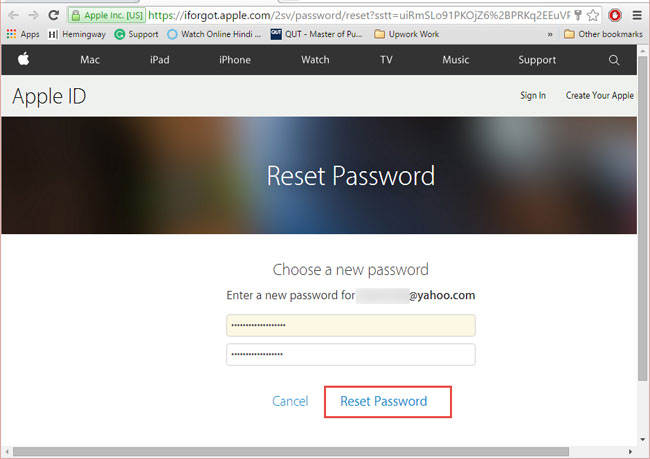
Way 7: Update Apple Account Password
If Apple detects a security issue with your account, it may require you to update your password before allowing access to iCloud settings. After changing the password, sign in again on your iPhone and verify that iCloud is working normally.
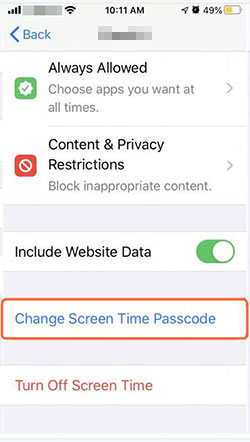
Way 8: Bypass Screen Time Restriction
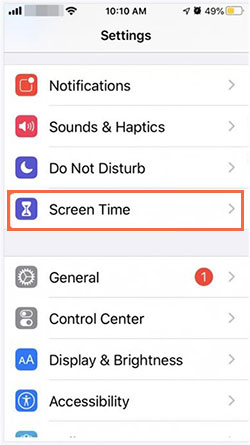
Screen Time restrictions can disable account changes, including iCloud. Removing or adjusting these limits unlocks the menu.
- Open Settings → Screen Time.
- Tap Content & Privacy Restrictions.
- Turn restrictions Off.
- Or allow Account Changes.
- Reopen iCloud settings.
Way 9: Remove Device Management Profile
Organization-managed iPhones may restrict Apple Account and iCloud settings. If the profile is no longer needed, removing it may restore full access.
- Open Settings > General.
- Tap VPN & Device Management.
- Select the installed management profile.
- Tap Remove Management.
- Restart your iPhone.
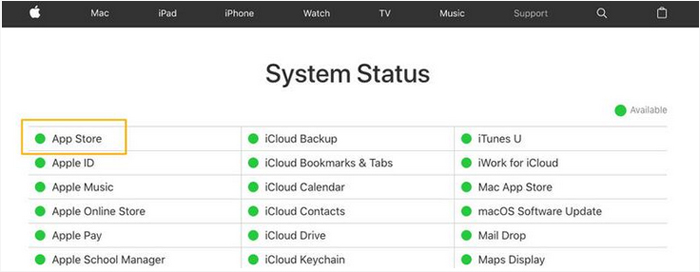
Way 10: Verify iCloud's Server Status
Before changing your iPhone settings, make sure Apple's servers (Apple's System Status page) are operating normally. If iCloud services are experiencing an outage, you'll simply need to wait until Apple restores service.
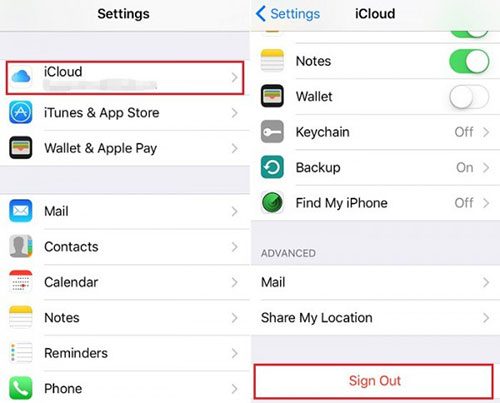
Way 11: Re-sign into iCloud
Signing out and back in forces a full refresh of your iCloud configuration. This often fixes grayed-out settings caused by sync errors.
- Open Settings → Apple ID.
- Scroll down and tap Sign Out.
- Restart your iPhone.
- Sign back in.
- Reopen iCloud settings.
Way 12: Check MDM Limits
Some MDM systems restrict iCloud for security reasons. Reviewing these limits helps you understand what features are intentionally disabled.
- Open Settings → General → VPN & Device Management.
- Review the installed profile.
- Check for restrictions related to iCloud.
- Contact your administrator if changes are needed.
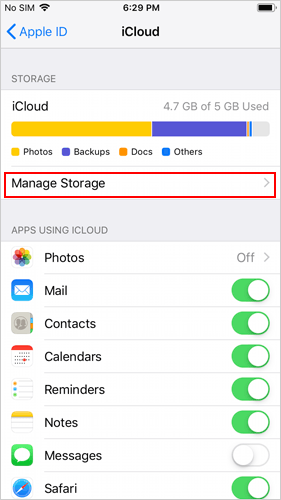
Way 13: Clear iCloud Storage Space
If your iCloud storage is completely full, some syncing features may stop working properly. Delete unnecessary backups, photos, or files, or upgrade your storage plan if additional space is required.
Way 14: Deactivate VPN on iPhone
A VPN can occasionally interfere with Apple's services by affecting network routing. Disable the VPN temporarily and test whether the iCloud settings become accessible.
Way 15: Update iOS
Software bugs in older iOS versions can sometimes affect iCloud. Installing the latest update may include fixes for account authentication or iCloud-related issues.
- Open Settings > General.
- Tap Software Update.
- Download and install any available update.
- Restart your iPhone after installation.
- Check the iCloud settings again.
Way 16: Factory Reset iPhone
A factory reset is the final option when all other fixes fail. It removes corrupted system files that may be blocking iCloud access.
- Open Settings → General.
- Tap Transfer or Reset iPhone.
- Choose Erase All Content and Settings.
- Set up your iPhone again.
- Sign into iCloud.
Part 3: Fix Greyed Out iCloud with iOS Lock Wiper [High Success Rate]
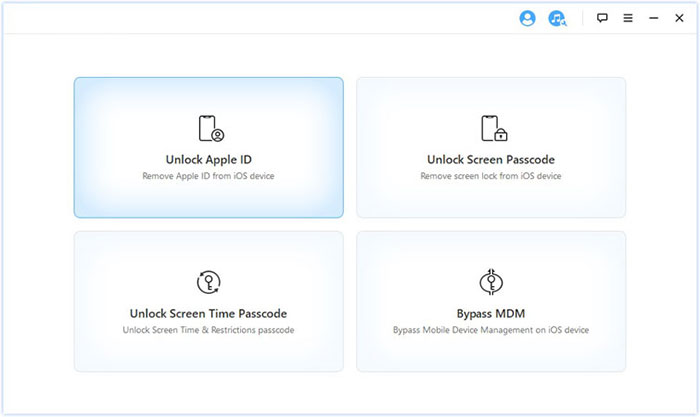
iOS Lock Wiper's Apple ID/iCloud account removal feature directly addresses greyed-out iCloud settings. When iCloud is inaccessible due to a forgotten Apple ID, Screen Time restrictions, or MDM policies, Lock Wiper unlocks or removes these barriers, allowing you to log in with a new Apple ID and regain full access to iCloud services.
Overview of iOS Lock Wiper:
- Remove Apple ID/iCloud - Unlock or sign out of Apple ID without a password, fixing greyed-out iCloud.
- Bypass Activation Lock - Access devices locked to another Apple ID.
- Unlock Screen Passcodes - Remove 4/6-digit, Touch ID, or Face ID codes.
- Remove Screen Time Passcode - Disable restrictions without data loss.
- Remove MDM Profiles - Eliminate work/school management limits.
- Wide Compatibility - Supports all iPhones/iPads and latest iOS.
- Simple Unlock Process - Connect → Choose mode → Unlock.
- Fix Disabled Devices - Restore access after failed passcode attempts.
- Preserve Data - Keep files safe in Screen Time/MDM removal.
- Affordable Plans - Budget-friendly pricing with free trial.
How to troubleshoot iCloud greyed out with iOS Lock Wiper?
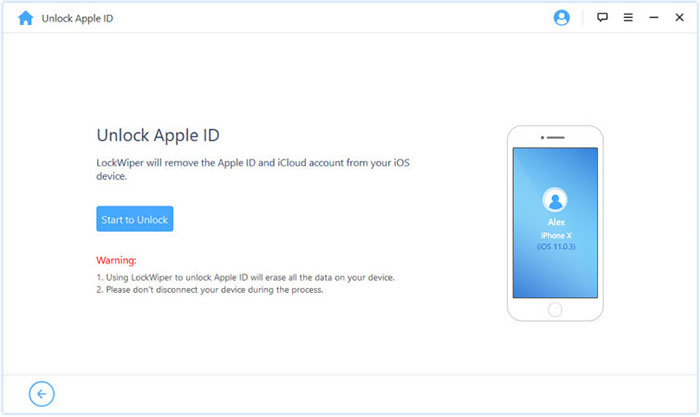
- Download and install iOS Lock Wiper on your Windows PC or Mac, then launch the program.
- Select "Unlock Apple ID" from the main interface.
- Connect your iPhone or iPad to the computer using a USB cable and tap Trust This Computer if prompted.
- Click "Start to Unlock" to begin the Apple ID removal process.
- Follow the on-screen instructions. Depending on your device model, iOS version, and whether Find My iPhone is enabled, the software may ask you to adjust certain settings before continuing.
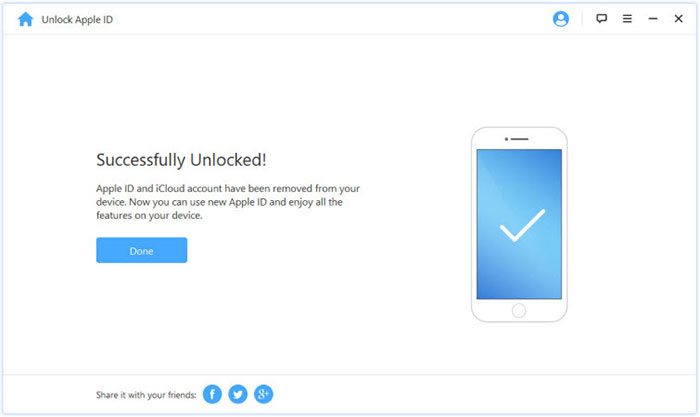
- Wait for the process to finish. Once completed, the Apple ID will be removed from the device if all requirements are met.
- Set up the device and sign in with a different Apple ID if desired.


Verdit
In short, "iCloud greyed out" means your iCloud settings are disabled and inaccessible, usually due to restrictions, account verification issues, or device management policies. If iCloud stays greyed out after trying the common fixes, don’t waste time repeating the basics. Go straight to removing restrictions like Screen Time or MDM profiles - these are the most frequent culprits, and unlocking them often resolves the issue instantly.
Related Articles:
How to Sync iCloud Contacts, Calendar, etc., with Android? 3 Practices
iCloud DNS Bypass Full Guide: Unlock iPhone/iPad Activation Lock
iCloud Photos Not Syncing? Here're 12 Quick Fixes & an Alternative
How to Transfer iCloud Data to New iCloud Account [Step-by-Step Guide]