Android Novo Tools FRP v1.2 Review: Detailed Evaluation 2026
TL;DR:
This review highlights that while Android Novo Tools FRP v1.2 offers a free and basic solution for older Samsung devices, its limited compatibility and declining success rate make it less reliable for newer models and security patches.
For a more dependable and broadly compatible alternative, consider using Android Lock Wiper, which supports a wider range of Android brands and versions, including newer devices. It also provides a higher FRP removal success rate and an intuitive guided process.
NOTE: Android Novo Tools FRP v1.2 and its alternative, Android Lock Wiper, discussed in this article should only be used for legitimate purposes, such as unlocking personally owned devices. We do not support using these unlocking tools for unauthorized or improper commercial activities. Thank you for your understanding and cooperation.
Android Novo Tools FRP is a tool that attracts attention from users who need to deal with Google FRP locks on certain Samsung devices. However, before using it, many people want to know whether the tool supports your Samsung model, Android version, or security patch level.
This Android Novo Tools FRP v1.2 review will explain the overall performance of this tool, and also compare it with a more reliable alternatives to help you find a tool with better compatibility and success rates.
Part 1: What Is Android Novo Tools FRP
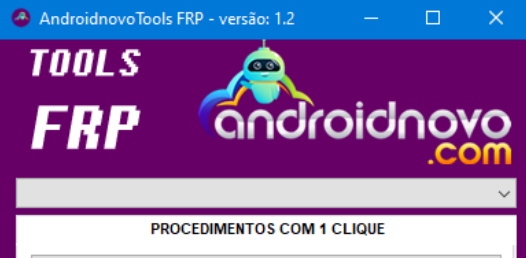
Android Novo Tools FRP is a Windows-based utility that helps bypass Google Factory Reset Protection (FRP) on some supported Android devices, especially older Samsung Galaxy models. It uses methods such as MTP, ADB, and test mode access to remove the FRP lock after a factory reset. However, its compatibility is limited, and it may not work on newer Android versions with updated security patches.
What are the latest updates of Android Novo Tools FRP? The latest updates in Android Novo Tools FRP v1.2 are: 1. Added FRP bypass, factory reset, MTP, ADB, and USB debugging features. 2. Enhanced device information reading for better connection reliability. 3. Restarted devices automatically after FRP removal. 4. Simplified factory reset and FRP removal operations. 5. Supported more older Samsung devices running Android 5 to Android 12.
You May Also Like: An Unbiased MobileTeamOfficial FRP Bypass APK Review [Latest Update]
Part 2: Key Features of Android Novo Tools FRP v1.2
Android Novo Tools FRP v1.2 provides several functions focused on FRP removal and Android device management. The table below summarizes its key features and the main functions available in the tool.
|
Feature
|
Description
|
|
FRP Removal |
Removes Google account verification on supported Android devices. |
|
One-Click Factory Reset |
Resets devices without manually using hardware buttons. |
|
MTP Mode Support |
Connects Android phones to PCs through MTP mode. |
|
ADB Mode Support |
Provides ADB-based communication for device operations. |
|
USB Debugging Activation |
Helps enable USB debugging through supported methods. |
|
Samsung Device Support |
Works mainly with older Samsung Galaxy models and specific Android versions. |
|
Device Information Reading |
Detects connected devices and shows basic device details. |
|
Automatic Reboot |
Restarts the device after completing supported FRP tasks. |
More to Explore: Recovery Mode on Android Devices: Full Explanation & Helpful Tips
Part 3: How to Use Android Novo Tools FRP v1.2
Before using Android Novo Tools FRP v1.2, prepare a Windows computer, a USB cable, and a supported Samsung device. The tool mainly works through FRP Removal and Factory Reset options after detecting the connected phone.
Simple User Guide:
- Begin by downloading the Android Novo Tools FRP v1.2 package from a trusted source, such as the GSM A2Z TOOL portal.
- Temporarily disable your antivirus software, then extract the archive to your desktop.
- Make sure your Samsung USB drivers are current by checking Device Manager.
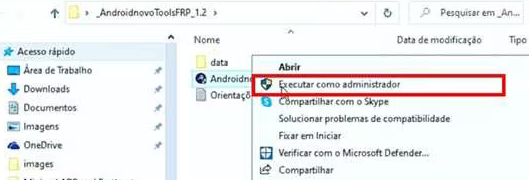
- Right-click the AndroidNovoTools_1.2.exe file and select Run as Administrator to prevent any permission-related issues.
- Connect your locked Samsung phone to your PC.
- Once the software detects the appropriate COM port, click the FRP REMOVAL button to initiate the communication process.
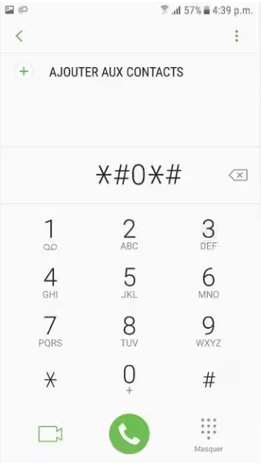
- When prompted, open the emergency dialer on your Samsung device and enter *#0*#. This will launch the hardware test menu.
- Confirm by clicking OK in the tool's dialog box.
- A USB Debugging authorization request will appear on your phone.
- Check the box for Always allow and tap OK.
- The tool will then complete the bypass procedure, and your device will automatically reboot - free from the Google account lock.
NOTE: Android Novo Tools FRP v1.2 is mainly intended for older Samsung devices. Its success depends on device models, Android versions, and security patch levels.
Part 4: Pros and Cons of Android Novo Tools FRP v1.2
Android Novo Tools FRP v1.2 comes with several advantages, such as free access and simple FRP-related functions, but it also has some limitations. The table below lists its main pros and cons to help users better understand its strengths and drawbacks.
|
The Good
|
The Bad
|
|
Free Access - Available without paid subscriptions or activation costs. |
Limited Device Support - Mainly works with older Samsung models and certain Android versions. |
|
Easy-to-Use Interface - Offers simple steps for supported FRP removal tasks. |
Low Success Rate on New Devices - May not work with newer Android versions and security updates. |
|
Lightweight Tool - Uses fewer system resources compared with some larger unlock programs. |
Restricted Brand Compatibility - Primarily targets Samsung devices rather than multiple Android brands. |
|
Multiple Operation Modes - Includes MTP and ADB options for connecting and managing devices. |
Potential Security Concerns - Unofficial download sources may carry risks. |
|
Automatic Restart Function - Reboots the phone after completing certain operations. |
Lack of Updates and Support - Does not receive frequent improvements or official assistance. |
Part 5: Best Alternative to Android Novo Tools FRP v1.2
Before delving into a better replacement for this tool, let's see: Is Android Novo Tools FRP v1.2 capable of delivering a high unlocking success rate?
Android Novo Tools FRP v1.2 may not be able to deliver a consistently high unlocking success rate because its methods are limited by device models, Android versions, and security patches. Many newer Samsung phones and updated systems may fail to work with this tool, reducing its overall reliability.
Therefore, the following section will introduce a more powerful FRP unlocking tool that offers a higher success rate and broader device support.
Android Lock Wiper is an Android unlocking tool that can remove FRP locks, Google account verification, and various screen locks on many supported Android devices, including Samsung, Xiaomi/POCO/Redmi, etc. Compared with Android Novo Tools FRP v1.2, it serves as a more updated alternative with broader device compatibility and a higher success rate for many unlocking scenarios.
Free & Secure Download:

How to Use?
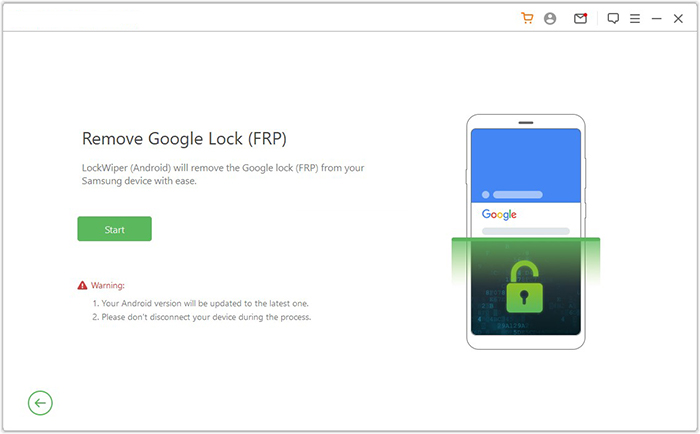
Step 1: Install the Tool and Start FRP Removal - Download and install the software on your computer, then select "Remove Google Lock (FRP)" and enter Advanced Mode. Connect your Android phone via USB, click "Start," and back up data if required.
Step 2: Prepare the Device and Download Files - Enter your phone details as requested and continue by clicking "Next." Follow the instructions to enter recovery mode, choose the PDA, country, and carrier information, then download the required data package.
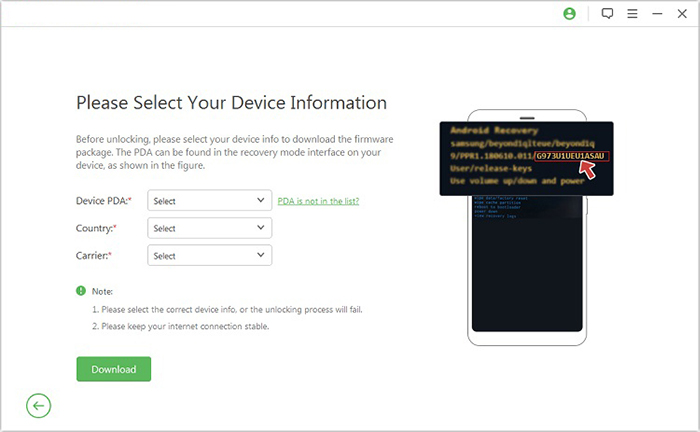
Step 3: Configure Settings and Finish Unlocking - Extract the downloaded package, put the device into Download Mode, and enable USB debugging and OEM unlocking. The tool will process the firmware and complete the FRP removal process.
Part 6: FAQs about Android Novo Tools FRP
Q1. What devices does Android Novo Tools FRP support?
The tool mainly supports older Samsung Galaxy phones running Android 5 to Android 12. Compatibility depends on the device model and security patch level.
Q2. Is Android Novo Tools FRP free to use?
Yes, Android Novo Tools FRP v1.2 is generally available as a free utility without subscription fees or paid activation.
Q3. Can Android Novo Tools FRP unlock all Android phones?
No. The tool is mainly designed for Samsung devices and does not support most other Android brands such as Xiaomi, Huawei, or Motorola.
Q4. Does Android Novo Tools FRP work on Android 15, 16, or 17?
In most cases, it does not support newer Android versions because updated security patches have blocked the methods used by the tool.
Q5. Does Android Novo Tools FRP remove data from the phone?
The FRP removal process may involve a factory reset, which can erase local data such as photos, contacts, and apps stored on the device.
Q6. Is Android Novo Tools FRP safe to use?
Because it is an unofficial tool distributed through third-party sources, users should be cautious about downloading files and potential security risks.
Q7. Why does Android Novo Tools FRP fail on some Samsung phones?
Failure can happen because of unsupported models, newer security patches, blocked test mode access, or incompatible Android versions.
Q8. What advantages does Android Lock Wiper have over Android Novo Tools FRP v1.2?
Android Lock Wiper and Android Novo Tools FRP v1.2 both focus on Android FRP removal, but they differ in compatibility, features, and support. The table below highlights the main advantages Android Lock Wiper has over Android Novo Tools FRP v1.2.
|
Aspect
|
Android Lock Wiper Advantage
|
|
Compatibility |
Supports more Android brands and models. |
|
Android Support |
Works with newer Android versions. |
|
Interface |
Offers a simpler guided process. |
|
FRP Success Rate |
Handles more FRP lock cases. |
|
Updates & Support |
Provides official updates and assistance. |
|
Functions |
Includes more Android unlocking features. |
|
Reliability |
Comes from a trusted software provider. |
Free Download:
Related Articles:
4 Most Amazing Methods for Successful Sony Xperia FRP Bypass
7 Popular Ways to Back Up and Restore Android Device [Updated]
6 Broken Android Data Recovery Methods to Extract Files from Your Phone
[4 Methods] How to Remove iCloud from iPhone with or without Password?