Please Sign in Using One of the Owner's Accounts for This Device? 5 Solutions
TL;DR:
After exploring the causes and common fixes, Android Lock Wiper provides an alternative way to address the issue by bypassing Google FRP lock with a high success rate in supported cases. With its guided process and broad device support, it helps users regain access when traditional account verification methods are not available.
NOTE: The methods mentioned in this article should not be used for any illegal activities or unauthorized commercial purposes.
"I deleted my Google account from my OnePlus phone. OnePlus replaced the main board and reset the phone. Now it wants me to sign in with an account that was previously synced to the phone". -- from community.oneplus.com
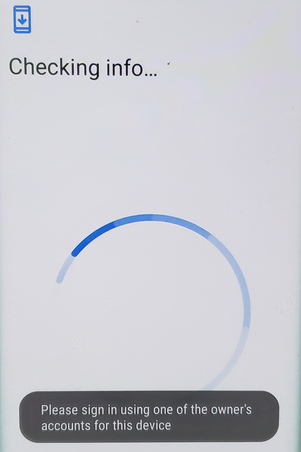
Seeing "Please sign in using one of the owner's accounts" after a factory reset can leave Android users unable to complete the setup process. Many see this message after a reset and need help regaining access or want to understand available ways to complete device setup.
This article explains the reasons for this error message and introduces how to fix it in 5 verified ways to help users handle this Google account verification issue.
- Part 1: Why Does Please Sign in Using One of the Owner's Accounts Appear
- Part 2: How to Fix Please Sign in Using One of the Owner's Accounts for This Device
> Fix 1: Sign in to the Previously Synced Google Account
> Fix 2: Contact the Phone's Previous Owner
> Fix 3: Eliminate Google Account with SIM PIN Code
> Fix 4: Update or Reinstall the Device Software - Part 3: Fix Please Sign in One of the Owner's Accounts for this Device in an Ultimate Way
- FAQs about Google Account Sign-In Messages on Android
- Tips to Keep from Please Sign in Using One of the Owner's Accounts for This Device
Part 1: Why Does Please Sign in Using One of the Owner's Accounts Appear
When the message "Please Sign in Using One of the Owner's Accounts" appears, it means the device requires additional verification before access can be restored. The following section will discuss the potential reasons behind this issue and explain why Android devices may trigger this security prompt.
- Google account not removed before factory reset - FRP activates when the device is reset while a Google account remains linked.
- Previous owner's account is still connected - Second-hand phones may require the former owner's Google account.
- Reset done through Recovery Mode - A recovery reset can trigger FRP protection.
- System changes triggered verification - Updates or repairs may cause account verification requests.
- Wrong Google account entered - Only the previously synced account can complete verification.
- Used phone was not properly prepared - The seller did not remove their Google account before transfer.
- FRP security check is active - Android requires ownership verification to protect the device.
You Might Also Need: Samsung FRP Bypass TalkBack Not Working? Reasons & 5 Solutions
Part 2: How to Fix Please Sign in One of the Owner's Accounts for This Device
Fix 1: Sign in to the Previously Synced Google Account
- Connect to a stable Wi-Fi network and proceed through the device setup until you reach the Google verification screen.
- Enter the Google account (Gmail address or phone number) that was previously synced to the device before the factory reset.
- Type the correct password for that Google account and tap Next to verify your identity.
- Wait for Google to complete the verification. If the account information is correct, the FRP lock will be removed automatically.
- Finish setting up your phone by following the on-screen instructions, then sign in with your preferred Google account or restore your data from a backup.
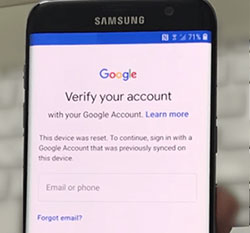
If you've recently reset the Google account password, you may need to wait 24-72 hours before signing in due to Google's FRP security policy. If you purchased the phone second-hand, ask the previous owner to remove the device from their Google account or sign in once to complete the verification.
Fix 2: Contact the Phone's Previous Owner
The error message usually happens when a device is reset while the previous Google account is still linked. The safest solution is to ask the previous owner to remove their Google account from the phone. Here's how to do it:
- Contact the seller through the original platform (eBay, Facebook Marketplace, Carousell, etc.) and explain that the phone is locked by the previous Google account.
- Ask the previous owner to remove the phone from their Google Account remotely instead of sharing their password.
- Sign in to their Google Account.
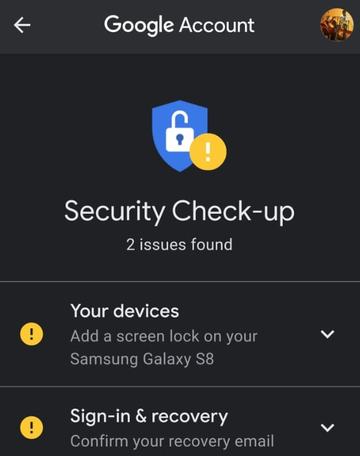
- Go to Google Account → Security → Your Devices.
- Select the old phone.
- Choose Sign out or Remove device.
- Request the seller to confirm that the Google account has been removed before resetting the phone again.
- If the phone was purchased from a store or reseller, contact their customer support and provide proof of purchase.
- If the previous owner cannot be reached, contact the phone manufacturer's support team for official assistance with ownership verification.
Click to Learn:How to Reset Gmail Password on Android in 3 Ways? [Less than 5 Minutes]
Fix 3: Eliminate Google Account with SIM PIN Code
This method is related to bypassing Google Factory Reset Protection (FRP). FRP requires the previously synced Google account after a factory reset, so it is recommended to use the original Google account or get help from the previous owner whenever possible. To do this:
- Insert a SIM card with a SIM PIN lock into the locked Android phone.
- Use another phone to call the locked device.
- Answer the incoming call on the locked phone.
- Tap the option to add a new call or open the dial pad.
- Enter the code: *#*#4636#*#*
- Wait for the testing/settings menu to appear.
- Open the available phone settings options and look for Factory Data Reset or related reset options.
- Disable options such as automatic restore or data copying if available.
- Perform a factory reset and restart the phone.
- Set up the device again and check whether the "Please sign in with one of the owner's accounts" message disappears.
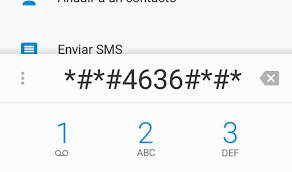
Note: The SIM PIN method only works on certain Android models and versions. If it fails, the official solutions are to sign in with the previously synced Google account, ask the previous owner to remove the device from their account, or contact the manufacturer with proof of ownership.
Fix 4: Update or Reinstall the Device Software
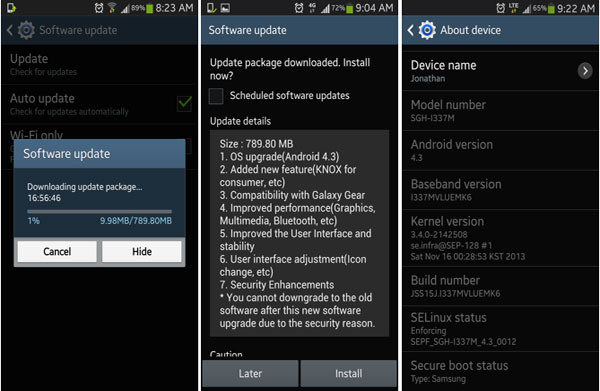
Updating or reinstalling the device software may fix system errors, but it usually does not remove Google Factory Reset Protection (FRP). If the phone is still linked to a previous Google account, you will need to sign in with that account or ask the previous owner to remove it. Learn how to do it:
- Check for official software updates in Settings > System > Software Update and install the latest version if available.
- Download the correct official firmware for your phone model from the manufacturer's website.
- Use the manufacturer's official flashing or recovery tool to reinstall the device software.
- Restart the phone after the software update or firmware installation is complete.
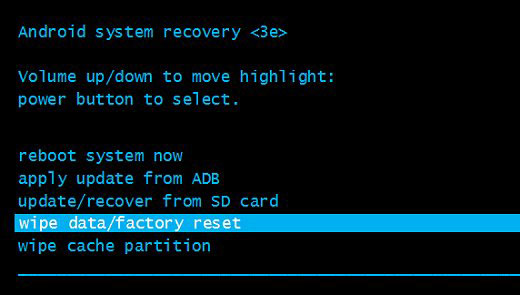
- Perform a factory reset through Recovery Mode if the issue continues.
- Check whether the FRP message disappears after setup.
- If the message remains, sign in with the previously synced Google account or ask the previous owner to remove the device from their Google Account.
Part 3: Fix Please Sign in Using One of the Owner's Accounts for this Device in an Ultimate Way
With Android Lock Wiper, users can remove Android locks and address the "Please Sign in Using One of the Owner's Accounts for This Device" issue by bypassing Google FRP locks without needing the original Google account details in supported cases.
The program provides step-by-step guidance to help complete the FRP removal process and restore access to locked devices. It works with various Android models and offers a practical option when users cannot recover the previously linked Google account.
Key Characteristics of Android Lock Wiper:
|
Feature
|
Description
|
|
Screen Lock Removal |
Removes pattern, PIN, password, fingerprint, and face locks. |
|
FRP Lock Bypass |
Fixes Google FRP lock and owner account sign-in issues. |
|
No Account Password Needed |
Removes locks without the old Google password in supported cases. |
|
Brand Support |
Works with Samsung, Xiaomi, Huawei, POCO, Redmi, vivo, OnePlus, and more. |
|
Device Reset |
Resets locked Android devices when access is unavailable. |
|
Auto Detection |
Detects device details for the unlock process. |
|
Easy Operation |
Completes unlocking through simple steps. |
|
No Root Required |
Removes locks without rooting the device. |
Free and Secure Download:

How to unlock Google FRP to bypass the sign-in message on Android using Android Lock Wiper?
01: Install and connect the device
- Download and install the unlocking software on your computer.
- Select "Remove Google Lock (FRP)" > "Advanced Mode", then connect your Android phone via USB.
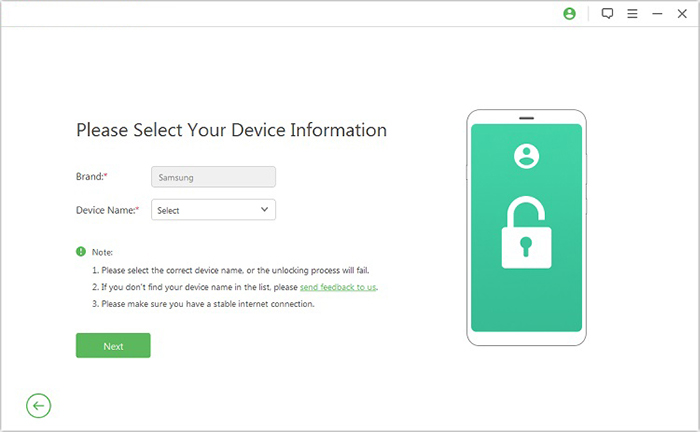
- Click "Start" and enter your device details when prompted.
02: Download the required firmware package
- Follow the instructions to enter recovery mode.
- Choose the correct PDA, country, and carrier, then click "Download" to get the required package.
- Click "Start to Extract" and follow the steps to prepare the device.
03: Complete the FRP removal process
- Put the phone into Download Mode, enable USB debugging, and activate OEM unlock as instructed.
- Allow the software to extract the firmware and complete the required operations.
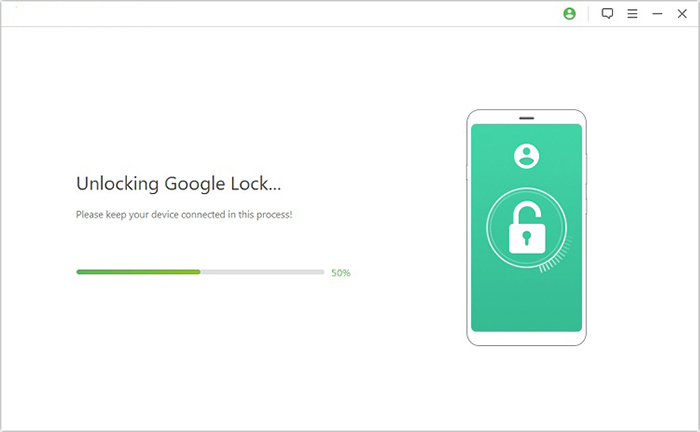
- Wait for the program to remove the Google FRP lock from the Android device.
FAQs about Google Account Sign-In Messages on Android
Q1: What is Google Factory Reset Protection (FRP) on Android
FRP is a security feature that prevents unauthorized use of a device after a factory reset by asking for the original Google account credentials.
Q2: How can the previous owner remove their Google account from my phone?
The previous owner can remove the device from their Google Account remotely through account security settings.
Q3: Will a factory reset remove the Google account verification lock?
No. A factory reset may trigger FRP if the Google account was still linked before the reset.
Q4: Why does Android keep asking me to verify my Google account after entering my password?
This can happen due to incorrect account details, security checks, network issues, or recent password changes.
Tips to Keep from Please Sign in Using One of the Owner's Accounts for This Device
Avoiding the "Please Sign in Using One of the Owner's Accounts for This Device" message starts with proper account management before resetting or transferring an Android phone. The following tips can help prevent FRP-related sign-in issues and ensure a smoother device setup process:
- Remove Google accounts before resetting - Sign out before a factory reset.
- Clear screen locks before transfer - Remove PIN, password, or pattern.
- Back up data first - Save important files before resetting.
- Unlink devices from Google Account - Remove the phone before selling.
- Know account details before reset - Confirm login information first.
- Check used phones before buying - Ensure the previous account is removed.
- Update recovery details - Keep account recovery options active.
- Use official reset methods - Avoid unreliable reset tools.
- Keep Android updated - Maintain security features.
- Save proof of ownership - Keep receipts for support requests.
Related Articles:
An Unbiased MobileTeamOfficial FRP Bypass APK Review [Latest Update]
How to Add Google Account on Android Device? [Full Tutorial]
How to Use Google Drive on Android & PC?Detailed Breakdown
Is Google Drive Secure? Answer, Exploration, FAQs, & Alternative