
BLU FRP Bypass: 6 Wise Tactics to Bypass Google FRP Lock on BLU
"How can I remove FRP on BLU Bold K10. The title is pretty self-explanatory but I need to remove FRP on BLU running Android 16." -- from Reddit
Check the Chipset of Your BLU Phone First:
- Find your BLU phone's model number (on the back, SIM tray, or box).
- Search the model online using another device.
- Open a trusted specs page.
- Locate the "Chipset" or "Platform" section.
- Identify the chipset type (e.g., MediaTek or Unisoc).
- Select an FRP bypass method that matches the chipset.
Which BLU FRP bypass method should you use depends on the chipset of your BLU phone? MediaTek (MTK) devices usually require MTK-compatible tools such as SP Flash Tool or automated solutions, while Unisoc (SPD) models use SPD Research/Upgrade tools; if the chipset is unknown, an automated detection tool is the safest option. Below is the reference.
- Way 1: Bypass FRP on BLU via Google Account Recovery
- Way 2: Bypass FRP on BLU Phone via TalkBack (Android 11-16)
- Way 3: Bypass FRP Lock on BLU Using Emergency Call
- Way 4: Remove Google FRP on BLU Phone with SIM Card
- Way 5: Bypass Google FRP Lock on BLU via TFT Unlock Tool
- Way 6: BypassFRP on BLU without the Highest Success Rate
- FAQs about BLU FRP Bypass
Way 1: Bypass FRP on BLU via Google Account Recovery
Requirements/Considerations
- The Google account previously used on the BLU phone must be known.
- Access to the Google Account Recovery page on another device.
- Ability to verify identity through a recovery email, phone number, or previous password.
- A stable internet connection is required during the verification process.
- After resetting the password, wait 24-72 hours before signing in if Google security delay occurs.
User Manual:
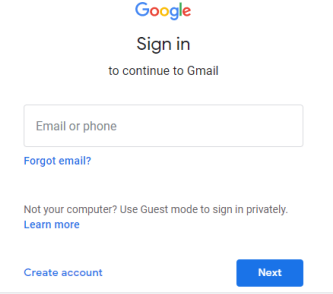
- Turn on the BLU BLU Bold N4, N3, N2, F5 5G, F92E, G94, G93, G84, etc., and connect it to a stable Wi-Fi network until the Google account verification screen appears.
- On another device (phone or PC), open the Google Account Recovery page and enter the Google email address previously used on the BLU phone.
- Click Next > Try another way and complete the identity verification (old password, recovery email, or verification code).
- Once verification succeeds, reset the Google account password and save the new password.
- Return to the locked BLU phone and sign in using the recovered Google account and new password.
- Continue the setup process normally; the FRP lock will be removed after successful login.
Way 2: Bypass FRP on BLU Phone via TalkBack (Android 11-16)
Requirements/Considerations
- Works mainly on Android 11-12 and some Android 13 devices; newer patches may block it.
- The device must allow TalkBack activation (usually Volume Up + Volume Down).
- A Wi-Fi connection is necessary to access Google services or the browser.
- Some steps require opening YouTube, browser links, or Google Assistant.
- Success may vary depending on the BLU model and security patch level.
User Manual:
- Turn on the BLU phone, connect it to Wi-Fi, and stay on the Google verification screen.
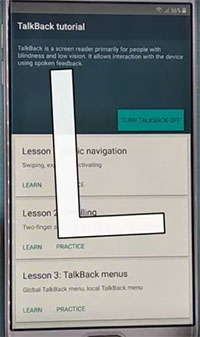
- Press and hold Volume Up + Volume Down together for about 3 seconds to enable TalkBack.
- On the screen, draw an "L" shape gesture to open the TalkBack menu.
- Tap Use voice commands, then say "Open Google Assistant."
- In Google Assistant, search for or open YouTube.
- In YouTube, tap the profile icon > Settings > About.
- Tap Google Privacy Policy (or a similar link) to open the browser.
- In the browser, sign in with a new Google account or access settings to add another account to the device.
- Restart the BLU phone and finish the setup; the FRP verification screen should be removed.tem crashes or softwareedmi.
Way 3: Bypass FRP Lock on BLU Using Emergency Call
Requirements/Considerations
- The Emergency Call option must be accessible on the setup screen.
- The device should allow access to Emergency Information or contact editing.
- Some actions depend on older Android system loopholes, so newer versions may block them.
- Users may need to access App Info or Settings through indirect menus.
- Not all BLU models support this workaround.
User Manual:
- Turn on the BLU phone and stay on the "Welcome" or setup screen.
- Tap Emergency Call at the bottom of the screen.
- Select Emergency Information and tap it twice to open the information page.
- Tap the Edit (pencil) icon, then go to Name or profile details.
- Tap the profile picture icon and choose an image from the available options.
- Tap the three-line menu, then long-press Google Photos or Drive to open App Info.
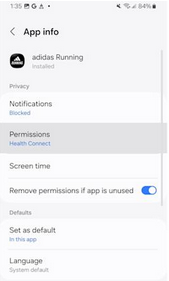
- In App Info, tap Permissions, then use the Search icon and type "Settings."
- Open Settings from the results to access the device system settings.
- From Settings, try adding a new Google account or adjusting Google services, then restart the phone to finish the setup without the original account.
Way 4: Remove Google FRP on BLU Phone with SIM Card
Requirements/Considerations
- A working SIM card inserted in the BLU phone. (No SIM error on Android?)
- Another phone is needed to call the locked device.
- The device must allow contact creation or Google account sign-in during a call.
- Requires a stable mobile network connection.
- Mostly effective on older Android versions or specific firmware builds.
User Manual:
- Insert a working SIM card into the locked BLU phone and power it on.
- From another phone, call the number of the SIM card inserted in the locked BLU device.
- Answer the incoming call on the locked phone.
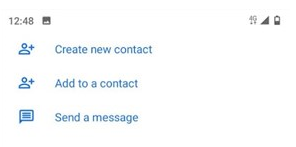
- During the call, tap Create New Contact on the screen.
- Enter any numbers or contact name, then tap Save.
- When asked where to save the contact, choose Google and sign in or create a new Google account.
- After the account is added, hang up the call and restart the BLU phone.
- Complete the setup process; the FRP lock should be bypassed after reboot.
Way 5: Bypass Google FRP Lock on BLU via TFT Unlock Tool
Requirements/Considerations
- A Windows computer is required to run the tool.
- Install Android USB drivers and the TFT Unlock Tool software.
- Use a USB cable to connect the BLU phone to the computer.
- The phone may need to enter ADB, fastboot, or download mode.
- Incorrect operations may erase data or cause system issues, so careful use is recommended.
User Manual:
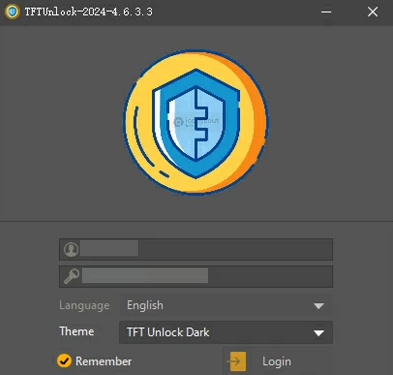
- Download and install TFT Unlock Tool on a Windows computer, then install the required USB drivers for Android devices.
- Launch the tool as Administrator and log in if the program requests credentials.
- Use a USB cable to connect the BLU phone to the computer.
- In the TFT interface, select the device brand or chipset (such as MediaTek, Qualcomm, or Unisoc) that matches your BLU phone.
- Choose the "Erase FRP" or "FRP Bypass" option from the tool's menu.
- Follow the prompts to place the phone into the required connection mode (such as ADB, fastboot, or download mode).
- Click Start/Execute to begin the FRP removal process and wait until the software finishes the operation.
- After the process completes, disconnect and reboot the BLU phone; the Google verification screen should no longer appear.
Way 6: BypassFRP on BLU without the Highest Success Rate
Requirements/Considerations
- A Windows PC with the Android Lock Wiper program installed.
- A USB connection between the BLU phone and the computer.
- Users must select the correct device model or Android version during the process.
- The tool may reset the device and remove data during FRP removal.
Main Features of Android Lock Wiper:
> FRP Bypass - Removes Google FRP without the original account, helping unlock BLU phones quickly.
> Screen Lock Removal - Deletes PIN, pattern, password, fingerprint, and face locks.
> Wide Compatibility - Supports many Android brands and thousands of models.
> Easy Operation - Provides simple step-by-step unlocking instructions.
> Automatic Detection - Identifies the device and applies the proper unlock method.
> Broad Android Support - Works with both older and newer Android versions, including BLU Bold N3, BLU F5 5G, BLU Bold K10, BLU G64L, and BLU G93, etc.
> High Success Rate - Delivers a high unlocking success rate for many devices.

User Manual:
- Start by downloading and installing the phone unlocking software on your computer.
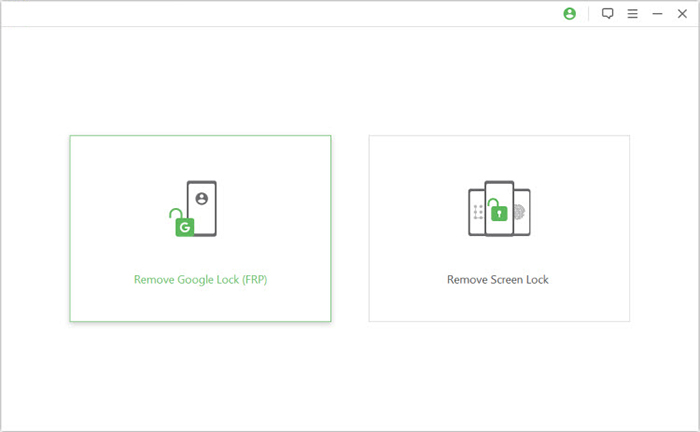
- Once installed, select "Remove Google Lock (FRP)" and choose "Advanced Mode."
- Connect your BLU device to the computer using a USB cable, then click the "Start" button to begin removing the Google lock.
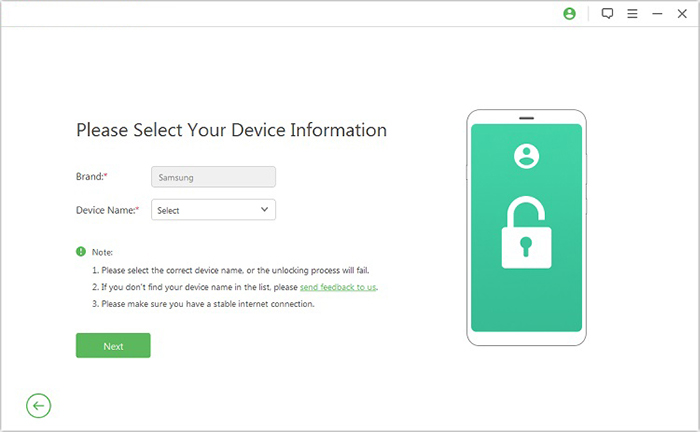
- Follow the prompts to enter your device information, then click "Next."
- Proceed with the on-screen instructions to put your device into recovery mode.
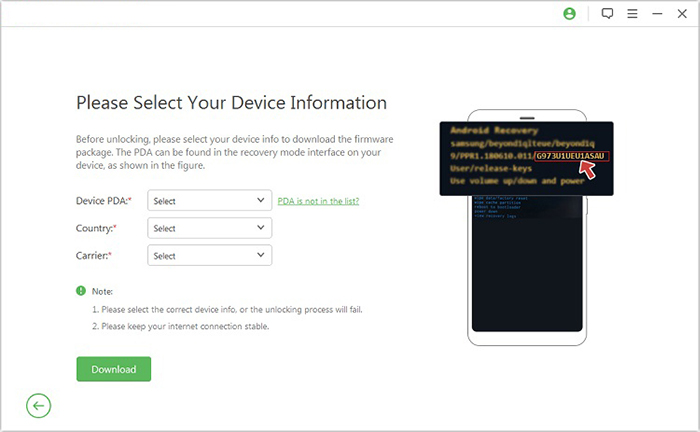
- On the next screen, select the appropriate PDA, country, and carrier, then click "Download" to obtain the required data package.
- Click "Start to Extract" and follow the on-screen instructions to place your BLU in Download Mode, enable USB debugging, activate OEM unlock, extract the firmware, and complete any other necessary steps.
- Once finished, the program will begin unlocking the BLU FRP lock.
FAQs about BLU FRP Bypass
Q1: What to do or note before BLU FRP bypass?
- Check the Android version and security patch.
- Ensure you own the device.
- Try the original Google account first.
- Recover the Google account if forgotten.
- Charge the phone above 50%.
- Prepare a stable internet connection.
- Back up any accessible data.
- Install needed USB drivers or tools.
- Use a reliable USB cable and PC.
- Follow the correct steps for your model.
Q2: What to do after BLUFRP bypass?
- Restart the BLU phone and complete the device setup.
- Sign in with a new or existing Google account.
- Check system settings to ensure the FRP lock is removed.
- Update the Android system to the latest available version.
- Restore your backed-up data if needed.
- Set a screen lock (PIN, pattern, or password) for security.
- Add recovery options like a backup email or phone number to your Google account.
- Avoid factory reset without removing the Google account to prevent FRP from appearing again.
Q3. Will bypassing FRP delete data on a BLU phone?
In most cases, data has already been erased during the factory reset. Some FRP bypass tools may wipe the device again during the process.
Q4. Are FRP bypass tools safe to use?
Many tools can work, but users should download them from trusted sources. Unknown tools may contain malware or cause system issues.
Q5. How can I avoid FRP lock on my BLU phone in the future?
Before performing a factory reset, go to Settings > Accounts > Google and remove the Google account from the device. This prevents FRP from being activated.
Q6. What is the easiest way to remove FRP from a BLU phone?
The easiest way to remove FRP from a BLU phone is to sign in with the original Google account that was previously linked to the device. If the credentials are forgotten, specialized software such as Android Lock Wiper can help remove the verification screen quickly. This tool is often considered the most efficient method because it guides users through the FRP removal process with simple steps and broad device compatibility.
Related Articles:
iCloud DNS Bypass Full Guide: Unlock iPhone/iPad Activation Lock
Discover the Top 8 Android Phone Backup Software for PC Here
How to Recover Data after Factory Reset Android? 5 Ingenious Ways
