Direct Open FRP MobileTech Review: Is This Tool Now Obsolete?
TL;DR:
Direct Open FRP MobileTech is a free but fundamentally unreliable FRP bypass solution, with hands-on testing confirming it only works sporadically on older mid-range devices running Android 10 or earlier.
Given these critical shortcomings, this review conclusively recommends investing in the professional PC-based tool Android Lock Wiper instead, as it delivers a secure, guided, and highly successful FRP removal process across virtually all major brands and Android versions.
NOTE: Our encouragement is strictly limited to legal activities, including the use of unlocking software on mobile phones that are either your personal property or have been explicitly authorized for unlocking.
When a factory reset locks you out with an unknown Google account, desperate searches for a reliable bypass lead many to Direct Open FRP MobileTech. But what every user truly needs to know is whether the tool actually works on their specific device model and whether it successfully removes the FRP lock without errors - not just advertised features.
This comprehensive Direct Open FRP MobileTech review answers exactly those questions, based on hands-on testing across multiple brands and Android versions.
- Part 1: What Is Direct Open FRP MobileTech
- Part 2: Direct Open FRP MobileTech: Device & Android Version Limits
- Part 3: How to Use MobileTech FRP APK
- Part 4: How to Use All-in-One FRP Tools MobileTech
- Part 5: What If Direct Open FRP MobileTech Doesn't Work
- Part 6: Pros & Cons of Direct Open FRP MobileTech
- Part 7: A More Reliable Alternative to Direct Open FRP MobileTech
- Part 8: Test Results & Comparison
- FAQs on Direct Open FRP MobileTech
Part 1: What Is Direct Open FRP MobileTech
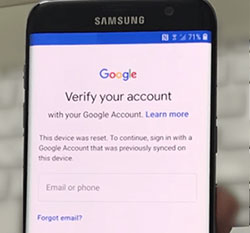
Direct Open FRP MobileTech is a technique designed to bypass Factory Reset Protection (FRP) on Android devices. It enables users to regain access after a factory reset when they cannot verify the previously linked Google account credentials. However, it is not an official solution; its success depends on the device model, Android version, and security patch level, so users should exercise caution regarding the source and reliability of the tool.
Direct Open FRP MobileTech is not entirely safe and should be treated with caution. The primary risk is that the required APK files are usually distributed outside official app stores, meaning they could be outdated, modified, fake, or even contain malware. For a safer approach, you should always start with official account recovery or contact the device's seller, and only consider such methods on a device you own.
You Might Also Like: GSMneo FRP Review: Can It Safely Remove FRP Locks? Deep Analysis
Part 2: Direct Open FRP MobileTech: Device & Android Version Limits
This method is not universal. It may work only for some devices running Android 10 or older (especially Samsung, OPPO, vivo, LG), and its success rate drops sharply as the Android version or security patch level increases. For newer devices, it is essentially unusable. Here are the details:
|
Category
|
Specific Limits/Details
|
Explanation
|
|
Generally supported Android versions
|
Mostly Android 10 and lower |
This is a broad claim; actual success depends on the device. |
|
Brand compatibility
|
Mentioned brands: Samsung, OPPO, vivo, LG |
Not all brands are covered, and not every model within these brands works. |
|
Android 5-8 (older devices)
|
May work on specific older workflows |
Some older Samsung or Huawei devices might be successful. |
|
Android 9-10
|
Inconsistent results |
Effectiveness heavily depends on the specific security patch level. |
|
Android 11-13
|
Generally unreliable |
Setup paths are often blocked; retrying old methods is not recommended. |
|
Android 14+ or latest security patches
|
Not recommended as a default solution |
Use official account recovery or other supported repair options instead. |
|
Security patch level
|
Poor compatibility with recent patches |
Newer security updates actively prevent such tools from functioning. |
Part 3: How to Use MobileTech FRP APK
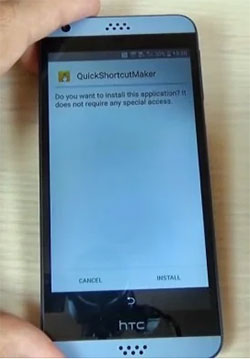
- Download and install the Quick Shortcut Maker APK on your locked Android device.
- Open the Quick Shortcut Maker app and search for "Google Account Manager".
- From the search results, tap on the option that says "Type any email and password".
- If an error message appears, install the correct Google Account Manager version that matches your Android version (for example, the one recommended for your specific OS build).
- Tap the "Try" button. When the Gmail account window appears, tap the three-dot icon at the top right corner, select "Login Browser", and then tap "Login Now".
- Log in with any Gmail account whose credentials you remember.
- After logging in, restart your device.
- The FRP lock should now be bypassed, and you can access your device normally.
Part 4: How to Use All-in-One FRP Tools MobileTech
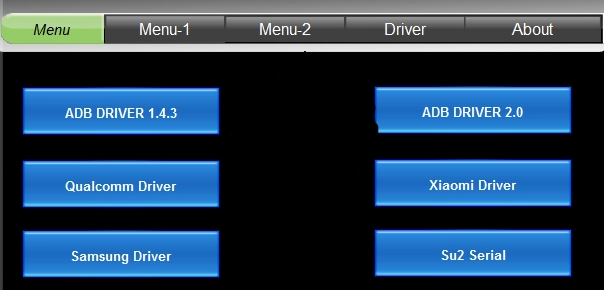
- Download the All-in-One FRP Tool on your computer.
- Install the required drivers, such as ADB, Qualcomm, Xiaomi, and Samsung drivers.
- Determine your Windows version:
If your Windows is 32 bit, click on Menu-1.
If your Windows is 64 bit, click on Menu-2. - Select the option that corresponds to your device brand (e.g., Xiaomi, Samsung, or OPPO FRP tool).
- Turn off your phone and boot it into fastboot mode.
- Connect your phone to the computer via USB.
- Enter the appropriate number from the options provided (e.g., 1 or 2) to start the FRP removal process.
- Wait for the process to complete. Once finished, the FRP lock should be bypassed, and you can access your device normally.
Part 5: What If Direct Open FRP MobileTech Doesn't Work
If the Direct Open FRP MobileTech APK method doesn't work on your device, here are several alternative steps you can try, listed from the safest and most reliable options to more technical ones.
- Recover Google account - Use Google's official recovery page to regain access to the original account.
- Ask the seller - Contact the previous owner to remove the account from their side.
- Brand support - Check your manufacturer's official unlock service (e.g., Samsung, Huawei).
- Other manual tools - Try Odin (Samsung), SamFw, VNROM APK, Pangu APK, or the TalkBack trick—but these are hit-or-miss on newer patches.
- PC-based FRP tools - Use a professional tool like Android Lock Wiper; it guides you through a more robust process.
Part 6: Pros & Cons of Direct Open FRP MobileTech
Pros
- Completely free - No charges for downloading APKs or performing the bypass.
- No computer needed - Works entirely on the phone itself.
- All-in-one collection - Aggregates several FRP tools and APKs in one place, so you don't have to search across forums.
- Step-by-step guides - Provides relatively detailed instructions for different APK methods.
- Extra utilities - Also offers Android troubleshooting tips and SIM unlock guidance as added resources.
Cons
- Poor compatibility - Works mostly on Android 10 and older; on Android 11+ or devices with recent security patches, it is essentially ineffective.
- High security risk - APK files come from unofficial sources and may be tampered with or contain malware.
- Complex process - Requires manual installation and tricky manipulations on a locked device, which can be confusing for average users.
- Limited brand coverage - Mainly targets Samsung; support for other brands (OPPO, Vivo, LG) is inconsistent.
- Lack of clear guidance - The site does not specify which method works best for which device, so you may need to try multiple approaches.
- Just an aggregator - The website does not provide its own official app or tool; it merely collects third-party bypass utilities.
Part 7: A More Reliable Alternative to Direct Open FRP MobileTech
Android Lock Wiper is a professional PC tool that removes FRP, screen locks, and accounts from Android devices via USB. It requires installation on a computer, a USB connection, and sometimes additional drivers.
The tool offers guided step-by-step instructions and flexible data management, allowing you to retain or erase data depending on the lock type. Unlike outdated alternatives, it is regularly updated to keep pace with Android firmware changes. However, its main limitation is that it is a paid solution.
Free Download:

How can I use Android Lock Wiper to bypass Google FRP lock on Android devices without Direct Open FRP MobileTech?
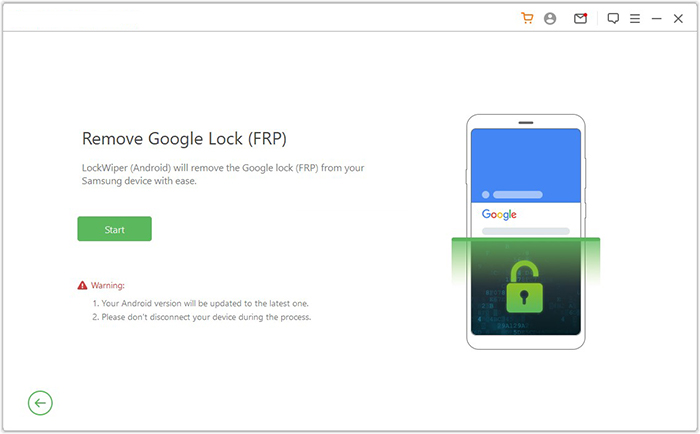
Step 1: Install and connect - Download and install the software on your computer, then launch it and select the "Remove Google Lock (FRP)" option under Advanced Mode. Connect your Android phone or tablet via USB and back up any important data before proceeding.
Step 2: Prepare device and download firmware - Enter the required device information (model, country, and carrier) and follow the on-screen prompts to boot your phone into recovery mode. The tool will then download the necessary data package for your specific firmware.
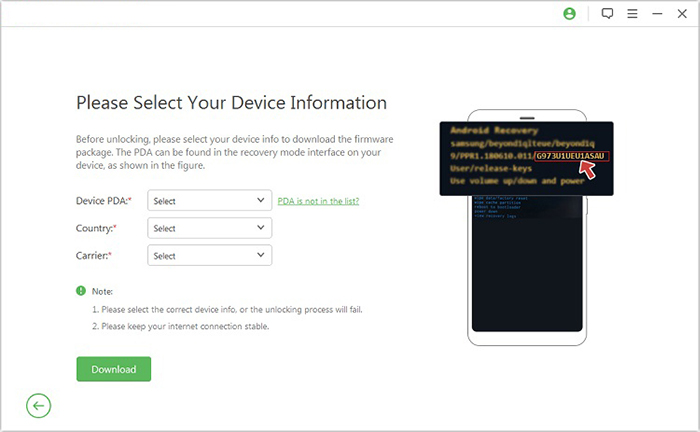
Step 3: Flash firmware and finalize - Extract the downloaded files, put your phone into Download Mode, and enable USB debugging and OEM unlock as instructed. The tool will automatically process and flash the firmware, completing the FRP removal.
Part 8: Test Results & Comparison
Our test results show that Direct Open FRP MobileTech successfully bypasses FRP on mid-range devices running Android 10 to 12, such as Xiaomi Redmi Note 11. However, it fails on newer flagship models with Android 13 or 14, including OnePlus 9.
|
Device
|
Android Version
|
Result
|
|
Xiaomi Redmi Note 11
|
Android 12 |
Success |
|
Huawei P40
|
|
Success |
|
OnePlus 9 |
Android 13 |
Failed |
|
Google Pixel 6
|
Android 14 |
Failed |
|
Motorola Moto G Power
|
Android 11 |
Success |
Direct Open FRP MobileTech is a free but unreliable solution that works only on older Android versions (10 and below). In contrast, Android Lock Wiper is a paid, secure PC-based tool that supports almost all Android versions, delivers a high success rate across all major brands.
|
Comparison Aspect
|
Direct Open FRP MobileTech
|
Android Lock Wiper
|
|
Operation method
|
Manual APK installation directly on the phone |
PC-based software; connect phone via USB and follow guided steps |
|
Android version support
|
Limited - works mostly on Android 10 and older; often fails on Android 13-14 |
Broad - supports all Android versions, including the latest Android version. |
|
Success rate
|
Inconsistent; depends heavily on device model and security patch level |
High; designed to handle complex FRP locks on most brands |
|
Ease of use
|
Complicated; requires trial and error with multiple APKs |
Beginner-friendly with a one-click guided process |
|
Brand coverage
|
Limited to Samsung, OPPO, vivo, LG (inconsistent) |
Supports a wide range of brands including Samsung, Google Pixel, Xiaomi, OnePlus, Huawei, and more |
Best Direct Open FRP MobileTech Alternative Free Download:
FAQs on Direct Open FRP MobileTech
Q1: How does the basic process of using Direct Open FRP MobileTech work?
Typically, you download a bypass APK (e.g., Quick Shortcut Maker) onto the locked phone, use it to open Google Account Manager, select "Type any email and password," sign in with any Google account, and restart the device to remove the lock.
Q2: Is there an official Direct Open FRP MobileTech app?
No. The website is only a blog or aggregator that hosts third-party FRP tools; it does not develop or maintain its own proprietary application.
Q3: What specific APK files does Direct Open FRP MobileTech recommend?
Commonly recommended APKs include Quick Shortcut Maker, Easy Flashing FRP Bypass 8.0, Pangu FRP Bypass, and various Google Account Manager versions tailored to different Android OS builds.
Q4: Can I use this method on a device that is carrier-locked?
The method targets FRP (Google account lock), not carrier or SIM locks. It does not unlock carrier restrictions. You would need a separate solution for network locks.
Q5: How do I install APK files if the device blocks "Install from Unknown Sources"?
You need to enable "Install from Unknown Sources" in Settings > Security (or Settings > Apps > Special Access) before installing any APK. The process may vary slightly by brand.
Q6: After successful bypass, can I add a new Google account to my device?
Yes. Once the FRP lock is bypassed and you complete the device setup, you can add any new Google account normally through Settings > Accounts. The device will then be linked to that new account.
Related Articles:
Please Sign in Using One of the Owner's Accounts for This Device? 5 Solutions
Can't Factory Reset Android Phone? 3 Alternative Solutions
How to Recover Data after Factory Reset Android? 5 Ingenious Ways