
How to Fix Wrong Apple ID When Updating Apps? 12 Workable Solutions
A wrong Apple ID when updating apps can create significant frustration because it prevents you from updating or reinstalling apps on your iPhone or iPad. This passage explains the main reasons for a wrong Apple ID when updating applications and provides 12 reliable solutions to help restore smooth App Store access.
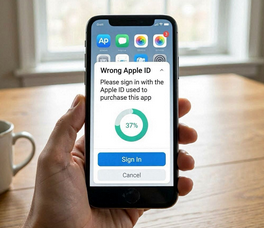
Section 1: Why Is Apple ID Wrong When Updating Apps
The "Wrong Apple ID" message usually appears, partly because an app was originally downloaded or purchased with a different Apple ID. Since Apple permanently ties each app to the account that obtained it, the App Store requests that same account when you try to update the app. There are also some other common reasons, including:
- You previously used another Apple ID on the device.
- The iPhone/iPad was bought second-hand and still contains apps from the previous owner.
- A family member downloaded apps using their own Apple ID.
- The app came from a Family Sharing purchase. (Family Sharing Apple music doesn't work?)
- Apps were transferred from another device and retained the old account credentials.
- iCloud or App Store settings are synced with a different Apple ID.
- Minor iOS or App Store glitches can also trigger account conflicts.
Section 2: Fix Wrong Apple ID When Updating Apps with 11 Basic Methods
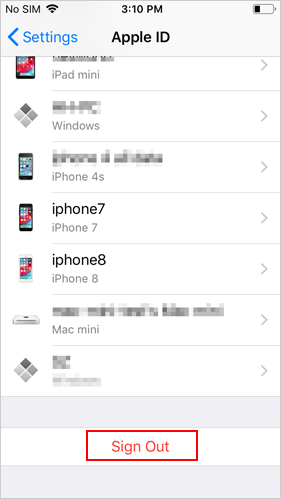
Fix 1: Re-sign in to your Apple Account
- Open the Settings app on your iPhone or iPad.
- Tap your Apple ID name at the top of the screen.
- Scroll down and tap Sign Out.
- Enter the password for the currently signed-in Apple ID and confirm the sign-out.
- After signing out, restart your device if needed.
- Return to Settings and tap Sign In to your iPhone.
- Enter the correct Apple ID and password you want to use for the App Store.
Fix 2: Reinstall Apps via New Apple ID
If the App Store still asks for the old Apple ID after re-signing in, the affected apps were likely downloaded with another account. In that case, delete those apps and reinstall them using your new Apple ID.
- Open the App Store and make sure you are signed in with the Apple ID you currently use.
- Locate the app showing the wrong Apple ID prompt.
- Long-press the app icon until a menu appears.
- Tap Remove App > Delete App to uninstall it.
- Open the App Store again and search for the deleted app.
- Tap the Download icon to reinstall the app using your current Apple ID.
You Might Need: How to Create A New Apple ID and Transfer Everything [2026 Update]
Fix 3: Remove the Affected App
If an app keeps asking for the wrong Apple ID during updates, removing the affected app can help because the app was likely downloaded using another Apple ID. After deleting it, you can reinstall the app with your current account. Here's how to remove the affected app:
- Go to your iPhone Home Screen.
- Touch and hold the app icon until a quick-action menu appears.
- Tap Remove App.
- Select Delete App.
- Tap Delete again to confirm the removal.
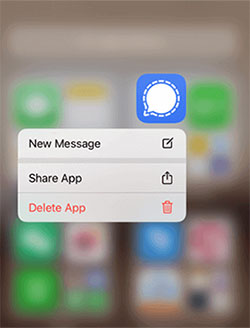
After deleting the app: Open the App Store > Sign in with the correct Apple ID > Search for the deleted app > Download and install it again using your current Apple ID.
Fix 4: Verify Stuck Downloads
To verify stuck downloads, check your Home Screen and App Store for any apps that are paused or stuck loading. Tap the app to resume the download or use Update All in the App Store to clear the queue. If the app remains stuck, cancel or delete it and restart the App Store before trying again.
Fix 5: Delete Wrong Apple ID from iPhone Directly
Remove the account by signing out of the Apple ID used in Media & Purchases (App Store account) and replacing it with your correct one. Here's how to do it:
- Open Settings on your iPhone.
- Tap your Apple ID name at the top.
- Select Media & Purchases.
- Tap Sign Out.
- Tap Media & Purchases again and sign in with your correct Apple ID.
- Restart the App Store and try updating your apps again.
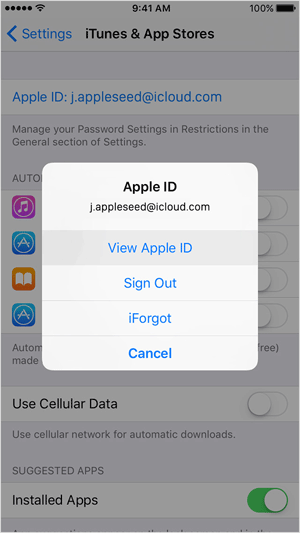
If the issue still appears, go back to Settings and fully sign out of the Apple ID in iCloud, then sign in again with the correct account to refresh all App Store connections.
Fix 6: Inspect Family Sharing Settings
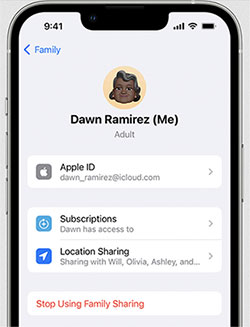
Go to your iPhone Settings > Family and check which Apple ID is used for Purchases/Media & Purchases. Make sure it matches your current Apple ID to avoid update requests for another account. Also verify Purchase Sharing settings, since mismatched Family Sharing configurations can trigger the wrong Apple ID prompt. (Stop using it if necessary.)
You May Also Like: [2026] Family Sharing iCloud Storage Not Working? Here Is the Fix!
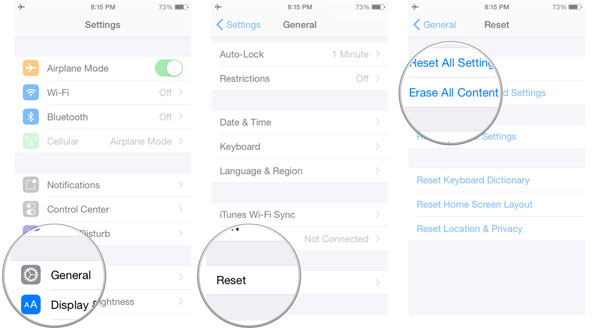
Fix 7: Factory Reset iPhone Directly
A factory reset can be used as a last resort because it erases all data and removes previous Apple ID configurations. Before starting, back up your iPhone to iCloud or a computer to avoid data loss.
Then go to Settings > General > Transfer or Reset iPhone > Erase All Content and Settings, and confirm the reset. After the device restarts, set it up again and sign in with your correct Apple ID to ensure all apps are linked properly.
Fix 8: Reset All Settings
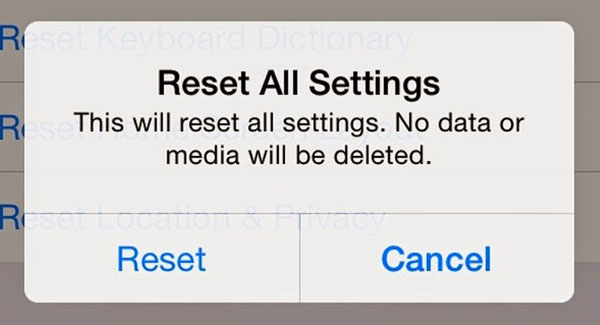
Reset All Settings can help fix the "wrong Apple ID when updating apps" issue by restoring system settings (like network, Apple ID services, and App Store configurations) back to default without deleting your apps or data.
To do this, go to Settings > General > Transfer or Reset iPhone > Reset > Reset All Settings, then enter your passcode and confirm. This restores system settings to default without deleting your data and may help fix the wrong Apple ID issue when updating apps.
Fix 9: Factory Reset iPhone via iTunes
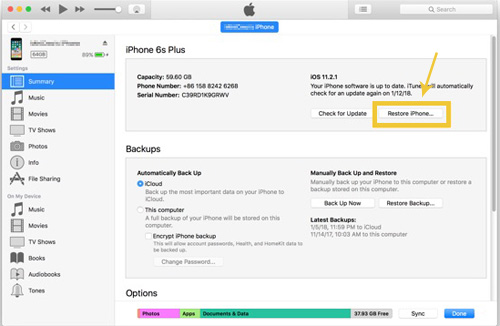
To start with, first connect your iPhone to a computer and open iTunes (or Finder on Mac). Put the device into recovery mode, then click Restore iPhone to erase all data and reinstall iOS, which can remove Apple ID conflicts causing the update issue.
Fix 10: Delete Apple ID via iCloud
Erase the device from iCloud and then set it up again with your correct account. This is useful when the device is still linked to an old or unknown Apple ID. Here's how to do it:
- Go to iCloud.com and sign in with your Apple ID.
- Open Find My iPhone.
- Select All Devices and choose your iPhone.
- Click Erase This Device to wipe it remotely.
- After erasing, set up your iPhone again and sign in with your current Apple ID.
This process removes the old Apple ID association and helps ensure apps and updates are linked to your new account.
Fix 11: Update iPhone Firmware
Go to Settings > General > Software Update and install the latest available iOS version. Keeping iOS up to date can resolve system glitches that may cause Apple ID verification errors during app updates.
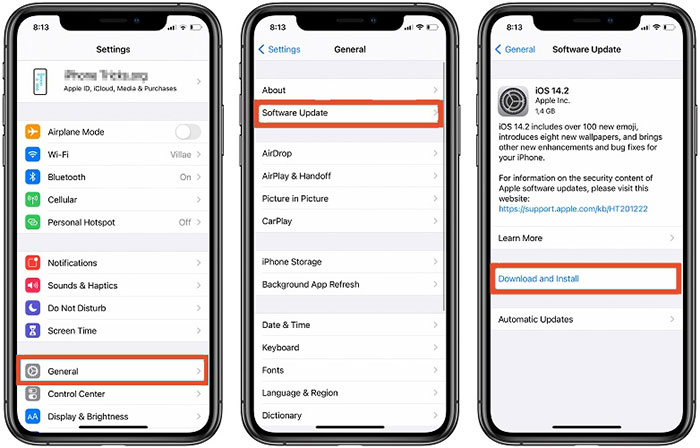
You can also connect your iPhone to a computer and update it via iTunes or Finder if the update doesn't appear on the device, which refreshes system components and improves App Store stability.
Section 3: Remove Wrong Apple ID from iPhone When Forgot Password in an Ultimate Way
iOS Lock Wiper is a powerful iPhone/iPad tool that can remove a wrong Apple ID from any iOS device without needing the original password or account credentials. It allows users to regain full access to the App Store, iCloud, and device settings quickly and securely. With its simple interface and fast process, Lock Wiper works even on second-hand or locked devices, making it a reliable solution for Apple ID issues.
|
iOS Lock Wiper - Feature
|
Key Details
|
|
Apple ID Unlock |
Removes the current Apple ID to allow sign-in with another account. |
|
Screen Lock Removal |
Unlocks 4-digit/6-digit passcodes, Face ID, and Touch ID locks. |
|
Screen Time Unlock |
Deletes Screen Time restrictions without requiring the passcode. |
|
MDM Removal |
Bypasses Mobile Device Management limitations on supported devices. |
|
Activation Lock Assistance |
Helps bypass Activation Lock in certain supported situations. |
|
Extensive Compatibility |
Supports a wide range of iPhones, iPads, and iOS versions, including the latest iPhone 17e, iPhone 17 Pro Max, iPhone 17 Pro, iPhone Air, iPhone 17, etc. |
|
High Safety Standards |
Removes locks without compromising device data integrity or security. |
|
Extra Features |
Includes intuitive interface, step-by-step guidance, and regular updates for the latest iOS versions. |
Best iPhone Apple ID removal tool free download:


Here is how to use iOS Lock Wiper to unlock/remove Apple ID on iPhone when the "wrong Apple ID when updating apps" issue appears:
- First, download and install iOS Lock Wiper on a computer, then launch it and select the "Unlock Apple ID" mode.
- Connect your iPhone to the computer using a USB cable and tap Trust This Computer if prompted, then click Start to Unlock to begin the process.
- Next, follow the on-screen instructions to remove the Apple ID from the device; once completed, the old Apple ID will be deleted and you can sign in with a new one to fix App Store update issues.
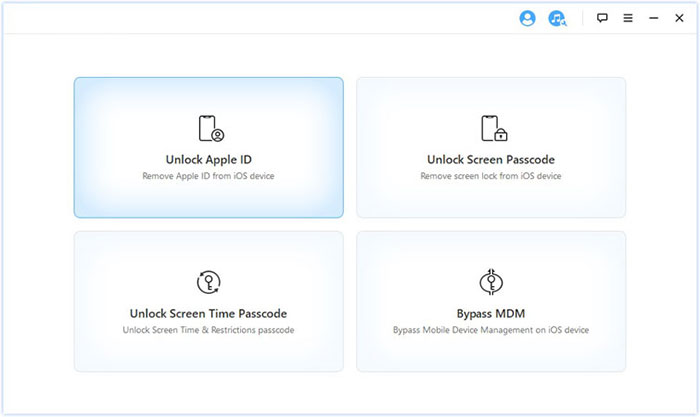
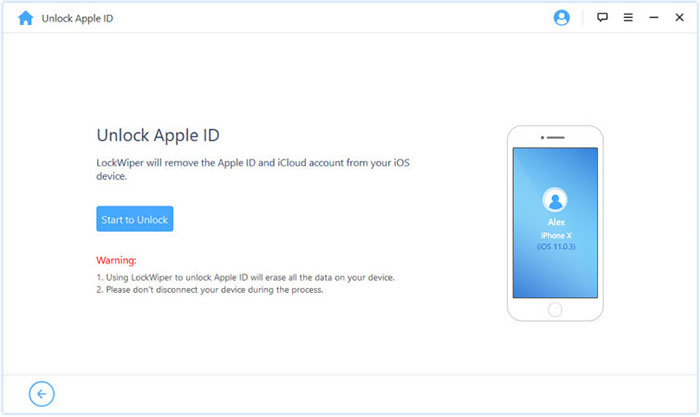
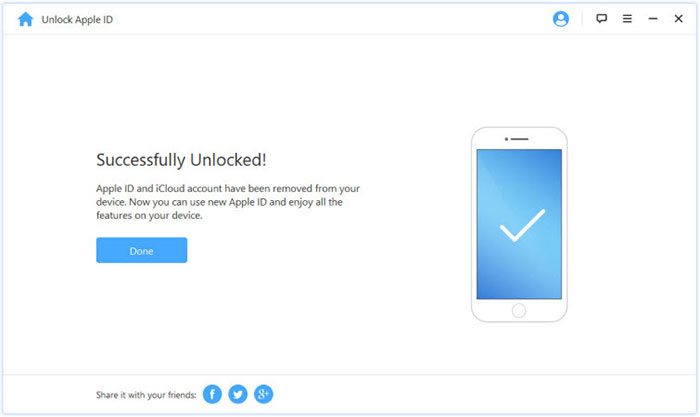
Finally, restart your iPhone and log in with your current Apple ID to ensure apps and updates are linked correctly without triggering the previous account.
Conclusion & Tips to Prevent Wrong Apple ID on App Store in the Future
The "wrong Apple ID when updating apps" issue is mainly caused by various reasons. Common fixes include the 11 basic solutions above. In stubborn cases, restoring the device or removing Apple ID via iCloud can help fully resolve the problem.
For a faster and more reliable solution, iOS Lock Wiper is often recommended as an efficient and secure tool to remove any Apple ID without needing account credentials, making it easier to regain full access to the device and App Store.
Tips to Prevent Wrong Apple ID on App Store in the Future:
- Always use a single Apple ID for all App Store downloads and updates on your device.
- Avoid downloading apps with different accounts or from previous owners, and regularly check Settings > Media & Purchases to ensure the correct Apple ID is signed in.
- Keeping iOS updated and managing Family Sharing properly also helps prevent account mismatches and update errors in the future.
Related Articles:
[Ultimate Guide 2026] 6 Ways to Find Apple ID Password in Seconds
A Detailed Guide to Transfer Data from One Apple ID/iCloud Account to Another
