
Infinix Screen Mirroring: 4 Ways to Screen Mirror Infinix to PC/TV
With the rapid advancement of smartphone technology, many Infinix users are looking for ways to watch videos, play games, or view photos from their Infinix phone on a bigger TV or PC screen. Infinix screen mirroring has become a practical solution, allowing users to enjoy content on larger displays while sharing content with friends or family without transferring files or using multiple devices.
This passage covers four effective methods for this purpose, giving you flexible options for entertainment and productivity.
Part 1: Screen Mirroring Infinix Phone to PC
> 1.1 Using Screen Mirror
You can easily mirror your Infinix phone screen to a PC with smooth performance and minimal lag using Screen Mirror. The software supports real-time interaction, allowing you to control apps, play games, and watch videos directly from your computer.
Its intuitive interface makes the connection process straightforward, even for users who are not tech-savvy. For reliable and versatile screen mirroring, this product provides a seamless solution that enhances productivity and entertainment.
Why Is Screen Mirror Recommended?
- Screen Mirroring: Mirror your Infinix phone screen to a PC or Mac in real time.
- Full Control: Interact with your phone directly from the computer, including apps, games, and media.
- High-Quality Display: Supports smooth, lag-free casting with clear visuals.
- Cross-Platform Compatibility: Works on both Windows and macOS systems.
- Easy Setup: User-friendly interface allows quick connection via USB or Wi-Fi.
- Multi-Tasking: Use your PC to type, play games, or manage apps on your Infinix phone efficiently.
- Recording & Screenshots: Capture screen activity or take screenshots directly from the mirrored display.


One-List Guide:
- Start by downloading and installing Screen Mirror on your computer.
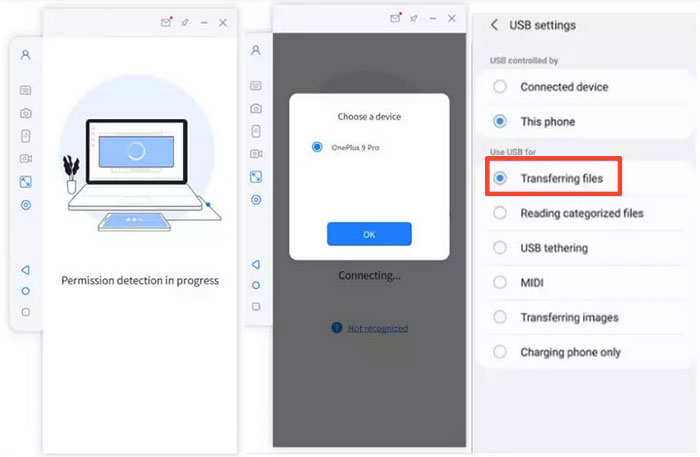
- After the installation is finished, connect your Infinix device to the computer using a USB cable.
- When prompted, select your smartphone and opt for the "Transfer files" option.
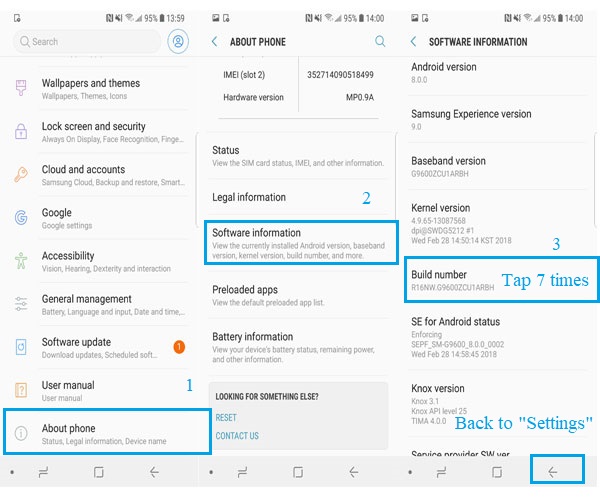
- Go to your phone's "Settings," then navigate to "About phone," and select "Software information."
- To enable the "Developer options," tap on "Build number" seven times.
- Following this, return to "Settings" to turn on USB debugging on your Infinix device while it is connected via USB.
- Grant the application permission to access your device, allowing it to display items in its main window.
- Then, click on "Turn on" to install the Screen Mirror .apk on your phone or tablet.
- Once the mirroring is complete, you can effortlessly access and control your Infinix apps on Windows or macOS.
> 1.2 Screen Cast
The Screen Cast option is a new feature in some newer Infinix models that allows you to mirror your phone screen to a PC effortlessly. With this feature, you simply connect both your Infinix device and PC to the same Wi-Fi network and follow a few easy steps to start casting.
It's a practical tool that enhances the user experience by letting you view and control your phone content directly on a larger screen.
One-List Guide:
- Make sure your Infinix phone and Windows PC are turned on and connected to the same Wi-Fi network.
- On your PC, go to Settings > System > Projecting to this PC.
- Choose "Available everywhere" and enable screen sharing on your PC.
- On your Infinix phone, swipe down the screen and tap the "Screen Cast" icon.
- Select your PC from the list of available devices to start mirroring.
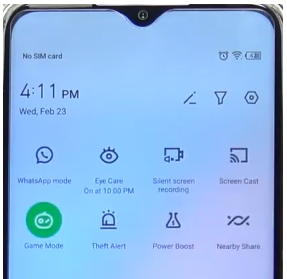
If your PC isn't detected in Screen Cast, first ensure both your Infinix phone and PC are connected to the same Wi-Fi network and that projecting is enabled on the PC by setting it to "Available everywhere." Keeping both devices updated to the latest software, while restarting them often refreshes network connections and device detection. Plus, check that your PC's firewall or antivirus software isn't blocking screen casting.
Part 2: Screen Mirroring Infinix to TV
> 2.1 Using EShare
A smart TV or compatible dongle can easily display your Infinix phone screen using a wireless connection, making it convenient to share photos, videos, or apps on a larger display. The setup process is simple, requiring both devices to be connected to the same Wi-Fi network for smooth mirroring.
Users can control playback directly from their phone while the content appears on the TV in real time. EShare provides a reliable and user-friendly solution for wireless screen mirroring, enhancing the viewing experience.
One-List Guide:
- Install EShare on your TV (or use an EShare dongle if the TV is not smart).
- Connect both the Infinix phone and TV to the same Wi-Fi network.
- Install and open EShare on your Infinix phone.
- Tap "Screen Mirroring" or "Cast" in the app.
- Select your TV from the device list.
- Grant any required permissions on your phone.
- Your phone screen will appear on the TV.
- Tap "Stop Mirroring" to disconnect.
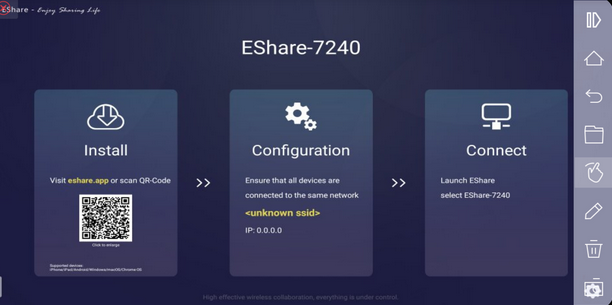
Most smart TVs with EShare pre-installed or connected via an EShare dongle are compatible. Older TVs may require a separate EShare adapter connected to the HDMI port. Plus, if the TV doesn't show up in EShare, try these steps: Check that both your phone and TV are connected to the same Wi-Fi network, that EShare is running on the TV, and that the TV or dongle is powered on. Restarting the devices often solves connectivity issues.
> 2.2 Using a Streaming Device
High-definition content from your Infinix phone can be streamed effortlessly to a TV, turning any regular screen into a smart display for games, movies, or apps. Connection is fast and intuitive, often completed within a few taps through the companion app.
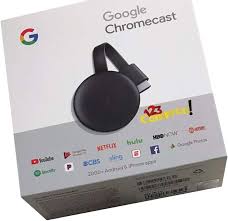
Mirrored content maintains clarity and responsiveness, making it suitable for both entertainment and productivity tasks. Using a streaming device like Chromecast, you can enjoy seamless screen mirroring with minimal setup and broad compatibility across devices.
One-List Guide:
- Connect the streaming device (Chromecast, Fire Stick, Roku) to your TV's HDMI port and power it on.
- Connect your Infinix phone and streaming device to the same Wi-Fi network.
- Install the corresponding app on your Infinix phone (e.g., Google Home for Chromecast, Roku app for Roku).
- Open the app and select the cast or screen mirroring option.
- Choose your streaming device from the list of available devices.
- Grant any required permissions on your phone.
- Your Infinix screen will appear on the TV.
- Tap Stop Casting in the app to disconnect.
In Conclusion
Overall, Infinix screen mirroring offers a convenient and versatile way to enjoy your phone's content on larger displays, whether for entertainment, work, or sharing with others. By using the two methods for PC and the two methods for TV outlined above, you can choose the solution that best fits your devices and setup.
To ensure smooth and lag-free mirroring, always connect your Infinix phone and the target PC or TV to the same stable Wi-Fi network, and keep both devices updated to the latest software version.
Related Articles:
How to Recover Deleted Music Files from Infinix? 4 Clever Tactics
4 Powerful Approaches to Transfer Data from Infinix to Infinix
5 Best Infinix Sync Software/Tools That Draw Your Focus
Infinix Hard Reset: How to Hard Reset Infinix Phone Easily? [4 Popular Ways]
