
9 Practical Techniques to Fix OPPO Phone Not Connecting to PC
TL;DR:
This guide has outlined the common causes and 8 practical fixes for when an OPPO phone won't connect to a PC, ensuring you can troubleshoot the issue step by step.
When you want to get a more reliable and hassle-free solution, consider using MobiKin Assistant for Android, which maintains a stable connection via USB or Wi-Fi even when standard methods fail. This program also provides a complete suite for backing up, restoring, and managing your OPPO's data, making it a dependable alternative for all your device management needs.
"My OPPO is not getting recognized when connected to a Laptop via a USB cable but it gets charged when connected to a laptop." -- from forum.earlybird.club
Many OPPO users have experienced the frustration of their OPPO phone not connecting to PC, especially when they need to transfer files, back up data, or manage their device and the connection fails. Next, understanding the causes is the first step toward a solution, and in this guide, we will walk you through 9 quick fixes to restore a stable connection and ensure smooth device management.
Part 1: Why Can't My OPPO Connect to My PC
Connecting your OPPO Find Series (X8/X7), Reno Series (Reno 15–13), A Series (A5–A96), F Series (F29 Pro), and K Series (K9–K12x). to a computer should be straightforward, but it doesn't always go as expected. If your device isn't being recognized, the following common issues may explain the problem.
- USB debugging not enabled, preventing proper communication between phone and PC.
- Incorrect USB mode (charging only), instead of selecting File Transfer (MTP).
- Temporary system glitch on the phone or computer affecting the connection.
- A faulty USB cable or damaged USB port causing unstable or no connection.
- Missing or corrupted drivers on the computer, so the device isn't recognized.
- Outdated software or compatibility issues between the phone and PC system.
- Phone system errors that may require a reset to restore normal connectivity.
Part 2: Troubleshoot OPPO Phone Not Connecting to PC in 8 Ways
Fix 1: Change USB cable and ports
To resolve connection issues on your OPPO phone, start by replacing the current USB cable with a high-quality or original one to rule out cable damage.
Next, try connecting the cable to different USB ports on your computer, preferably switching between front and rear ports or using another PC if available.
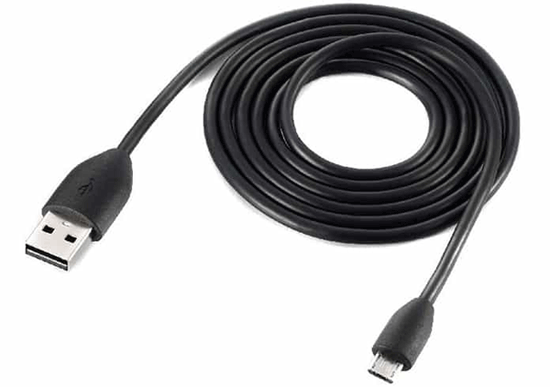
Finally, inspect both the phone's charging port and the computer's USB ports for dust or looseness, and ensure the connection is firm and stable.
Further Exploration: How to Retrieve Deleted Text Messages on OPPO? 4 Ingenious Ways
Fix 2: Check USB settings and permissions
- To start with, unlock your phone and swipe down the notification panel when connected via USB.
- Make sure the USB mode is set to File Transfer (MTP)/File Transfer instead of Charging Only.
- Also, check for any pop-ups asking for USB permissions and grant them to allow your computer to access the phone's data.
Fix 3: Reinstall the OPPO drivers
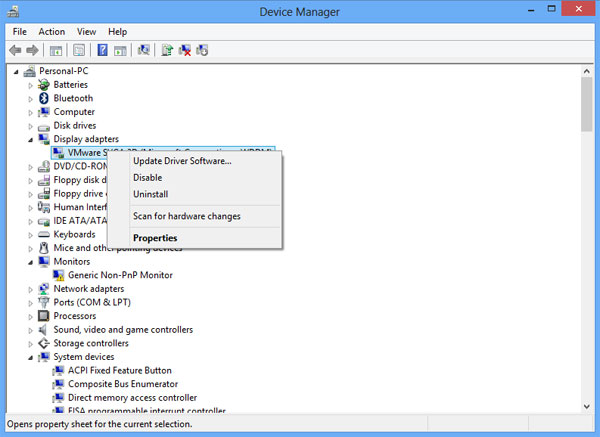
- Start by uninstalling any existing OPPO or Android drivers on your computer via Device Manager.
- Next, disconnect your phone, restart your computer, and then reconnect the phone so Windows can automatically detect it and reinstall the proper drivers.
- If Windows doesn't reinstall them automatically, download the latest drivers from the official OPPO website and install them manually to ensure proper recognition.
Fix 4: Check if the USB debugging is enabled
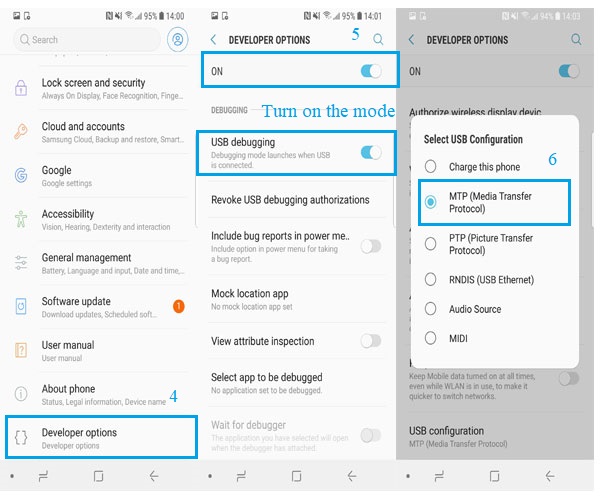
Before attempting more advanced fixes, it's important to ensure that USB debugging is enabled on your OPPO phone so the PC can properly detect and communicate with it.
- Open Settings and go to About phone. Tap Build number repeatedly (usually 7 times) until you see a message saying "You are now in developer mode."
- Then go back to Settings > System > Developer options, find USB debugging, and make sure it's toggled on so your PC can communicate with the device.
Fix 5: Test using Safe Mode
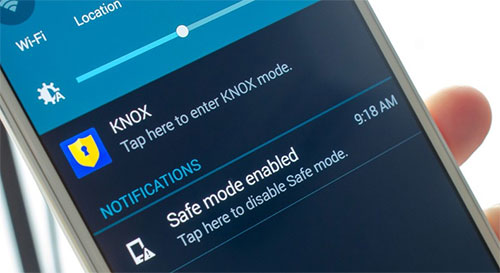
- Restart your OPPO phone into Safe Mode (usually by holding the power button, then long-pressing "Power off" and tapping Safe Mode).
- Once in Safe Mode, connect the phone to your PC again to see if it's recognized.
- If it works in Safe Mode, an installed app is likely causing the issue.
- After testing, restart your phone normally to exit Safe Mode.
Fix 6: Perform a permissions fix
When you plug your phone in, unlock it and watch for a USB permission prompt on the phone asking you to allow data access or file transfer - tap Allow to grant the necessary permissions for the connection.
If that prompt doesn't appear, go into your phone's Settings > Apps > Special app access (or USB preferences) and make sure USB permission dialogs aren't blocked or restricted for the USB connection process. This ensures your phone can authorize your PC to access files and helps resolve recognition issues caused by permission settings.
Fix 7: Factory reset OPPO
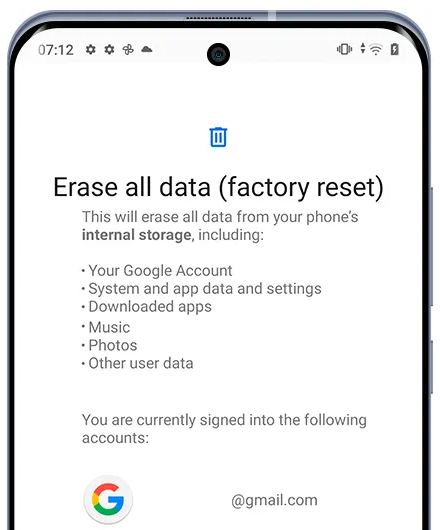
Before factory resetting your OPPO phone to fix connection issues, back up all important data because resetting will erase everything.
Then go to Settings > Additional Settings > Backup & Reset > Erase all data (factory reset); confirm your choice, and allow the phone to complete the reset. After the process finishes, set up your phone again and try connecting to your PC to see if the issue is resolved.
Fix 8: Update OPPO and PC system
- On your OPPO phone, go to Settings > About phone > Software Update and install any available system updates to ensure your Android version is current.
- On your Windows computer, open Settings > Update & Security > Windows Update and check for updates to install the latest OS patches and fixes.
After updating both devices, restart them and try connecting again, as newer system versions often improve USB communication and device recognition between phone and PC.
Part 3: Fix OPPO Phone Not Connecting to PC in an Ultimate Way
With just a computer, you can easily backup, restore, manage, and transfer data on your OPPO/Android device via WiFi or USB, keeping all important files organized and secure. MobiKin Assistant for Android (Windows/Mac) makes this process simple and reliable, even when an OPPO phone is having trouble connecting to a PC. Its intuitive interface ensures fast, safe, and stress-free management of contacts, messages, photos, and more.
|
Feature
|
Description
|
Benefit for OPPO Users
|
|
Stable Connection
|
Reliable USB and Wi-Fi connection between OPPO (8,000+ Android devices) and PC. |
Ensures the phone is recognized without interruptions, even if the default PC connection fails. |
|
Data Backup
|
One-click backup of contacts, messages, photos, videos, apps, and more. |
Protects important OPPO data before updates or troubleshooting. |
|
Data Restore
|
Restore backups selectively or fully to OPPO devices. |
Quickly recover lost or accidentally deleted data. |
|
File Management
|
Organize documents, contacts, messages, apps, etc., from PC. |
Manage OPPO content efficiently without relying on phone UI. |
|
Data Transfer
|
Move files between the OPPO phone and computer seamlessly. |
Simplifies migration and sharing of large files. |
|
App Management
|
Install, uninstall, or export apps via PC. |
Helps manage apps that may affect device performance or connectivity. |
|
Preview & Selective Export
|
Preview items before transfer or backup. |
Avoids unnecessary data transfer and keeps storage organized. |
Free & Safe Download:


How to use MobiKin Assistant for Android to connect OPPO to PC? (Take wireless connection as an example)
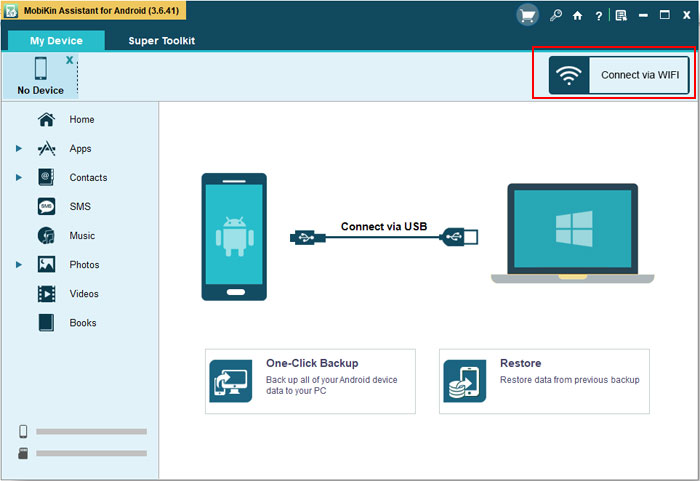
- Initiate the tool on your computer and choose "Connect via WiFi" from the upper-right corner.
- When the "Windows Security Alert" is displayed, click on "Allow access."
- Download and install MobiKin Assistant for Android (Android Version) on your mobile device by scanning the QR code provided below.
- Confirm that both your OPPO phone and PC are connected to the same network.
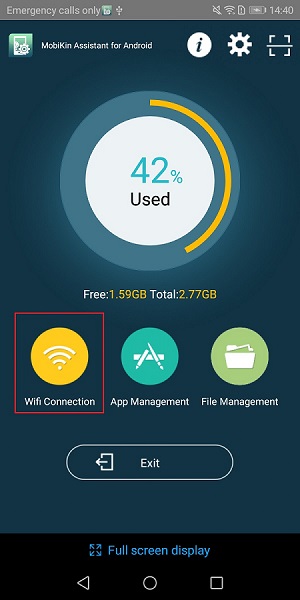
- Launch the application on your phone, select "Wi-Fi Connection," and scan the QR code displayed on the desktop program.
- After the scanning process is finished, your device will establish a connection with the PC.
- You can now access and manage your Android data directly from your computer.
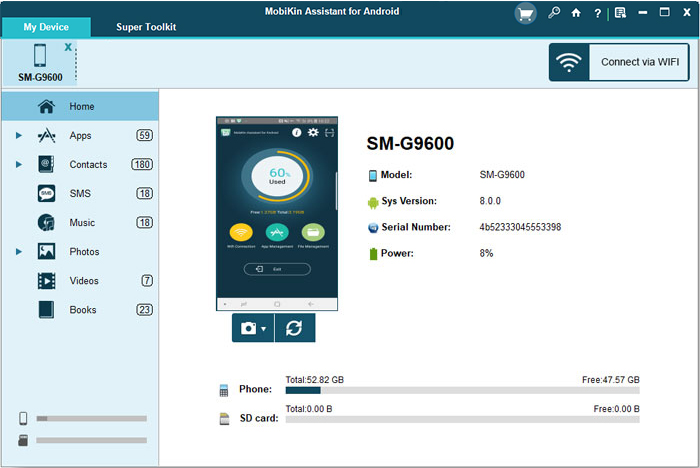
How-to Guide (Video Tutorial):
Summing Up
By applying the 8 quick fixes provided - from verifying USB settings and permissions to updating systems or trying a factory reset - you can effectively overcome most causes of the OPPO phone not connecting to PC.
Once the connection is re-established, you'll be able to transfer files, back up data, and manage your device without interruptions. If the issue persists, don't forget to use MobiKin Assistant for Android instead for smooth management.
Related Articles:
6 Tactics: How to Recover Deleted Photos from Private Safe OPPO
4 Viable Options to Transfer Data from OPPO to iPhone 17/16/15/14/13
How to Root OPPO R25/Reno 15/A57/A5s/Find Like a Pro? 5 Tactics
