
How to Fix Android stuck in Safe Mode? 10 Proven Techniques
"My phone is locked in safe mode because of jammed volume down button, how to force it out?" -- from Reddit
An Android stuck in Safe Mode can cause serious disruption, as it prevents phones from functioning normally and disables all third-party apps, limiting usability. Users often find themselves unable to access essential features, making routine tasks frustrating. This passage covers the common causes and reliable solutions to help restore the device efficiently.
Part 1: Why Is Android Stuck in Safe Mode
Many Android users occasionally find their phones booting into Safe Mode unexpectedly, leaving them puzzled and unsure how to proceed. Understanding the common causes of being stuck in Safe Mode can help prevent future issues and guide effective troubleshooting:
- Accidental activation - Holding power + volume buttons during startup.
- Faulty hardware buttons - Stuck or malfunctioning volume/power keys.
- Problematic third-party apps - Apps causing crashes or conflicts with the system.
- System glitches - Software bugs or corrupted cache files.
- Recent system updates - Updates that introduce compatibility issues.
- Corrupted settings - Misconfigured or damaged system settings.
- Malware or unwanted apps - Harmful apps triggering Safe Mode as a protective measure
- Boot loop or startup errors - Phone forces Safe Mode to prevent full system failure.
Part 2: How to Fix Android Phone Stuck in Safe Mode in 9 Ways
Way 1. Tap Safe Mode notification to exit
When your Android is stuck in Safe Mode, look for the "Safe Mode" notification at the bottom of the screen. Tap the notification, and a prompt should appear asking if you want to restart in normal mode. Confirm the action, and your phone will reboot with all third-party apps re-enabled.

Way 2. Restart your phone
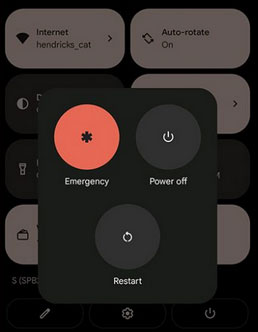
- Press and hold the Power button until the power menu appears.
- Tap Restart (or Reboot) if available.
- If there's no Restart option, tap Power Off, wait 30 seconds, then press the Power button to turn it back on.
- Make sure volume buttons are not pressed during startup to avoid re-entering Safe Mode.
Way 3. Remove/reinsert battery (if possible)
If your Android phone has a removable battery, power it off completely before attempting this method. Carefully remove the battery, wait about 30 seconds, then reinsert it and power the phone back on. This can help clear temporary glitches that may be keeping the device stuck in Safe Mode. (What if your phone battery draining fast?)

Way 4. Use physical buttons to reboot
- Power off your phone completely.
- Press and hold the Power button to turn it back on.
- When the logo appears, quickly press and hold the Volume Down button.
- Keep holding until the screen shows Safe Mode: OFF.
- Release the button and let the phone boot normally.
Way 5. Uninstall recent/faulty apps
To fix Android stuck in Safe Mode due to problematic apps, first exit Safe Mode and unlock your phone. Open the Settings app and go to Apps or Applications. Locate and uninstall any recently installed or suspicious apps that may be causing system conflicts. After removal, restart your phone normally to ensure Safe Mode does not reappear.
Way 6. Clear cache/reset apps
Option 1: Clear App Cache (Individual Apps)
- Open Settings > Apps or Applications.
- Select the app you want to clear cache for.
- Tap Storage > Clear Cache.
- Repeat for other apps causing issues, then restart your phone.

Try to wipe cache partition when clearing cache doesn't work. Quick Steps: Press and hold the Power and Volume Up/Down buttons together (varies by model) until the Recovery Mode menu appears, then select Wipe Cache Partition using the volume keys and confirm with the power button. After the process finishes, choose Reboot System Now to restart your phone and check if Safe Mode is cleared.
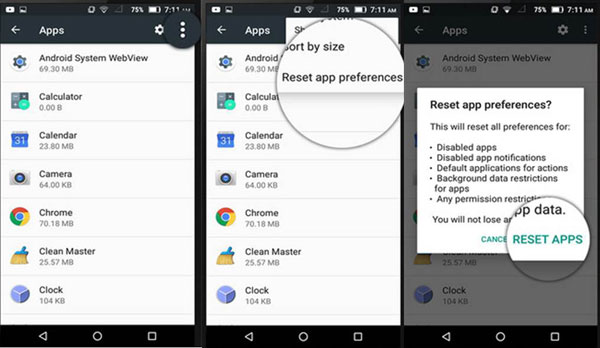
Option 2: Reset All App Preferences
- Open Settings > Apps or Applications.
- Tap the three-dot menu (or More) > Reset app preferences.
- Confirm the action (this will reset disabled apps, notifications, and permissions but won't delete personal data).
- Restart your phone to apply changes and exit Safe Mode.
Way 7. Update Android firmware
Updating your Android firmware can fix glitches that keep your phone in Safe Mode. Go to Settings > System > Software Update (or About Phone > System Update) and check for any available updates. Download and install the update, then restart your phone to see if it boots normally.
Way 8. Factory reset if all else fails
When an Android phone gets stuck in Safe Mode, the most common fixes involve simple restarts or app management. However, if these methods fail, performing a factory reset can help restore your device to normal operation:
- Back up your data (photos, contacts, messages) to avoid losing important files.
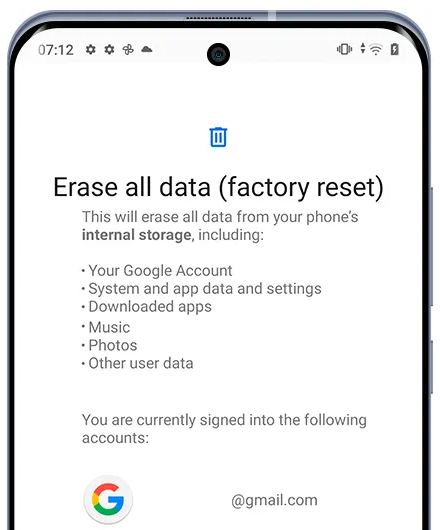
- Open Settings > System > Reset Options (or Backup & Reset/General Management depending on your device).
- Tap Erase all data (factory reset).
- Confirm the action and enter your device password or PIN if prompted.
- Wait for the phone to reset and restart, which should restore normal mode.
Way 9. Check for hardware problems
If your Android keeps booting into Safe Mode, a hardware issue like a stuck or malfunctioning volume or power button could be the cause. Inspect the buttons carefully and press them a few times to ensure they aren't jammed or sticky. If a button appears damaged or unresponsive, consider getting professional repair to prevent the phone from repeatedly entering Safe Mode.
Part 3: What If Android Safe Mode Is Still Not Turning Off? [Ultimate Fix]
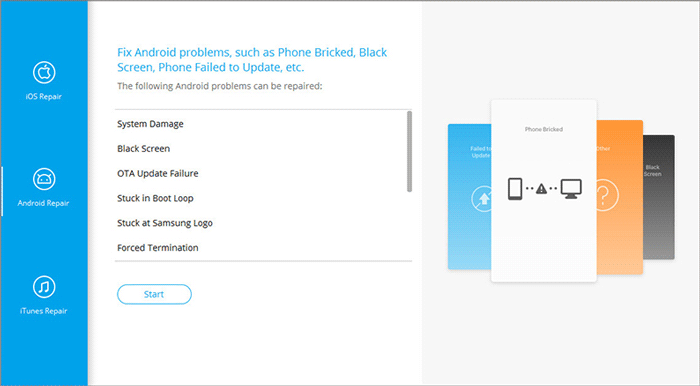
Want to quickly resolve Android phones stuck in Safe Mode, along with other common system issues like boot loops and black screens? Try Android Repair. This product supports a wide range of devices, including those with the latest Android versions, without requiring root access or technical skills. Users can repair their phones safely with a high success rate, often without losing any data.
Core Features of Android Repair:
- Fixes various Android system issues, including phone stuck on safe mode, black/white screen of death, boot loop, and more.
- Quickly access Download Mode (Odin) on Samsung devices for free.
- Repairs Samsung, Xiaomi, Redmi, and POCO phones and tablets to normal condition.
- No technical skills or root access required - easy for anyone to use.
- 100% no data loss guaranteed when repairing Xiaomi, Redmi, and POCO devices.
- Supports multiple Android versions.
- Provides step-by-step guidance to repair devices safely and efficiently.
How do I fix Android phones stuck in safe mode with Android Repair?
- Launch the installed software on your computer and go to the "System Repair" section from the main interface.
- Connect your Android device to the computer via USB and choose "Android Repair."
- Check the displayed device information, then click "Start."
- Enter your device details as prompted and click "Next." Then type "000000" and select "Confirm."
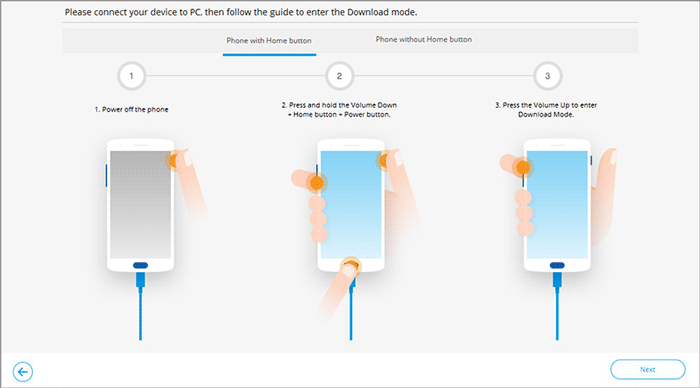
- Follow the on-screen instructions to quickly put your device into Download Mode.
- Once the device is in Download Mode, click "Next" to download the required firmware.
- The software will then begin fixing the issue of Android being stuck in Safe Mode.

FAQs about Android Phone Stuck in Safe Mode
Q1: What does Safe Mode mean on an Android phone?
Safe Mode is a diagnostic mode where your phone only runs pre-installed apps. It helps identify if a third-party app is causing issues like crashes, freezing, or battery drain.
Q2: Does Safe Mode affect my personal data?
No. Safe Mode does not delete any personal data; it only temporarily disables third-party apps.
Q3: Is it safe to use Safe Mode for troubleshooting?
Yes. Safe Mode is a safe way to test if your phone's issues are caused by third-party apps without affecting your personal data.
Q4: Does Safe Mode slow down my phone?
Sometimes it may feel slower because only essential apps are running, and all third-party apps are disabled.
Q5: Is Safe Mode available on all Android devices?
Almost all Android phones support Safe Mode, but the way to enter or exit it may vary depending on the manufacturer and model.
Additional Tips: How to Keep from Future Safe Mode Issues
- Avoid pressing power + volume buttons together accidentally during startup.
- Keep apps updated to prevent conflicts with system software.
- Uninstall problematic apps that frequently crash or freeze.
- Clear cache periodically to reduce system glitches.
- Update your Android system regularly to fix bugs and vulnerabilities.
- Check hardware buttons (volume/power) for sticking or damage.
- Use trusted apps only from Google Play or verified sources.
- Restart your phone properly instead of forcing shutdowns frequently.
- Back up important data so a factory reset, if needed, is safe.
- Monitor third-party app behavior; remove apps causing unusual battery drain or errors.
In Conclusion
Safe Mode does not have to mean permanent restrictions on your device. Following clear steps - from restarting the phone to clearing caches or updating firmware - can return your Android to normal operation. For the most reliable and risk-free fix, Android Repair provides an easy way to resolve the Android stuck in Safe Mode without requiring technical expertise or root access. Experience it for yourself. Download now and test it out.
Related Articles:
How to Enable or Turn off Safe Mode on iPhone (iOS 26 Supported)
11 Best FRP Bypass Tools to Remove Google Account on Android
