
IQOO SD Card Recovery: 4 Trusted Ways to Recover Data from Your Card
Losing important data from your iQOO SD card can be frustrating, especially when the files are vital to you, such as photos, videos, or documents. Unintentional deletion of these files is one of the most common causes of data loss. File system corruption or errors can also render your SD card unreadable.
Fortunately, iQOO SD card recovery is possible, and there are several ways to restore your lost data. This article will offer 4 effective methods to recover deleted files from your iQOO SD card, from using built-in cloud services to third-party recovery tools.
- Option 1: How to Recover Deleted Data in IQOO SD Card via Google Photos
- Option 2: How to Perform IQOO SD Card File Recovery via vivo Cloud
- Option 3: How to Retrieve Deleted Files in IQOO SD Card via Recuva file Recovery
- Option 4: How to Make IQOO SD Card Recovery via Professional Program
- Bonus: FAQs about IQOO SD Card Recovery
Option 1: How to Recover Deleted Data in IQOO SD Card via Google Photos
Requirements:
- Google Photos app installed on your iQOO phone.
- Internet connection for accessing Google Photos cloud backup.
- Google account signed in on the phone with backup enabled.
- Deleted data within 30 days (files are stored in Trash for 30 days before permanent deletion).
- Access to Google Photos Trash to restore deleted photos or videos.
How-to Guide:
- Open Google Photos on your iQOO phone.
- Sign in to your Google account if you haven't already.
- Go to the Library tab at the bottom and select Trash (or Bin).
- Browse through the deleted photos or videos that may have been backed up to Google Photos.
- Select the files you want to recover
- Tap Restore to recover them to your Google Photos library.
- Access Recovered Files in your Google Photos app or the Gallery app on your iQOO phone.
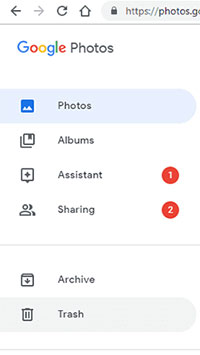
You can also recover deleted data from your iQOO SD card via Google Photos Web. Follow these steps: Visit photos.google.com and sign in to your Google account. Navigate to the Trash (or Bin) on the left sidebar, where deleted files are stored for 30 days. Select the files you want to restore, click the Restore button, and they will be recovered to your Google Photos library.
You May Also Like: Google Drive vs Google Photos: Which One to Pick in 2026?
Option 2: How to Perform IQOO SD Card File Recovery via vivo Cloud
Requirements:
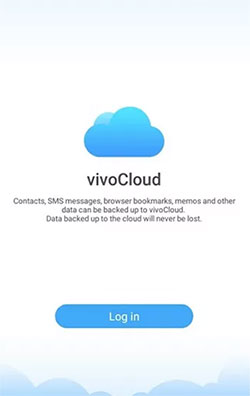
- vivo phone with vivo Cloud set up and linked to your vivo account.
- Internet connection to sync and restore from the cloud backup.
- Backup enabled on your device before data loss.
- Access to vivo Cloud's Backup and Restore feature in your phone’s settings.
- vivo account login credentials to retrieve backed-up files.
How-to Guide:
- Ensure vivo Cloud Backup is Enabled on your phone (before data loss).
- Open Settings on your vivo phone.
- Go to Accounts and Sync or Cloud and Accounts.
- Select vivo Cloud and sign in with your vivo account (if not signed in).
- Check for Recent Backups that might include your SD card files.
- Go to Backup and Restore and select Restore from Cloud.
- Choose the Backup containing the deleted files from your SD card.
- Select the File Types (photos, videos, documents) you want to recover.
- Restore the Files to your vivo phone's internal storage or SD card.
- Access Recovered Files in the appropriate folder on your phone.
Option 3: How to Retrieve Deleted Files in IQOO SD Card via Recuva file Recovery
Requirements:
- PC or Mac with Recuva software installed (available from the official website).
- SD card reader or USB cable to connect the iQOO SD card to the PC.
- Recuva software installed on the PC to scan and recover files.
- No overwriting of data on the SD card for better recovery chances.
- USB debugging mode enabled on your iQOO phone (optional, for deeper scans via PC).
How-to Guide:
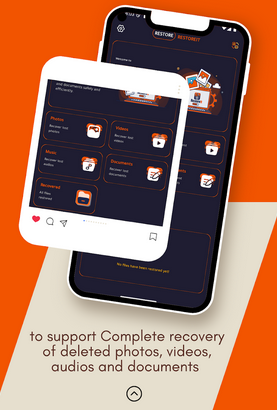
- Download and install the Recuva file Recovery app from the Google Play Store.
- Open the app and grant necessary permissions (like access to storage and files).
- Connect the SD Card to your iQOO phone and ensure it's properly mounted.
- Select SD Card as the storage device to scan (if the app detects it).
- Choose the file type (images, videos, documents, etc.) that you want to recover, or opt for "All Files."
- Scan the SD card for deleted files (the app may take some time depending on the size of the SD card).
- Preview and select the recoverable files you wish to restore.
- Recover the fsiles to your device or a specified location (avoid saving it to the SD card directly to prevent overwriting data).
- Access the recovered files from your iQOO phone's storage.
Learn More: Recuva Data Recovery for Android Overviews & Best Alternative
Option 4: How to Make IQOO SD Card Recovery via Professional Program
Requirements:
- MobiKin Doctor for Android (Windows or Mac) installed on your PC (available from the official website).
- USB cable to connect the iQOO phone to the PC (or SD card reader for direct SD card recovery).
- USB debugging enabled on the iQOO phone for successful connection and scanning.
- MobiKin Doctor for Android recognizing your device and SD card.
- Permissions granted to the software for accessing the SD card and data recovery.
Why MobiKin Doctor for Android Is Desirable?
- High Success Rate: Recovers deleted files from iQOO SD cards selectively.
- Complete SD Card Recovery: Specializes in recovering data from various iQOO SD cards, supporting various file types.
- User-Friendly Interface: Easy-to-use interface for quick, guided recovery.
- High Security and Privacy: Operates in read-only mode, ensuring data is not modified or leaked.
- Support for Multiple Devices: Works with iQOO and other Android devices for both internal storage and SD card recovery.
- Deep Scan and Preview: Offers a deep scan and lets you preview files before recovery.
- No Root Required: No need to root your device, preserving security and warranty.
- Wide File Type Support: Recovers photos, videos, documents, contacts, and more.


How to recover lost content from your IQOO SD card with MobiKin Doctor for Android?
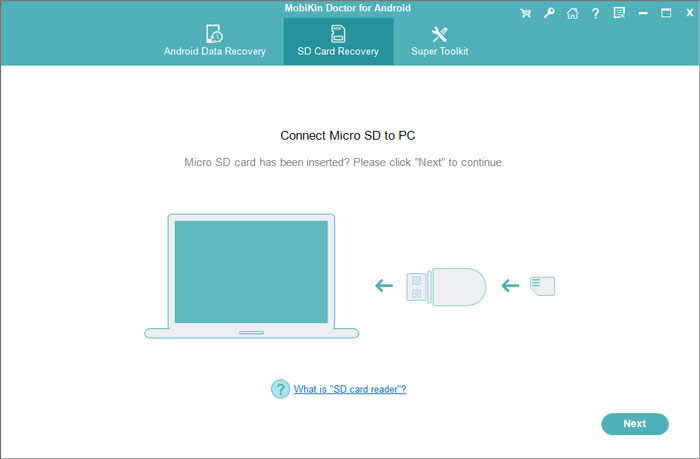
- Assume that you have inserted the SD card into the computer using a card reader and that the necessary software is installed.
- Open the program, select the "SD Card Recovery" option from the top menu.
- If your SD card is in your IQOO phone, you can directly connect your phone to your computer with a USB cable, and then follow the prompts on the product interface to let the product recognize your SD card.
- Select the drive corresponding to your IQOO SD card and click "Next" to initiate the scanning process.
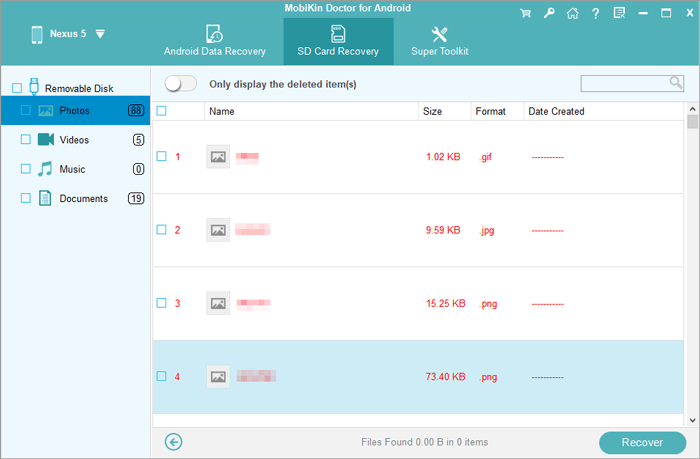
- Once the scan is complete, the data on your SD card will be organized into categories.
- Choose the data types to view and select the items you wish to recover, then click "Recover" to save them to your computer.
Bonus: FAQs about IQOO SD Card Recovery
Q1: Is it possible to recover data from a damaged or formatted iQOO SD card?
Yes, but the success of recovery depends on the extent of the damage. If the SD card is physically damaged, you may need to contact a professional data recovery service. If it's logically damaged, tools like Recuva for Android may help.
Q2: How can I avoid data loss on my iQOO SD card in the future?
To prevent future data loss, always back up your important files to a cloud service (like Google Photos or vivo Cloud Backup) or store them on a separate storage device. Regularly transfer your files to another backup source.
Q3: Why can't I recover deleted files from my iQOO SD card?
If you're unable to recover deleted files, it could be because the files were overwritten by new data or the SD card has suffered physical damage. Try using professional recovery software or services for better results.
Q4: How do I perform a factory reset without losing data on my iQOO SD card?
Before performing a factory reset, back up your SD card data to cloud storage or another device. After the reset, you can restore your data from the backup to avoid permanent data loss.
The End
After exploring various ways to recover data from your iQOO SD card, one of the most reliable and efficient solutions is MobiKin Doctor for Android. This powerful tool stands out, especially if you don't have an SD card data backup. It offers a high success rate in recovering lost files without the need for root access, making it accessible even for beginners. Finally, any queries? Please let us know below.
Related Articles:
SIM Card Data Recovery for IQOO with/without Backup [4 Easy Options]
Top 6 Best IQOO Sync Managers for Safe Backup/Transfer/Management
IQOO Mobile Hard Reset: 4 Options to Factory Reset IQOO Phones
[2026] 6 Best SD Card Managers for Android You'd Better Know
