
How to Recover Data from Samsung Phone That Won't Turn on? 5 Tactics
"My S24 suddenly stopped turning on one day. I have important data on it, so I need to find a way to recover it." -- from techcommunity.microsoft.com
Many Samsung phone users face situations where their device suddenly stops working due to various issues like a broken screen, battery failure, system crash, or water damage. In these cases, accessing important files such as photos, contacts, and messages becomes crucial, yet the phone's inability to turn on makes it seem nearly impossible.
If you're wondering how to recover data from a Samsung phone that won't turn on, this post guides you through 5 effective recovery methods and provides helpful tips to maximize your chances of success.
- #1: Recover Data from Samsung Phone That Won't Turn on with a High Success Rate
- #2: Recover Data from a Dead Powerless Samsung by Replacing the Battery
- #3: Recover Data from Galaxy Phone That Won't Turn on Using SD Card
- #4: Recover Data from Samsung That Won't Turn on via USB Keyboard/Mouse
- #5: Recover Files from Samsung Phone That Won't Turn on via TV Screen/PC Monitor
- Extra Tips: How to Fix a Samsung Phone That Won't Turn on
#1: Recover Data from Samsung Phone That Won't Turn on with a High Success Rate
Requirements:
- A working computer (Windows or Mac).
- The Broken Android Data Extraction software is installed on your computer.
- USB cable to connect the Galaxy phone to the computer.
- Enable USB debugging on the phone (if possible, via recovery mode).
- Samsung Galaxy device (compatible with the software for data extraction, even if the screen is broken).

Main Features:
- Recover Data from Broken Screens: Effortlessly retrieve data from Samsung phones with unresponsive screens.
- Rescue Data from Internal Storage or SD Card: Access files from both internal storage and SD cards.
- Restore Various Files: Recover contacts, SMS, photos, videos, WhatsApp chats, and more.
- Fix Screen Issues: Repair frozen, crashed, or locked Galaxy screens.
- Compatibility with Samsung Devices: Works with most Galaxy S, Note, and Tab devices.
- Completely Secure: Safe recovery with no data loss or leakage.
- Easy to Use: Simple, user-friendly interface for easy data extraction.
- High Success Rate: Reliable recovery, even from damaged devices.
User Guide:
- Begin by downloading and installing the software on your computer
- Once the installation is complete, connect your Samsung phone to the computer using a USB cable.
- Next, click on "Broken Android Data Extraction" located on the left side and select "Start".
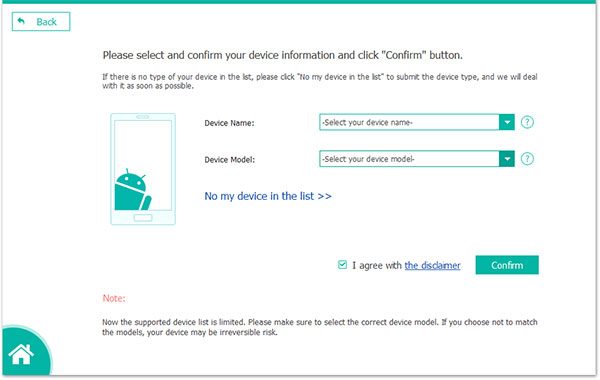
- In the subsequent step, specify your "Device Name" and "Device Model".
- Following this, check the box labeled "I agree" and click on "Confirm".
- Adhere to the on-screen instructions to place your Galaxy phone into Download mode.
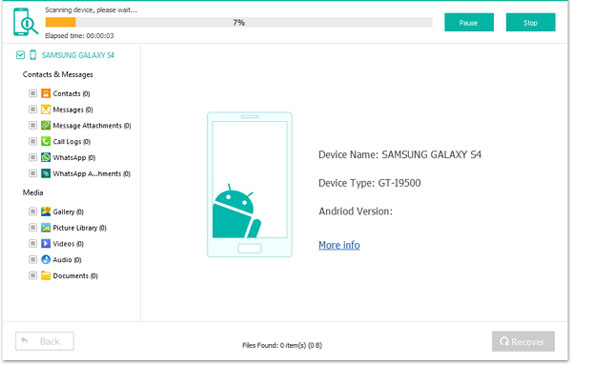
- After successfully entering the mode, click on "Start" to commence the scanning process with the tool.
- Upon completion of the scanning, preview and choose the files you intend to restore before clicking on "Recover" to save them onto your computer.
#2: Recover Data from a Dead Powerless Samsung by Replacing the Battery
Requirements:
- A replacement battery that is compatible with your specific Samsung Galaxy phone model. (What if your Samsung battery drains faster?)
- Plastic prying tools to remove the back cover.
- Screwdriver (for models with screws holding the back cover).
- A safe working environment to avoid damaging internal components.
- A computer or external power source to test the phone after battery replacement.
User Guide:
- Acquire a suitable replacement battery for your specific Samsung phone model.
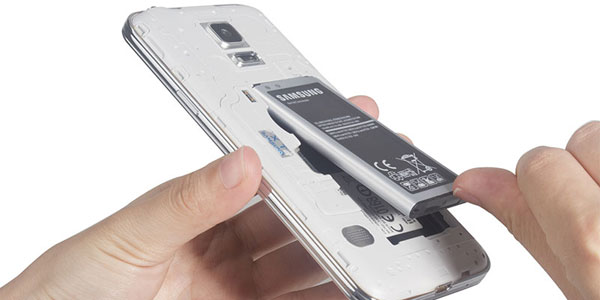
- Power off your phone and detach the back cover using a plastic prying tool.
- Remove the old battery, then replace it with the new one, ensuring proper connection.
- Reattach the back cover and power on your phone to check if it works.
#3: Recover Data from Galaxy Phone That Won't Turn on Using SD Card
Requirements:
- A working SD card with enough storage to back up or transfer data.
- SD card reader (if the phone can't turn on, you can use the SD card reader to access data via a computer).
- A functional computer or external device that supports SD card input.
- Another working device (optional) to use the SD card for data recovery or access.
- Backup software (optional) to copy files from the SD card.
User Guide:
- Remove the SD card from your Samsung Galaxy phone.
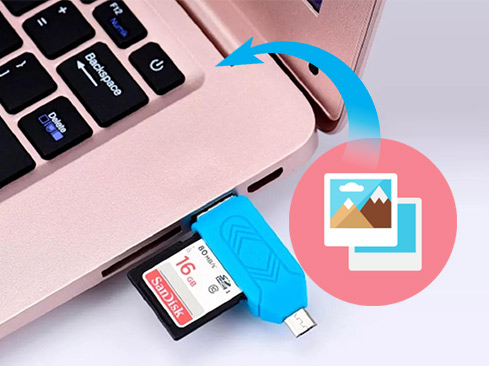
- Insert the SD card into a working device (e.g., another phone, SD card reader, or computer).
- Use a compatible card reader or the SD card slot on a computer to access the files stored on the card.
- Transfer the data (photos, contacts, documents, etc.) from the SD card to your computer or another device.
- Back up important files to ensure they're safely stored before attempting any further repairs or recovery on your Galaxy phone.
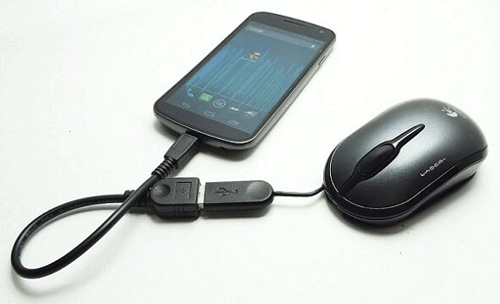
#4: Recover Data from Samsung That Won't Turn on via USB Keyboard/Mouse
Requirements:
- USB OTG (On-The-Go) adapter to connect a keyboard or mouse to your Galaxy phone.
- USB keyboard/mouse to control the phone if the touchscreen is unresponsive.
- Power source (phone needs to be charged or replaced with a working battery).
- A working Galaxy phone that can at least power on and use basic functions via a connected keyboard/mouse.
- Properly configured settings to navigate the phone using the keyboard/mouse for data backup or transfer.
User Guide:
- Ensure your phone is charged or replace the battery if it's completely drained.
- Obtain a USB OTG (On-The-Go) adapter to connect a USB keyboard or mouse to your Samsung phone.
- Connect the USB keyboard or mouse to the phone using the OTG adapter.
- Power on the phone (even if the screen is unresponsive, the keyboard or mouse should allow navigation).
- Use the keyboard/mouse to unlock the phone and navigate to the settings or file manager.
- Transfer the data to a cloud service (Google Drive, Samsung Cloud) or external storage if available.
- Back up important data to ensure it's safely stored before seeking further repair or recovery.
#5: Recover Files from Samsung Phone That Won't Turn on via TV Screen/PC Monitor
Requirements:
- A compatible TV screen or PC monitor with HDMI input.
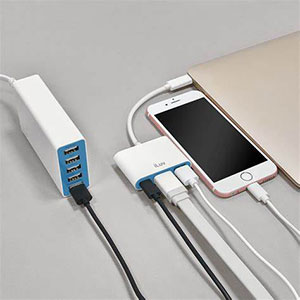
- HDMI cable or USB-C to HDMI adapter to connect the Galaxy phone to the TV/monitor.
- Samsung DeX support (for Galaxy devices that support screen mirroring or desktop mode).
- Working phone with at least basic functioning (e.g., able to turn on, even if the screen is damaged).
- HDMI-to-USB adapter (if using a PC monitor to interact with the phone via keyboard or mouse).
User Guide:
- Connect a USB-C to HDMI adapter to the charging port on your Samsung phone.
- Plug an HDMI cable into the adapter and connect the other end to the HDMI port on your TV or monitor.
- Turn on your TV or monitor and select the HDMI input channel that the cable is plugged into (use the TV remote to find the source/input button and select HDMI).
- Mirror your phone's screen on the TV by navigating through your phone using the TV's display (you may experience a slight delay).
- Access files and apps on your phone, then transfer the data to a cloud service or external storage device.
Extra Tips: How to Fix a Samsung Phone That Won't Turn on
- Perform a Soft Reset: Press and hold Power + Volume Down for 10-20 seconds to restart the phone.
- Charge the Phone Properly: Ensure the charging cable and adapter are working, and charge the phone for at least 30 minutes.
- Check the Power Button: Ensure the power button isn't stuck or damaged.
- Inspect the Battery: If possible, remove and inspect the battery for damage or swelling, and replace if necessary.
- Try Booting in Safe Mode: Hold the Power button, release, then hold Volume Down to start in Safe Mode.
- Use Recovery Mode: Boot into Recovery Mode and select Wipe Cache Partition to clear system cache.
- Perform a Factory Reset: In Recovery Mode, select Wipe Data/Factory Reset to reset the phone if other methods fail.
- Try Connecting to a PC: Connect your phone to a PC and see if it's detected, then back up or restore data using software.
- Check for Screen Issues: Use a flashlight to check if the screen is black, but the phone is on.
- Perform a Hardware Test: Check for loose or disconnected internal components (requires disassembly).
- Contact Samsung Support: Visit a Samsung service center if none of the above steps work for professional repair.
Summing Up
Admittedly, there are several ways to recover data from a Samsung phone that won't turn on; using the right method is key to ensuring a successful outcome. For those who prefer a professional, hassle-free solution with the highest recovery success rate, Broken Android Data Extraction offers an excellent option.
With its ability to recover data even from severely damaged phones, this product ensures your files are safely retrieved without compromising security or reliability.
Related Articles:
6 Verified Methods to Fix Bricked Samsung Phone [Latest Info]
[Solved] How to Recover Data from iPhone that Won't Turn On
7 Options to Transfer Data from Samsung to Samsung without Smart Switch
How to Recover Deleted Folders from Samsung with/without Backup? 3 Means
