
Troubleshoot Samsung Greent Tint in 12 Desirable Ways [Tried-and-true]
TL;DR:
You have at least 12 methods to fix a green tint on a Samsung phone:
- Try free settings first - Light mode, higher brightness, Adaptive brightness off, restart.
- Test the cause - screenshot on another device, Safe Mode, clear cache.
- If those fail - update firmware, factory reset after backup, or contact Samsung Support.
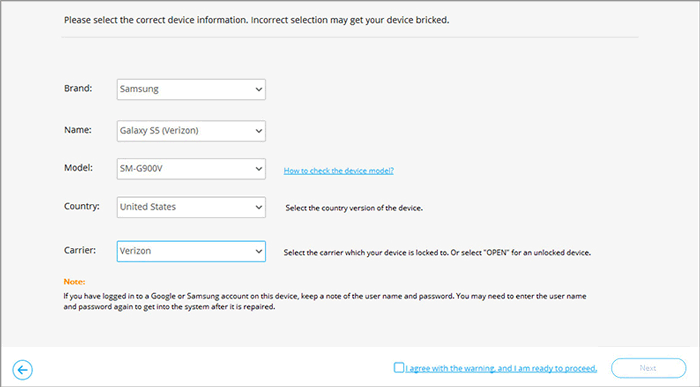
- For firmware-related display errors, Android Repair reinstalls the system: connect the phone, enter device details, then let it download firmware and repair.
Why does the green tint on Samsung occur?
If your Samsung phone screen suddenly develops a greenish hue, especially when viewing dark backgrounds or using low brightness, the cause of Samsung greent tint may be related to AMOLED display characteristics, software glitches, or a hardware problem. Try the following 11 methods to narrow down the cause and improve the screen's appearance.
Section 1: 11 Easy Fixes for Samsung Green Tint [Makeshifts]
Fix 1. Change Display Mode to Light Mode
Samsung's AMOLED screens may show a green or purple tint in dark areas, particularly at low brightness. Switching from Dark mode to Light mode can reduce this effect, especially when using light-colored backgrounds. Here's how:
- Open Settings on your Samsung phone.
- Tap Display.
- Select Light under the display mode options.
- Apply a light-colored wallpaper and check whether the green tint becomes less noticeable.
If you prefer Dark mode, try using a gray wallpaper instead of a completely black one. This may make the color shift less obvious without requiring you to change your usual theme. Samsung also recommends Light mode as a way to reduce the tint.
Fix 2. Adjust Display Brightness
A green tint that appears mainly when the screen brightness is very low may be associated with the AMOLED panel's behavior. Increasing the brightness can help reduce the discoloration, although it may not eliminate a hardware-related problem. Below is the tutorial:
- Go to Settings > Display.
- Find the Brightness slider.
- Increase the brightness to around 50% and see whether the green tint fades.
- Adjust it to a comfortable level while checking different screen backgrounds.
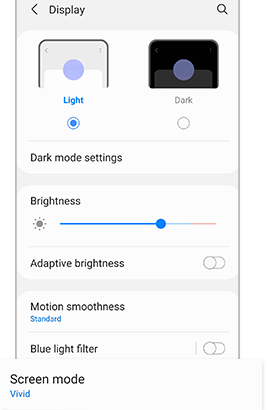
Samsung also recommends adjusting display brightness when dark areas appear tinted or difficult to see.
Fix 3. Rotate Your Samsung Phone Slowly
In some cases, the green tint may become more or less noticeable depending on the viewing angle. This can provide a clue about whether the issue is related to the display panel rather than an app or software setting. Learn how to do it:
- Open a white or gray image on your Samsung phone.
- Keep the screen brightness at a moderate level.
- Slowly tilt the phone forward, backward, and from side to side.
- Observe whether the greenish color changes with the viewing angle.
If the tint varies noticeably as you move the phone, the display panel may be contributing to the problem. This test cannot confirm a hardware fault, but it can help you decide whether further screen inspection is necessary. Cashify discusses viewing-angle changes as one factor in screen tinting.
Fix 4. Turn Off Adaptive Brightness
Adaptive brightness automatically changes your screen brightness according to the surrounding light. If the green tint appears when the phone dims the screen, disabling this feature can help you check whether automatic brightness adjustments are involved. To do this:
- Open Settings > Display.
- Find the Adaptive brightness option.
- Toggle it off.
- Manually adjust the brightness and check whether the green tint remains.
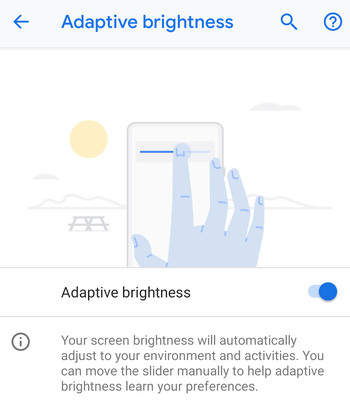
Keep in mind that this setting only changes how your phone controls brightness. If the discoloration comes from a damaged display or an AMOLED panel issue, turning it off may not solve the problem.
Fix 5. Force Reboot Your Samsung Phone
A temporary system glitch can sometimes affect how the display operates. Force restarting your Samsung phone is a quick troubleshooting step that does not erase your personal data. To do so:
- DowPress and hold the Power (Side) and Volume Down buttons simultaneously.
- Continue holding them for about 7–10 seconds.
- Release the buttons when the screen turns off and the Samsung logo appears.
- Wait for the phone to restart, then check whether the green tint is still visible.
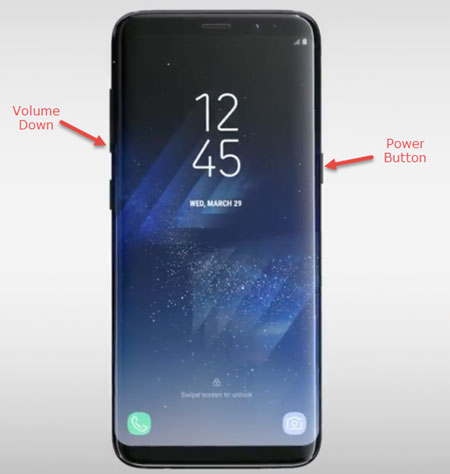
This method is worth trying before moving on to more time-consuming solutions.
Fix 6. Clear Cache on Samsung
Temporary system or app cache files may sometimes contribute to unusual behavior. Clearing the cache of an affected app is a reasonable first step, especially if the green tint appears only when using a particular application. Here are the steps:
- Open Settings > Apps.
- Select the app where you notice the green tint.
- Tap Storage.
- Choose Clear cache and reopen the app.
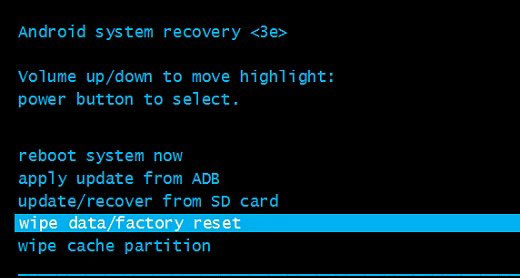
If the tint appears across the entire screen, clearing an individual app's cache is less likely to help. You can also consider wiping the system cache partition through Recovery Mode, which is different from clearing app cache. Neither procedure should be confused with a factory reset.
Fix 7. Take a Screenshot before Viewing It on Another Phone
A screenshot test can help you determine whether the green tint comes from the software or the physical display. The idea is to capture the screen's actual image data and compare it with how it looks on another device. To accomplish this:
- Open the screen or app where the green tint is visible.
- Press Power + Volume Down to take a screenshot.
- Send the screenshot to another phone or tablet.
- Open the image on that device and compare its colors with your Samsung screen.
If the screenshot looks normal on the other device but appears green on your Samsung phone, the problem is more likely related to its display panel. If the green tint also appears in the screenshot, check your software and display settings first.
Fix 8. Boot Samsung into Safe Mode
Some third-party apps, particularly screen filters, blue-light reduction tools, and display customization apps, may interfere with your phone's color settings. Safe Mode temporarily disables third-party apps, making it easier to identify whether one of them is responsible. To do it:
- Press and hold the Power (Side) button until the power menu appears.
- Touch and hold the Power off option.
- When the Safe Mode option appears, tap it.
- Wait for your Samsung phone to restart. You should see Safe Mode in the bottom corner of the screen.
- Check whether the green tint is still present.
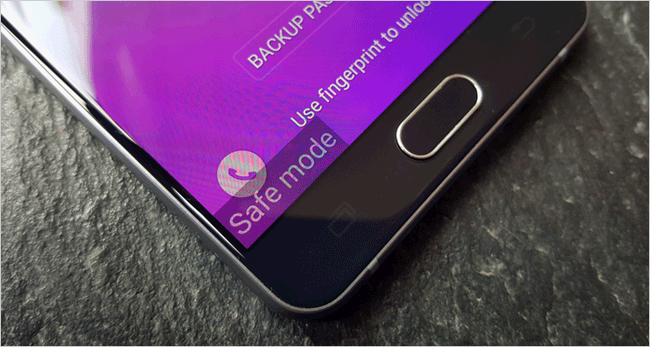
If the discoloration disappears in Safe Mode, a recently installed or updated app may be responsible. Restart your phone normally and uninstall suspicious apps one by one until the screen returns to normal.
Fix 9. Hard Reset Samsung
If the green tint remains after trying the previous methods, a factory reset is another option worth considering. It removes installed apps, personal settings, and other user data, allowing you to check whether a persistent software problem is responsible. (Before proceeding, back up your important photos, contacts, messages, and other files).
- Open Settings on your Samsung phone.
- Navigate to General management > Reset.
- Select Factory data reset/Erase all data.
- Review the information about the data that will be erased.
- Tap Reset and follow the on-screen instructions.
- Wait for the phone to restart and complete the initial setup.
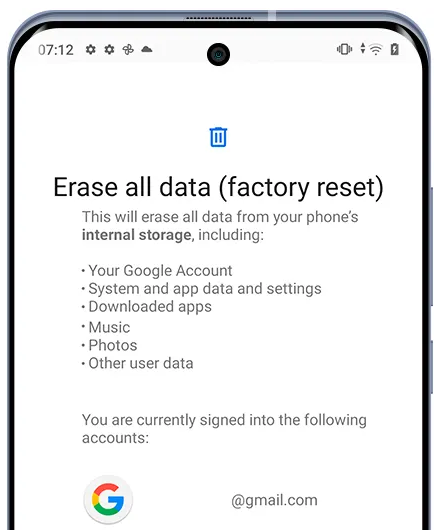
Check the display before restoring your apps and settings. If the green tint remains even after a clean reset, a hardware-related problem becomes more likely, and professional inspection is recommended.
Additional Tip: Clear the Cache Partition: You can also try wiping the system cache partition before performing a factory reset. This removes temporary system files without intentionally deleting your personal data.
- Turn off your Samsung phone.
- Connect it to a computer using a USB cable if your model requires this to access Recovery Mode.
- Press and hold the appropriate Power/Side + Volume Up button combination until the Recovery menu appears.
- Use the volume buttons to highlight Wipe cache partition.
- Press the Power button to select it and confirm if prompted.
- Select Reboot system now. (The button combination and Recovery menu may vary by model and software version. Be careful not to select Wipe data/factory reset, as that option erases your personal data.)
Fix 10. Update Samsung Firmware
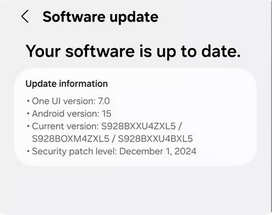
An outdated operating system may contain bugs that affect screen colors, brightness, or display performance. Samsung periodically releases software updates that include system improvements and bug fixes, so check whether a newer firmware version is available for your device. Make sure your phone has sufficient battery power and a stable internet connection before updating.
Fix 11. Contact Samsung Support
If none of the above methods works, the green tint may be caused by a defective AMOLED panel, display connection, or another hardware fault. In this situation, contacting Samsung Support is a better option than repeatedly changing settings or resetting your phone. To do this:
- Describe the symptoms: Explain when the green tint appears, such as at low brightness, in Dark mode, or across the entire screen.
- Provide supporting evidence: Take photos or videos of the discoloration using another device and share them with the support team.
- Check your warranty: Ask whether your phone qualifies for free repair or screen replacement.
- Arrange an inspection: Visit an authorized Samsung service center so a technician can examine the display and determine the cause.
Section 2: Fix Samsung Green Tint in an Ultimate Way [Verified]
When Samsung green tint is caused by Android system errors rather than physical screen damage, Android Repair offers a way to address the problem without replacing the display. It can repair various Android system issues, including black screens, boot loops, and system crashes, with a straightforward repair process.
Compatible with many Samsung models and other Android devices, it provides a practical option for troubleshooting firmware-related display problems. The repair process does not require users to share personal files with the software, but backing up important data beforehand is still recommended, as some repair operations may erase device data.
Besides, it repairs supported Xiaomi, Redmi, and POCO devices without rooting or losing data, while offering free one-click access to Samsung Download/Odin Mode, Android Recovery Mode, and Fastboot Mode for free.
Secure Download: Free from ads, unwanted bundles, and background uploads.

Follow these steps to fix green tint on Samsung:
Step 1. Connect Your Samsung Phone - Download, install, and launch Android Repair on your computer. Select System Repair > Android Repair from the main interface, then connect your Samsung phone using a USB cable. Review the listed issues and click Start to continue.
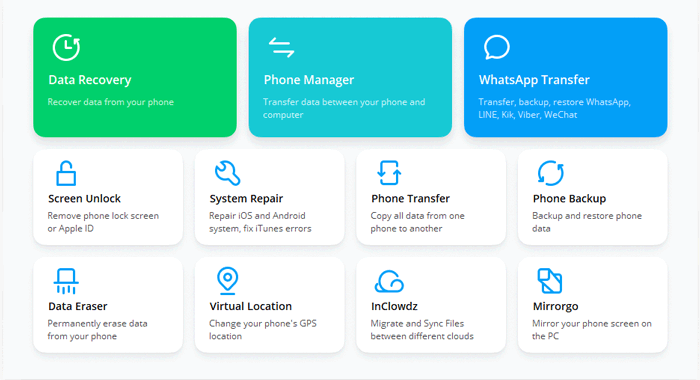
Step 2. Enter Device Information and Download Mode - Choose your Samsung device's details, including its brand, model, and other required information, then click Next. Type 000000 into the confirmation field and tap Confirm. Follow the on-screen instructions to boot your Galaxy phone into Download Mode.
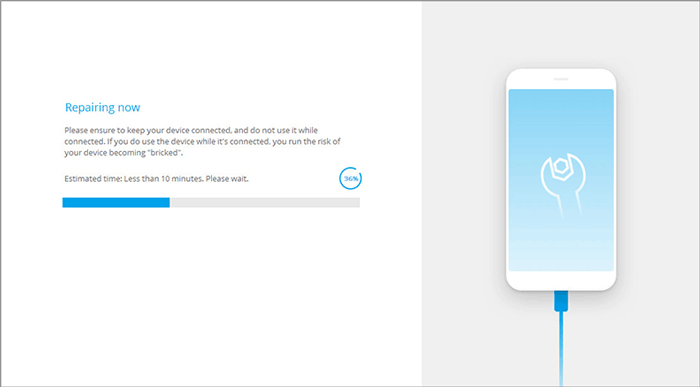
Step 3. Download Firmware and Repair the Phone - Once your Samsung phone enters Download Mode, click Next to download the matching firmware package. After the download finishes, this product will automatically begin repairing the system to normal. Wait for the process to complete and check whether your phone can restart and operate without a green tint.
FAQs about Samsung Green Tint
Q1. How do I test my Samsung screen for green tint?
Display gray, white, and black patterns on your phone and check the screen at different brightness levels. Look for green patches, uneven colors, or discoloration that remains in the same position.
Q2. Is Samsung green tint covered by warranty?
It depends on the cause of the problem and your warranty terms. Manufacturing defects may qualify for free repairs, while accidental or liquid damage may not. Contact Samsung Support for an inspection.
Q3. When should I replace my Samsung screen?
Consider screen replacement if the green tint persists after troubleshooting or appears alongside flickering, green lines, and dead pixels. Ask an authorized technician to inspect the display first.
Q4. How can I prevent green tint on my Samsung phone?
- Avoid prolonged exposure to excessive heat.
- Keep your phone's firmware updated.
- Avoid unnecessary maximum brightness.
- Avoid untrusted display customization apps.
- Seek repair if persistent discoloration develops.
Q5. Does Samsung green tint affect touch screen functionality?
Usually, no. Green tint is primarily a display-related issue and does not necessarily affect touch response. However, if the screen is physically damaged, other functions may also be affected.
Q6. Why does my Samsung screen have green lines instead of a green tint?
Green lines often indicate a display hardware problem, such as a damaged AMOLED panel or loose display connection. Unlike a general color tint, persistent green lines usually require professional inspection.
Q7. Does Samsung green tint get worse over time?
It depends on the underlying cause. Software-related discoloration may disappear after troubleshooting, while a damaged or deteriorating display panel may develop more noticeable green patches, lines, or flickering.
A Final Note: A slight green or purple tint that appears only on very dark backgrounds at low brightness can be a characteristic of AMOLED displays rather than a defect. However, if the green discoloration spreads across the screen, appears at normal brightness, or comes with flickering and lines, have the display checked by a technician.
Related Articles:
Top 7 Samsung Device Managers You Wish You Knew Sooner [Updated]
How to Recover Contacts from Samsung with Black Screen? 4 Options
How to Fix Samsung Phone Stuck in Boot Loop Safely? 10 Solutions