
Hard Reset vs. Factory Reset Android: Head-to-head Comparison
TL;DR:
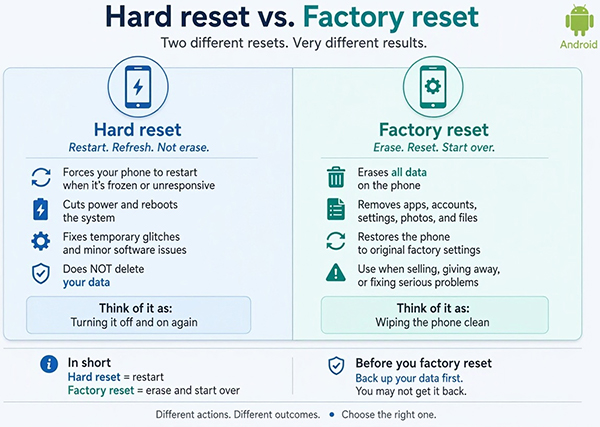
A hard reset (force restart) and a factory reset serve different purposes: the former restarts an unresponsive Android phone without deleting data, while the latter erases personal information and restores factory settings. This guide covers their differences, reset procedures, and how to choose the right method for different situations.
NOTE: In this guide, the "hard reset" discussed refers to a narrow sense of "force restart/reboot", and a factory reset refers to performing this operation through the Settings menu (standard) or Recovery Mode (advanced).
"What is the difference between Factory reset in settings vs. hard reset? After reset, how to set up the phone? How to solve battery draining problem?" -- from Pixel Phone Help
What to Do Before Resetting Your Android Phone?
Before resetting your Android phone, back up important files, ensure sufficient battery power, and check your Google account credentials to avoid FRP issues. Choosing the right reset method also matters, as a hard reset and a standard factory reset differ in how they are performed. This guide explores hard reset vs. factory reset Android, explaining their differences, procedures, and when to use each.
- Part 1: What Is a Hard Reset on Android
- Part 2: What Is a Factory Reset on Android
- Part 3: Hard Reset vs. Factory Reset on Android: Key Differences
- Part 4: How to Perform a Hard Reset on Android
- Part 5: How to Perform a Factory Reset on Android Through Settings/Recovery Mode
- Part 6: Want a More Thorough Android Reset? Try MobiKin Eraser for Android
- Part 7: Hard Reset vs. Factory Reset vs. Data Erasure Android: Which One to Pick
Part 1: What Is a Hard Reset on Android
A hard reset (also called a force restart in this guide) restores an Android phone or tablet using physical buttons rather than the Settings menu.
Advantages:
- Does not require access to the normal Android interface.
- Can reset an inaccessible device.
Disadvantages:
- Requires specific button combinations.
- Does not fix hardware problems or automatically remove FRP.
Part 2: What Is a Factory Reset on Android
A factory reset restores an Android phone to its original factory settings, removing personal data, installed apps, accounts, and customized settings.
Advantages:
- Easy to perform through Settings.
- No special button combinations required.
- Removes personal data and customized settings.
Disadvantages:
- Usually requires access to the unlocked phone.
- Erases locally stored data.
- Does not guarantee secure overwriting of previous data.
Part 3: Hard Reset vs. Factory Reset on Android: Key Differences
Although both methods restore factory settings, their procedures and suitable scenarios differ.
|
Comparison
|
Hard Reset
|
Factory Reset
|
|
Method
|
Force restart
|
Settings menu
|
|
Operation
|
Physical buttons |
On-screen options |
|
Screen access
|
Not required |
It depends |
|
Main purpose
|
Reset inaccessible phones |
Routine reset and troubleshooting |
|
Data removal
|
Doesn't erase user data (a narrow sense of hard reset) |
Erases user data |
|
Difficulty
|
Moderate |
Moderate |
|
FRP removal
|
No |
No |
Part 4: How to Perform a Hard Reset on Android
To hard reset (force restart) a frozen or unresponsive Android phone without erasing your data for most Android devices, press and hold the specific hardware button combination for 10 to 30 seconds until the screen turns black and the brand logo appears.
Hard Reset Guide by Main Android Brands:
|
Brand
|
Button Combination
|
Hold Duration & Notes
|
|
Samsung
|
Power + Volume Down
|
Hold for 7-10 seconds until the Samsung logo appears.
|
|
Google Pixel
|
Power + Volume Up (Newer); Power Button (Pixel 5 & older) |
Hold for 10-30 seconds until the Google logo appears. |
|
OnePlus
|
Power + Volume Up |
Hold for 10-15 seconds until the device vibrates and restarts. |
|
OPPO & realme
|
Power + Volume Up |
Hold for 8-15 seconds until the brand logo appears. |
|
Vivo
|
Power + Volume Down |
Hold for 10-15 seconds until the Vivo logo appears. |
|
Huawei & Honor
|
Power Button (Most models); Power + Volume Down (Mate 30/40/50/60) |
Hold for 10-15 seconds until the screen goes black and reboots. |
|
Tecno & Infinix
|
Power Button (Most models); Power + Volume Up (Newer models) |
Hold for 10-15 seconds until the phone vibrates and restarts. |
|
Xiaomi/Redmi/POCO
|
Power Button |
Hold for 10-15 seconds until the Mi/Redmi/POCO logo appears. |
|
Motorola
|
Power Button |
Hold for 10-20 seconds until the device reboots. |
|
Nothing
|
Power + Volume Up |
Hold for 10-15 seconds until the Nothing logo appears. |
Part 5: How to Perform a Factory Reset on Android Through Settings/Recovery Mode
Settings Navigation by Brand: (Use this method when your phone turns on normally and you can access the screen.)
|
Brand
|
Android Skin
|
Exact Settings Menu Path
|
|
Google Pixel/Motorola
|
Pixel UI/Hello UI/MyUX
|
Settings > System > Reset options > Erase all data (factory reset)
|
|
Samsung
|
One UI |
Settings > General management > Reset > Factory data reset |
|
OnePlus
|
OxygenOS |
Settings > System (or Additional settings) > Reset options > Erase all data |
|
OPPO/realme
|
ColorOS/realme UI |
Settings > System settings (or Additional settings) > Back up and reset > Reset phone > Erase all data |
|
vivo/iQOO/Tecno/Infinix
|
Funtouch OS/HiOS/XOS |
Settings > System > Reset options > Erase all data (factory reset) |
|
Huawei
|
EMUI |
Settings > System & updates > Reset > Reset phone |
|
Xiaomi/Redmi/POCO
|
HyperOS/MIUI |
Settings > About phone > Factory reset > Erase all data |
Recovery Mode Button Combinations by Brand: (Use this method if your phone is frozen, stuck in a boot loop, or you forgot your screen lock PIN.)
|
Brand
|
Button Combination (From Powered-Off State)
|
Navigation & Special Notes
|
|
Google Pixel
|
Power + Volume Down
|
Use Volume keys to select Recovery Mode and press Power. When the "No command" screen appears, hold Power and tap Volume Up once.
|
|
Samsung
|
Power + Volume Up |
Connect to a PC via USB first on newer models. Release buttons once the Samsung logo appears. |
|
OnePlus
|
Power + Volume Down |
Release buttons when the OnePlus logo appears. Choose your language, then tap Format data > Wipe data on screen. |
|
OPPO/realme
|
Power + Volume Down |
Release when the logo appears. Select your language on the touch screen, then tap Format data and enter the verification code shown on screen. |
|
vivo/iQOO
|
Power + Volume Up |
Use Volume keys to select Recovery Mode and press Power. On the vivo recovery screen, tap Clear data > Clear all data. |
|
Huawei
|
Power + Volume Up |
Keep holding both buttons until the Huawei logo disappears and the EMUI recovery screen loads. Tap Clear data > Factory reset. |
|
Xiaomi/Redmi/POCO
|
Power + Volume Up |
Release the Power button when the Mi/Redmi logo appears, but keep holding Volume Up until the Main Menu loads. |
|
TECNO/Infinix
|
Power + Volume Up |
Release Power at the logo while holding Volume Up. If the "No command" robot appears, hold Power and tap Volume Up. |
|
Motorola
|
Power + Volume Down |
Use Volume Down to highlight Recovery Mode and press Power. At the "No command" screen, hold Power and tap Volume Up. |
Part 6: Want a More Thorough Android Reset? Try MobiKin Eraser for Android
If you want to go beyond a regular factory reset, MobiKin Eraser for Android (Windows/Mac) provides a more comprehensive way to wipe personal information before selling or giving away your phone. It supports erasing contacts, text messages, call logs, photos, videos, apps, and other private files.
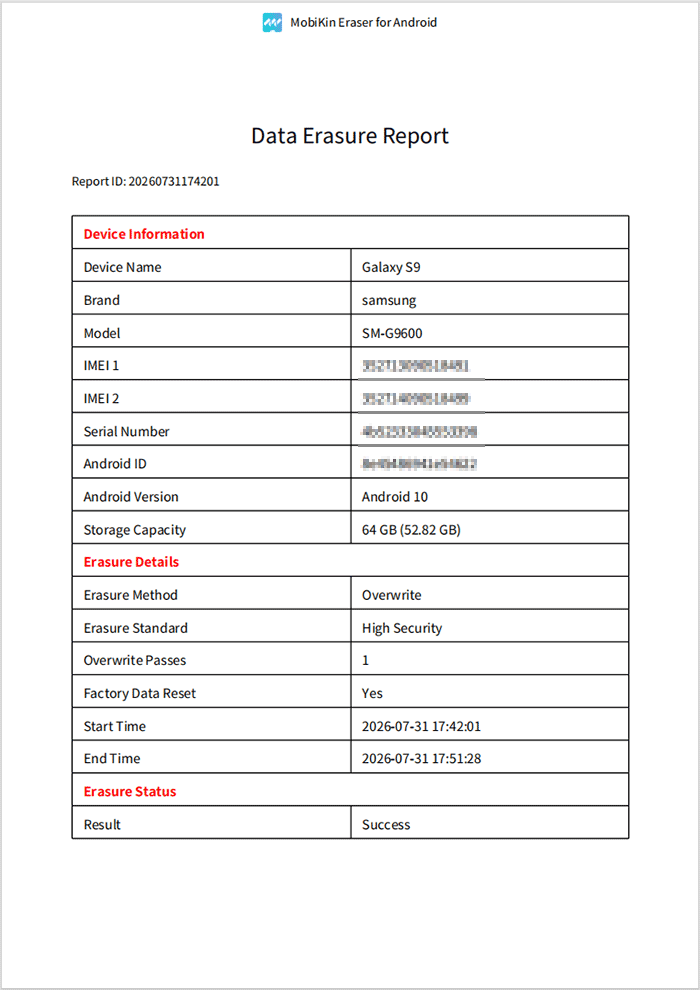
Three security levels (Low, Medium, and High) let you choose how thoroughly to overwrite existing and deleted data. It also generates an erasure report, giving you a record of the completed wiping process.
Download It Safely - No ads, no bundled apps, and no background uploads.


User Guide:
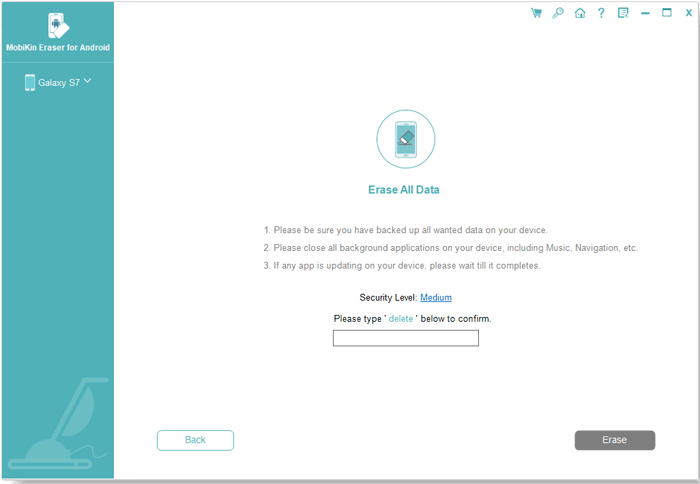
- Connect Your Android Phone: Install and launch the software, connect your phone via USB or Wi-Fi, and click Continue.
- Choose a Security Level: Select Low, Medium, or High, then click OK.
- Factory Reset Your Phone: Indicate whether the device has been reset and follow the on-screen instructions.
- Erase Android Data: Click Erase to overwrite your data (one pass for Low/Medium and three for High). Save the erasure report when finished.
Video Tutorial:
Part 7: Hard Reset vs. Factory Reset vs. Data Erasure Android: Which One to Pick
Now that you understand the three approaches, you may wonder which one is most appropriate for your situation. Although all three can help you start fresh, their purposes and data-protection capabilities are different.
|
Your situation
|
Recommended method
|
Why?
|
|
The device is stuck or lagging severely
|
Hard reset
|
Allows you to reset the device without accessing Settings.
|
|
Black screen or stuck startup logo
|
Advanced factory reset |
Provides a reset option through Recovery Mode, although FRP may still apply. |
|
Phone has persistent software problems
|
Standard factory reset |
Restores the device through its Settings menu. |
|
Want additional protection against data recovery
|
Dedicated data erasure like MobiKin Eraser for Android |
Uses data-overwriting techniques beyond an ordinary factory reset. |
|
Want to erase sensitive information before donating a phone
|
MobiKin Eraser for Android |
Offers selectable erasure levels and an erasure report. |
Related Articles:
Is Factory Reset Enough Before Selling Android Phone? Expert Tips
How to Factory Reset iPhone without Passcode: 3 Easy Methods
How to Recover Data after Factory Reset Android? 5 Ingenious Ways
Why Is My Android Phone Slow? Causes & 11 Reliable Solutions