
How to Fix Samsung Update Issues without Errors? 9 Most Admirable Ways
TL;DR:
Few things prove as frustrating as a Samsung device that performs worse after an update than it did before.
- Android Repair provides a direct method for resolving failed updates and persistent system errors without the complexity of manual troubleshooting.
- For users who find basic fixes insufficient, this product offers a guided repair process that can address boot loops, black screens, and other serious software issues efficiently.
After updating to the one UI 9.0 update, there have been several bugs such as not being able to pull down the notification panel when using an app. -- from community.samsung.com
What Problems Occur after New System Updates on Samsung?
- Rapid battery drain.
- Phone overheating.
- Apps freezing or crashing.
- System lag or slow performance.
- Frequent restarts or boot loops.
- Wi-Fi or Bluetooth connection problems.
- Mobile network or signal issues.
- Camera or display glitches.
- Charging problems.
This page explains the possible reasons for Samsung update issues and shows you how to fix them in 9 dependable ways.
- Part 1: What Is Responsible for Samsung Update Issues
- Part 2: How to Fix Samsung Update Issues in 8 Basic Ways
> Way 1: Restart your Samsung
> Way 2: Update apps on Galaxy
> Way 3: Clear cache & remove temporary files
> Way 4: Restart app preferences
> Way 5: Update software via Safe Mode
> Way 6: Reset network settings
> Way 7: Switch back to the old update
> Way 8: Perform a factory reset - Part 3: Try an Expert Tool to Fix Samsung Update Issues Efficiently
Part 1: What Is Responsible for Samsung Update Issues
Samsung update issues can come from several software- and device-related factors. Based on the two referenced sources, the main causes include:
- Software bugs: New Android or One UI updates may contain bugs that cause crashes, freezes, or glitches.
- Compatibility issues: Updates may conflict with certain Samsung models, older hardware, or third-party apps.
- Corrupted cache: Old cache files can interfere with the new software and cause performance issues.
- Battery changes: Updates may affect battery optimization or increase app power consumption.
- Insufficient storage: Low storage can cause update failures, slow performance, or other errors.
- Network setting changes: Updates may alter settings and affect Wi-Fi, mobile data, or Bluetooth.
- Third-party app conflicts: Outdated apps may crash or malfunction after a system update.
- Firmware problems: An interrupted or faulty update can damage system files and cause boot loops or crashes.
In short, Samsung update problems are usually related to software bugs, app or hardware compatibility, corrupted cache or system files, changed settings, and limited device resources rather than a single cause.
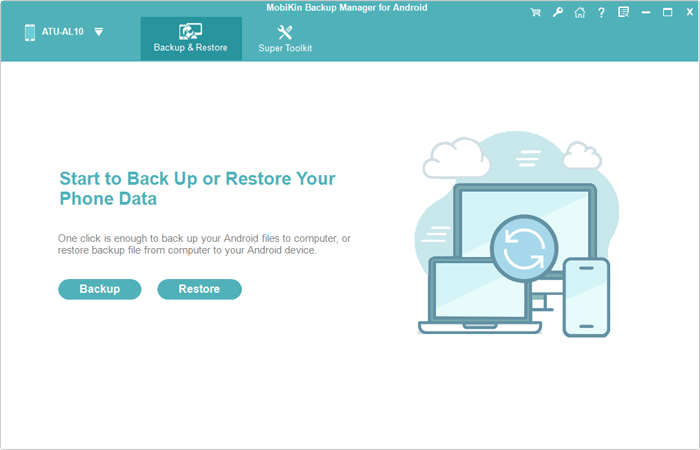
Before attempting any software fixes on your Samsung device, you must back up your critical data to prevent irreversible loss. You can safeguard your files by uploading them to a secure cloud service or using a reliable professional tool like MobiKin Backup Manager for Android to create a complete local backup.
Part 2: How to Fix Samsung Update Issues in 8 Basic Ways
> Way 1: Restart your Samsung
A simple restart can clear temporary system glitches that may appear after a software update. Hold the Power button, choose Restart, and check whether the update-related problem disappears after the phone boots again.
> Way 2: Update apps on Galaxy
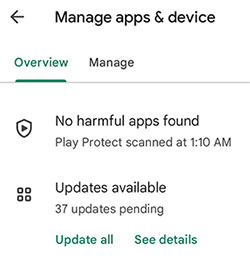
Some apps may not work properly after a Samsung software update because they are outdated. Update them through the Galaxy Store and Google Play Store:
- Open Galaxy Store and tap Menu > Updates.
- Tap Update all to install available app updates.
- Open Google Play Store > profile icon > Manage apps & device.
- Select Update all if updates are available.
- Restart the phone and check the affected apps again.
If updating apps cannot fix the Samsung software issue, an unused or incompatible app may still be causing conflicts. Try to delete apps you no longer use, especially those installed or updated around the time the problem started. After removing them, restart your Samsung phone and check whether the software issue has improved.
Click to Learn: Samsung Phone Not Turning on after Update? Reasons & 8 Solutions
> Way 3: Clear cache & remove temporary files
Clearing cached data can remove temporary files that may interfere with the updated system. Samsung recommends using Device Care to free up storage and clear unnecessary data when troubleshooting software update problems.
> Way 4: Reset app preferences
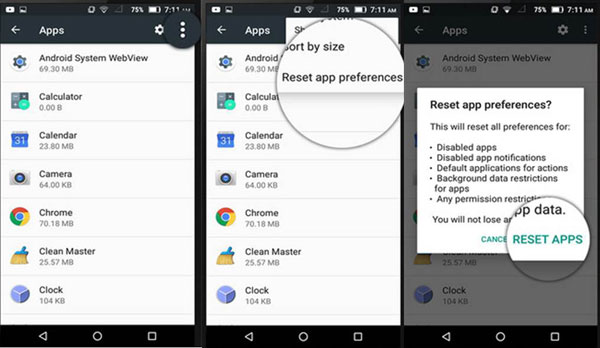
Resetting app preferences can help when certain apps stop working correctly after an update. Go to Settings > Apps, tap the three-dot menu, select Reset app preferences, and confirm the action; this restores default app settings without deleting your app data.
> Way 5: Update software via Safe Mode
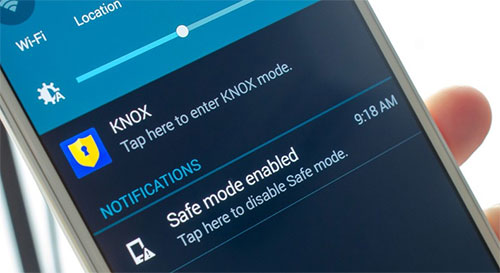
Safe Mode starts the phone with third-party apps disabled, making it useful for checking whether an installed app is interfering with the update or system.
- Press and hold the Power button until the power menu appears.
- Touch and hold Power off.
- Tap Safe mode when it appears.
- Once the phone starts, go to Settings > Software update.
- Check for and install the available update.
- Restart the phone normally after completing the update.
> Way 6: Reset network settings
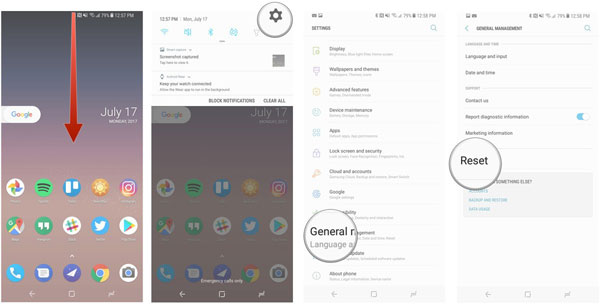
If the update has caused Wi-Fi, mobile data, or Bluetooth problems, resetting network settings may help. Open Settings > General management > Reset > Reset network settings, then confirm; you will need to reconnect to saved Wi-Fi networks afterward.
> Way 7: Switch back to the old update
If a newly installed update is causing serious problems, returning to an earlier software version may be considered as a last-resort option. However, downgrading Samsung firmware can be complicated and may erase data or create additional problems, so back up important files first and use a firmware method appropriate for your exact model.
> Way 8: Perform a factory reset
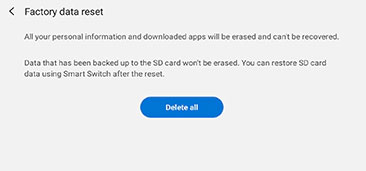
A factory reset can resolve persistent software problems by removing apps, settings, and user data and returning the phone to its initial state. Before doing this, back up your important contacts, photos, messages, and other files, then go to Settings > General management > Reset > Factory data reset and follow the on-screen instructions.
Part 3: Try an Expert Tool to Fix Samsung Update Issues Efficiently
For Samsung update problems, Android Repair offers a way to deal with failed updates and related system errors. It can address problems such as boot loops, black screens, or a phone stuck on the Samsung logo. Its guided repair process also helps users restore normal system operation without requiring advanced technical knowledge.
Main Features of Android Repair:
> Fix Samsung update issues: Repairs failed updates and related Samsung system problems.
> Repair system errors: Fixes black screens, boot loops, restart loops, Samsung Galaxy frozen, etc.
> Recover from bad updates: Helps repair Samsung phones affected by failed or problematic updates.
> No Data Loss: Fix system problems on Xiaomi, Redmi, and POCO phones while keeping your data intact.
> Download/Odin Mode support: Helps enter or exit Download Mode with one click.
> Guided repair process: Provides step-by-step instructions for Android system repair.
> No root required: Repairs Android system issues without requiring root access.
> Wide Android compatibility: Supports Android 5.0 and later, including Samsung devices.
> Recovery/Fastboot access: Helps enter or exit Recovery and Fastboot modes more easily.

Below is how to troubleshoot Samsung phone update problems with Android Repair:
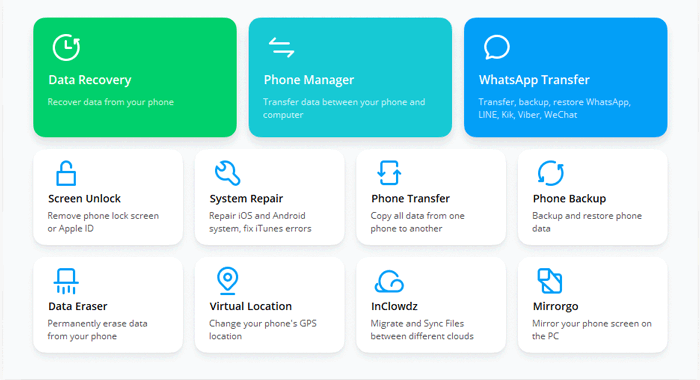
- Install the Software - Launch the system repair tool on your computer and select "System Repair" from the main interface.
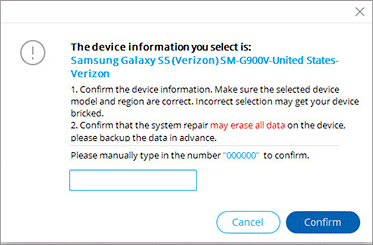
- Connect Your Samsung Device - Connect your Samsung phone to the computer using a USB cable, then choose "Android Repair." Check the displayed device information, click "Start," enter the required device details, and select "Next." When prompted, enter "000000" and click "Confirm."
- Enter Download Mode (1) - Samsung Phones with a Home Button - Turn off the device, then press and hold the Home, Power, and Volume Down buttons together for about 10 seconds. Release them and press Volume Up to enter Download Mode.
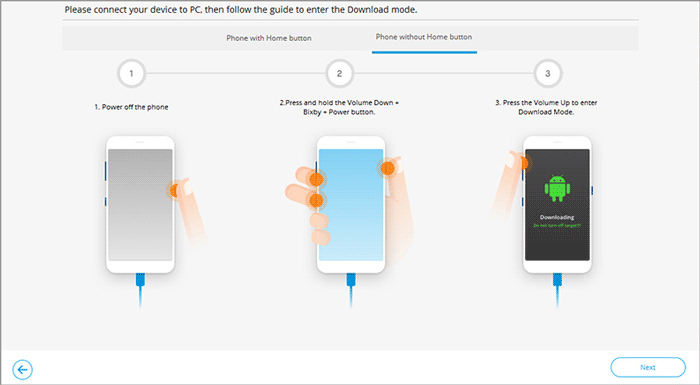
- Enter Download Mode (2) - Samsung Phones without a Home Button - Power off the device, then hold the Bixby, Power, and Volume Down buttons for around 10 seconds. Release them and press Volume Up to enter Download Mode.
- Fix the Update Failure - Once the phone enters Download Mode, click "Next" to download the appropriate firmware. The software will then use the firmware to repair the Samsung Galaxy software update problem.
Concluding Thoughts
Samsung update issues can affect battery life, app performance, connectivity, and overall system stability, but they are often manageable with the right steps. From restarting the phone and updating apps to resetting settings or performing a factory reset, the 9 methods above give you practical ways to get your Samsung device back to normal.
Related Articles:
How to Boot into Samsung Download Mode? 4 Well-tested Strategies
Top 7 Samsung Device Managers You Wish You Knew Sooner [Updated]
5 Ways to Transfer WhatsApp from Old Samsung to New Samsung
Samsung Galaxy Recovery: 4 Ways to Recover Data from Normal/Broken Samsung
