
15 Android Factory Reset Codes & 3 Reset Methods [Comparison]
TL;DR:
Android factory reset codes are often unreliable because they vary by brand, model, and Android version, so most users should rely on official methods instead. For a dependable reset, use Settings, Recovery Mode, Google Find Hub, or a dedicated tool like MobiKin Eraser for Android.
Before You Begin: A factory reset erases locally stored personal data. Back up anything important if possible, charge the battery sufficiently, and make sure you know the Google account previously associated with the phone, since Factory Reset Protection (FRP) may require it after the reset. Plus, we encourage the lawful use of these codes and methods and strictly oppose any unauthorized use. Thank you for your understanding and cooperation.
An Android factory reset code may seem like a quick fix when your phone becomes unresponsive or you need to erase personal data. Some users also search for a way to restore a phone to factory settings when they forget their screen lock PIN, password, or pattern. However, not every code works across different brands and Android versions.
This article covers the typical Android factory reset code and advanced reset methods, helping you choose a suitable option for your device.
- Section 1: Common Android Factory Reset Codes [Not Guaranteed]
- Section 2: Factory Reset Phone without Android Factory Reset Codes
> 2.1 Factory Reset Android via MobiKin Eraser for Android [Unrecoverable]
> 2.2 Factory Reset Phone via Google Find Hub
> 2.3 Factory Reset Android Phone via Recovery Mode - Section 3: Factory Reset Codes vs. Advanced Reset Methods: Success Rate
Section 1: Common Android Factory Reset Codes [Not Guaranteed]
The following list compiles codes reported in Android reset-code guides. Treat them as legacy or model-dependent codes, not guaranteed commands.
Samsung factory reset codes
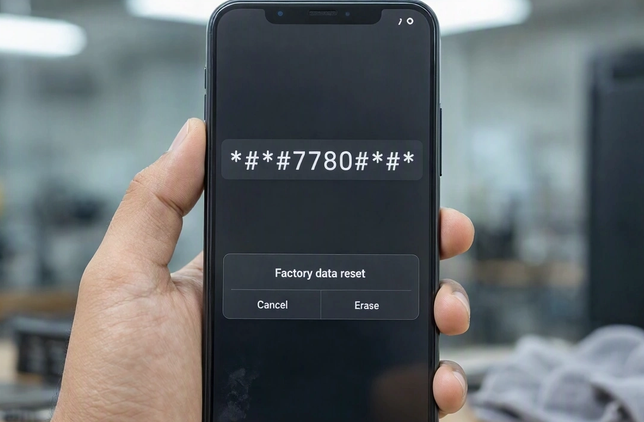
1. *#*#7780#*#*
Some third-party guides list this as a Samsung factory reset code. It is not a universal Samsung reset command, and modern Galaxy phones may ignore it.
Operational instructions:
- Open the Phone app on your own device.
- Enter the code using the dial pad, without pressing the Call button unless the device requires it.
- If nothing happens, stop rather than trying random codes. Use Settings or Recovery Mode instead.
2. *2767*2878#
This code appears in older reset-code lists for Samsung devices. Its function and availability may vary by model and firmware.
Operational instructions:
- Confirm the code is documented for your exact Samsung model.
- Open the Phone app and enter the code only if the manufacturer's instructions confirm its purpose.
- Follow the device's instructions if a reset option appears; otherwise, exit without proceeding.
3. *2767*3855#
Some older Samsung-focused guides identify this as a full factory reset code. It may trigger an immediate wipe on supported legacy devices, so do not test it on a phone containing important data.
Operational instructions:
- Verify the code against reliable documentation for the exact model.
- Back up important files and remove any external SD card if appropriate.
- Use the code only if its behavior is confirmed for that device. Otherwise, use the standard reset procedure in Settings.
Huawei factory reset code
4. ##7780##
Some reset-code lists associate this string with Huawei phones. Its function is not reliably established across Huawei models, so it should not be presented as a confirmed Huawei factory reset code.
Operational instructions:
- Check the support instructions for your exact Huawei model.
- Open Settings and search for Reset or Factory data reset.
- Follow the on-screen instructions after backing up your data. Do not rely on the code if the manufacturer does not document it.
OPPO factory reset code
5. *2767*3855#
This string is sometimes listed as an OPPO hard-reset code. Because the code's behavior is not verified across ColorOS versions, it is safer to use the standard reset menu.
Operational instructions:
- Open Settings on your OPPO phone.
- Search for Reset phone or Factory data reset.
- Review the data that will be erased and confirm only after backing up your files.
Sony Xperia factory reset or service code
6. *#*#7378423#*#*
This string is associated with the service menu on some older Xperia phones. It is primarily a diagnostic or service-menu code, not a general-purpose command that guarantees a full factory reset.
Operational instructions:
- Open the Phone app on a compatible Xperia device.
- Enter the code and check whether the service menu opens.
- Do not select unfamiliar service or customization options. For a complete reset, follow Sony's model-specific instructions.
vivo factory reset and service codes
7. *#558#
Opens the OQC or engineering test menu on some vivo phones. It is intended for hardware diagnostics, not a direct factory reset.
Operational instructions:
- Open the Phone app. Enter *#558#.
- If the test menu opens, avoid unfamiliar service options. To erase data, use Settings or Recovery Mode instead.
8. *#*#64663#*#*
Operational instructions:
- Enter the sequence in the dialer on a compatible phone.
- Check whether a diagnostic screen appears.
- Exit without changing service settings and use the official reset menu if you need to erase the phone.
9. *#*#7780#*#*
Historically associated with Android factory-data reset behavior on some older builds. Recent vivo software may block it.
Operational instructions:
- Back up important data first.
- Check whether your exact model and Funtouch OS or OriginOS version document this code.
- Do not test it casually; if unsupported, use Settings → Reset options.
TECNO and Infinix factory reset or engineering codes
10. *#*#3646633#*#*
This code is associated with MediaTek engineering tools found on some TECNO and Infinix phones. It is not a confirmed factory-reset command.
Operational instructions:
- Open the Phone app and enter the code.
- If an engineering menu opens, avoid changing radio, network, or hardware parameters.
- Exit the menu and use Settings or Recovery Mode to perform a factory reset.
11. *#*#4636#*#*
TECNO/Infinix/Pixel and selected Android devices
Operational instructions:
- Enter the code in the Phone app.
- Review the available phone, battery, or network information.
- Exit without modifying unfamiliar settings. Use the official reset procedure if a wipe is required.
Google Pixel factory reset codes
12. *#*#7780#*#*
Some online code lists associate this sequence with a factory-data reset on stock Android. However, Google does not establish it as a supported reset shortcut for current Pixel phones.
Operational instructions:
- Do not enter it merely to test whether it works.
- Back up your phone and consult Google's official reset instructions.
- Use Settings or the Pixel-specific Recovery Mode procedure instead.
13. *#*#7378423#*#*
This sequence is associated primarily with service diagnostics on certain Sony Xperia devices. It is not a confirmed Pixel factory-reset code.
Operational instructions:
- Do not rely on this code to reset a Pixel.
- For a Pixel you can unlock, open Settings and locate the factory-reset option.
- If you cannot access Settings, follow Google's official Recovery Mode instructions.
OnePlus factory reset codes
14. *#*#7780#*#*
This sequence is sometimes listed as a general Android factory-data reset code. Its operation on OnePlus phones running OxygenOS is not guaranteed.
Operational instructions:
- Avoid entering the code on a phone with unbacked-up data.
- Check the documentation for your exact OnePlus model and software version
- Use Settings or Recovery Mode if you need to erase the phone.
15. *#808#
Operational instructions:
- Enter the sequence in the dialer on a compatible device.
- If a test menu opens, avoid changing engineering settings.
- Exit and use the normal reset procedure if you need to clear your data.
Section 2: Factory Reset Phone without Android Factory Reset Codes
> 2.1 Factory Reset Android via MobiKin Eraser for Android [Unrecoverable]
For a truly irrecoverable wipe that bypasses a forgotten screen lock, MobiKin Eraser for Android (Windows/Mac) serves as a desktop-driven solution. It scans the connected hardware and overwrites every sector - including previously deleted files - so that no recovery tool can resurrect the original content.
The entire process concludes with a factory reset of the phone's system, effectively removing all configurations and personal data without ever requiring the device's passcode.
Safe Download (No ads, no bundles, no background uploads):


How to factory reset an Android phone without a reset code using MobiKin Eraser for Android?
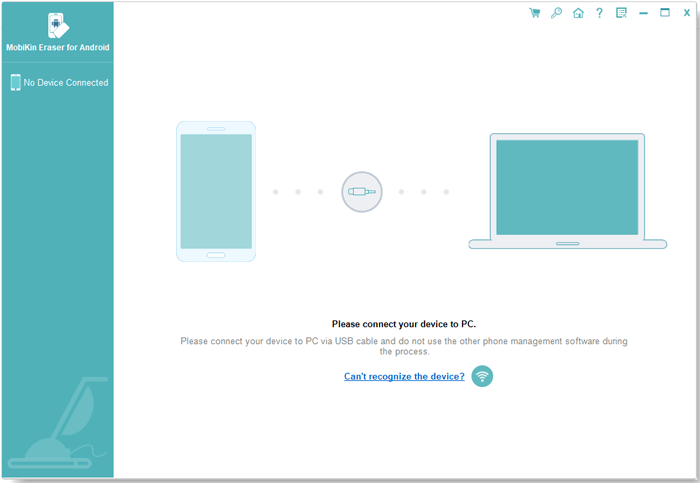
Step 1: Connect Your Android Phone to the Computer: Install and launch the software, then connect your phone via USB or Wi-Fi. For USB, enable USB debugging, install the required driver, and authorize the connection. For Wi-Fi, connect both devices to the same network and scan the QR code with the Android app.
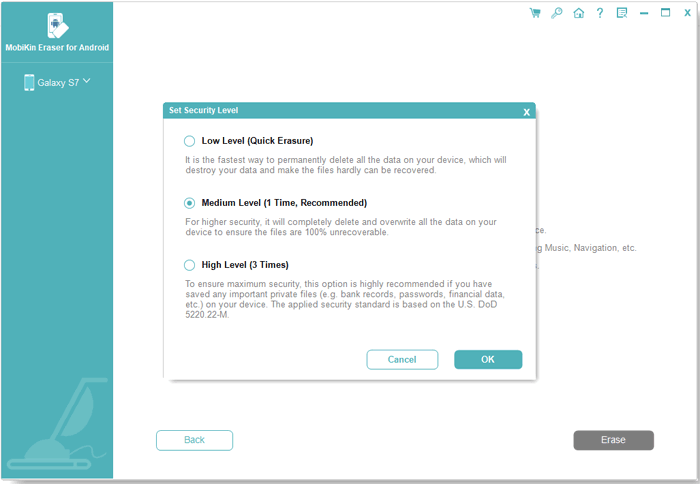
Step 2: Choose a Security Level: Once your phone is detected, click Continue and pick Low, Medium, or High under Security Level. Confirm to proceed.
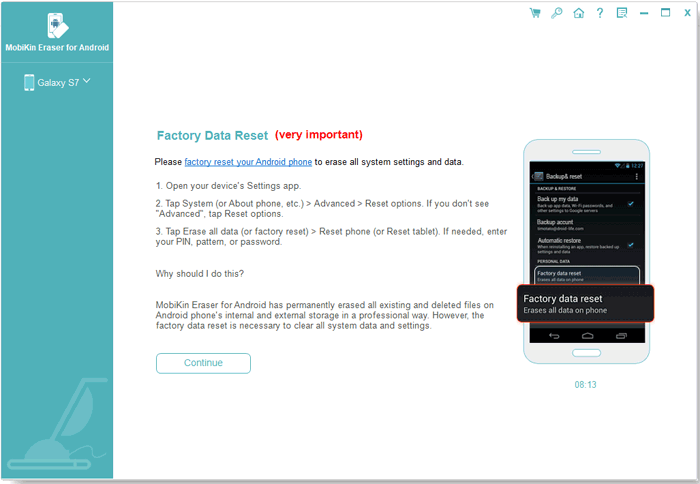
Step 3: Check the Factory Reset Status: If your phone hasn't been reset, select No, the device has not been reset and click Next. If it has, choose Yes, the device has been reset and follow the prompts.
Step 4: Factory Reset Your Phone if Needed: Follow the on-screen instructions to reset your Android device. Keep the software running while the phone restarts. After initial setup, reconnect the phone to the program.
Step 5: Confirm the Erasure Settings: After reconnecting, click Continue, select the security level again, and enter delete in the confirmation field. Follow any additional prompts, including SMS permission requests, then click Next.
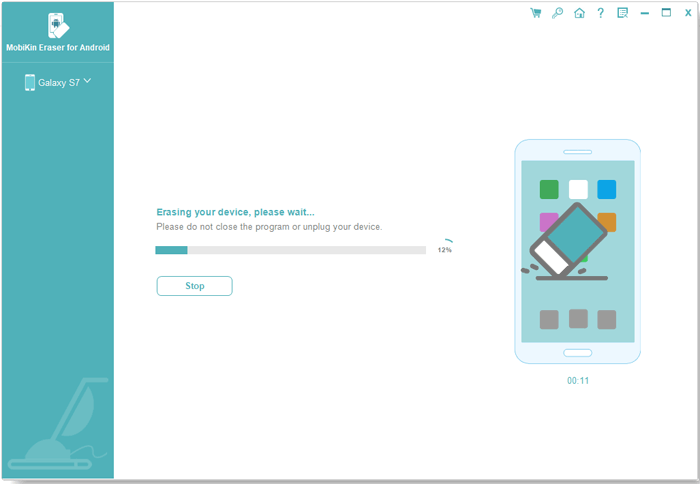
Step 6: Erase and Overwrite the Data: Let the software scan and erase your phone's data, then overwrite it per the selected level. Low and Medium perform one overwrite pass; High performs three.
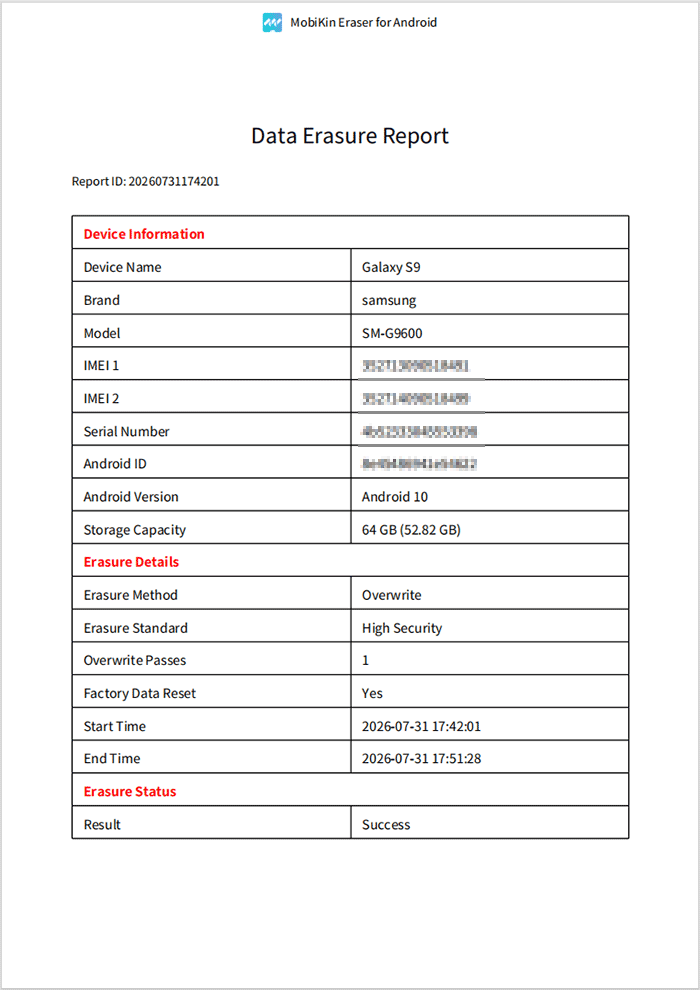
When done, click Save Report to keep a record of the erasure.
Video Guide:
My Trial Experience: When my cousin's old Android got stuck behind a forgotten pattern lock, MobiKin Eraser for Android handled the wipe cleanly through its desktop interface, nuking every trace of data without ever asking for the passcode. The only snag was needing to enable USB debugging first, which took a few extra minutes, but the erase itself ran smoothly with no hiccups.
> 2.2 Factory Reset Phone via Google Find Hub
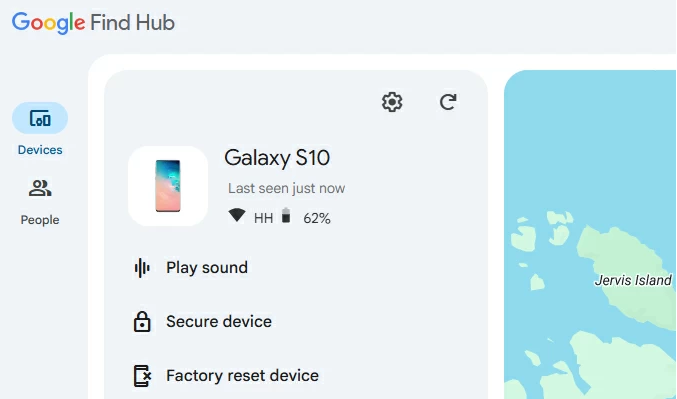
Google Find Hub's remote erase needs the phone online and signed into the same account beforehand. Once those boxes are ticked, choosing wipe from another device clears everything without the passcode. Offline handsets can't be reached this way. Below is how:
- Visit Google Find Hub in a browser on another phone or computer.
- Sign in with the Google account associated with the Android phone you want to reset. Select the correct device from the available list.
- Look for Factory reset device, Erase device, or a similarly named option. The wording may vary depending on the interface.
- Review the warning and confirm your choice. If prompted, complete the required account verification.
- If the phone is online and receives the command, it will begin erasing its data. If it is offline, the request may remain pending until the device reconnects.
> 2.3 Factory Reset Android Phone via Recovery Mode
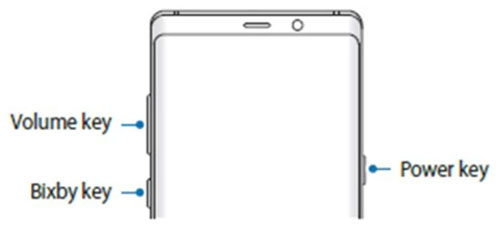
Recovery mode skips the network entirely, using only hardware buttons. A power-plus-volume combo opens a text menu where the wipe data option erases the lock. Physical access and precise timing are mandatory, though the Google account check returns at setup. NOTE: The following steps are based on the Samsung Galaxy S25. The procedure for entering Recovery Mode varies slightly depending on the phone model. Below is how:
- Press and hold the Power button, then tap Power off. If the phone is frozen, the force-shutdown procedure varies by model.
- Press and hold the appropriate physical-button combination while the phone is powered off. Many Android models use Power + Volume Up, but some require Volume Down, a Home button, or a USB connection to a computer.
- Use the Volume Up and Volume Down buttons to navigate the recovery menu.
- Highlight Wipe data/factory reset, then press the Power button to select it.
- Select the confirmation option, which may read Factory data reset, Yes, or Yes - delete all user data. The exact wording depends on the phone.
- When the process finishes, select Reboot system now. The first startup may take longer than usual, after which the phone should display its initial setup screen.
Section 3: Factory Reset Codes vs. Advanced Reset Methods: Success Rate
Conclusion: MobiKin Eraser for Android can be positioned as a convenient alternative with a potentially high success rate on compatible devices, particularly for users who want a guided data-erasure process rather than relying on uncertain dialer codes. However, Recovery Mode remains a strong built-in option, and no evidence supports claiming that MobiKin has a higher success rate than every other method.
|
Method
|
Success Rate
|
Reasons
|
|
Factory Reset Codes
|
Low to Moderate |
Many codes are outdated, model-specific, or unsupported by newer Android versions. |
|
Google Find Hub
|
High when requirements are met |
Can remotely erase a supported phone if it meets the service requirements and is connected to the associated Google account. |
|
Recovery Mode
|
High on supported devices |
Uses the phone's built-in recovery environment and works even when the normal Settings menu is inaccessible. |
|
MobiKin Eraser for Android
|
Potentially High on almost all Devices |
Provides a guided computer-based erasure process with selectable security levels, although compatibility and device access affect the outcome. |
Related Articles:
5 Desirable Ways to Recover Photos after Factory Reset on Android Phone
4 Ingenious Methods to Format Android Phone without Errors
Top 7 Ways to Transfer Files from Android to Android (Easy Guide)
How to Reset iPhone without Losing Data? [iOS 27/26/18 Supported]
