
How to Fix Samsung Phone Stuck in Boot Loop Safely? 10 Solutions
TL;DR:
My Testing Experience: Among all the methods below, Force Restart Samsung, Enter Recovery Mode, and Repair System with Smart Switch are three of the most promising fixes for a Samsung phone stuck in a boot loop, depending on whether the cause is a temporary glitch or a system issue.
Try them in order, as a force restart is simple, Recovery Mode offers additional troubleshooting options, and Smart Switch may help resolve certain firmware problems.
If none of these three fixes work, you can jump straight to Section 2 for expert repair to address more serious software or hardware faults.
My Samsung phone is stuck in a boot loop for the past 3 hours. What should I do? -- from Quora
- What Is a Boot Loop on Samsung? Why Does It Happen?
A boot loop on Samsung occurs when the phone repeatedly restarts or gets stuck on the Samsung logo without reaching the home screen, often due to system glitches, faulty apps, failed updates, or hardware problems. If you are dealing with a Samsung phone stuck in boot loop, identifying the underlying cause is the first step toward getting your device back to normal.
This article covers 9 basic solutions and 1 ultimate way to fix the issue efficiently, helping you choose a suitable approach based on your phone's condition.
- Section 1: How to Fix Samsung Phone Stuck in Boot Loop in 9 Basic Ways
> Fix 1: Re-insert Phone Battery
> Fix 2: Charge Samsung & Reboot
> Fix 3: Remove the Accessories
> Fix 4: Enter Recovery Mode
> Fix 5: Try Safe Mode
> Fix 6: Put Samsung into Download Mode Manually
> Fix 7: Force Restart Samsung
> Fix 8: Update Samsung Firmware
> Fix 9: Repair System with Smart Switch - Section 2: How to Fix Samsung Phone Stuck on Boot Loop via Professional Program
- Conclusion - When to Get Your Samsung Repaired
Section 1: How to Fix Samsung Phone Stuck in Boot Loop in 9 Basic Ways
> Fix 1: Re-insert Phone Battery
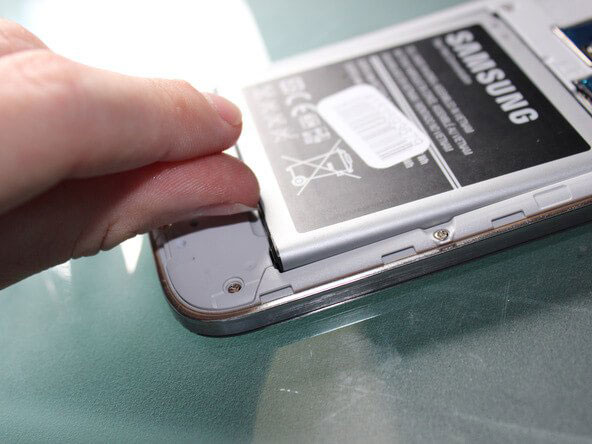
If you have an older Samsung phone with a removable battery, taking it out may help interrupt the repeated startup cycle. This method does not apply to most modern Galaxy models with sealed batteries. Below is how:
- Turn off the phone if possible and disconnect the charging cable.
- Remove the back cover and take out the battery.
- Wait about 30 seconds, then reinstall the battery securely.
- Put the back cover on and press the Power button to start the phone.
> Fix 2: Charge Samsung & Reboot
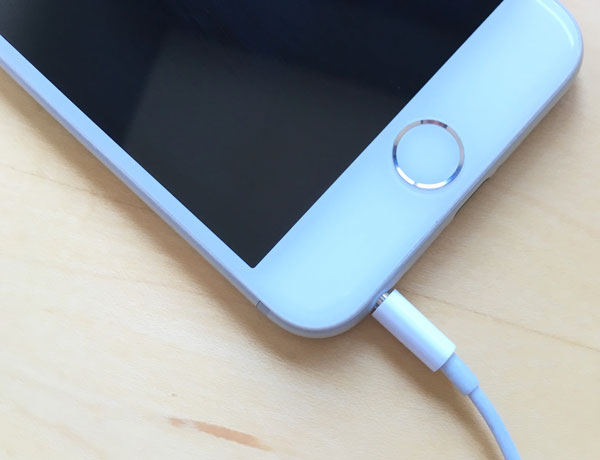
An insufficient charge or unstable power supply may prevent your Samsung phone from completing startup. Connect it to a reliable wall charger and leave it charging for at least 30 minutes before trying again. To do so:
- Use a compatible charger and cable that you know work properly.
- Check the charging port for visible debris or damage. Do not insert metal objects into it.
- Disconnect the charger once the phone has sufficient power, then restart the device.
- If the phone becomes unusually hot, stop charging and let it cool before seeking assistance.
> Fix 3: Remove the Accessories
A faulty accessory or a stuck physical button can interfere with normal startup. Disconnecting external devices helps determine whether the boot loop is related to an attached peripheral. To do this:
- Disconnect the USB cable, headphones, OTG adapters, and other connected accessories.
- Remove the phone case and check whether it is pressing the Power or Volume buttons.
- Remove the SIM card and microSD card, if applicable, after powering off the phone.
- Restart the Samsung device and see whether it reaches the home screen. (What if the Galaxy phone's power button doesn't work?)
- If the phone starts normally, reconnect the accessories one at a time to identify the possible cause.
> Fix 4: Enter Recovery Mode
Samsung Recovery Mode provides several maintenance options that may help resolve startup problems without accessing the home screen. The exact button combination varies by model, and some newer devices require a USB connection to a computer. To do it:
- Turn off the phone. If it keeps restarting, wait until the screen goes dark before attempting the button combination.
- On many recent Galaxy models, connect the phone to a computer using a USB cable.
- Press and hold Volume Up + Power/Side button until the Samsung logo or Recovery menu appears. Older models with a physical Home button may require a different combination.
- Use the Volume buttons to navigate the menu and the Power button to select an option.
Tips: Once Recovery Mode opens, consider clearing the system cache before taking more drastic action.
- - Wipe cache partition: Select this option, confirm the operation, and then choose Reboot system now. It removes temporary system cache files and normally does not erase personal data. The option may be unavailable on some models.
- - Factory reset: If clearing the cache does not help, select wipe data/factory reset only if you accept losing locally stored data. This erases personal files, apps, and settings from the device.
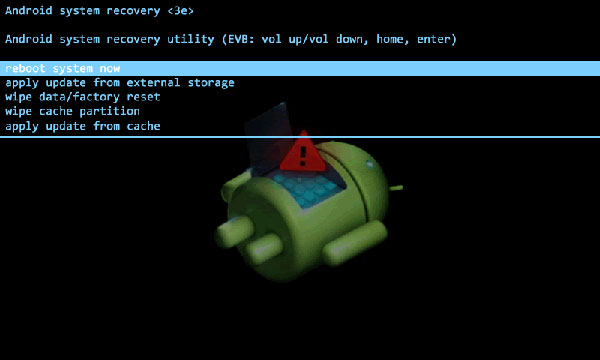
* Be careful not to select the factory reset option accidentally. If your data is important and has not been backed up, seek a non-destructive repair option first.
> Fix 5: Try Safe Mode
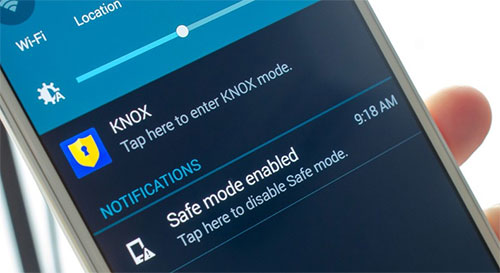
Safe Mode starts Android with third-party apps disabled, helping you determine whether an installed app is causing the boot loop. If the phone can reach Safe Mode, a recently installed or updated app may be responsible. Here's how you can do:
- Force the phone to restart if necessary.
- When the Samsung logo appears, press and hold Volume Down while the device continues starting.
- Keep holding the button until the lock screen or home screen appears. A Safe Mode label should be visible near the bottom of the screen.
- If the phone works normally, uninstall recently installed apps or apps updated shortly before the problem began.
- Restart the phone normally to exit Safe Mode and check whether the boot loop returns.
> Fix 6: Put Samsung into Download Mode Manually
Download Mode is primarily used to install firmware through supported Samsung servicing tools. It can help determine whether the device can enter a low-level maintenance screen, but entering this mode alone will not repair the boot loop. To deal with it:
- Turn off the phone and connect it to a computer with a USB cable if your model requires it.
- On many newer Galaxy devices, press and hold Volume Up + Volume Down while connecting the USB cable to a computer.
- Follow the on-screen instructions to enter Download Mode if prompted.
- If the screen appears, do not flash firmware unless you have verified the exact model, firmware region, and installation procedure.
Important: Incorrect firmware or an interrupted flashing process can make the phone unusable. If you are unfamiliar with firmware installation, use Samsung's official support or repair service instead.
> Fix 7: Force Restart Samsung
A force restart can clear a temporary system freeze that causes the Samsung logo to reappear repeatedly. It does not delete personal data. Here are the steps:
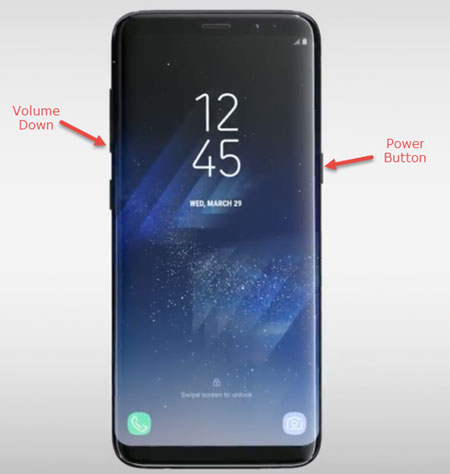
- Press and hold Volume Down + Power/Side button simultaneously.
- Continue holding both buttons for approximately 7–10 seconds, or until the screen goes dark and the phone begins restarting.
- Release the buttons when the Samsung logo appears.
- Allow the device to complete startup without pressing additional buttons.
If the phone keeps cycling through the Samsung logo, repeat the procedure once after charging the device. Persistent boot loops may indicate corrupted software, a faulty button, or a hardware problem.
> Fix 8: Update Samsung Firmware
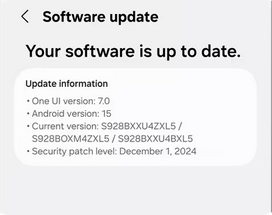
An outdated or faulty system build may contribute to repeated restarts. If you can get the phone to boot normally, check for an official software update before considering a reset. To accomplish this:
- Open Settings and select Software update.
- Tap Download and install.
- If an update is available, follow the on-screen instructions and keep the phone sufficiently charged.
- After installation, restart the device and check whether the problem has disappeared.
- If the boot loop began immediately after an update, another update may not be available yet. Avoid installing unofficial firmware packages, especially when the phone cannot start normally.
> Fix 9: Repair System with Smart Switch
Samsung Smart Switch for PC or Mac includes software-update and device recovery features for supported models. Availability depends on the phone, software version, and the specific problem; Smart Switch does not offer a universal repair function for every boot loop. Here's how:
- Download and install Smart Switch from the official Samsung website on your computer.
- Open the program and connect your Samsung phone using a compatible USB cable.
- Check whether Smart Switch recognizes the device and offers a software update.
- If an update or recovery option is available, follow the instructions displayed by the program.
- Keep the computer and phone connected until the process finishes.
- If Smart Switch cannot recognize the device or does not offer a suitable recovery option, contact Samsung support. Avoid choosing any emergency recovery or initialization procedure without checking whether it will erase your data.
Section 2: How to Fix Samsung Phone Stuck on Boot Loop via Professional Program
When a Samsung device keeps restarting or freezes on the startup logo, Android Repair offers a way to address the problem through guided system repair. It can help fix a Samsung phone stuck in a boot loop caused by software or firmware errors, with support depending on the device model. The step-by-step process saves users from manually handling firmware files.
|
Feature
|
Key Details
|
|
Fix Samsung Boot Loop |
Repairs supported Samsung phones stuck in a continuous restart cycle or frozen on the Samsung logo. |
|
Repair Android System Errors |
Addresses software problems such as black screens, failed updates, system crashes, and phones that will not start. |
|
Guided Repair Process |
Provides step-by-step instructions for selecting device information, downloading compatible firmware, and completing the repair. |
|
Support Download Mode |
Enter or exit Samsung Download Mode (Odin Mode) during system repair. |
|
Multiple Android Brands |
Supports eligible Samsung, Xiaomi, Redmi, and POCO devices, depending on the model and repair feature. |
|
Windows Compatibility |
The Android system repair feature is available on Windows; macOS support is not available for this function. |
|
Recent Android Versions |
Supports selected recent Android versions, with compatibility depending on the device model. |
|
Privacy Protection |
Protect users' privacy during system repair and does not track users' private activities. |
Note: Android Repair can be an option when basic troubleshooting fails to fix a Samsung phone stuck in a boot loop. However, Samsung system repair may erase all data on the device, so back up your files beforehand if possible. It addresses software and firmware problems, not physical hardware damage.
Free & Safe Download (Clean):

User Manual:
- After downloading Android Repair, install and open it on your PC.
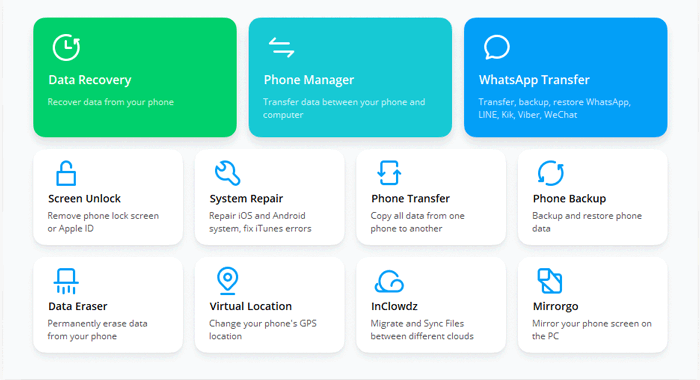
- In the main window, click System Repair, then connect your Samsung device to the computer with a USB cable.
- Choose Android Repair from the left-hand menu. A list of Android issues the tool can fix will appear. Review them and click Start.
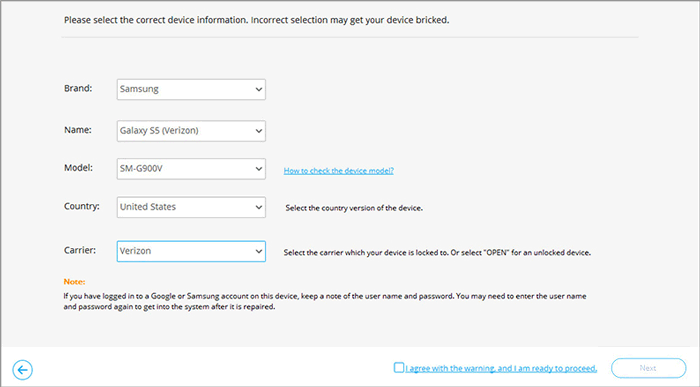
- On the next screen, enter your device details and click Next to continue.
- Manually enter 000000 in the provided field and click Confirm. Be aware that this repair process may erase data from your Samsung phone.
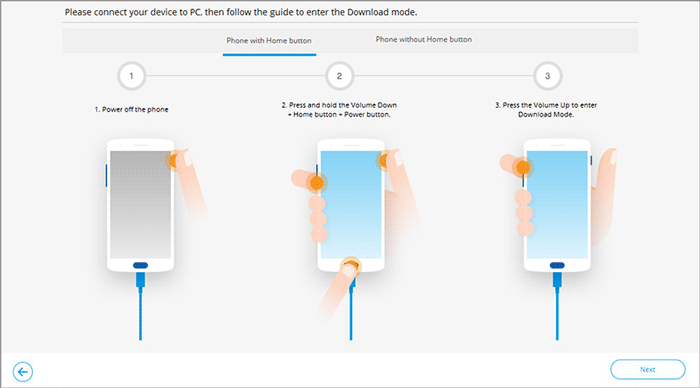
- Boot your Samsung device into Download Mode using the appropriate method, as shown below.
- Once your phone is in Download Mode, click Next to download the required firmware before a full repair.
Conclusion - When to Get Your Samsung Repaired
In most cases, a Samsung phone stuck in a boot loop can be fixed by charging the device, force restarting it, entering Safe Mode, or using Recovery Mode. If these basic solutions fail, Android Repair may help resolve stubborn software problems that prevent the phone from starting normally.
When to Get Your Samsung Repaired: Seek professional assistance if the phone keeps restarting after a system repair, shows signs of water or physical damage, overheats, or cannot enter Recovery Mode or Download Mode. Before handing it over, ask about potential data loss and repair costs, especially if your phone contains files that have not been backed up.
Related Articles:
Samsung Phone Not Turning on after Update? Reasons & 8 Solutions
How to Recover Contacts from Samsung with Black Screen? 4 Options
How to Transfer Files from Android to Samsung Galaxy? 4 Smart Ways
6 Solutions to Back Up Galaxy S8/S22/S23/S24/S25/S26 with Ease
