
How to Restore Deleted Contacts on realme? 4 Effective Strategies
Accidental deletion of important contacts can disrupt daily communication and create unnecessary stress. Knowing how to restore deleted contacts on realme can help users recover lost data quickly, maintain continuity in communication, and avoid the time-consuming task of manually re-entering each contact.
This guide walks you through 4 reliable approaches that work with Google Contacts, SIM cards, backup software, and professional recovery tools.
Option 1: How to Restore Deleted Contacts on realme without Backup [Safe]
When accidental deletion occurs, MobiKin Doctor for Android (Windows/Mac) provides a reliable way to retrieve lost contacts, messages, and other data. It scans the device deeply to locate files that are still recoverable from internal storage.
Users can preview the recoverable items before performing the restoration, ensuring only the needed data is retrieved. The process is straightforward, and the program handles large data volumes efficiently without slowing down the computer.
MobiKin Doctor for Android - Main Features:
> Recover Deleted Contacts - Quickly restore lost contacts on realme without affecting other data.
> Comprehensive Recovery - Retrieve messages, call logs, photos, videos, and documents.
> Preview Before Restore - Check recoverable items to recover only what's needed.
> Fast and Safe Scan - Deep scan efficiently without altering device data.
> Wide Compatibility - Supports various realme models and Android versions, covering Realme GT, GT Neo, Number, C, Neo, and Narzo Series (selected models, e.g., GT 6/6T, 13 Pro+/12 Pro+, C65, Neo7 Turbo, 70 Pro 5G), etc.
> Selective Recovery - Restore only specific contacts or files instead of the entire device.
> User-Friendly Interface - Easy to navigate for both beginners and advanced users.
How to rescue deleted contacts from realme with MobiKin Doctor for Android?
- Begin by securely rooting your realme device to allow the utility to completely detect all lost contacts.
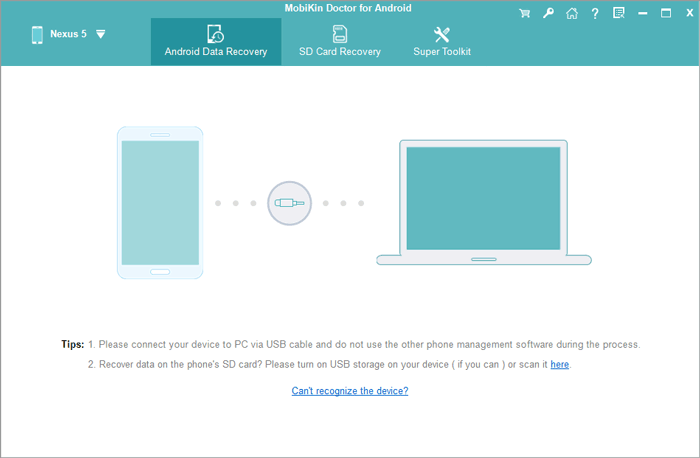
- Next, install the software you have downloaded onto your computer and then launch it.
- Connect your device to the computer using a USB cable.
- Follow the on-screen instructions so that the software can recognize your connected realme device.
- Once it is recognized, you will be directed to the main interface.
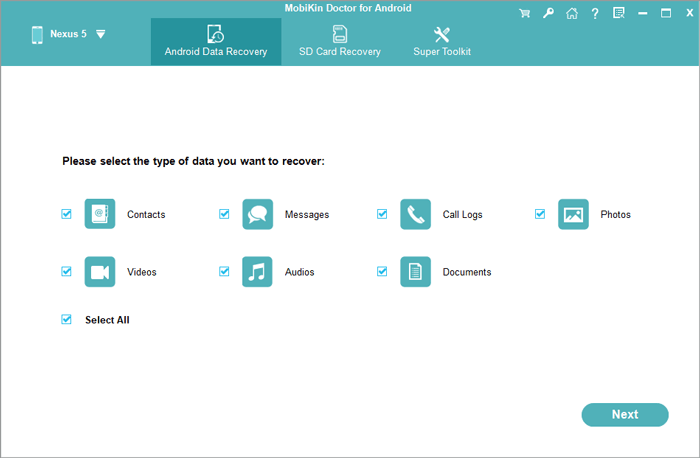
- Then, check the box next to the "Contacts" option and click "Next" to start a comprehensive scan.
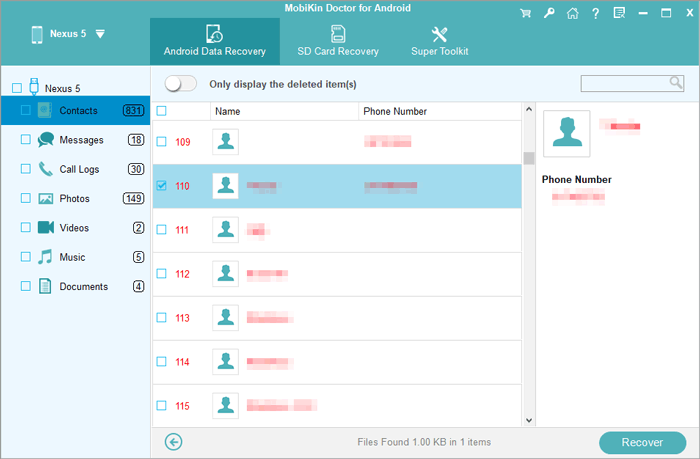
- After the scan is finished, examine all the missing realme information presented on the screen.
- Finally, select the items you wish to recover.
- Click "Recover" to save them to your computer.


Video Directions:
Option 2: How to Recover Deleted Contacts in realme via Google Contacts
Deleted contacts can often be restored using Google Contacts, which keeps a backup in the cloud linked to your account. By accessing the Trash or using the Undo Changes feature, you can quickly recover multiple entries at once.
The platform also allows rolling back your contact list to a previous state, offering a simple safety net. Synchronization ensures that restored contacts immediately appear on your Realme device once connected to the same account.
How to Use?
- Open the Settings app on your Realme phone.
- Tap Google, then select All services.
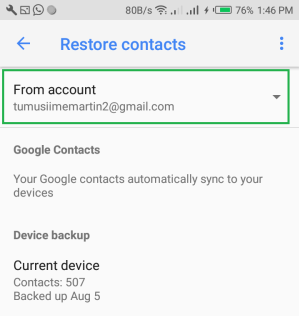
- Choose Backup & restore, then tap Restore contacts.
- Select the Google account that contains the contacts by tapping From account.
- Tap the phone that has the contacts you want to copy.
- Choose which sources to copy from, such as SIM card or Device storage, by turning them on or off.
- Tap Restore and wait until the message "Contacts restored" appears, indicating that the process is complete.
To recover deleted contacts on Realme using Google Contacts Web Restore, open a web browser and go to the Google Contacts website, then sign in with the Google account linked to your phone. From the sidebar, select Trash to view contacts deleted within the last 30 days, choose the ones you want to restore, and click Recover.
Option 3: How to Get Deleted Contacts Back from realme via SIM Card
A SIM card can serve as a secondary storage for contacts that may have been removed from the phone's internal memory. Importing contacts from the SIM restores the entries without requiring any third-party apps or cloud accounts. This method works even when no backups exist elsewhere, making it a convenient fallback option. Once the import completes, the phone's contact list reflects all entries saved on the SIM.
How to Use?
- Insert the SIM card into your Realme phone, making sure it's properly seated and recognized by the system.
- Open the Contacts app on the device.
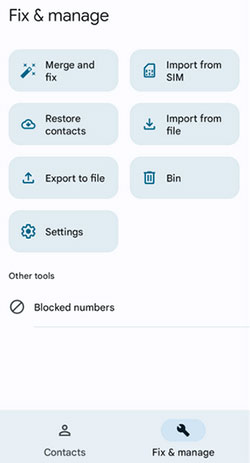
- At the bottom of the screen, tap Organise, then select Fix & Manage.
- Choose Import from SIM to begin bringing contacts stored on your SIM into your phone.
- If you have multiple accounts, pick the one where you want the imported contacts saved (e.g., your Google account).
- Wait for the import process to complete, then check your contact list to confirm that the SIM contacts have been added.
People Also Like: How to Transfer Contacts from SIM Card to iPhone 17/16/15/14/13/12/11/XS/XR/X/8?
Option 4: How to Retrieve Deleted Contacts on realme via All Backup & Restore
For those who regularly save their data, All Backup & Restore offers an efficient way to recover deleted contacts from a previous backup. Users can select a backup file and restore it directly to their device with just a few taps.
The app also allows storing backups on external storage or cloud services for additional security. After restoration, all chosen contacts are reintegrated into the phone's address book, ready for immediate use.
How to Use?
- Install and open the app on your Realme device from the Google Play Store.
- Grant it permission to access your contacts and storage so it can create and manage backup files.
- Back up your contacts by selecting the contacts option and choosing where to save the backup (device storage, SD card, or cloud).
- Open the backup list within the app and locate a previously saved contacts backup file.
- Select the contacts backup file you want to restore and tap the Restore button to bring those contacts back into your phone's address book.
- Confirm and wait for the restore process to complete, then check your Contacts app to ensure the deleted contacts have reappeared.
Final Words
Ultimately, restoring deleted contacts on realme becomes a smooth process rather than a disruptive problem. By following the strategies above, you can bring back your lost contacts from realme efficiently and regain peace of mind knowing that essential connections are preserved. Before that, taking a few moments to set up backups and familiarize yourself with these tools can save hours of frustration later.
Related Articles:
5 Methods to Recover Deleted WhatsApp Photos in Android with/without Backup
How to Fix realme Phone Not Connecting to PC? 8 Solutions & 1 Alternative
