
Fix System UI Not Responding Error on Android Phone in 12 Ways
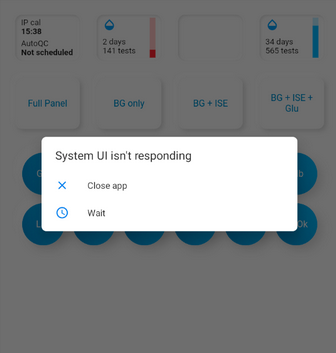
The message 'System UI Not Responding Android' often appears without warning and interrupts normal phone operations. Many people are unsure whether the issue is serious, temporary, or harmful to their data, so they look for reassurance and clear explanations and reliable solutions before making any changes. This article explains the possible causes and provides 12 practical methods to restore your device to normal safely.
Part 1: Why Is System UI Not Responding on Android
"System UI not responding" errors on Android can stem from a variety of software, hardware, and app-related issues. The following list summarizes the most common causes that may disrupt your device's interface and overall performance:
- Outdated updates - Corrupted or buggy Android OS or app updates can cause UI errors.
- Low storage/memory - Insufficient space or overloaded RAM can freeze the UI.
- Problematic apps - Third-party apps with bugs or unsupported permissions may disrupt UI.
- Cache corruption - Corrupted app or system cache can trigger responsiveness issues
- Faulty storage/SD card - Corrupt or misinserted external storage may affect system processes.
- Launcher/widget conflicts - Some custom launchers or widgets can cause instability.
- Limited hardware - Phones with low RAM or heavy load can struggle to run the UI smoothly.
- Malware/untrusted apps - Harmful or poorly optimized apps may interfere with UI.
- Too many background processes - Excessive background tasks can block UI responsiveness.
- System corruption - OS or system file issues can lead to persistent UI failures.
Part 2: How to Fix System UI Not Responding on Android in 11 Ways
Fix 1: Plug in the charger
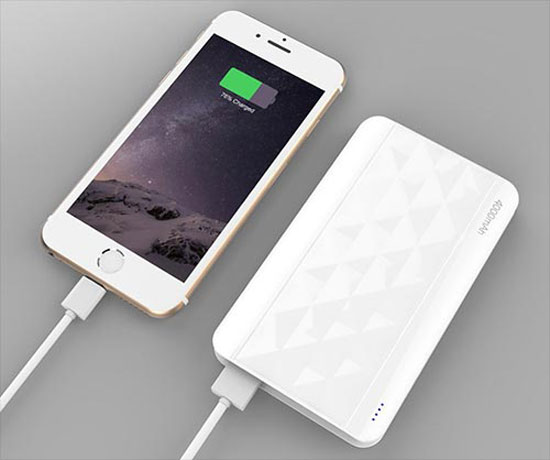
Connecting your device to a charger can potentially help stabilize power delivery and give the system time to recover from overload or temporary glitches without draining battery or forcing repeated UI crashes. Once the phone is plugged in and paused briefly, you can then proceed with other fixes like restarting the device or clearing system cache to restore normal responsiveness. (Your phone doesn't charge?)
Fix 2: Restart your device
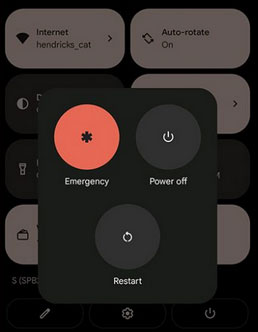
Press and hold the power button until the power menu appears, then tap "Restart" to reboot your device - this simple reboot clears temporary glitches and resets system processes that may be causing the UI error.
If your phone doesn't respond to the touch screen because of the error, you can also perform a forced restart by holding down the power button (and sometimes the volume button on some models) until the device powers off and restarts, which often resolves frozen phone issues.
Fix 3: Remove widgets from Android screen
Long-press the problematic widget on your home screen until it becomes movable, then drag it to "Remove" or the trash can icon at the top or bottom of the screen - this clears any widget-related interface conflicts.
After removing the widgets, restart your phone to allow the system interface to reload without the potentially problematic element, which often helps restore normal UI responsiveness.
Fix 4: Remove SD memory card
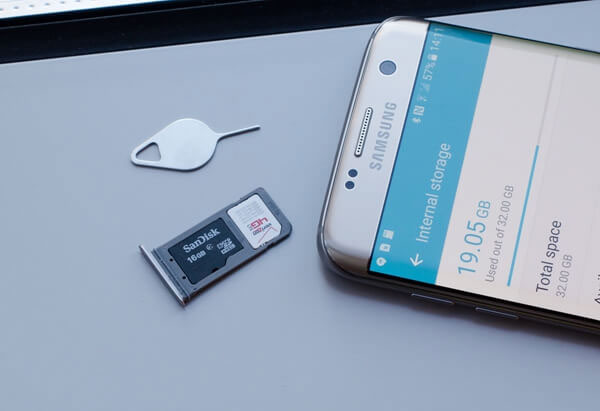
- Power off your device and carefully remove the SD card, then turn the phone back on to see if the error persists. (What if the SD card is unexpectedly removed?)
- Since corrupted files or incompatible data on the SD card can interfere with system processes, eliminating it temporarily lets you check whether the card is the underlying problem.
- If the UI error stops after removing the card, consider checking for corrupted files, backing up and formatting it, or replacing it entirely.
Fix 5: Reset app preferences
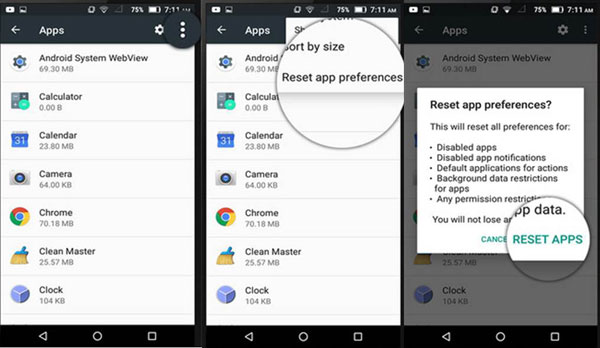
This action restores default settings for disabled apps, background data restrictions, permissions, and default apps without deleting personal data, which can clear misconfigured app behaviors that might be interfering with the System UI. To do it:
- Open your phone's Settings > Apps (or Apps & notifications).
- Tap the three-dot menu (usually in the top right).
- Choose "Reset app preferences.
Fix 6: Clear app cache
- Go to your device's Settings > Apps (or Apps & notifications).
- Find and tap System UI (or the app that's causing issues).
- Choose Storage > Clear cache.
Fix 7: Update/reinstall the app
To update or reinstall an app that might be triggering the "System UI not responding" error on Android, open the Google Play Store, search for the app in question, and tap "Update" if an update is available — this ensures you have the latest, most stable version installed.
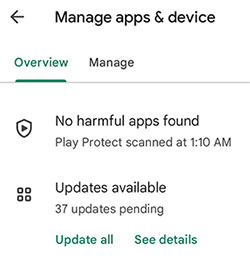
If updating doesn't resolve the issue, you can uninstall the app by tapping "Uninstall" in its Play Store page or Settings > Apps, then reinstall it from the Play Store to clear any corrupted files that may have been causing the UI error.
To delete a problematic app when your Android keeps showing "System UI not responding," first boot your phone into Safe Mode by holding the power button, then tapping and holding Power Off until the Safe Mode prompt appears. In Safe Mode, only system apps run, which prevents third-party apps from interfering with the UI. Once in Safe Mode, go to Settings > Apps, select the troublesome app, and tap Uninstall to remove it safely.
Fix 8: Uninstall Google App updates
- Proceed to Settings > Apps (or Apps & notifications) and locate the Google App in the list.
- Tap the app, then select the three-dot menu (or More).
- Choose "Uninstall updates" to revert the app back to its factory version, which can resolve conflicts with the System UI caused by a faulty or incompatible update.
- If needed, after fixing the UI issue, you can update the Google App again later via the Play Store.
Fix 9: Clear cache partition
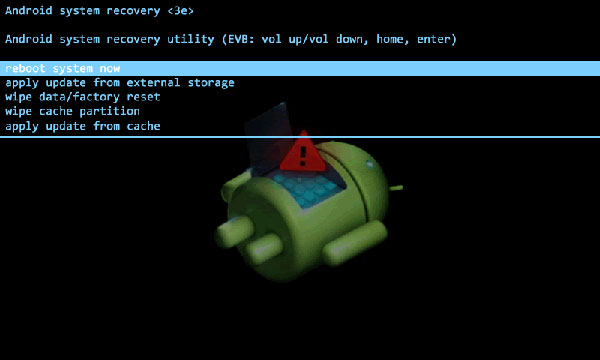
If the specific problematic app isn't obvious, you can also clear the cache partition by powering off your phone and booting into Recovery Mode, then selecting "Wipe cache partition," which clears temporary system files without erasing personal data and often resolves UI glitches.
Fix 10: Factory reset Android
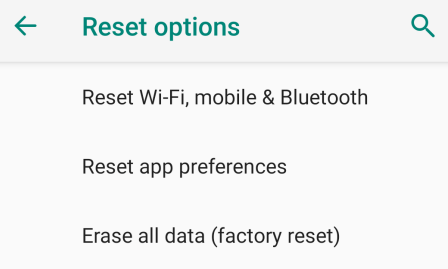
If all other fixes fail, you can perform a factory reset to resolve persistent "System UI not responding" errors on Android. First, back up all important data, as this process will erase apps, settings, and personal files. Then go to Settings > System > Reset options > Erase all data (factory reset), confirm the action, and allow the device to reboot, which restores it to its original state.
Fix 11: Update Android
- Head to your phone's Settings > System (or About Phone) > Software update and check for the latest system updates.
- Installing the newest Android version can resolve bugs or compatibility issues that are causing UI instability.
- If an update is available, download and install it, then restart your device to apply the changes and see if the error is resolved.
Part 3: Fix System UI Not Responding on Android with an Expert Program
Designed to handle a wide range of Android system issues, Android Repair can effectively resolve errors like "System UI not responding" without requiring advanced technical skills. It works by downloading the appropriate firmware and repairing system files that may be corrupted or malfunctioning. With a guided process and a high repair success rate, it helps restore devices to normal operation in a relatively short time.
Main Features of Android Repair:
> Fix various system issues - Repairs crashes, black screens, boot loops, etc.
> One-click repair - Simple and quick fixing process.
> Beginner-friendly - Easy to use with guided steps.
> Wide issue coverage - Handles update errors and system failures.
> Broad compatibility - Supports major Android brands (No data loss on Xiaomi, Redmi, and POCO).
> Auto firmware matching - Downloads the correct system package automatically.
> Mode control - Enter/exit Recovery, Download, or Fastboot easily.
> High success rate - Effective for common Android problems.
> Fast repair - Completes fixes in a short time.
How to troubleshoot System UI not responding on Android phone/tablet with Android Repair?
- On your computer, install and launch Android Repair.
- Next, click on the "System Repair" tab located at the top of the program window and connect your device to your computer using a USB cable.
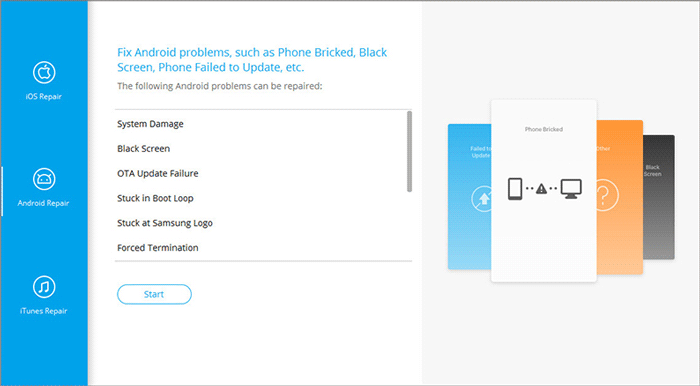
- Select "Android Repair" from the left-hand menu. The utility will present the Android issues it can resolve.
- Simply browse through the available options and click "Start".
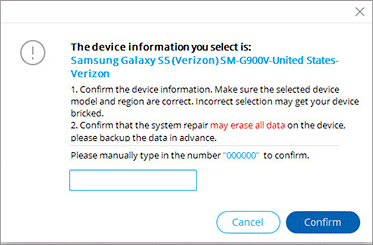
- Input your device information in the following window and press "Next" to continue.
- Manually enter "000000" into the empty field and click "Confirm".
- Please note that the system repair may lead to data loss on your phone if it is not a Xiaomi/Redmi/POCO device.
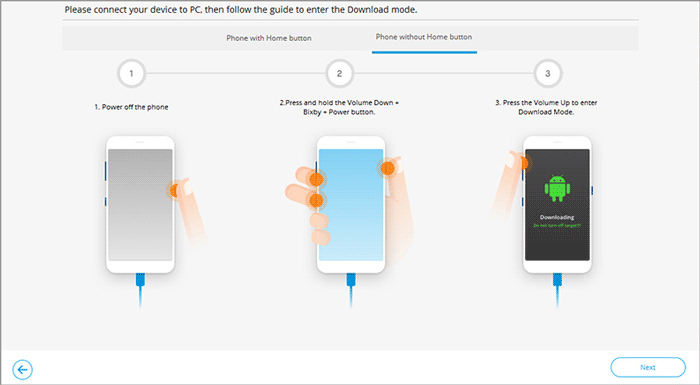
- Boot your device into download mode after referring to the image provided below.
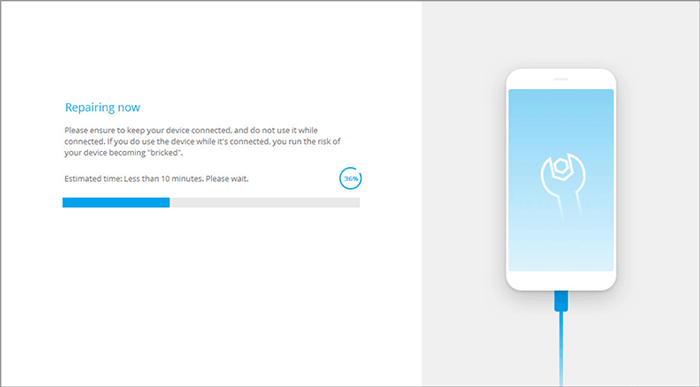
- Once the phone is in this mode, click "Next" to download the required firmware for immediate repair.

Summary
A persistent System UI error can make even simple tasks difficult. While basic troubleshooting may resolve minor glitches, a dedicated repair tool can address deeper system problems more effectively. Here's why Android Repair is a strong choice for fixing this issue:
- Comprehensive repair capability - Fixes System UI errors along with other system issues in one process.
- User-friendly guidance - Step-by-step instructions help reduce mistakes during repair.
- System-level fixes - Targets the root cause instead of temporary symptoms.
With this program, your Android device can return to stable and smooth performance without complicated procedures.
Related Articles:
How to Recover Data from Bricked Android Phone in 3 Ways [with Troubleshooting Tips]
How to Unlock Android Phone without Password? 7 Latest Approaches
Android System Update Failed to Install? Causes & 10 Solutions
Top 6 Best App Backup and Restore Alternatives [Worth a Shot]
