
How to Fix Xiaomi Touch Screen Not Working? 10 Reliable Solutions
A smartphone is a vital hub for communication and productivity. When a Xiaomi touch screen not working issue arises, it instantly creates a significant disruption. The non-functioning touch screen makes the primary phone interface unusable, halting calls, messages, work, and access to personal data.
This article compiles a comprehensive guide to understanding the root causes of this frustrating problem, offering a clear path from the simplest fixes to professional solutions, empowering you to restore your device's functionality and regain control.
Part 1: What Is Responsible for Xiaomi Touch Screen Not Working
Your Xiaomi's touch screen may fail due to external factors like a faulty charger, moisture, or physical damage, or from internal issues such as a software glitch, hardware fault, or a loose internal connection. A systematic check from simple fixes to complex repairs can usually identify the culprit. Here are the full reasons:
- Operating System Bug or Glitch - A temporary software crash or faulty system update.
- App Conflict - A recently installed third-party app interfering with touch functions.
- Screen Contamination - Water, moisture, sweat, or oil on the screen surface.
- Faulty Screen Protector - A low-quality, thick, or poorly applied screen protector.
- Charger Interference - Using a damaged or non-standard charger causing screen noise.
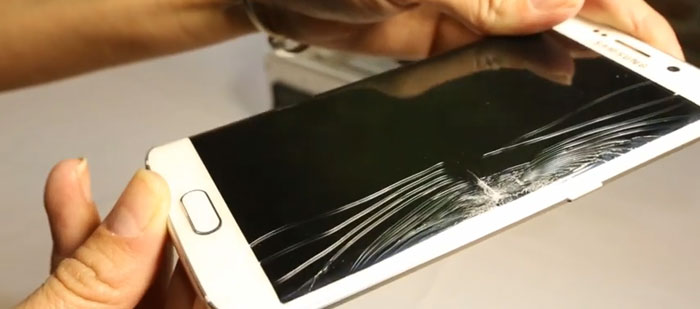
- Cracked/Damaged Screen - Physical damage to the glass and underlying digitizer layer.
- Electrostatic Discharge (ESD) - A static shock temporarily disabling the touch sensor.
- Extreme Temperatures - Exposure to very cold or hot environments.
- Loose or Disconnected Flex Cable - The internal ribbon cable connecting the screen to the motherboard coming loose.
- Faulty Touch Controller/Digitizer - Failure of the component that processes touch signals.
- Motherboard Issue - Damage to the phone's main logic board or related circuitry.
- Battery Swelling - An expanding battery pressing against and damaging internal components.
- Previous Water Damage - Corrosion inside the phone from past liquid exposure. (Can I recover data from a water-damaged phone?)
- Excessive Pressure or Bend - Physical deformity of the phone's frame damaging internal connections.
Part 2: How to Fix Xiaomi Touch Screen Not Working [9 Workarounds]
Fix 1: Remove the screen protector
To remove a screen protector to test if it's causing the touch issue, first lift a corner carefully with a fingernail or a plastic card. Slowly peel it back at a low, consistent angle without using force. Clean the bare screen with a soft, microfiber cloth before testing the touch functionality.
Fix 2: Run hardware diagnostics
First, use Xiaomi's hardware diagnostics by entering ##6484## in your dialer app to open the "CIT" engineering test menu. From there, run the "Touch Sensor" or "Touch Screen Test" to check for hardware faults. Additionally, rebooting your phone is a powerful step that can clear temporary software glitches affecting the screen.
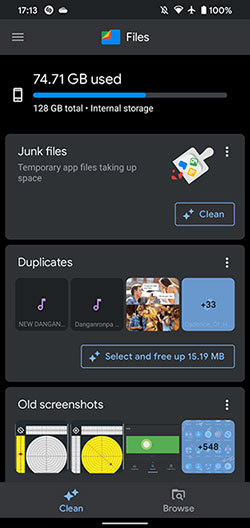
Again, you can use the built-in "Security" or "Phone Manager" app's cleaner tool to quickly remove app cache and junk files. Manually delete large, unused downloads and videos through the "File Management" app. Always restart your phone after cleaning to clear system resources and potentially restore touch function.
Fix 3: Force restart Xiaomi
- Press and hold the Power button for at least 10 to 15 seconds.
- Continue holding until you feel the phone vibrate and see the MI or Redmi logo appear on the screen.
- Release the button once the logo appears, and allow the phone to complete its normal startup process.
Fix 4: Enable "full-screen"
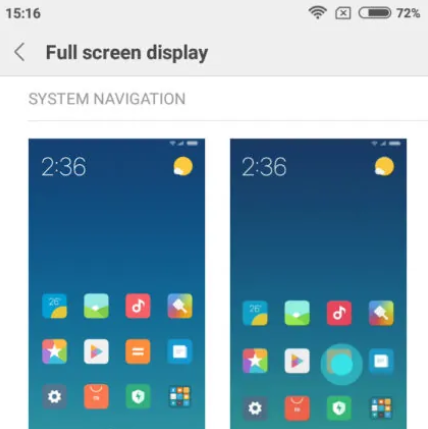
To potentially fix an unresponsive touch screen, you can disable MIUI's full-screen gesture mode which might be causing conflicts. Go to Settings > Additional settings > Full screen display and switch from gestures to the classic "Buttons" navigation bar. After making this change, reboot your phone to apply the setting and see if standard touch interactions are restored.
Fix 5: Decrease RAM usage
- First, navigate to Settings > Battery & performance and tap the settings icon in the top right corner.
- Next, enable the "Turn off mobile data when device is locked" and "Clear cache when device is locked" options, setting the timer for 'Five minutes' to automatically manage background processes.
- Additionally, from the main Battery & performance screen, you can manually tap "Memory" or "Clean up" to instantly close background apps and free up RAM.
- Finally, for a more thorough reset of system processes, restart your phone after making these changes, as this will clear the RAM completely and can resolve temporary software glitches affecting the touch screen.
Fix 6: Update MIUI
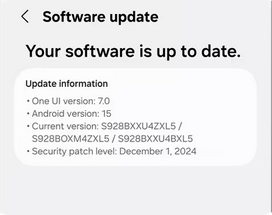
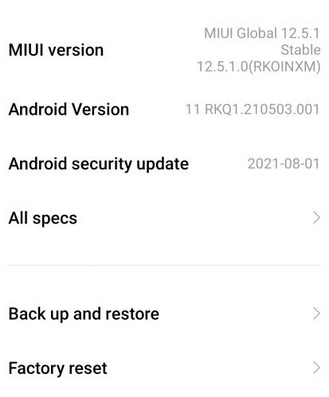
To check for an update, open the Settings app, go to About phone, and tap on MIUI Version. Then, select Check for update and, if one is available, tap Download update and follow the on-screen instructions to install it. Always ensure your phone has sufficient battery and is connected to Wi-Fi before starting the update process to prevent any interruptions.
Fix 7: Try the recovery mode
If the above fails, you can try accessing the recovery menu by pressing and holding the Power button and Volume Up button together until the logo appears, then use the volume keys to navigate to the "Reboot" option and select it with the power button.
Fix 8: Factory/hard reset Xiaomi
A factory (hard) reset can fix touch screen problems caused by software. Before proceeding, back up all important data, as this will completely erase your phone. If your screen is partially usable, perform the reset in Settings > Additional settings > Backup & reset > Erase all data (factory reset) > Confirm.
Fix 9: Contact Mi Support
If none of the steps above work - especially if the diagnostic test fails, the screen is physically cracked, or the phone has gotten wet - the issue is likely a hardware failure (e.g., damaged digitizer, loose connector). In these cases, contacting Mi Support or visiting an authorized service center is the recommended course of action.
Part 3: An Ultimate Way to Fix Xiaomi Touch Screen Not Working [Higher Success Rate]
Android Repair is a dedicated tool designed to resolve critical system malfunctions, such as an unresponsive touch screen or boot loop, on Xiaomi and many other Android phones. It works by automatically downloading and installing the correct firmware, guiding you through a simple process that often takes just minutes to complete.
The software is built to be secure and user-friendly, requiring no technical expertise while aiming to fix the device without causing data loss.
What Are the Key Features of Android Repair?
- Fixes various system issues like white screen, boot loop screen, and other errors without root access.
- Offers fast repair processes with a high success rate for many Android brands.
- Guarantees no data loss during repair for supported Xiaomi, Redmi, and POCO devices.
- Provides a user-friendly interface that is suitable for users without technical skills.
- Supports a wide range of devices, including major brands like Samsung, Xiaomi 17, 17 Pro, 17 Pro Max, POCO, and Redmi.
- Maintains a high success rate for system repair, making it a reliable solution for complex software issues.
- Ensures security during operations, protecting your device from potential threats during the repair.
Best Xiaomi Phone Repair Software Free Download:

How to use Android Repair to touch screen not working/unresponsive on Xiaomi professionally?
- Begin by installing and launching Android Repair on your computer.
- Then, select "System Repair" from the program interface and connect your Xiaomi phone to the computer using a USB cable.
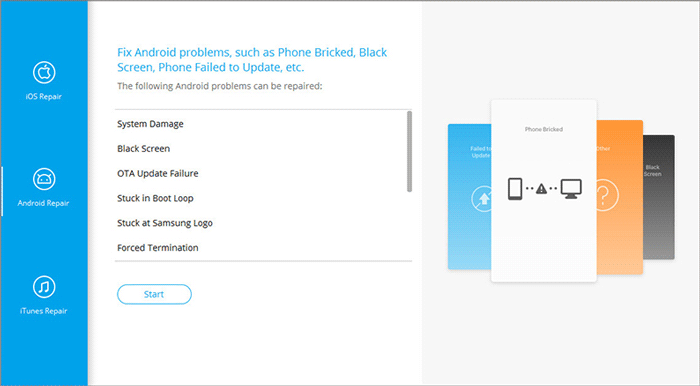
- From the left-hand menu, choose "Android Repair."
- The tool will display the various issues related to Xiaomi that it is capable of resolving.
- Examine the available options and click on "Start."
- In the subsequent window, provide your device information and click "Next" to proceed.
- Enter "000000" in the designated field and select "Confirm."
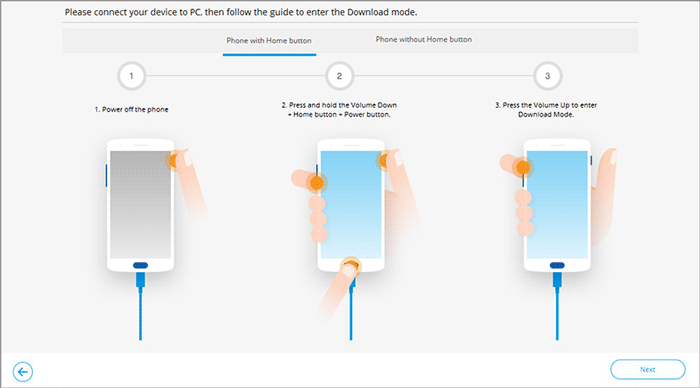
- Place your Xiaomi device into download mode by adhering to the on-screen instructions.
- Once the Xiaomi is in download mode, click "Next" to initiate the firmware download.
- Ultimately, the software will automatically commence the repair of the unresponsive touch screen on the Xiaomi.
Calling It a Wrap
The "Xiaomi touch screen not working" issue requires a complete, not partial, solution. While standard fixes can be uncertain and risky, Android Repair is the most desirable because it offers a complete, automated, and safe end-to-end repair process.
It not only fixes the problem with high success and no data loss but intelligently diagnoses the corruption and handles the complex firmware restoration, providing a definitive resolution and peace of mind.
Related Articles:
How to Unlock Bootloader on Xiaomi/Mi/Redmi? [Complete Analysis]
6 Most Feasible Xiaomi Broken Screen Data Recovery Methods
Screen Mirroring Xiaomi to PC: 7 Tactics to Cast Mi Phone to PC
iPhone Touch Screen Not Working/Responding? 10 Troubleshooting Tips for You
