
4 Trusted Techniques: Transfer WhatsApp from Huawei to Samsung
TL;DR:
When it comes to transferring WhatsApp chat history from Huawei to Samsung, each method has trade-offs:
- Social App Transfer offers low-risk computer-based migration, Google Drive requires Google services (which some Huawei models lack), File Manager needs manual handling with medium-to-high risk, and QR transfer works directly between compatible phones over Wi-Fi.
- For best results, match the method to your Huawei model's capabilities, keep both phones connected and the source data intact, and verify chats appear on Samsung before erasing anything from Huawei.
- Can I transfer WhatsApp from Huawei to Samsung using Smart Switch?
No. Smart Switch transfers many types of data but does not support WhatsApp chat history migration between Android phones. It only works when moving from an iPhone to a brand-new or factory-reset Samsung Galaxy device.
A new Samsung Galaxy offers a chance to upgrade your phone experience, but moving your WhatsApp conversations from Huawei may require extra steps. The good news is that you have several options, from WhatsApp's built-in QR transfer to local file copying and dedicated migration software. In this guide, you'll learn how to transfer WhatsApp from Huawei to Samsung in 4 tested ways.
- Section 1: Transfer WhatsApp from Huawei to Samsung via Social App Transfer [No Data Loss]
- Section 2: Transfer WhatsApp Data from Huawei to Samsung with Google Drive
- Section 3: Transfer WhatsApp Chats from Huawei to Samsung via File Manager
- Section 4: Transfer WhatsApp Conversations from Huawei to Samsung via WhatsApp's Native QR Transfer
- FAQs about Transferring WhatsApp from Huawei to Samsung
Section 1: Transfer WhatsApp from Huawei to Samsung via Social App Transfer [No Data Loss]
For users who want a more direct way to move WhatsApp conversations from Huawei to Samsung, Social App Transfer offers a computer-based option for transferring chats and attachments between supported phones. It can be useful when you prefer not to rely on Google Drive or manually copy backup files.
The process depends on device compatibility and the software version, so check whether your Huawei and Samsung models are supported before starting. Keep both phones connected and avoid erasing the source data until the chats appear on the new device.
|
Social App Transfer - Key Feature
|
Main Details
|
|
WhatsApp Transfer |
Transfers WhatsApp chats from Huawei to Samsung Galaxy S, Z, A, M, F, XCover, Note, J, Tab, including messages and attachments, through a computer. |
|
Cross-Platform Support |
Supports WhatsApp transfers between Android and iOS devices. |
|
Data Coverage |
Moves chat history, photos, videos, audio files, documents, and stickers. |
|
Google Drive Backup Transfer |
Retrieves WhatsApp backups from Google Drive for transfer or restoration on supported devices. |
|
Local Backup |
Saves WhatsApp backups to a computer without requiring cloud storage. |
|
Backup Restoration |
Restores WhatsApp backups to compatible Android or iOS devices. |
|
Chat Preview and Export |
Previews conversations and exports chats in formats such as HTML, PDF, Excel, and CSV. |
|
No Factory Reset Required |
Transfers WhatsApp data without requiring a factory reset of either phone. |
|
Selective Data Handling |
Lets users preview backups and select chats or attachments for export, depending on the operation. |
|
Computer Compatibility |
Available for Windows and macOS, with phone connections generally established through USB. |
Safe Download (No ads, no bundles, & no background uploads):


How to Transfer?
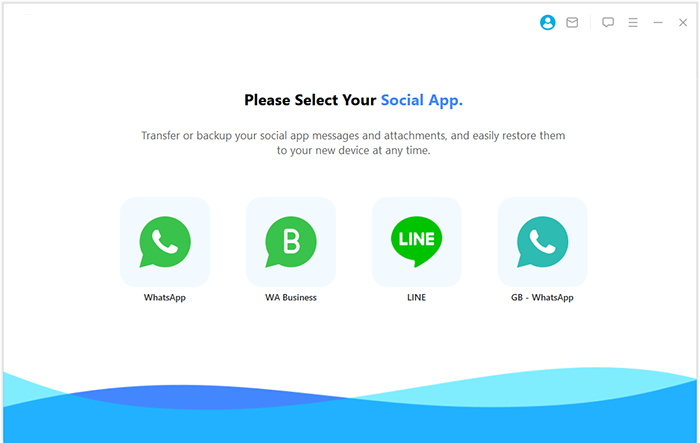
- Download and install the Social App Transfer software on your computer, then open the application.
- In the left sidebar, select the WhatsApp icon.
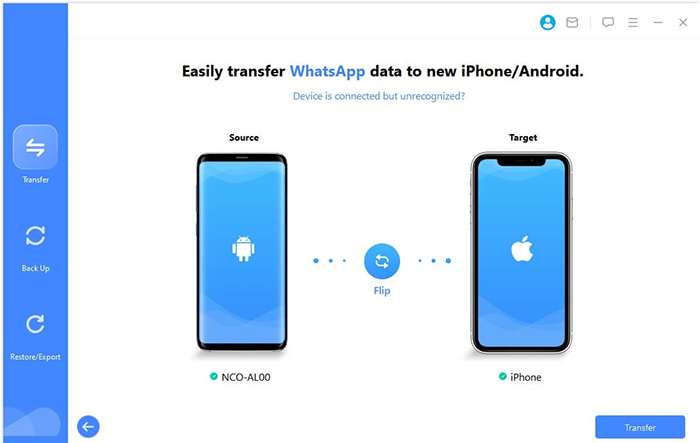
- Use USB cables to connect both the Huawei and Samsung devices to the computer.
- Ensure USB debugging is enabled on both devices, or follow the on-screen instructions to allow your computer to recognize them.
- The tool will automatically detect and display the connected devices, designating one as the source (Huawei) and the other as the target (Samsung).
- If the devices are assigned incorrectly, simply click the "Flip" button to switch them.
- Click "Transfer" in the lower-right corner to begin transferring data from the source phone to the destination phone.
Section 2: Transfer WhatsApp Data from Huawei to Samsung with Google Drive
Cloud backup provides another route, and Google Drive lets you back up WhatsApp chats on a Huawei phone and restore them on Samsung with the same phone number and Google account. (Can I recover WhatsApp to a broken Samsung?) This is straightforward when Google services and WhatsApp's Drive backup option are available on the Huawei device.
Some Huawei models lack native Google Mobile Services, which can prevent this method from working as expected. If the backup option is missing, a different transfer method will be needed.
Important: WhatsApp explains that creating a new Google Account backup overwrites the previous backup associated with that account and phone number. Recommend checking the backup date and completion status before starting a migration.
How to Transfer?
Step 1. Back up WhatsApp on Huawei
- Open WhatsApp on your Huawei phone.
- Go to Settings > Chats > Chat backup.
- Select a Google account under Google Drive settings.
- Tap Back up and wait for the process to finish.
- If available, include videos in the backup if you want to transfer them too.
Step 2. Set up Google services on Samsung
- Connect the Samsung phone to Wi-Fi.
- Add the same Google account used for the Huawei backup.
- Install or update WhatsApp from the Google Play Store.
- Ensure the Samsung phone has enough free storage for the restored data.
Step 3. Restore the backup on Samsung
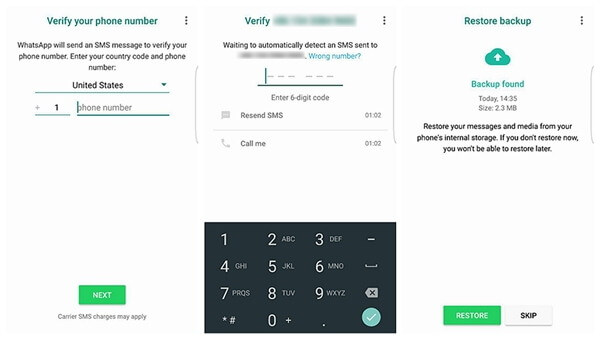
- Open WhatsApp and verify the same phone number used on Huawei.
- When WhatsApp detects the Google Drive backup, tap Restore.
- Wait for your messages to restore, then tap Next.
- Allow photos, videos, and other media to finish downloading or restoring in the background.
NOTE: What if Google Drive backup doesn't work on Huawei? If your Huawei phone lacks Google Mobile Services, you may not be able to back up WhatsApp to Google Drive directly. In that case, consider WhatsApp's built-in Transfer chats feature, which moves chat history directly between compatible Android phones without relying on Google Drive.
Section 3: Transfer WhatsApp Chats from Huawei to Samsung via File Manager
For a no-cloud approach, File Manager can help you copy WhatsApp's local database and media folders from Huawei to Samsung. You can move the files through a computer or USB storage and place them in the corresponding WhatsApp directory on the Samsung phone.
Still, copying these files does not guarantee that WhatsApp will detect or restore the chat history, since database encryption and app versions can affect the result. This method is better suited to users who are comfortable handling folders and backup files manually.
How to Transfer?
Step 1. Locate the WhatsApp backup on Huawei
- Open the Files or File Manager app on your Huawei phone.
- Navigate to Internal storage > Android > media > com.whatsapp > WhatsApp.
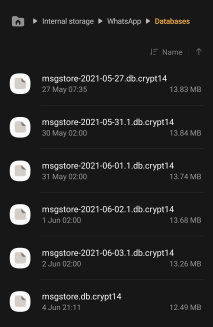
- Open the Databases folder and look for files such as msgstore.db.crypt14 or msgstore.db.crypt15.
- Copy the entire Databases folder to a computer, USB drive, or another accessible storage location.
- If you cannot find this path, check Internal storage > WhatsApp > Databases, particularly on older Android versions. The exact file extension may vary.
Step 2. Copy WhatsApp files to Samsung
- Open File Manager on Huawei and return to the WhatsApp folder.
- Copy the Media folder too, if it exists, to preserve locally stored WhatsApp photos, videos, voice messages, and documents.
- Transfer the copied folders to your Samsung phone using a USB cable and computer, a USB drive, or another file-transfer method.
- On Samsung, place the folders in the corresponding location: Internal storage > Android > media > com.whatsapp > WhatsApp.
- Create the missing folders if necessary, and ensure that Databases and Media are nested under the correct WhatsApp folder.
Step 3. Restore the local backup on Samsung
- Install WhatsApp on Samsung, but don't complete registration before preparing the local backup files.
- Copy the backup files into the correct directory.
- Open WhatsApp and verify the same phone number used on Huawei
- Follow the setup prompts and check whether WhatsApp detects a local backup and offers a Restore option.
- Once restoration finishes, inspect your chat history and media to confirm the transfer worked.
Section 4: Transfer WhatsApp Conversations from Huawei to Samsung via WhatsApp's Native QR Transfer
WhatsApp's native QR transfer feature lets you move chat history and media directly from a Huawei phone to a Samsung device without using Google Drive. Both phones need to be compatible Android devices, connected to the same Wi-Fi network, and kept nearby throughout the process.
How to Transfer?
Step 1. Prepare WhatsApp on Both Phones
- Update WhatsApp on your Huawei phone to the latest available version.
- Connect both phones to Wi-Fi and enable location permissions if requested.
- Keep both devices charged and close to each other.
- Install WhatsApp on Samsung, but don't finish setting it up before you're ready to transfer.
Step 2. Start the Transfer on Samsung
- Open WhatsApp on your Samsung phone.
- Accept the terms and conditions.
- Register the same phone number used on Huawei.
- When prompted, select the option to transfer chat history from your old phone. A QR code should appear on Samsung.
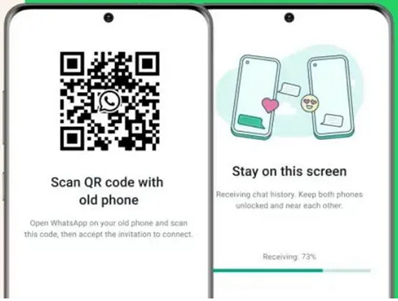
Step 3. Scan the QR Code on Huawei
- Open WhatsApp on Huawei.
- Navigate to Settings > Chats > Transfer chats.
- Tap Start or Continue, depending on your version.
- Use Huawei to scan the QR code displayed on Samsung.
- Accept the connection request and grant any required permissions.
Step 4. Complete the WhatsApp Transfer
- Keep both phones unlocked and WhatsApp open.
- Wait for the transfer progress to reach 100%.
- Finish the setup on Samsung and check that your conversations and media are available.
Tips: You can still use Smart Switch to migrate other supported data from Huawei to Samsung, then transfer WhatsApp separately using its built-in Chat Transfer feature. Avoid deleting WhatsApp data from Huawei until you have confirmed that your conversations are available on Samsung.
FAQs about Transferring WhatsApp from Huawei to Samsung
Q1: Why can't I back up WhatsApp to Google Drive on my Huawei phone?
Some Huawei models lack Google Mobile Services, preventing Google Drive backup from working normally. If the backup option is unavailable, try direct chat transfer or another compatible migration method.
Q2: Can I transfer all WhatsApp chats, photos, videos, and voice messages to Samsung?
Most chats and media can be transferred, depending on the method and device compatibility. Google Drive backups can include videos if enabled, while direct chat transfer supports chats and media. Check your important files before wiping Huawei.
Q3: Can I use the same WhatsApp number on Huawei and Samsung?
Yes. You can register the same number on Samsung, but this generally logs WhatsApp out on Huawei. To use both phones, consider WhatsApp's linked-device feature instead.
Q4: Will transferring WhatsApp delete existing chats on Samsung?
It may, depending on the migration method. Restoring a backup can replace or conflict with existing conversations rather than merge them. Back up important Samsung chats before proceeding.
Q5: What should I do if WhatsApp does not detect my backup on Samsung?
Check that you use the same phone number and, for Google Drive, the same Google account. Ensure the backup is complete, permissions are granted, and sufficient storage is available. If detection still fails, try direct chat transfer or a compatible migration tool.
Q6: What is the most suitable method for me?
Overall, WhatsApp's QR transfer is a convenient direct option, while Google Drive and dedicated transfer software - Social App Transfer offer alternatives depending on your Huawei model, available tools, and backup needs.
|
Method
|
Requirements
|
Risk of Data Loss
|
|
Social App Transfer
|
Computer, transfer software, and USB cables |
Low if the transfer completes successfully; back up first. |
|
Google Drive
|
Google account, internet, and sufficient storage |
Medium to low if the backup is complete and restorable. |
|
File Manager
|
USB cable, computer, and file access |
Medium to high due to missing or incompatible files. |
|
WhatsApp QR Transfer
|
Both phones, same phone number, and Wi-Fi enabled |
Medium to low if the transfer completes successfully; verify chats before erasing the old phone. |
Related Articles:
5 Most Productive Ways to Hard/Factory Reset Huawei Phone
How to Retrieve Deleted WhatsApp Messages on Huawei with/without Backup?
How to Restore WhatsApp Backup from iCloud to Android? 4 Simple Ways
How to Fix WhatsApp Chat Transfer Not Working? 14 Optimal Solutions
