
11 Helpful Solutions to WhatsApp Not Backing Up to Google Drive
TL;DR:
A more flexible backup method can help avoid problems caused by Google Drive failures, account errors, or storage limitations. MobiKin WhatsApp Recovery for Android provides a convenient way to back up Android WhatsApp to a PC without Google Drive while keeping chats, media files, and other important data accessible.
"For the past three months, I've been experiencing issues with uploading my WhatsApp backup to Google Drive as it just get stuck in a certain percentage of uploading." -- from Reddit
Many Android users rely on Google Drive to keep a copy of their WhatsApp chats, photos, and other important files. However, issues may appear when WhatsApp fails to upload data, leaving users searching for solutions to WhatsApp not backing up to Google Drive.
This article covers the possible causes and practical fixes, especially for those who need to restore WhatsApp chats when switching to a new Android phone but find that the backup is unavailable.
Part 1: Why Isn't WhatsApp Backing Up to Google Drive Even I Have Enough Storage
Even with enough Google Drive storage, WhatsApp backup may still fail due to various app, account, or system-related problems. The following are the common reasons why WhatsApp is not backing up chats to Google Drive:
- Unstable Internet connection.
- Insufficient internal phone storage.
- Incorrect Google account linked with WhatsApp.
- Google Drive access or authorization issues.
- Corrupted WhatsApp backup files or chat data.
- Outdated WhatsApp or Google Drive app version.
- Excessive WhatsApp cache files.
- Incorrect WhatsApp backup configuration.
- Damaged or failed existing Google Drive backup.
- Google account synchronization errors.
- Oversized WhatsApp backup due to media files.
- Temporary WhatsApp or system glitches.
You Might Also Enjoy: How to Access WhatsApp Backup on Google Drive, iCloud, iTunes, or Locally?
Part 2: How to Fix WhatsApp Not Backing Up to Google Drive? [11 Ways]
If WhatsApp refuses to back up chats to Google Drive, the cause may range from an unstable network to an incorrect Google account, excessive cache, insufficient storage, or an app-version problem, as said above. The following 11 methods are based on the troubleshooting steps recommended:
Way 1: Verify Internet connection
A weak or unstable connection can interrupt the WhatsApp backup process. Use a stable Wi-Fi connection or switch between Wi-Fi and cellular data if the current connection is causing problems.
- Open a browser and load a webpage to check whether the connection works normally.
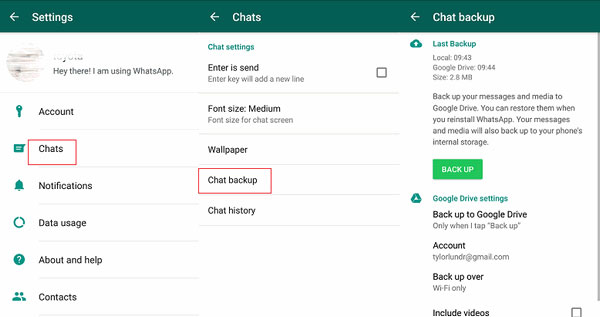
- Go to WhatsApp > Settings > Chats > Chat backup > Back up over.
- Choose Wi-Fi or Wi-Fi or Cellular, depending on your available connection.
- Try tapping Back up again.
Way 2: Restart your Android device
A temporary system or app glitch may prevent WhatsApp from completing its connection with Google Drive. Restarting the phone can clear these temporary issues and is one of the quick fixes.
- Press and hold the Power button.
- Tap Restart.
- Wait for the phone to boot completely.
- Open WhatsApp and try the backup again.
Click to See: How to Fix WhatsApp Chat Transfer Not Working? 14 Optimal Solutions
Way 3: Check Google Account on Android
WhatsApp needs the correct Google account to create or access its Drive backup. If authentication has failed, removing the account and adding it again can refresh the connection.
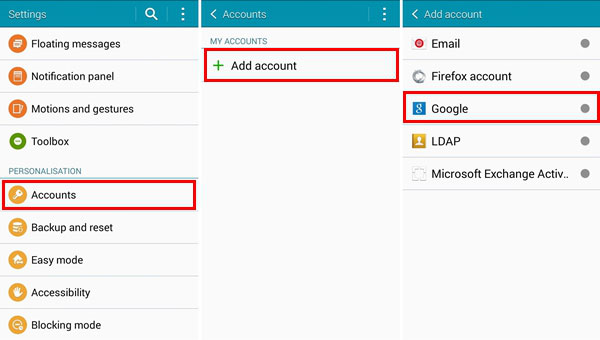
- Open Settings > Accounts or Passwords & accounts.
- Select the Google account linked to WhatsApp.
- Tap Remove account and confirm the action.
- Return to the same menu and choose Add account > Google.
- Sign in with the correct Google account.
- Open WhatsApp and try backing up again. (Also check that you are using the same phone number associated with your WhatsApp account)
Way 4: Check Google Drive backup Settings
Sometimes the backup feature is simply disabled or configured for the wrong account or connection. Check these settings before trying more advanced fixes.
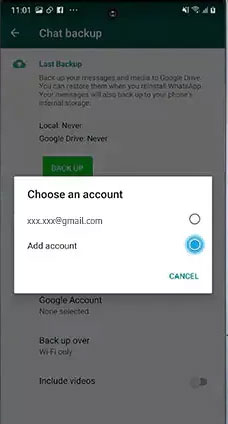
- Open WhatsApp > Settings > Chats > Chat backup.
- Tap Google Account and select the account you want to use.
- Under Back up to Google Drive, make sure Never is not selected.
- Choose Daily, Weekly, or Monthly.
- Check Back up over and select a connection that matches your current network.
- Tap Back up to start a manual backup.
Way 5: Exclude video in the backup
Large videos can make a WhatsApp backup considerably bigger and may cause the process to become stuck. Turn off video inclusion temporarily to see whether messages and other files can then be backed up successfully.
- Open WhatsApp > Settings > Chats > Chat backup.
- Find Include videos.
- Turn the option off.
- Tap Back up and wait for the process to finish.
If the backup succeeds, you can later enable videos and try again after checking your available storage.
Way 6: Clear WhatsApp cache
Accumulated or corrupted cache files can interfere with WhatsApp's normal operations, including Google Drive backups. Clearing the cache removes temporary files without requiring you to delete your WhatsApp chats.
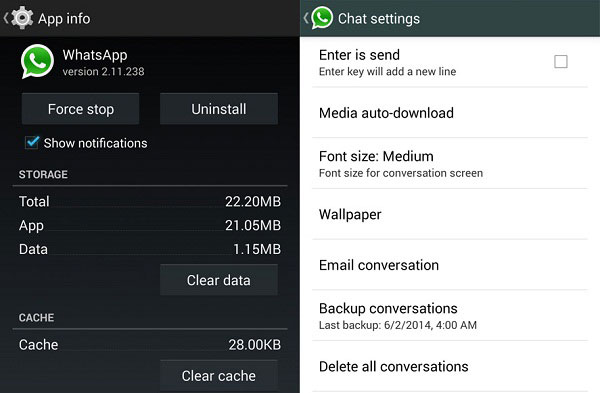
- Open Settings on your Android phone.
- Go to Apps or Apps & notifications.
- Select WhatsApp.
- Tap Storage & cache.
- Select Clear cache.
- Reopen WhatsApp and attempt the backup again.
Way 7: Resign in to WhatsApp account
If WhatsApp is having trouble communicating with its servers, signing in again may restore the connection. Create a local backup first because clearing WhatsApp data or signing back in can otherwise put your chats at risk.
- First, make sure your WhatsApp data has a local backup.
- Go to Settings > Apps > WhatsApp > Storage and choose Clear data if appropriate for your device.
- Open WhatsApp again.
- Enter your phone number and verification code.
- Restore the local backup when prompted.
- Try backing up the chats to Google Drive again.
Way 8: Delete the backup and create a new one
A failed or corrupted existing backup may prevent a new backup from being created. Delete the previous WhatsApp backup from Google Drive and then start a fresh backup.
- Open the Google Drive app.
- Open the menu and select Backups.
- Locate the WhatsApp backup.
- Tap the three-dot menu next to it.
- Select Delete backup.
- Reopen WhatsApp and create a new Google Drive backup.
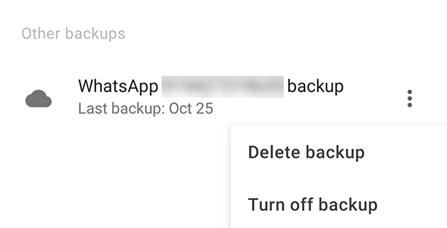
Tips: Only use this method if you are certain you no longer need the existing Google Drive backup.
Way 9: Revoke WhatsApp access to the Drive
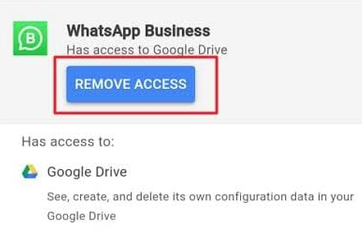
A broken authorization link between WhatsApp and your Google account can also stop backups. Removing WhatsApp's Drive access and granting it again gives the connection a fresh authorization.
- Open your Google Account settings.
- Go to Security > Manage third-party access.
- Find WhatsApp Messenger.
- Select Remove access.
- Return to WhatsApp and open Settings > Chats > Chat backup.
- Select your Google account and authorize Drive access again.
- Start a new backup.
Way 10: Roll back to the old WhatsApp version
A buggy beta or newly released WhatsApp version can occasionally interfere with backup functions. Return to an older stable version if the problem began after a WhatsApp update.
- Confirm that the problem appeared after a recent WhatsApp update or while using a beta release.
- Make a local backup of your WhatsApp data first.
- Uninstall the current WhatsApp version if necessary.
- Install a trusted older stable version.
- Sign in with your phone number.
- Restore your local backup and test Google Drive backup again.
Because installing an APK from an external source carries security risks, use a reputable source and avoid modified WhatsApp packages.
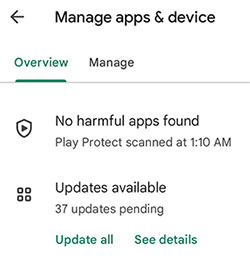
Way 11: Update Google Drive
An outdated Google Drive app may have compatibility problems with WhatsApp's backup process. Check Google Drive for an available update:
- Open the Google Play Store.
- Tap your profile icon.
- Select Manage apps & device.
- Find Google Drive in the available updates.
- Tap Update.
- After the update finishes, open WhatsApp and try Settings > Chats > Chat backup > Back up again.
Part 3: Back Up Android WhatsApp to PC without Google Drive [Smooth]
With a focus on WhatsApp data perservation, MobiKin WhatsApp Recovery for Android helps users back up Android WhatsApp to PC without Google Drive and recover important chats when needed. It supports the recovery of messages, photos, videos, contacts, links, stickers, and other WhatsApp files from computer backups.
The program also allows users to preview data before recovery and works with a wide range of Android devices, including those running Android 16/17.
Core Highlights of MobiKin WhatsApp Recovery for Android:
|
MobiKin WhatsApp Recovery for Android
|
Description
|
|
Back up WhatsApp without Google Drive |
Create WhatsApp backups directly on your PC without relying on Google Drive. |
|
Selective WhatsApp recovery |
Recover specific WhatsApp data from computer backups instead of restoring everything. |
|
Simple recovery process |
Complete WhatsApp backup and recovery operations with an easy-to-follow interface. |
|
Recover multiple types of WhatsApp data |
Restore messages, media files, contacts, links, stickers, and other WhatsApp content. |
|
Preview and choose data before recovery |
View available WhatsApp data and select the files you want to recover. |
|
Support a wide range of Android devices |
Work with various Android phones and support the latest Android 16/17 systems. |
|
Restore WhatsApp data without overwriting existing files |
Recover needed WhatsApp content while keeping current data on your device intact. |
|
Protect user privacy |
Keep personal WhatsApp data secure without exposing private information. |
Safe and Free Download:


How to back up WhatsApp to a PC fluently via MobiKin WhatsApp Recovery for Android?
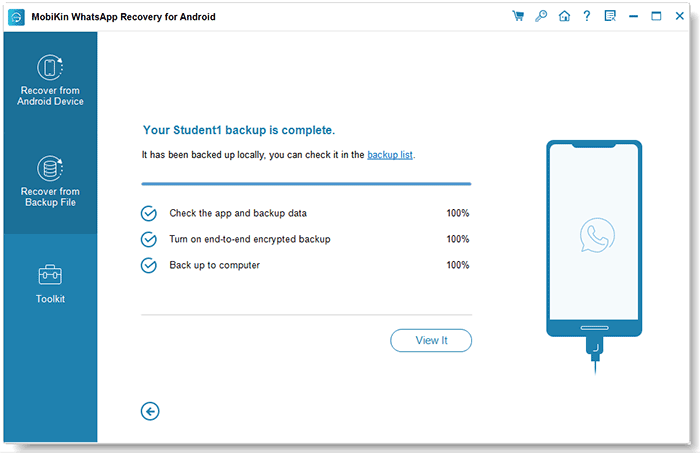
Step 1. Start by downloading and installing the MobiKin WhatsApp Recovery for Android software on your computer. After installation, select "Recovery from Android Device" from the options available on the left panel.
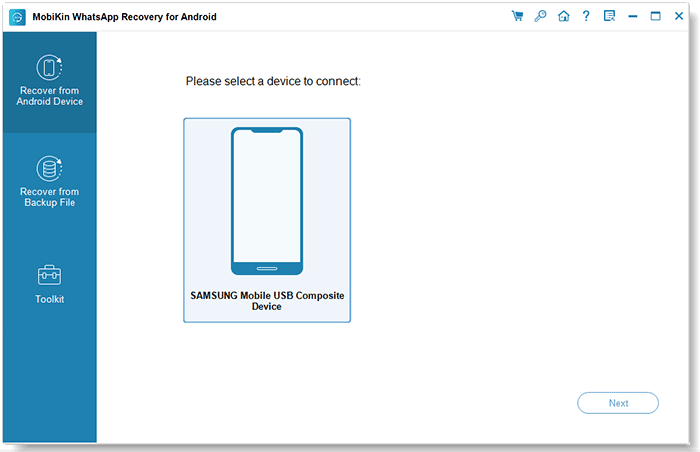
Step 2. Then, connect your Android phone or tablet to the computer using a USB cable and enable USB debugging. Follow the on-screen instructions to turn off end-to-end encryption for the backup.
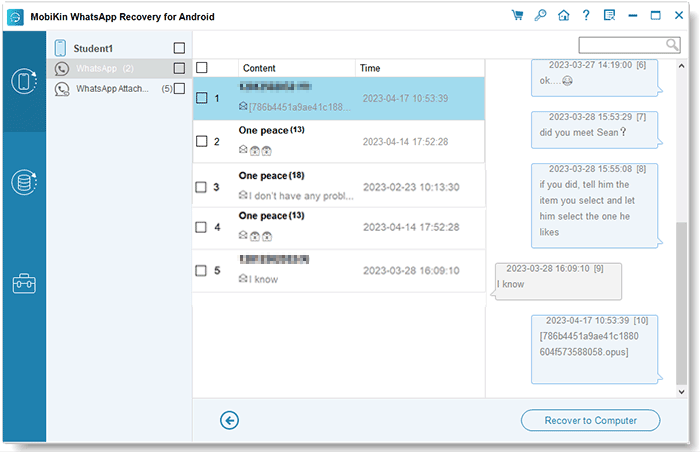
Step 3. The backup process will commence automatically. Once it is complete, you will have the ability to view chat history and attachments on your computer. Utilize the preview feature to select specific items for recovery.
Step 4. Finally, click on "Recover to Computer" to export the chosen WhatsApp conversations in your preferred format for easy access or future reference.
In a Nutshell
A failed WhatsApp backup can happen for many reasons. By identifying the actual cause and applying the right solution, you can improve the chances of creating a complete WhatsApp backup and keeping your conversations accessible.
Before deleting any existing WhatsApp backup or reinstalling the app, create an extra copy of your important chats whenever possible. A backup stored in another location can provide additional protection if Google Drive backup fails again.
Related Articles:
WhatsApp Transfer: 3 Methods to Move WhatsApp Media to SD Card
[Hot] Where Are WhatsApp Messages Stored on Android/iPhone/PC?
How to Fix Chat Lock Not Showing in WhatsApp? 7 Effective Ways Here
How to Transfer WhatsApp to New Phone with Same Number/SIM? [2026]
