
9 Reliable Solutions to Move to iOS Not Showing WhatsApp [Proven]
TL;DR:
Move to iOS can transfer WhatsApp from Android to iPhone when the required conditions are met, but the missing WhatsApp option usually comes from device, app, connection, or setup problems.
- For WhatsApp migration when Move to iOS does not show the app, Social App Transfer is worth considering. This product moves chats, photos, videos, and attachments between Android and iPhone, and supported cases do not require a factory reset.
"Got to know that the Move to iOS app should be able to support WhatsApp migration now, but I don't see it in spite of trying multiple times." -- from discussions.apple.com
Does Move to iOS work for WhatsApp?
Yes. Apple confirms that Move to iOS can transfer WhatsApp messages and media from Android to iPhone when the requirements are met. However, users may encounter the "Move to iOS Not Showing WhatsApp" issue because of device, app, setup, or connection problems. This article explains why it happens and provides 9 ways to fix it.
- Part 1: Why Is Move to iOS Not Showing WhatsApp
- Part 2: How to Fix Move to iOS Not Showing WhatsApp
> Fix 1: Check the Requirements
> Fix 2: Connect Devices to the Same Wi-Fi Network
> Fix 3: Charge Both Phones
> Fix 4: Restart Your Devices
> Fix 5: Uninstall Background Apps
> Fix 6: Set iPhone Language to English
> Fix 7: Check OS for Update
> Fix 8: Use WhatsApp Beta Version
> Fix 9: Factory Reset Your iPhone - Part 3: Best Replacement for Move to iOS to Move WhatsApp Fluently
- FAQs about Move to iOS Not Showing WhatsApp
Part 1: Why Is Move to iOS Not Showing WhatsApp
Several factors may cause this issue, including device compatibility, outdated apps, connection problems, and iPhone setup requirements. Here are the full causes:
- Large WhatsApp data: A very large chat history with many photos and videos may make the preparation process slow or fail.
- Incompatible device requirements: The Android phone or iPhone may not meet the requirements for WhatsApp migration.
- Unsupported WhatsApp setup: Certain app versions or configurations may not be compatible with the migration process.
- Unstable Wi-Fi connection: A poor connection between the Android phone and iPhone can interrupt the transfer.
- Outdated WhatsApp or Move to iOS: Older app versions may cause compatibility problems.
- The iPhone has already been set up: The official migration process generally requires a new or factory-reset iPhone.
- Background apps interfere: Other apps running on Android may affect the migration process.
- Incompatible OS or app versions: Unsupported Android, iOS, or WhatsApp versions may cause the transfer option to disappear.
- Temporary system glitches: Errors in Android, iOS, WhatsApp, or Move to iOS can stop the migration.
- The official transfer process does not fit your needs: Users who want to transfer WhatsApp without resetting an already configured iPhone may need a compatible third-party solution.
- Insufficient battery or storage: Low battery or limited iPhone storage can prevent large WhatsApp data transfers.
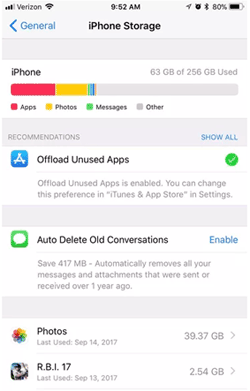
How much time does Move to iOS take for WhatsApp? Move to iOS may take anywhere from a few minutes to several hours to transfer WhatsApp, depending mainly on the amount of chat history and media. A small WhatsApp account may finish relatively quickly, while large collections of photos, videos, and files can take much longer. Keeping both phones charged, nearby, and connected throughout the process can help avoid delays or interruptions.
Part 2: How to Fix Move to iOS Not Showing WhatsApp
If WhatsApp is missing from the Move to iOS transfer list, these nine fixes cover device requirements, connection problems, app compatibility, and iPhone setup. Try the simpler solutions first, and keep the factory reset option for last.
Fix 1: Check the Requirements
Move to iOS only supports WhatsApp migration when the devices and apps meet the required conditions. Check the following before trying another transfer.
- Android version: Use Android 5.0 or later, or the supported version specified by the current migration requirements.
- iPhone: Make sure the iPhone meets the required iOS version and is new or has been factory reset.
- WhatsApp: Install WhatsApp on the Android phone and ensure it is updated.
- Phone number: Use the same phone number on the iPhone as on the Android device.
- Storage: Ensure the iPhone has enough free space for your WhatsApp chats and media.
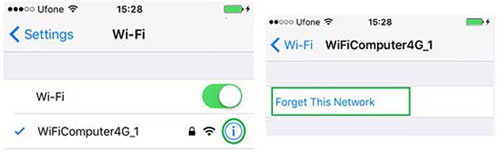
Fix 2: Connect Devices to the Same Wi-Fi Network
Move to iOS needs a suitable connection between your Android phone and iPhone. Check the network settings and retry the transfer.
- Open Settings on both phones and turn on Wi-Fi.
- Connect the Android phone and iPhone to the same Wi-Fi network if the transfer setup requires it.
- Turn off mobile data on the Android phone temporarily.
- Disable VPNs or network-related apps that may interfere with the connection.
- Keep both devices close together and try Move to iOS again.
Fix 3: Charge Both Phones
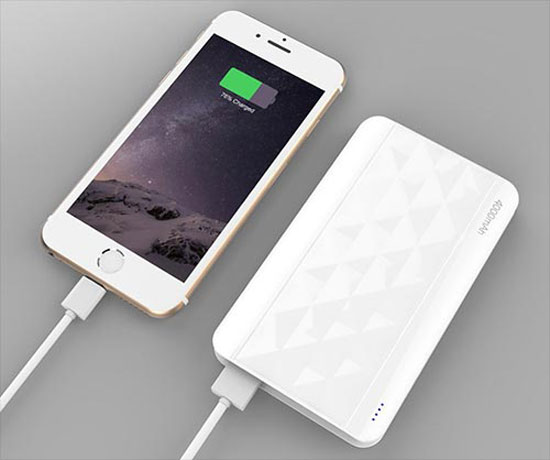
Low battery or interruptions during the transfer can cause problems. Connect both devices to their chargers and keep them powered throughout the migration.
- Charge the Android phone and iPhone before starting.
- Plug both phones into a power source during the transfer.
- Avoid using either phone while WhatsApp data is being moved.
- Make sure the charging cables and adapters work properly.
Fix 4: Restart Your Devices
A temporary software or connection glitch may prevent WhatsApp from appearing in Move to iOS. Restart both phones to refresh their system processes, then open Move to iOS and check again.
Fix 5: Uninstall Background Apps
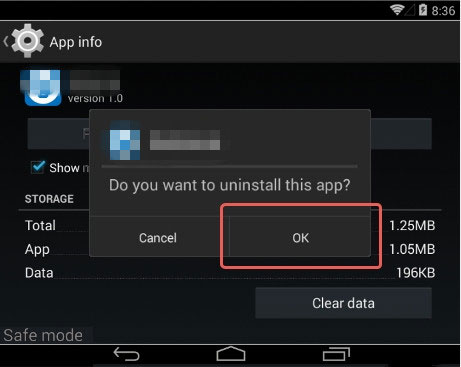
Some background apps may consume system resources or interfere with the transfer. Close unnecessary apps and remove any recently installed apps that could be causing the problem.
- Open the Android phone's Settings.
- Go to Apps or App Management.
- Find unnecessary apps that run in the background.
- Uninstall apps you no longer need, especially those that manage network connections or phone transfers.
- Restart the phone and try Move to iOS again.
Fix 6: Set iPhone Language to English
Changing the iPhone language to English is suggested by some troubleshooting guides when WhatsApp does not appear in Move to iOS. You can try this before restarting the transfer (This is a troubleshooting suggestion, not a guaranteed fix).
- Open Settings on your iPhone.
- Tap General > Language & Region.
- Select iPhone Language.
- Choose English and confirm the change.
- Restart Move to iOS and check whether WhatsApp is available.
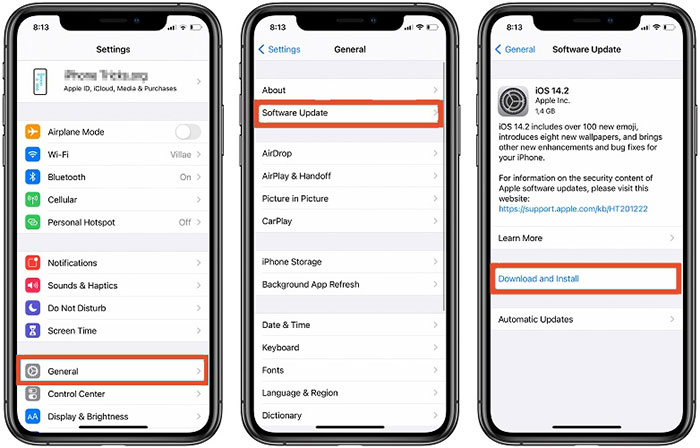
Fix 7: Check OS for Update
Outdated Android or iOS software may cause compatibility problems with WhatsApp migration. Update the operating systems and retry the transfer.
- On Android, open Settings and look for System Update or Software Update.
- Download and install any available update.
- On iPhone, go to Settings > General > Software Update.
- Install a compatible iOS update if one is available.
- Update WhatsApp and Move to iOS, then restart the transfer. (What if the iPhone update failed?)
Fix 8: Use WhatsApp Beta Version
Some troubleshooting guides suggest trying a WhatsApp Beta version when the normal app does not show the migration option. If you decide to test this approach, use an official beta channel and keep a backup of your chats first.
- Check whether WhatsApp Beta is available through the official Google Play testing program.
- Install the beta only from a legitimate source.
- Update Move to iOS as well.
- Restart both phones and check the transfer list again.
- If the beta does not help, return to the stable WhatsApp version.
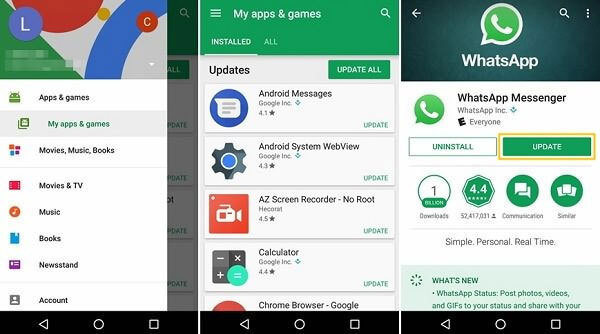
Note: A beta version is not a guaranteed solution, and availability may vary. Do not install an unofficial APK from an unknown website. If it doesn't help, try to update the app on your Android phone before starting Move to iOS again.
- Open Google Play Store on Android.
- Search for WhatsApp Messenger.
- Tap Update if a newer version is available.
- Restart the phone after the update.
- Open Move to iOS and check whether WhatsApp now appears.
Fix 9: Factory Reset Your iPhone
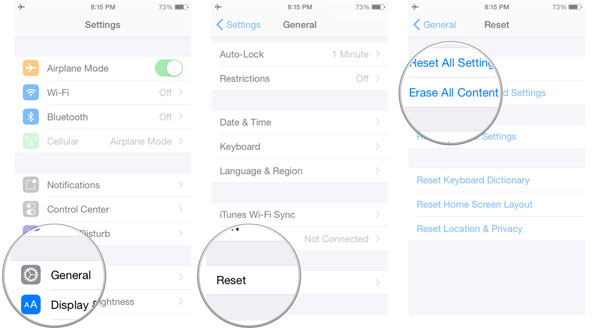
If the iPhone has already been set up, a factory reset may be necessary to use the official Move to iOS migration process. Back up all important iPhone data first, because resetting erases the content and settings on the device.
- Back up your iPhone data to iCloud or a computer.
- Open Settings > General.
- Tap Transfer or Reset iPhone.
- Select Erase All Content and Settings.
- Follow the on-screen instructions to reset the device.
- During the new setup, select From Android when the transfer option appears.
- Open Move to iOS on Android and transfer WhatsApp when it is listed.
Important: Factory resetting the iPhone is not a guaranteed fix for every WhatsApp migration issue. If WhatsApp still does not appear after the reset, check the current official migration requirements and consider a compatible alternative.
Part 3: Best Replacement for Move to iOS to Move WhatsApp Fluently
For a smoother WhatsApp migration between Android and iPhone, Social App Transfer can serve as a strong replacement for Move to iOS. It lets you transfer WhatsApp chats, photos, videos, and other attachments across different platforms through a straightforward process.
When Move to iOS fails to show WhatsApp or causes transfer hassles, this secure alternative provides another way to move your WhatsApp data with fewer setup restrictions.
Main Characteristics:
|
Feature
|
Description
|
Benefit
|
|
Cross-platform WhatsApp Transfer
|
Move WhatsApp data between Android and iPhone, iPhone and iPhone, or Android and Android. |
Enables flexible device switching across platforms. |
|
Move to iOS Alternative
|
Transfer WhatsApp without depending on Move to iOS restrictions. |
Helps avoid transfer issues and setup limitations. |
|
Fluent Transfer Process
|
Complete migration through a simple computer-based workflow. |
Makes WhatsApp transfer smoother and easier. |
|
No Factory Reset Required
|
Move WhatsApp data without erasing the target phone in supported cases. |
Keeps existing phone data available. |
|
WhatsApp Data Transfer
|
Transfer chats, photos, videos, audio, and attachments. |
Preserves important conversations and files. |
|
WhatsApp Backup
|
Back up WhatsApp data to a computer. |
Provides an extra local backup option. |
|
No Factory Reset Required
|
Move WhatsApp data without erasing the target phone in supported cases. |
Keeps existing phone data available. |
|
Flexible Restore
|
Restore WhatsApp backups to Android or iPhone. |
Simplifies data recovery and device changes. |
|
Preview & Export Data
|
Preview and export WhatsApp chats in common formats. |
Lets users save and check important records. |
|
Supports WhatsApp Business
|
Transfer WhatsApp Messenger, Business, and GB WhatsApp data. |
Fits more messaging needs. |
|
Local Data Processing
|
Manage WhatsApp data through a computer. |
Gives users more control over their data. |
Free and Safe Download:


How to use the best Move to iOS alternative - Social App Transfer?
- Start by downloading and installing Social App Transfer on your computer, then launch the program.
- From the menu on the left, select the "WhatsApp" icon.
- Next, connect both mobile devices (Android/iOS) to the computer using USB cables.
- Follow the on-screen instructions to ensure both devices are recognized properly.
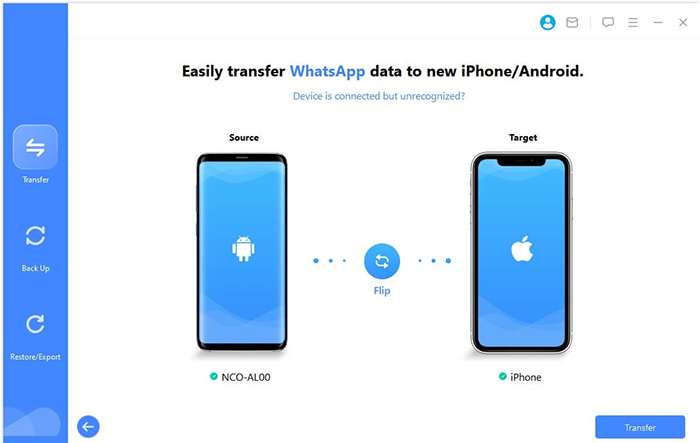
- The software will quickly detect and display the devices, assigning one as the source and the other as the destination.
- If the roles are assigned incorrectly, simply click the "Flip" button in the interface to fix it.
- To begin the transfer, click "Transfer" in the bottom-right corner.
FAQs about Move to iOS Not Showing WhatsApp
Q1. Does Move to iOS transfer WhatsApp Business?
WhatsApp Business may have different migration requirements from standard WhatsApp. If WhatsApp Business is not appearing in Move to iOS, check whether your app version, Android phone, and iPhone meet the current supported conditions. Avoid assuming that a standard WhatsApp transfer method works for every Business account.
Q2. Why is WhatsApp not transferring even though it appears in Move to iOS?
WhatsApp may appear in the transfer list but fail during migration because of insufficient storage, an interrupted connection, incompatible software versions, or a problem with the app's data. Update both apps, free up iPhone storage, and retry the transfer from the beginning if necessary.
Q3. Will Move to iOS transfer WhatsApp photos, videos, and voice messages?
Move to iOS can transfer supported WhatsApp chat data and media, including messages, photos, videos, and voice messages. The exact data that migrates depends on the supported transfer process and the versions of WhatsApp and the operating systems.
Q4. Does Move to iOS transfer WhatsApp call history?
WhatsApp chat messages and media are part of the supported migration. However, WhatsApp call history may not transfer in the same way as messages. If preserving call records is important, verify the current migration limitations before proceeding.
Q5. Why does Move to iOS get stuck while transferring WhatsApp?
The transfer may become stuck because of a large WhatsApp data size, unstable Wi-Fi, low storage, or an app error. Keep both phones close together, plugged in, and connected to the same transfer network. Avoid opening other apps during the migration.
Q6. Is it safe to use a third-party tool when Move to iOS cannot find WhatsApp?
Safety depends on the software provider and how the tool handles your WhatsApp data. Choose a reputable tool, download it from the official website, and review its privacy policy. Avoid giving unknown software access to sensitive chats or entering your WhatsApp credentials into suspicious websites.
Related Articles:
[Hot] Where Are WhatsApp Messages Stored on Android/iPhone/PC?
4 Tested Methods to Back Up WhatsApp Photos/Videos [Android/iOS]
How to See Deleted Messages on WhatsApp in 7 Ways? [Android/iOS]
