
4 Time-tested Approaches to Transfer WhatsApp Business to a New Phone
TL;DR:
Given that WhatsApp Business conversations hold irreplaceable business data and their loss can impede daily operations, this article outlines four reliable ways to transfer them to a new phone:
- For users switching between different platforms (e.g., Android to iOS) or facing restrictions with native transfer methods, Social App Transfer offers a direct cross-device solution.
- Selective chat and attachment migration, no requirement to reset the new phone, and a relatively simple procedure are among the main advantages of this tool.
"I got a new iPhone and need help transferring WhatsApp Business account from Android to iPhone with Mac. I am unsure of the specific steps and processes involved in doing so." -- from discussions.apple.com
Why are WhatsApp Business conversations more valuable than expected? They often contain customer inquiries, order details, important contacts, media files, and other business records that can be difficult to replace.
When moving to a new phone, losing these conversations could disrupt daily communication and leave important information behind. This article lets you know how to transfer WhatsApp Business to a new phone safely in 4 flexible ways.
- Way 1: Transfer WhatsApp Business to New Phone Directly [Limited]
- Way 2: Transfer WhatsApp Business to a New Phone Skillfully [No Limits]
- Way 3: Transfer WhatsApp Business Data to a New Phone via Google Account
- Way 4: Transfer WhatsApp Business Chats to a New Phone Using iCloud
- FAQs about Transferring WhatsApp Business to a New Phone
Way 1: Transfer WhatsApp Business to New Phone Directly [Limited]
Transferring WhatsApp Business to a new phone depends on whether you are moving between Android devices, iPhones, or switching platforms. Before starting, create a fresh backup and keep the old phone active until you have confirmed that all business data has transferred correctly. Below is how:
- Identify the Device Move - Determine whether the transfer is Android-to-Android, iPhone-to-iPhone, or cross-platform. This decides which backup, restore, or direct-transfer method you can use.
- Create a Fresh Backup - Make a complete, up-to-date WhatsApp Business backup on the old phone before beginning the transfer. This provides a recovery option if the direct transfer is interrupted.
- Use the Official Transfer Method - Set up WhatsApp Business on the new phone and follow its supported transfer or restore instructions. Keep both devices connected and follow the prompts until the process finishes.
- Keep the Old Phone Active - Do not delete WhatsApp Business or reset the old phone immediately. Keeping it available helps prevent missed customer messages if the migration has not fully completed.
- Verify the New Phone - Check your chats, photos, videos, labels, and important business settings on the new device. Once everything is confirmed, you can safely reset or erase the old phone.
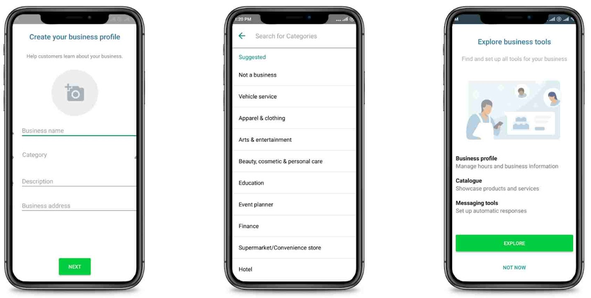
Note: This direct approach is mainly suitable when the devices meet WhatsApp's supported transfer requirements. It may not cover every phone combination or cross-platform scenario. WhatsApp also notes that migration success is not guaranteed for every device configuration.
You Might Also Enjoy: How to Restore WhatsApp Business Backup on iPhone/Android? 5 Options
Way 2: Transfer WhatsApp Business to a New Phone Skillfully [No Limits]
Can I transfer WhatsApp Business from Android to iPhone or the other way around? Yes. For a straightforward way to move WhatsApp Business data, Social App Transfer supports transferring WhatsApp Business chats, media, and other data to a new phone.
It works across different phone platforms, making it useful when switching between Android and iPhone or moving between devices on the same platform. The transfer process helps preserve important business conversations and files without requiring you to move them manually.
Key Features of Social App Transfer:
|
Feature
|
Description
|
|
WhatsApp Business Transfer |
Move WhatsApp Business data between Android and iPhone. |
|
One-Click Transfer |
Transfer data with simple steps and no factory reset. |
|
Cross-Platform Support |
Supports Android-to-iPhone, iPhone-to-Android, and same-platform transfers. |
|
Multiple Data Types |
Transfer chats, photos, videos, audio, documents, and stickers. |
|
Different Numbers |
Transfer data between devices with different phone numbers. |
|
Selective Transfer |
Choose specific chats or attachments to transfer. |
|
Computer Backup |
Back up WhatsApp Business data to PC or Mac. |
|
Flexible Restore |
Restore backups without overwriting existing data. |
|
Chat Export |
Export chats and attachments in HTML, PDF, Excel, or CSV. |
|
Broad Compatibility |
Supports a wide range of Android and iOS devices (Andorid 17/iOS 26 supported) |
Free and safe download:


How to transfer WhatsApp Business from one phone to another using Social App Transfer?
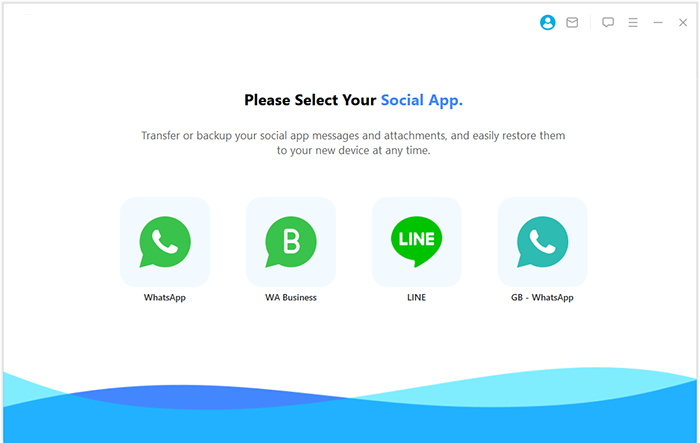
- To proceed, first download and install the Social App Transfer application on your computer and launch it.
- Navigate to the WhatsApp Business option from the left panel.
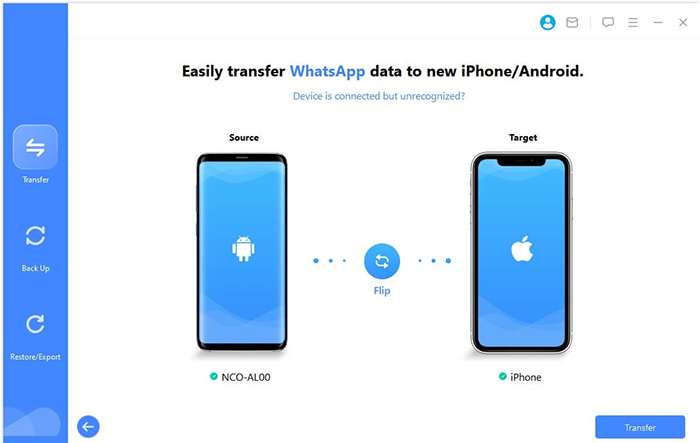
- Using USB cables, attach both mobile devices (whether Android or iOS) to the computer. Ensure that USB debugging is enabled on each handset; alternatively, adhere to the on-screen guidance to facilitate device recognition.
- The utility will automatically list the connected devices, designating one as the source and the other as the destination. Should the assignment be incorrect, you can reverse it by clicking the Flip button.
- Once verified, click Transfer at the bottom right to commence the transfer of all WhatsApp Business chats from the source phone to the target phone.
Way 3: Transfer WhatsApp Business Data to a New Phone via Google Account
For Android-to-Android migration, you can use your Google Account to back up and restore WhatsApp Business data. Google's official instructions recommend backing up the data on the old Android phone, signing into the same Google Account on the new phone, and restoring the backup during WhatsApp setup. Below is how:
- Open WhatsApp Business and go to Settings > Chats > Chat backup > BACK UP. Wait until the latest backup is completed before switching phones.
- Sign in to the new Android phone with the same Google Account used for the WhatsApp Business backup. Otherwise, the available backup may not be detected.
- Download WhatsApp Business on the new phone and verify it with the same phone number used on the old device.
- During setup, choose Restore from backup when prompted. Google also provides a Transfer from old phone option for Wi-Fi-based migration; if you have an up-to-date cloud backup, Google recommends restoring from the backup.
- After restoration, check your conversations and media. Some images may take additional time to appear, so avoid resetting the old phone until you have confirmed that important business data is available.
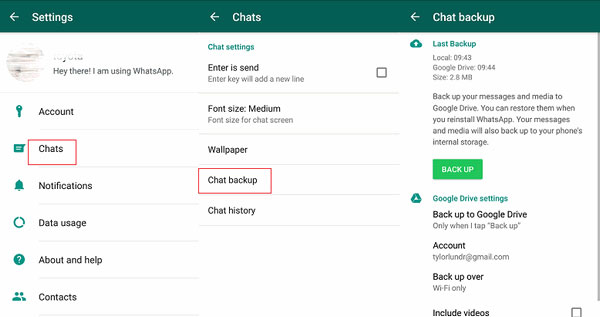
Limitations: This Google Account method is primarily for Android-to-Android transfers. It requires the same Google Account and phone number, and it does not provide selective restoration. Google also notes that successful transfer is not guaranteed for every device or configuration.
Way 4: Transfer WhatsApp Business Chats to a New Phone Using iCloud
If you are moving WhatsApp Business from one iPhone to another, you can use WhatsApp's iCloud backup to restore your chats and media. The same phone number and iCloud account used to create the backup are required. Below is how:
- On your old iPhone, open WhatsApp Business > Settings > Chats > Chat Backup > Back Up Now. Make sure the backup finishes successfully before switching phones.
- Confirm that the old and new iPhones use the same Apple Account/iCloud account and that there is enough iCloud and iPhone storage for the backup. WhatsApp recommends having at least 2.05 times the backup size available.
- Download WhatsApp Business on the new device and verify it with the same phone number used on the old iPhone.
- When prompted, tap Restore Chat History to retrieve your WhatsApp Business chats and media from the iCloud backup.
- Wait for the restoration to finish, then check your conversations, photos, videos, and other important data.
- Do not erase the old iPhone until you have confirmed that everything you need is available on the new phone.
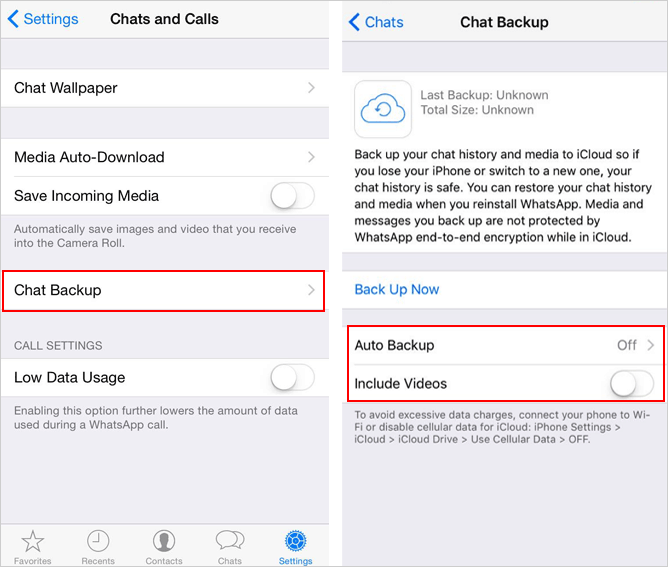
Important: WhatsApp states that only the latest successful backup can be restored, and messages received after that backup cannot be recovered through it. Videos are restored only if Include Videos was enabled when the backup was created.
Further Exploration: [Practical] Top 9 WhatsApp Backup Extractors You'd Better Know
FAQs about Transferring WhatsApp Business to a New Phone
Q1. How do I transfer WhatsApp to WhatsApp Business?
Install WhatsApp Business on the new phone, verify the same phone number, and restore your existing WhatsApp backup when prompted. Before switching, create a fresh backup in regular WhatsApp to ensure your latest chats are available.
Q2. Do I need the same phone number when transferring WhatsApp Business?
Generally, yes. Using the same number simplifies the transfer and allows the backup to be associated with the WhatsApp Business account being restored.
Q3. Will my WhatsApp Business media transfer with my chats?
Chats and supported media can transfer or restore together, although the exact data transferred depends on the migration method, backup settings, and device platforms.
Q4. Should I keep my old phone after transferring WhatsApp Business?
Yes. Keep the old phone until you have checked the new device and confirmed that important chats, media, and business information are available.
Q5. Will my WhatsApp Business account, profile, and chats all transfer?
Your account and supported chat data can be restored or transferred, but some settings or business-related information may require additional verification or configuration on the new device.
Q6. What happens if my WhatsApp Business transfer stops midway?
Do not immediately erase the old phone. Check the connection, restart the transfer if necessary, and use the latest available backup to restore your data if the direct transfer fails.
Q7. Can I use WhatsApp Business on both phones after transferring?
WhatsApp Business can support linked devices, but the primary account remains associated with its registered phone number. After moving to a new primary phone, check your linked-device settings and reconnect devices if necessary.
Related Articles:
How to Fix WhatsApp Chat Transfer Not Working? 14 Optimal Solutions
Where Is WhatsApp Backup Stored on Different Platforms? [Exact Locations]
How to See Deleted Messages on WhatsApp in 7 Ways? [Android/iOS]
Top 25 Solutions to Fix All WhatsApp Problems [Full Guide 2026]
