
5 Marvelous Ways for Smooth TECNO Screen Mirroring [Must-read]
For TECNO users, enjoying content on a larger display can transform the experience of their device. With TECNO screen mirroring, it becomes easy to watch videos, view photos, or play games from their TECNO phone on a bigger PC or TV screen, making entertainment and work more immersive.
Since many seek ways to expand their phone's screen without compromising quality or control, this article outlines five effective approaches to mirror a TECNO device to a computer or even a TV without technical hassle.
- Part 1: Perform TECNO Screen Mirroring to Computer via Screen Mirror [Fluent]
- Part 2: Screen Mirror TECNO Phone to PC Using Vysor
- Part 3: Screen Mirroring TECNO to PC/TV via Built-in Screen Cast Feature
- Part 4: Screen Mirror TECNO to PC/TV via Miracast
- Part 5: Conduct TECNO Screen Mirroring to TV via HDMI Cable & Roku
- Part 6: FAQs about TECNO Screen Mirroring to PC/TV
Part 1: Perform TECNO Screen Mirroring to Computer via Screen Mirror [Fluent]
For users who want to mirror their TECNO phone to a computer effortlessly, Screen Mirror provides a reliable solution. It allows you to project the phone screen with minimal lag and clear visuals, making it suitable for presentations or app demonstrations.
The tool supports both wired and wireless connections, giving flexibility depending on your setup. With its intuitive interface, even beginners can navigate the mirroring process without confusion.
Core Features of Screen Mirror:
- Mirror and control TECNO or other Android/iOS devices on a PC to type, click, swipe, and scroll.
- Capture 1080P screen recordings and take screenshots directly from the mirrored screen.
- Stream phone content to platforms like YouTube, Twitch, Discord, Zoom, and more.
- Customize keyboard mappings for gaming actions such as moving, jumping, and shooting.
- Transfer files easily between Android devices and PC for convenience.
- Ensure security with safe connections and protection of personal data during mirroring.
- Enjoy a fluent and smooth screen mirroring experience with minimal lag.
- Support wide compatibility across overall Android and iOS devices, covering TECNO Spark, POP, POVA, Pouvoir, Phantom, and Camon series.
User Manual:
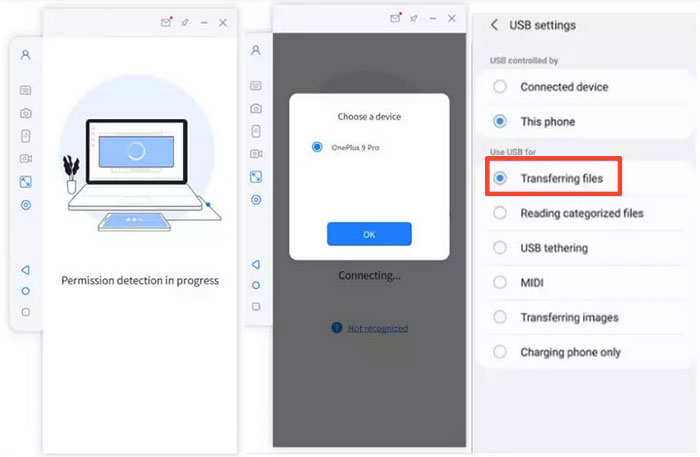
- Begin by installing the Screen Mirror application on your computer.
- Once installed, open the program and connect your TECNO to the computer using a USB cable.
- Next, select your device from the pop-up menu and choose "Transfer files".
- Proceed to your Android phone's "Settings" > "About phone" > "Software information".
- Tap on "Build number" to enter the "Developer options".
- After this, enable USB debugging on your TECNO device.
- When the prompt for "Always allow USB debugging from this computer" appears, click on "OK".
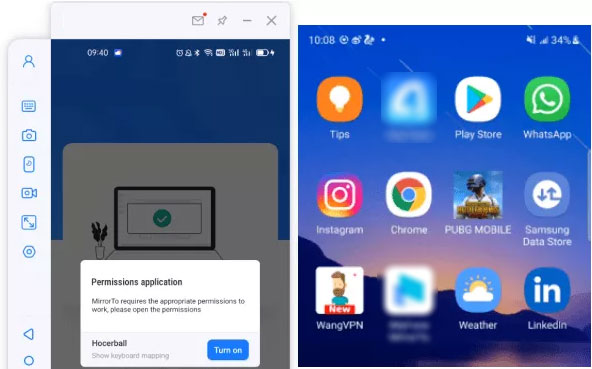
- Provide the required permissions to the software and permit it to display items at the top.
- Then, click "Turn on" to allow your TECNO phone to automatically download the Android Screen Mirror apk.
- Once the process is finished, your device's screen will be successfully mirrored to this Windows PC.


Learn More: 4 Smart Solutions to TECNO to Mac Transfers [USB/WiFi Connections]
Part 2: Screen Mirror TECNO Phone to PC Using Vysor
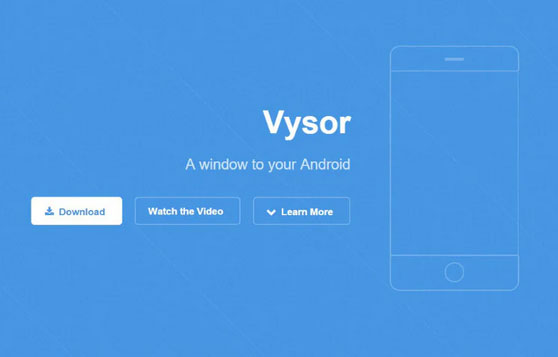
Offering another solid option, Vysor enables TECNO screen mirroring through a simple USB connection. Once connected, it replicates the phone screen on the PC, allowing interaction via mouse and keyboard. The setup is straightforward, and the software provides adjustable resolution for smoother performance. Its lightweight design ensures it runs efficiently without putting much strain on the computer's resources.
User Manual:
- Install Vysor on your PC and open it, then connect your TECNO phone to the computer using a USB cable.
- On your TECNO phone, go to Settings > About phone, tap Build number several times to enable Developer options.
- Enter Developer options and turn on USB debugging, then confirm the permission prompt on your phone.
- In Vysor on the PC, select your TECNO device from the list and click View to start screen mirroring.
You Might Also Enjoy: Vysor Review: Can I Trust Vysor? [Comprehensive & in-depth Analysis]
Part 3: Screen Mirroring TECNO to PC/TV via Built-in Screen Cast Feature
Do you prefer a wireless and simple approach? The Built-in Screen Cast Feature on TECNO phones allows easy mirroring to a PC or TV. By accessing the notification bar, users can quickly find and activate Screen Cast to connect to compatible devices.
The connection is mostly seamless and doesn't require additional software, making it convenient for casual streaming or presentations. Audio and video are transmitted together, providing a complete viewing experience.
User Manual:
- Swipe down the notification bar on your TECNO phone and look for "Screen Cast" or "Screen Mirroring".
- Tap the "Screen Cast" icon and wait while your phone searches for available devices.
- Once your PC appears in the list, tap its device name.
- Your TECNO phone screen will be mirrored to the PC within seconds.
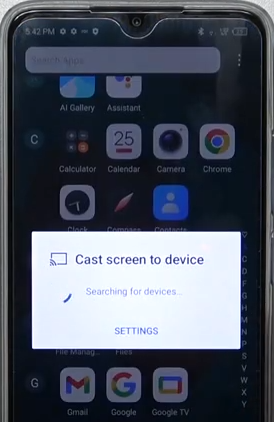
NOTE: Using TECNO's built-in screen cast feature can be unreliable, as connections often drop and some PCs or TVs may not support it. Real-time mirroring may also suffer from lag, lower resolution, or frame drops, especially during gaming or video playback. Additionally, it offers no remote control or advanced features like recording, limiting its overall functionality.
Part 4: Screen Mirror TECNO to PC/TV via Miracast
Another wireless option, Miracast, enables TECNO phones to project their screen without cables, relying on Wi-Fi Direct technology. It works well with smart TVs or PCs that support Miracast, creating a direct link for smooth mirroring. The setup involves minimal steps, and the connection is generally stable over short distances. Users can enjoy watching videos, browsing apps, or showing presentations with minimal delay.
User Manual:
- On your TECNO phone, swipe down the notification bar and tap "Screen Cast" or "Screen Mirroring".
- Ensure your PC or TV supports Miracast and is turned on, with screen mirroring enabled.
- Wait for your TECNO phone to search for available devices.
- When your PC or TV appears in the list, tap its device name to connect.
- Your TECNO phone screen will now be mirrored to the PC or TV.
Part 5: Conduct TECNO Screen Mirroring to TV via HDMI Cable & Roku
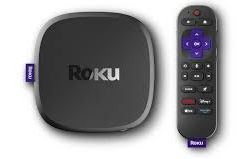
Using an HDMI cable with a Roku device, you can wirelessly project your phone screen onto a larger display, combining the stability of a wired connection with the convenience of Roku's streaming capabilities. This method allows you to seamlessly control your content directly from your TECNO phone while ensuring smooth playback and high-quality visuals.
User Manual:
- Connect the Roku streaming device to your TV using an HDMI cable and turn on the TV.
- Ensure your TECNO phone and Roku are connected to the same Wi-Fi network.
- On your TECNO phone, open the Roku app or the Screen Mirroring option.
- Search for available devices and select your Roku device from the list.
- Your TECNO phone screen will now be mirrored to the TV, and you can control playback or apps from your phone.
Part 6: FAQs about TECNO Screen Mirroring to PC/TV
Q1: Does my TECNO phone support screen mirroring?
A1: Most modern TECNO phones support screen mirroring via Screen Cast, Miracast, or HDMI adapters. Check your phone's settings under Screen Cast or Screen Mirroring.
Q2: Why isn't my PC/TV showing up for screen mirroring?
A2: Make sure your PC/TV supports Miracast or screen casting, is on the same Wi-Fi network (for wireless), and screen mirroring is enabled. Restart both devices if necessary.
Q3: Can I mirror my TECNO phone audio as well as video?
A3: Yes, wireless screen mirroring usually includes both audio and video, while HDMI connections transmit audio automatically with the video.
Q4: Is there any lag when mirroring TECNO to PC or TV?
A4: Some lag may occur, especially on wireless connections, due to network speed. Wired connections like HDMI provide faster and smoother mirroring.
Q5: Can I use apps while screen mirroring?
A5: Yes, you can continue using most apps, watch videos, or display presentations while your TECNO phone is mirrored to a PC or TV.
Q6: How to stop screen mirroring on TECNO?
A6: Swipe down the notification bar and tap Stop Cast or Disconnect from the device list.
Q7: Can I mirror my TECNO phone to a non-smart TV?
A7: Yes, by using an HDMI adapter or MHL cable, you can mirror your TECNO phone even on TVs without wireless casting support.
Q8: Which method is best for screen mirroring TECNO to PC?
A8: For mirroring a TECNO phone to a PC, using a dependable third-party tool is more effective than relying on built-in casting features, which can often be unstable.
Screen Mirror is the best option thanks to its robust security, stable performance, and smooth real-time mirroring, ideal for gaming, media streaming, or presentations. It also allows easy control of your phone from the PC while keeping lag to a minimum for a seamless experience.
Related Articles:
5 Tested Strategies to Transfer Data from TECNO to TECNO
How to Recover Deleted Data from TECNO Phones with/without Backup? [6 Ways]
