
How to Wipe a OnePlus Phone? 4 Tired-and-true Ways [Latest]
If you're looking to erase all personal data, accounts, and files before passing the device to someone else, or if you want to resolve persistent crashes, slow performance, or glitches, knowing how to wipe a OnePlus phone is essential. This article covers four effective methods for wiping your OnePlus phone, covering both built-in options and third-party tools. Let's check them out now.
Part 1: Completely Wipe a OnePlus Phone via Factory Reset
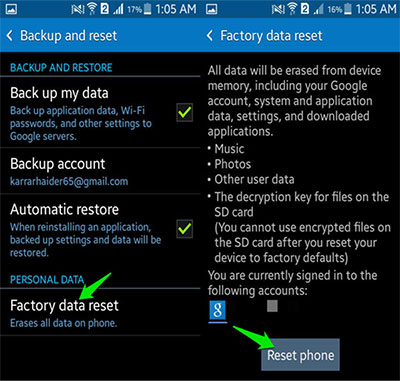
A full reset of the device is possible through Factory Reset, which offers a straightforward way to erase everything stored on a OnePlus phone. This option restores the system to its original setup, removing apps, accounts, and personal data. Many users choose it when selling, gifting, or troubleshooting their device. It ensures all private information is wiped before the phone changes hands.
User Manual:
- Open Settings on your OnePlus 13/12/11/10/CE 4/4/CE 3/Ace 3V.
- Go to System & update/Additional settings > Back up and reset > Reset phone.
- On the Reset phone screen, carefully review the available options.
- Follow the on-screen prompts to either reset system settings or erase data.
- If you've set a lock-screen password, you'll be asked to enter it to continue.
- To fully wipe the device, tap Erase all data.
- This will return your phone to factory settings and delete all personal data, including apps, files, and accounts - so proceed only if you're sure.
Limitations:
- Some data may be recoverable with recovery tools.
- Requires the phone to be fully functional and accessible (screen, OS, and Settings must work).
- Accounts and protections (like FRP/Google lock) may cause complications during setup afterward.
- User error risk - choosing the wrong option may reset only settings instead of wiping all data.
Part 2: Clear All Data from OnePlus Phone via Recovery Mode
Complete erasure can also be achieved through Recovery Mode, which allows deeper system-level wiping when the phone cannot boot normally. This method clears user data, cache, and settings to return the device to a clean state. It is especially useful when experiencing serious glitches or forgotten passwords. The process ensures your OnePlus device no longer contains sensitive content.
User Manual:
- Power off your OnePlus device completely.
- Press and hold Volume Down (left side) and Power (right side) together until the phone vibrates and the Android Recovery/OnePlus Recovery screen appears, then release both buttons.
- It may take up to 30 seconds for Recovery Mode to load.
- When the OnePlus logo appears, first select your language using the Volume keys, then confirm with the Power button.
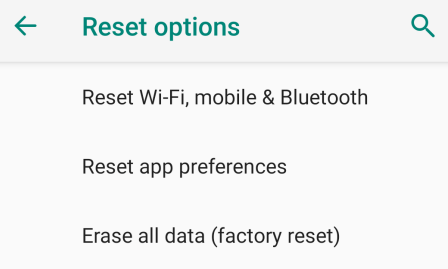
- Choose "Wipe data and cache."
- Select "Erase everything".
- When prompted with "This cannot be undone, continue?", confirm to proceed.
- Wait several minutes while the device formats the data and completes the reboot process. (Can't get out of Recovery Mode?)
- When you see "Format success," choose Reboot (or Done if shown).
- After restarting, you can set up your device as new.
Limitations:
- More technical and confusing for non-technical users.
- If done incorrectly, you could soft-brick the device or get stuck in recovery.
- Like factory reset, data may still be recoverable using advanced tools.
- Requires functional hardware buttons and device boot access.
- Time-consuming and stressful, especially if the device isn’t responding smoothly.
Part 3: Completely Wipe OnePlus Using iShredder Data Erasure
Secure deletion is available with iShredder Data Erasure, which goes beyond a basic reset by overwriting data to prevent recovery. This advanced wiping technology helps users permanently remove files and traces from their OnePlus phone. People often rely on it for privacy protection and secure disposal. It offers peace of mind when data confidentiality matters most.
User Manual:
- Install iShredder - Data Erasure from Google Play.
- Open the app and grant storage permissions so it can access your files.
- Select the file types or folders you want to erase (photos, videos, documents, downloads, etc.).
- Tap Erase/Shred to start secure deletion.
- Choose a wipe algorithm (multi-pass = stronger, but slower).
- Confirm and wait for the secure overwrite process to finish.
- Repeat for any remaining sensitive folders.
- (Recommended) Use Wipe Free Space to overwrite previously deleted data.
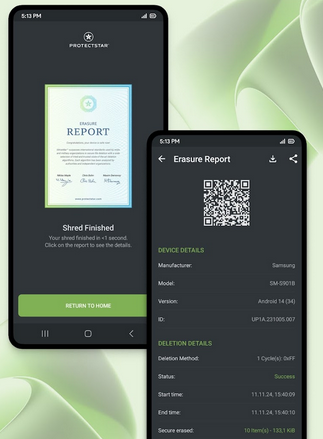
- Scan the QR code to download the erasure report.
- Remove all accounts: Settings > Passwords & accounts > Remove Google & OnePlus accounts.
- Make sure storage encryption is enabled (usually on by default).
- Perform a factory reset as above (if needed).
Limitations:
- Paid features required for full security - free version may not securely overwrite all data
- Time-consuming - securely erasing data (multiple overwrites) can take a long time, especially for large storage.
- Risk of accidental deletion - improper selection may remove important files permanently.
- Device compatibility issues - some Android versions or OnePlus models may not be fully supported.
- Dependence on a third-party app - users must trust the app to handle sensitive personal data safely.
Part 4: Wipe a OnePlus Phone via MobiKin Eraser for Android [Not Recoverable]
Professional-grade erasure is possible with MobiKin Eraser for Android (Windows/Mac), which is designed to completely wipe all data from a OnePlus phone. The program performs deep deletion to ensure information cannot be restored. It works well for both personal and business users who value privacy. With just a few clicks, the device is left clean and ready for reuse.
Key Features:
- Permanent Data Erasure - The best OnePlus eraser to delete all personal data, apps, accounts, and files permanently.
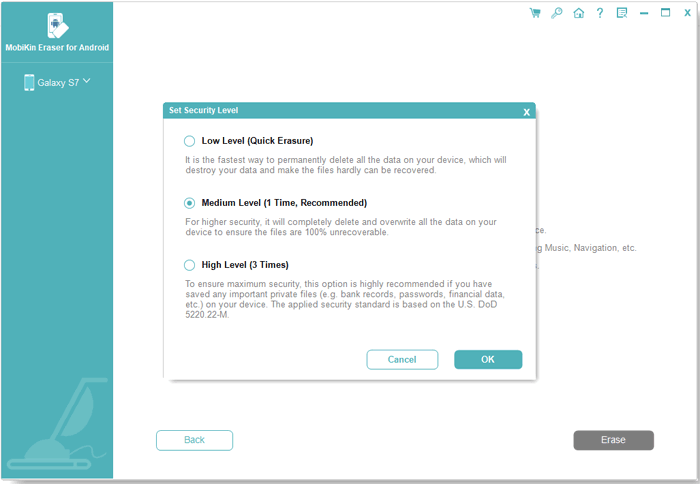
- Multiple Security Levels - Offers Low, Medium, and High overwriting options for secure wiping.
- Easy to Use - Simple, step-by-step process via computer connection.
- Erases Deleted & Hidden Data - Prevents recovery of previously deleted files.
- Wide Device Support - Compatible with OnePlus and most Android devices, including OnePlus 13/12/11/10/CE 4/4/CE 3/Ace 3V.
- Strong Privacy Protection - Safeguards sensitive info against theft or leaks.
- Fast Processing - Quickly wipes large amounts of data without long delays.
How to completely wipe an OnePlus phone using MobiKin Eraser for Android?
User Manual:
- Begin by opening the software on your computer, then connect your Android phone using a USB cable.
- Follow the prompts on the screen so the program can successfully recognize your device.
- After that, click "Erase" on the main screen and select a security level under "Erase All Data."
- Please note that the following steps will permanently remove all data from your Android phone, and it cannot be restored afterward.
- Finally, type "delete" into the confirmation box and click "Erase" to start the wiping process.
- Wait for the procedure to finish, which should only take a short time.
- Once completed, you can perform a factory reset on your device by following the on-screen instructions.


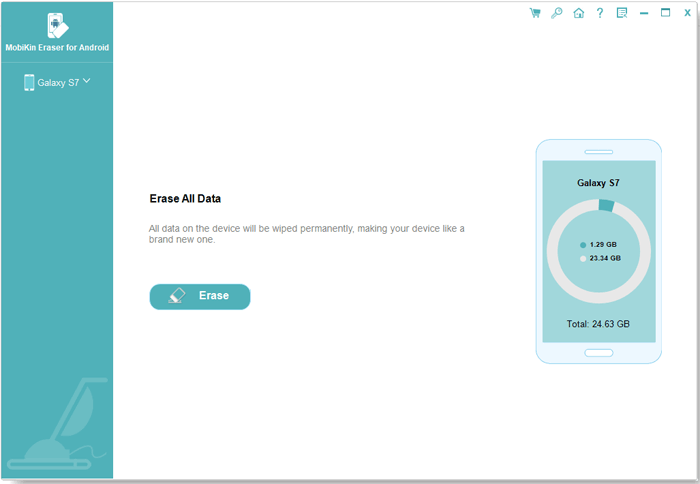
Video Directions:
Limitations:
- Requires connection to a computer - cannot erase independently on the phone.
- Full secure erase is not free.
In Conclusion
Of all the methods available, MobiKin Eraser for Android could be the most reliable solution. Unlike factory resets, recovery mode wipes, or apps like iShredder, MobiKin ensures that your data is completely overwritten and unrecoverable, while offering a simple, guided process for both beginners and advanced users. Finally, feel free to drop a line below if you have any queries.
Related Articles:
6 Most Desirable Ways to Transfer Data from OnePlus to OnePlus
OnePlus Data Recovery: 5 Options to Recover Files from OnePlus
How to Root OnePlus 13/12/11/10/9/8/7/6 without Difficulty? 3 Ways
How to Bypass FRP on OnePlus Nord/Ace/12/11/10/9/8/7/6? 4 Ways
