
Is Factory Reset Enough Before Selling Android Phone? Expert Tips
TL;DR:
- A factory reset is usually sufficient to protect your data before selling an Android phone, but it may not erase SD cards, cloud backups, or other residual data.
- To sell safely, back up important files, sign out of accounts, remove SIM and SD cards, then perform a factory reset (via Settings or Recovery Mode).
- For added security, users can use dedicated erasure software like MobiKin Eraser for Android to overwrite data with multiple passes before handing the device to its next owner.
NOTE: Before proceeding with a factory reset or deep erasure, kindly confirm that you are the lawful owner of this phone or have obtained the proper authorization to use it. We appreciate your cooperation.
"Is a standard factory reset truly enough to permanently wipe data before selling an old Android phone?" -- from Quora
Selling an Android phone involves more than removing the SIM card and handing it to the next owner. Photos, private messages, account details, and other personal files deserve proper protection before the device leaves your hands. But is factory reset enough before selling Android phone, or could some hidden information remain accessible afterward?
This article examines how a standard factory reset works, what risks users should consider, and when additional data-wiping measures may be necessary.
- Section 1: Is Factory Reset Enough Before Selling an Android Phone
- Section 2: What to Do Before Factory Resetting an Android Phone for Sale
- Section 3: How to Factory Reset an Android Phone Before Selling It
- Section 4: Should You Permanently Erase Android Data Before Selling
- Section 5: What Else Should You Do Before Selling an Android Phone
- Section 6: Factory Reset vs. Data Erasure: Which Is Better Before Selling [Comparison]
- FAQs About Factory Resetting Android Before Selling
Section 1: Is Factory Reset Enough Before Selling an Android Phone
A factory reset is usually sufficient for selling some Android phones, thanks to built-in encryption. However, you should understand what it erases and whether additional precautions are necessary to protect your personal information.
1.1 What Data Does a Factory Reset Remove?
A factory reset typically removes locally stored photos, videos, contacts, messages, apps, and personal settings. However, it may not erase data on an SD card or delete cloud backups. Back up important files and remove your SIM and memory cards before selling the phone.
1.2 Can Data Be Recovered After a Factory Reset?
On most modern Android phones with properly implemented encryption, a factory reset makes previous data practically inaccessible. However, cloud backups, insufficient data erasing, or removable storage may retain personal information, making recovery possible.
Section 2: What to Do Before Factory Resetting an Android Phone for Sale
Before resetting your Android phone, take these precautions to protect your data and prepare the device for its next owner:
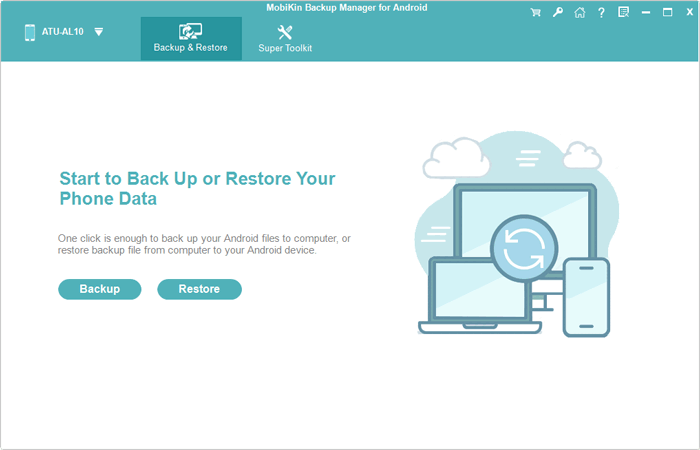
- Back up important data: Save photos, contacts, messages, and other files you want with a reputable tool like MobiKin Backup Manager for Android.
- Sign out of accounts: Remove your Google and manufacturer accounts when appropriate to prevent account-verification issues.
- Remove SIM and SD cards: Keep your SIM card and any memory card you want to retain.
- Check your backups: Make sure your important files are accessible from your new phone or backup location.
- Consider thorough data erasure: If you want an additional erasure measure before selling your phone, consider MobiKin Eraser for Android and check its compatibility with your device.
Section 3: How to Factory Reset an Android Phone Before Selling It
2.1 Reset Android through Settings
Open Settings and find the reset option, usually under System or General Management. Select Factory Data Reset, confirm the action, and wait for the phone to restart. Make sure you've backed up important files before proceeding.
2.2 Factory Reset a Phone That Cannot Open Settings
You may be unable to reset your phone directly, as it won't open Settings; you may be able to reset it through Recovery Mode. Turn off the device, use the model-specific button combination to enter Recovery Mode, and select the factory reset option. The exact steps vary by manufacturer, so check your phone's official instructions first.
Section 4: Should You Permanently Erase Android Data Before Selling
Permanently erasing Android data before selling your phone is an important extra precaution to help protect sensitive personal information from unauthorized access. Although a factory reset is generally sufficient for most modern Android devices, users who want an additional data-erasure measure can consider MobiKin Eraser for Android (Windows/Mac), with 3 security levels to ensure privacy.
Follow its supported erasure procedure and check device compatibility (Android 6.0 or above is required) to thoroughly erase personal data before handing your phone to its next owner.
Safe Download: No ads, bundles, or hidden uploads:


How to erase an Android phone after a factory data reset with MobiKin Eraser for Android?
Step 1: Install and open the software, then connect your Android phone via USB or Wi-Fi. For USB connections, enable USB debugging, install the necessary driver, and grant the required permissions. For Wi-Fi, connect both devices to the same network and scan the displayed QR code using the Android app.
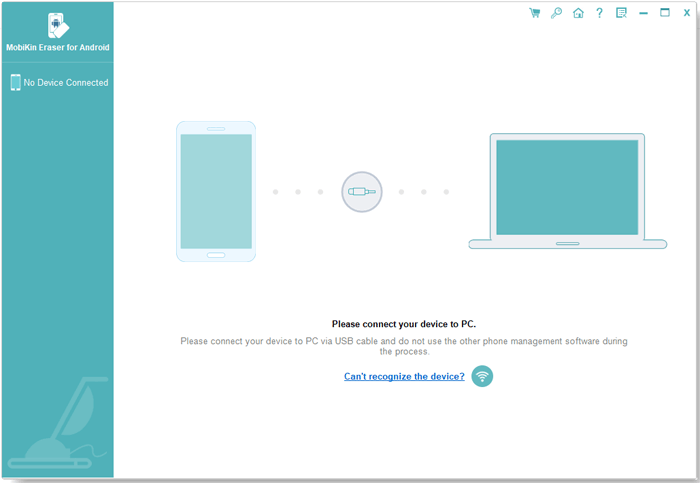
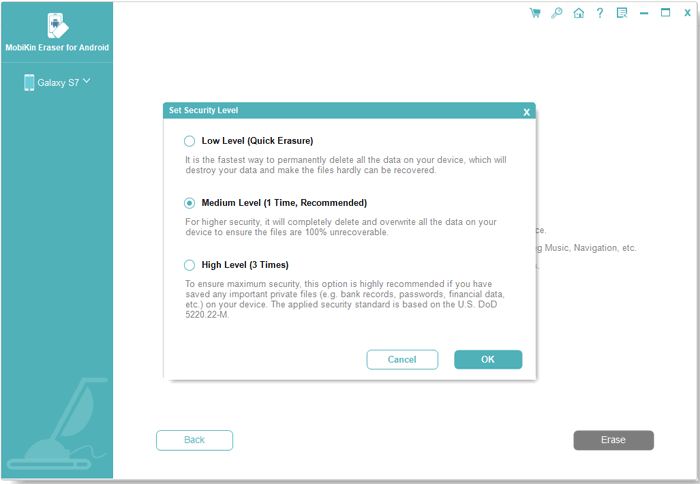
Step 2: Once the software recognizes your phone, click Continue and choose Low, Medium, or High under Security Level. Confirm your selection to move forward.
Step 3: Check your phone's factory reset status. If you haven't reset it yet, select No, the device has not been reset and click Next. Otherwise, choose Yes, the device has been reset and follow the on-screen instructions.
Step 4: If necessary, follow the prompts to factory-reset your Android phone. Keep the software running while the device restarts. Once the initial setup screen appears, reconnect your phone to the program as instructed.
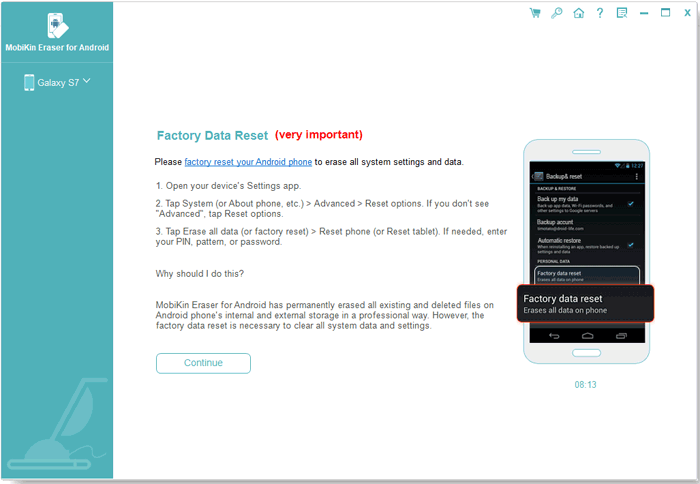
Step 5: After reconnecting, click Continue, select your preferred security level again, and type delete in the confirmation field. Complete any additional prompts, including SMS permission requests, and click Next to proceed.
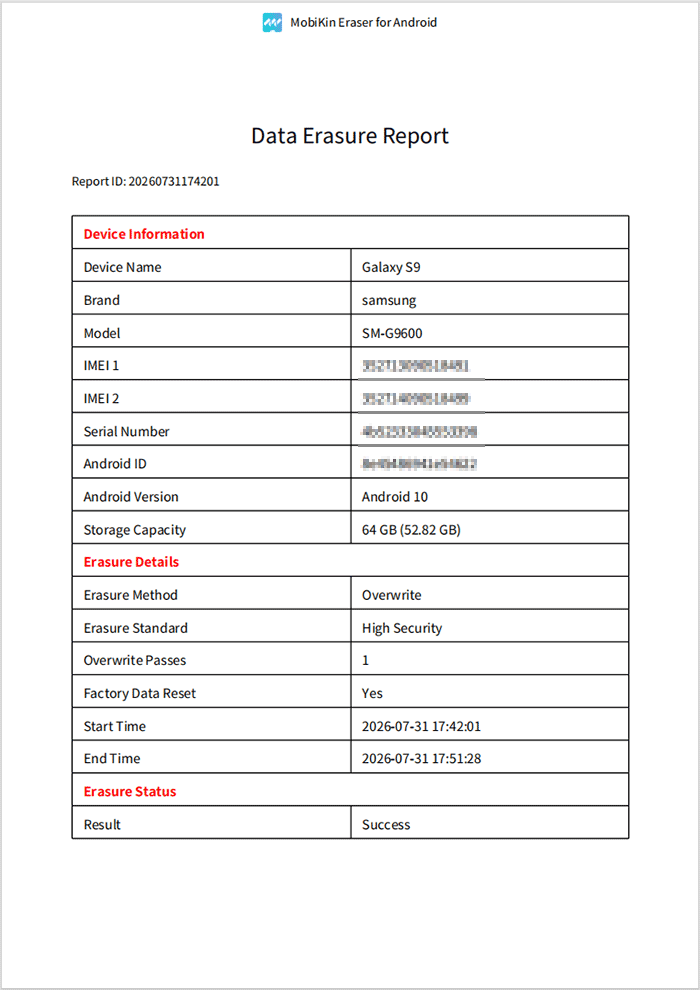
Step 6: Allow the software to scan your device, erase its data, and overwrite the stored information according to your selected security level. The Low and Medium levels perform one overwrite pass, while High performs three passes. Once the process finishes, click Save Report to retain a record of the data-erasure operation.
Video Guide (Updated):
Section 5: What Else Should You Do Before Selling an Android Phone
After resetting your Android phone, take a few extra steps to prepare it for sale and protect your personal information.
- Remove SIM and SD cards: Make sure you haven't left personal information on removable storage.
- Check account access: Confirm that your personal accounts and payment information are no longer accessible on the device.
- Review cloud backups: Delete unwanted online copies separately if necessary.
- Inspect the phone: Clean the device and gather any accessories included in the sale.
- Verify the reset: Restart the phone and confirm that it displays the initial setup screen without showing your personal data.
Section 6: Factory Reset vs. Data Erasure: Which Is Better Before Selling [Comparison]
Both factory resets and dedicated erasure software can help prepare an Android phone for resale, but they differ in convenience, purpose, and erasure methods. Compare the two options below to decide whether a standard reset meets your needs or MobiKin Eraser for Android is worth considering for additional data-erasure measures.
|
Comparison
|
Factory reset
|
Dedicated erasure software
|
|
Main purpose
|
Restore the phone to its initial state |
Perform a dedicated data-erasure process |
|
Convenience
|
Built into Android |
Usually requires a computer and compatible software |
|
Best suited for
|
Most routine resale situations |
Users seeking additional erasure options |
|
Key consideration
|
Security depends on the device and reset implementation |
Results depend on the software, device support, and erasure method |
FAQs About Factory Resetting Android Before Selling
Q1. Should I remove my Google account before factory resetting my phone?
Yes. Removing your Google account before resetting can help prevent Factory Reset Protection (FRP) from blocking the next owner during setup.
Q2. Does a factory reset erase an SD card?
Not always. Remove your SD card before resetting and erase it separately if you plan to sell it with the phone.
Q3. Should I encrypt my Android phone before a factory reset?
Most modern Android phones encrypt user data by default. Check your device's security settings and documentation to confirm its encryption status before resetting.
Q4. How can I check whether my Android phone is ready to sell?
Make sure the phone displays the initial setup screen, your accounts have been removed, and your SIM card and personal SD card are no longer inside. Also, verify that your important data has been backed up.
Q5. What should I check after resetting my Android phone?
Confirm that the reset is complete and the phone no longer displays your personal information. If you want an additional data-erasure measure before selling, consider MobiKin Eraser for Android and verify that your device is supported.
Related Articles:
How to Factory Reset iPhone without Passcode: 3 Easy Methods
15 Android Factory Reset Codes & 3 Reset Methods [Comparison]
How to Fix Android stuck in Safe Mode? 10 Proven Techniques
3 Solutions: How to Recover Data from Dead Phone Internal Memory