
Full Guide: Security & Privacy with Second-hand Mobile Device
TL;DR:
Using a second-hand phone safely involves checking account locks, inspecting installed applications, erasing previous data, and updating the operating system. For an additional data-erasure measure, consider MobiKin Eraser for Android or MobiKin Eraser for iOS to clear supported personal information. With these precautions and consistent security habits, you can enjoy your pre-owned device while better protecting your privacy.
NOTE: When purchasing a second-hand smartphone, choose reputable sources and avoid devices from illegal channels. Before using professional erasure software, ensure you have the legal right to use the device or the owner's consent. Thank you for your cooperation.
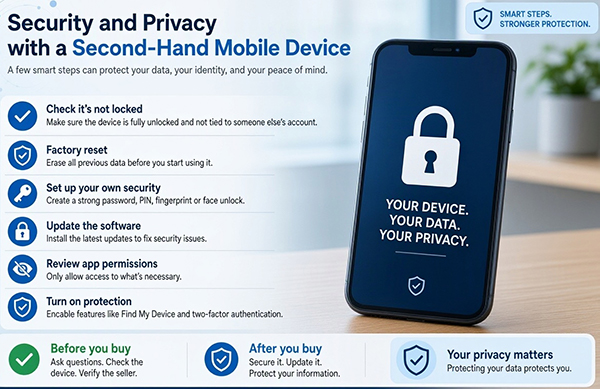
Buying a second-hand phone can save money, but it may also expose you to privacy and security risks. Previous owners' data, suspicious applications, outdated software, and linked accounts can all cause problems. Before using a pre-owned Android or iPhone, follow these precautions to protect your personal information to ensure security and privacy with second-hand mobile device.
- Part 1. Check Whether the Second-Hand Phone/Device Is Properly Reset
- Part 2. Inspect the Device for Suspicious Apps and Security Risks
- Part 3. Completely Erase Previous Owner's Data for Added Security
- Part 4. Update the Operating System and Security Patches
- Part 5. Protect Your Accounts and Personal Information
- Part 6. Secure Network Connections and Daily Mobile Usage
- Part 7. What to Do If You Discover a Privacy or Security Problem
Part 1. Check Whether the Second-Hand Phone/Device Is Properly Reset
Before setting up the device, make sure the previous owner has removed their personal information and accounts. A factory reset is essential (Can I reset a locked iPhone?), but you should also check for account locks and ownership restrictions.
|
What to check
|
What to do
|
|
Previous owner's data |
Check whether old photos, messages, contacts, and accounts remain. |
|
Google Account |
Ensure the previous owner's account is removed. |
|
Apple Account |
Confirm the previous owner has signed out and disabled Find My where necessary. |
|
FRP and Activation Lock |
Make sure Android FRP and iPhone Activation Lock are no longer active. |
|
Initial setup screen |
Confirm the phone starts with the welcome or setup screen. |
|
Backup restoration |
Restore data only from trusted backups. |
* If the device requests the previous owner's credentials during setup, contact the seller instead of attempting to bypass the protection.
Part 2. Inspect the Device for Suspicious Apps and Security Risks
A second-hand phone may contain unfamiliar applications or configuration settings that affect your privacy. Before signing in to personal accounts, check the following:
- Installed apps: Remove unfamiliar or unnecessary applications.
- App permissions: Check access to your camera, microphone, contacts, and location.
- Device administrators: Remove unknown administrator apps.
- Accessibility services: Disable suspicious services.
- VPN settings: Remove unfamiliar VPN connections.
- Configuration profiles: Check for unknown profiles or MDM restrictions.
- Rooting or jailbreaking: Check whether the device has been modified.
- Browser settings: Remove suspicious extensions and saved credentials.
- Connected devices: Disconnect unfamiliar Bluetooth accessories.
- Security protection: Enable Google Play Protect and review iOS security settings.
- Unusual behavior: Watch for unexpected pop-ups, overheating, or excessive data usage.
- Default apps: Check whether unknown apps have replaced your default applications.
Note: If you discover unfamiliar management restrictions, investigate them before entering passwords or storing sensitive information on the phone. Plus, you can also ask the seller to explain them before using the device if possible.
Part 3. Completely Erase Previous Owner's Data for Added Security
Although a factory reset is an important first step, users who want additional assurance may consider dedicated data-erasure software. Such tools can provide another measure for removing personal information and eliminating the risk of casual data recovery.
3.1 Use MobiKin Eraser for Android
MobiKin Eraser for Android (Windows/Mac) helps erase personal information from Android phones/tablets, including contacts, messages, photos, videos, and more. It provides an additional data-erasure option with several security levels when preparing a pre-owned Android phone for a new owner.
Safe Download: No ads, bundled software, or background uploads.


Brief User Guide:
- Install and launch MobiKin Eraser for Android, connect your phone via USB or Wi-Fi, and authorize the connection.
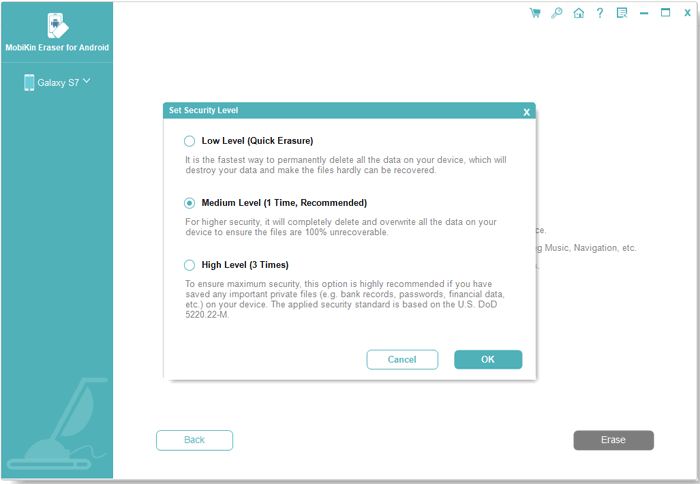
- Choose a Security Level: Click Continue and select Low, Medium, or High erasure level.
- Factory Reset Your Phone: Follow the on-screen instructions to reset your device if necessary, complete setup, and reconnect it.
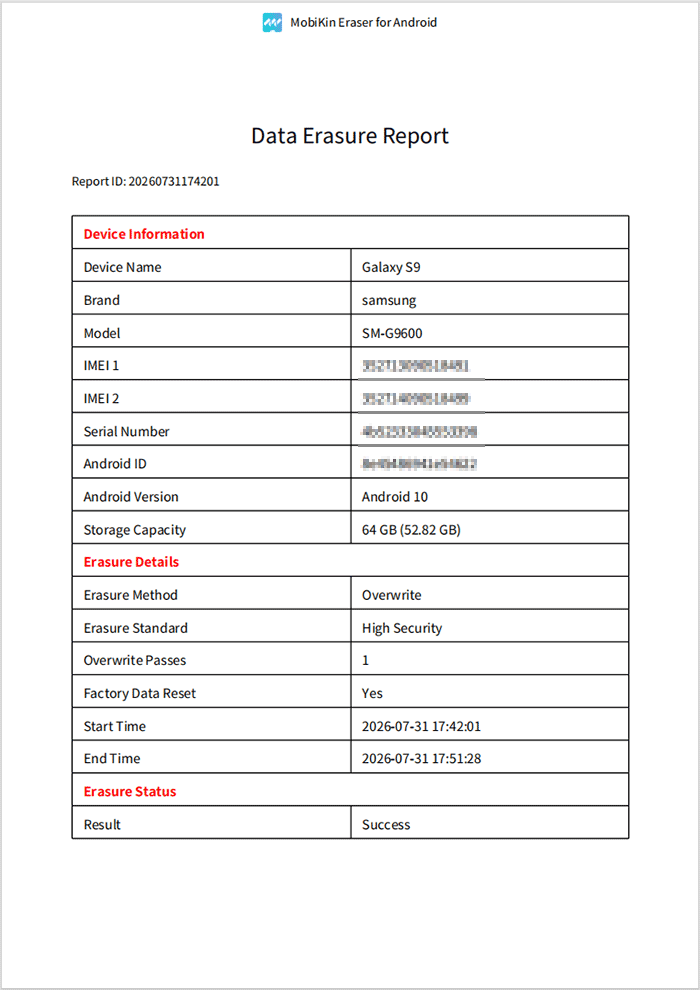
- Erase Data and Save the Report: Enter "delete" to confirm, start erasure, and click Save Report when finished to export the erasure details.
Video Tutorial:
3.2 Use MobiKin Eraser for iOS
For pre-owned iPhones and iPads, MobiKin Eraser for iOS (Windows/Mac) offers a dedicated way to wipe out almost all personal data. This professinal product provides a reputable privacy measure before setting up the device for personal use.
Safe & Clean Download: no ads, bundles, or background uploads.
Brief User Guide:
- Connect Your iPhone: Install and launch MobiKin Eraser for iOS, connect your device via USB, unlock it, and tap Trust This Computer.
- Choose an Erasure Level: Click Erase, disable Find My iPhone if prompted, select Low, Medium, or High, and confirm by typing "delete."
- Reset Your iPhone: Follow the on-screen instructions to factory reset your device if necessary, complete setup, and reconnect it.
- Erase and Save Data: Start the erasure process, wait for completion without disconnecting your device, and click Save Report to export the erasure details.

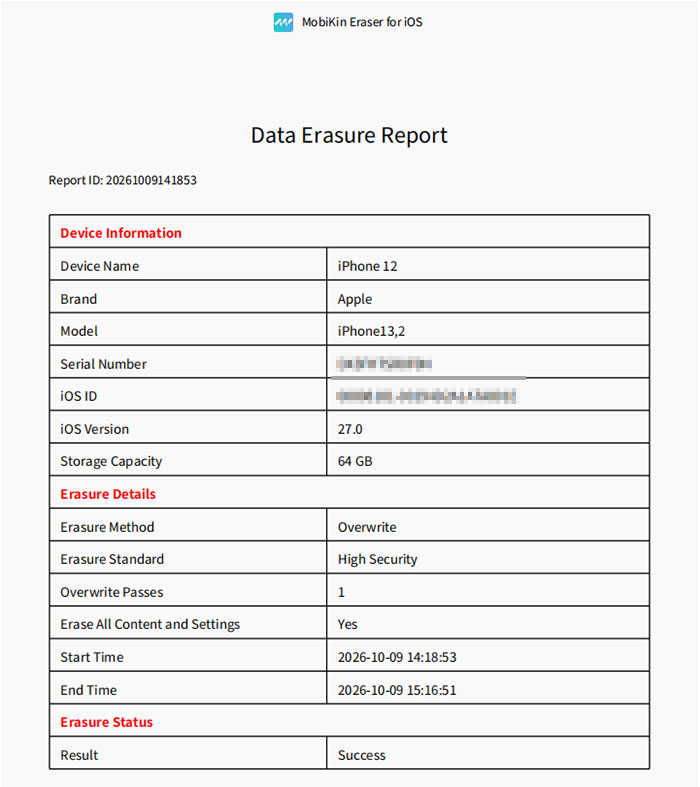
Video Tutorial:
Obtain authorization before erasing another person's data, back up anything that must be retained, and remove applicable account locks first. Data-erasure effectiveness depends on the device and storage technology; no tool should be assumed to guarantee absolute unrecoverability.
Part 4. Update the Operating System and Security Patches
Outdated software may contain vulnerabilities that attackers can exploit. After checking and setting up the device:
- Install the latest supported Android or iOS version. (Android update failed?)
- Apply available security patches and firmware updates.
- Update preinstalled applications and other software.
- Enable automatic updates whenever possible.
- Avoid relying on phones that no longer receive essential security updates, especially for sensitive activities.
You Might Also Like: What if iPhone update failed? Try the 12 most reliable solutions.
Part 5. Protect Your Accounts and Personal Information
Once the device is ready, secure it with your own account credentials and privacy settings.
|
Security Measure
|
Recommendation
|
|
Google/Apple Account |
Sign in with your own account. |
|
Passwords |
Use strong, unique passwords. |
|
Two-factor authentication |
Enable 2FA for important accounts. |
|
Screen lock |
Set a strong PIN, password, fingerprint, or Face ID. |
|
App permissions |
Grant access only when necessary. |
|
Backup restoration |
Restore data only from trusted backups. |
* Also, review active account sessions and remove any unfamiliar devices from your account.
Part 6. Secure Network Connections and Daily Mobile Usage
Your everyday habits also influence mobile security. Follow these simple practices:
- Use trusted Wi-Fi: Avoid accessing sensitive accounts through unsecured public networks.
- Use a reputable VPN: Consider one when connecting through untrusted networks.
- Control wireless features: Turn off Bluetooth, NFC, and location services when unnecessary.
- Download safely: Install applications through Google Play or Apple's App Store.
- Avoid phishing: Do not open suspicious links or attachments in messages and emails.
- Review permissions regularly: Check which applications can access sensitive information.
Part 7. What to Do If You Discover a Privacy or Security Problem
If the second-hand phone behaves unusually or displays suspicious security warnings, take action promptly.
|
Potential problem
|
Recommended action
|
|
Unfamiliar applications |
Uninstall them and review their permissions. |
|
Suspicious account activity |
Change passwords using another trusted device. |
|
Unknown network connections |
Disconnect Wi-Fi or Bluetooth if necessary. |
|
Persistent security warnings |
Update the system and run available security checks. |
|
Unexplained device restrictions |
Contact the seller or device administrator. |
|
Continued suspicious behavior |
Back up essential files carefully and consider a clean reset or professional inspection. |
* If you suspect that an account has been compromised, secure it before continuing to use the phone for sensitive activities.
Related Articles:
Is Factory Reset Enough Before Selling Android Phone? Expert Tips
Is a Second-Hand iPhone as Secure as a New One? Everything You Should Know
What to Do with Old Cell Phones? 22 Clever Uses [Latest Update]
Need to Sell Broken Phones for Cash? Concerns, Platforms, & Tricks
How to Switch Android Phones without Trouble? 6 Ways & Helpful Tips