
iBackup Viewer Review & Alternative 2026: Is It Worth Your Money?
Lost your iPhone data recently? I tested iBackup Viewer to see if it could recover deleted messages, photos, and contacts from iPhone backups. Accidental deletions and phone crashes are common, making backup viewers a must-have tool.
The good news? iBackup Viewer works on both Windows and Mac, allowing users to recover text messages, call logs, and app data. It supports both regular and encrypted iTunes backups, though the free version has some limitations. The interface is straightforward, making it easy to browse and find backup files. Recovered data can be exported as PDF, CSV, or other common formats. My test revealed both strengths and limitations of this tool for iPhone data recovery.
Part 1: Introduction of iBackup Viewer
1. Main Features of iBackup Viewer
iBackup Viewer is a powerful data extraction tool that allows you to retrieve essential information from your iPhone backups. Users can access contacts, call logs, messages, photos, and other content from iTunes backups, even without the original device.
This iPhone Backup Extractor is especially useful for those who accidentally delete important data, lose information, or need to transfer specific content to a new iPhone. The tool also helps bypass iTunes limitations by allowing backups to be stored in any accessible folder, including external drives and network storage.
Additional features include:
- Manage the Apple Address Book and add contacts or phone numbers.
- View call history and save it to a text file.
- Display and save iPhone text messages and conversations to a text file or convert them to PDF.
- Extract WhatsApp chats from iPhone backups and save them as text or PDF files.
- Transfer files from iPhone and iPad to your computer.
- View iPhone web history, notes, bookmarks, photos, and app data from iPhone backups without damaging existing data on the device.
- Supports iOS 10.10 and above.
2. Pros & Cons of iBackup Viewer
Pros:
- iBackup Viewer automatically detects previous iOS backups on your computer.
- The interface is user-friendly and easy to navigate.
- Available for both Windows and Mac versions.
- Supports all iTunes backups on your computer.
- A free version is available.
Cons:
- Cannot extract data from iCloud backups.
- Users cannot open encrypted iTunes backups without a paid version.
- Occasionally fails to extract all data from iPhone backups.
- Lacks a backup function.
- The full version requires a paid subscription, and the price is slightly higher compared to similar products.
3. Is iBackup Viewer Safe to Use?
iBackup Viewer is safe, as it processes your data locally on your computer, avoiding the privacy concerns of cloud-based services. It works with iTunes backups, not directly accessing your iPhone, minimizing risk to your device's data. The software also supports encrypted backups, showing the developer's commitment to security.
To ensure safety, always download iBackup Viewer from official or trusted sources. The developer, iMacTools, regularly updates the software, like the version 4.3101 update that fixed photo-saving issues.
Can't Miss:
Part 2: How to Use iBackup Viewer to Extract Files from iPhone Backups
In this section, we'll guide you on how to use iBackup Viewer to extract data from iTunes backups. iBackup Viewer is a desktop application, so you'll need to download and install it on your computer.
Step 1: After downloading the program on the computer where your iPhone backups are stored, connect your iPhone again. iBackup Viewer will automatically detect your device.
Step 2: If the iOS backup manager doesn't load backups automatically, click the folder icon in the upper-right corner to import the backup file. Choose the appropriate backup file based on the data and device model.
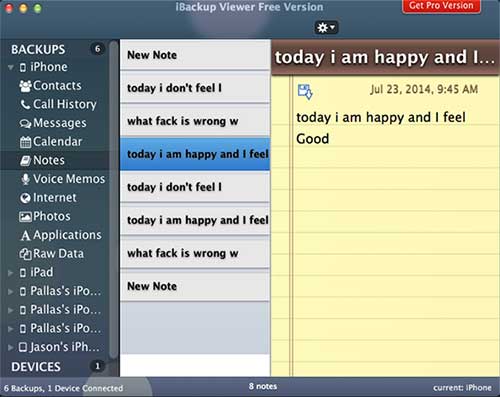
Step 3: You'll then be directed to the viewer window, which shows 11 data categories, including contacts, call history, messages, calendar, notes, voicemail, recordings, Safari history and bookmarks, apps, photos, and raw files.
Step 4: Select the type of data you want to recover, such as contacts. You can then export a single contact or all of them as a vCard file, or transfer them to Mac Contacts, Google Contacts, or the relevant application.
Part 3: Best iBackup Viewer Alternative
As mentioned earlier, iBackup Viewer does not support iCloud, meaning it cannot extract data from iCloud backups. Additionally, there's no guarantee that iBackup Viewer will be able to extract all data from an iOS backup. If it fails, or if you need to restore data from an iCloud backup, why not try the best alternative solution, MobiKin Doctor for iOS? Here are its key features:
MobiKin Doctor for iOS Key Features:
- It supports all iPhone backups, including iCloud and iTunes backups, and can recover data from your iPhone even without a backup.
- Users can view all data in iOS backups organized by type and export it in suitable file formats.
- It can recover contacts, call history, messages, photos, videos, music, memos, notes, app data, and more.
- The alternative to iBackup Viewer is compatible with iPhone 17/16/15/14/13/12/11, iPad Pro/Air/mini, and iPod touch.
- It restores your iPhone data from the backup to your computer without affecting the existing data on your device.
- Both PC and Mac versions are available.


1. Recover Lost Data from iPhone
Step 1: If you've accidentally deleted important files from your iPhone and don't have a backup, start by downloading and installing this reliable alternative to iBackup Viewer on your computer. Connect your iPhone using a Lightning cable, open the software, and select "Recover from iOS Device" to begin.
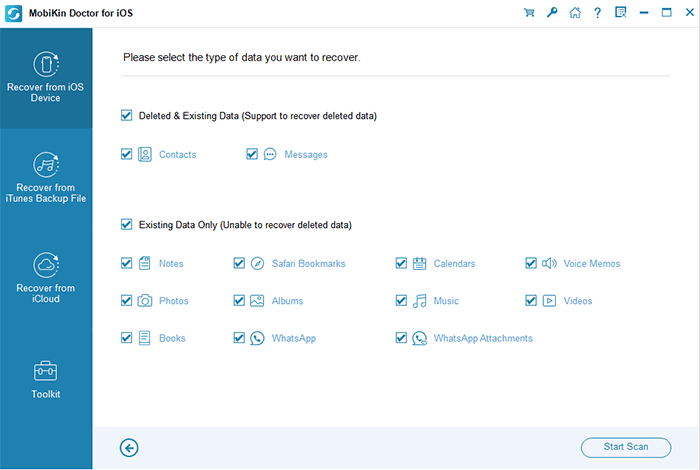
Step 2: Once your device is detected, the main interface will show various types of data you can recover. Choose the file types you want—for example, tap on "Contacts" if you're looking to recover lost contacts—and click "Start Scan" to search your device.
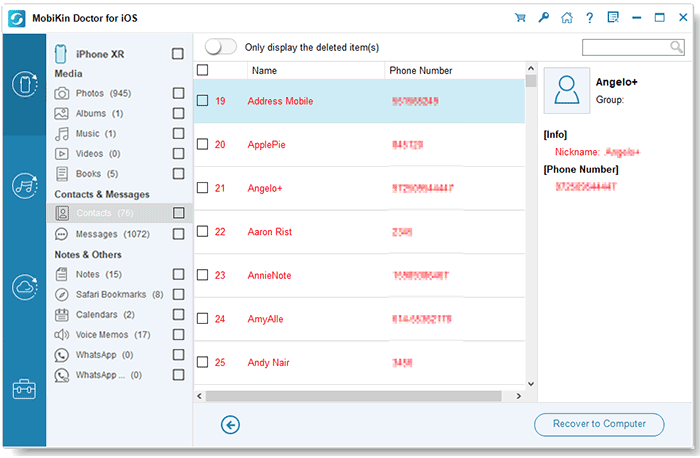
Step 3: After the scan finishes, review and select the data you wish to restore. Click "Recover to Computer" at the bottom right, choose a folder on your computer, and let the software begin the recovery process.
2. Recover from iTunes Backup
Step 1: If you've previously backed up your iPhone with iTunes, open the program and select "Recover from iTunes Backup File" from the left side.
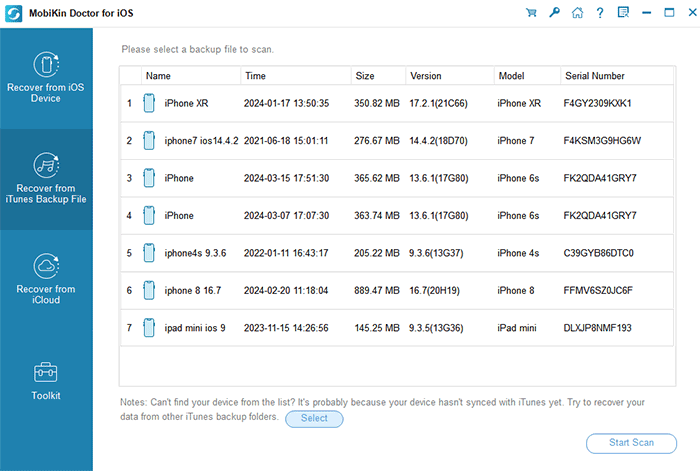
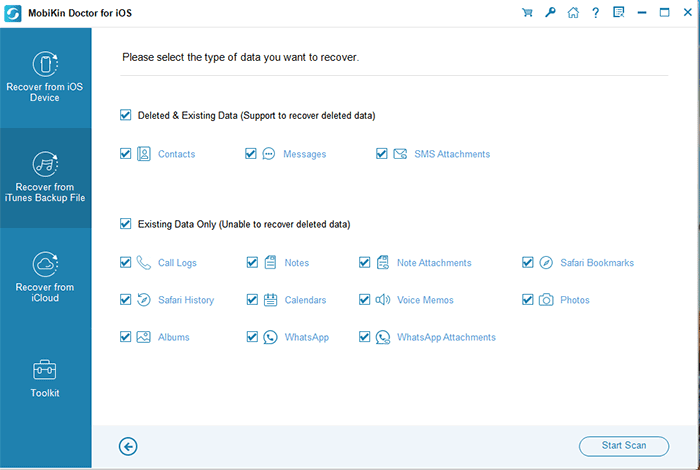
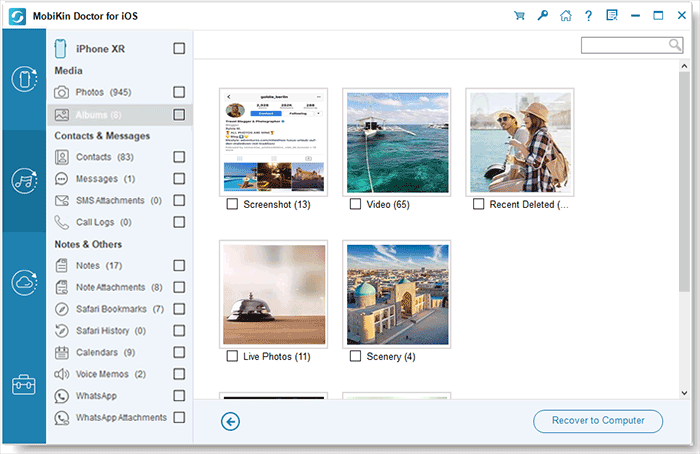
Step 2: Choose the iTunes backup you want to use, then click "Start Scan." The program will scan the backup and display the available files. Browse through them and select what you want to restore.
Step 3: Click "Recover to Computer" to begin extracting the files. If your backup is encrypted, you'll be prompted to enter the password to unlock it.
3. Restore from iCloud backup
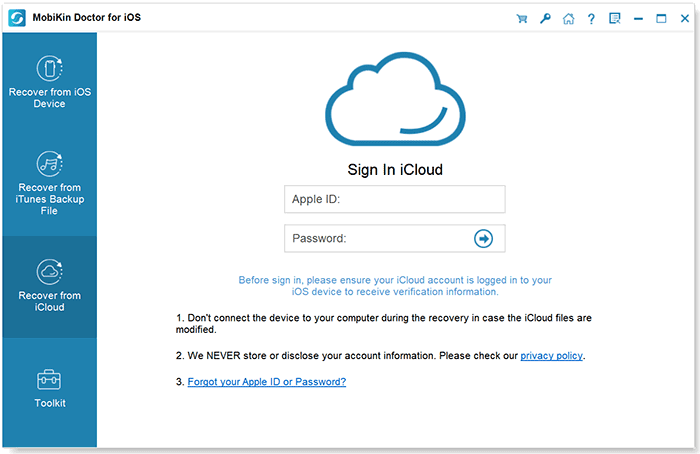
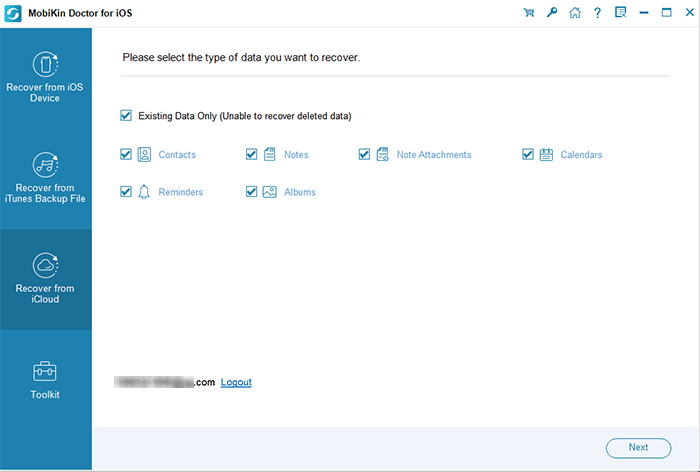
Step 1: If your data is saved in iCloud and you can't access your device, select "Recover from iCloud" from the main screen. Sign in with your Apple ID and password.
Step 2: Choose the type of data you want to recover and click "Start Scan." The program will scan your iCloud account and show all available backup files.
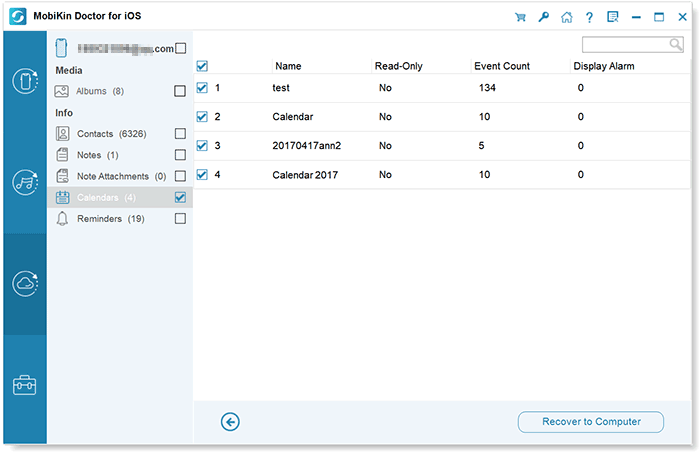
Step 3: Browse the list, select the files you need, and click "Recover to Computer" to download them to your computer.
Video Guide:
Part 4: FAQs of iBackup Viewer
Q1. What's the difference between the free and paid versions of iBackup Viewer?
The free version of iBackup Viewer allows you to view basic information and export data in a limited capacity. In contrast, the paid Pro version offers unlimited exports, batch operations, and advanced features such as the ability to unlock encrypted backups. The Pro version is essential for more extensive data recovery tasks.
Q2. Can iBackup Viewer recover deleted data from my iPhone?
iBackup Viewer can recover deleted data only if it's part of your iTunes backup. It cannot retrieve data directly from your iPhone if it was not backed up. To ensure the best chance of recovery, it's crucial to back up your device regularly.
Q3. How does iBackup Viewer compare to other iPhone data recovery tools?
iBackup Viewer is highly effective at extracting data from iTunes backups and has a user-friendly interface. However, it lacks some features found in other tools, such as direct device scanning or iCloud backup recovery. It is most useful for users who primarily need to extract data from existing iTunes backups.
Conclusion
In this tutorial, we introduced an iPhone backup manager called iBackup Viewer. While Apple created iTunes to help users back up their iDevices, the backups made with iTunes are not readable unless restored to the device, in order to protect privacy. This makes data recovery from iOS backups a complicated process. However, iBackup Viewer can extract data from these backups.
We also shared an alternative solution, MobiKin Doctor for iOS, which allows users to recover data from an iOS device, iTunes backup, or iCloud backup. With these two methods, you should now have at least two ways to recover your iOS data.
Related Articles:
How to Recover Data from Broken iPhone without Backup [Hot]
8 Solutions to Fix Contacts Disappeared from iPhone
What if iPhone Won't Restore? Here Are the Full List of Fixes
