
Top 5 Finder Alternatives for Mac in 2026: Boost Your File Management
"I am really missing (and I never thought I'd say that) the operation of the Windows File Manger - a few little things it does easily seems to be a bit of a pain in Finder. So I am asking for recommendations for the best File Manager app for MacOS to replace Finder."
- From forums.macrumors.com
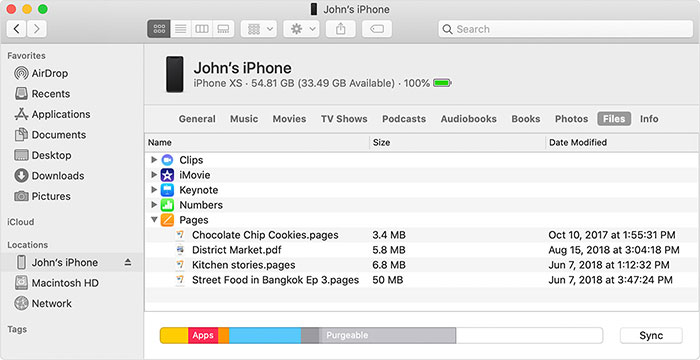
Finder has long served as the default file manager on macOS, offering essential tools for browsing, organizing, and handling files. However, for power users or those who need more advanced capabilities, its limited features can feel restrictive. If you want deeper customization, faster performance, or more powerful file-management tools, choosing the right Finder alternative can greatly boost your productivity.
In recent years, many strong Finder replacements have appeared. They provide greater flexibility, enhanced functionality, and improved control over file operations. In this guide, we'll review the top Finder alternatives and explain why switching to one of them may be a smart choice.
Part 1: Why Do You Need a Finder Alternative?
While Finder works well for everyday file management, some users may need more advanced features and flexibility for complex tasks. Here are several key reasons why you might consider using a Finder alternative:
- Limited advanced features for power users and professional workflows.
- Minimal customization options compared to third-party file managers.
- Slower performance when handling large files or bulk operations.
- Lack of dual-pane or multi-tab file management in some workflows.
- Fewer built-in tools for advanced file organization and automation.
- Limited support for certain file formats, protocols, or external services.
- Third-party alternatives often offer better efficiency and productivity tools.
Part 2: Best Finder Alternatives for Mac and iPhone Management
If Finder feels limited, dedicated tools can offer smoother file control and better iPhone management. Below are five powerful alternatives that improves data transfer, organization, and overall device management efficiency.
1. MobiKin Assistant for iOS
MobiKin Assistant for iOS is a comprehensive iPhone and iPad management tool designed for Mac users who need more flexibility and control than Finder offers. It allows transfer, backup, and organize various types of iOS data with ease. With a clean interface and stable performance, the software helps users manage device content efficiently, making everyday iPhone data management smoother, safer, and more convenient. (Note: A Windows version is also available with similar features.)
Key features of MobiKin Assistant for iOS:
- Transfer contacts, messages, photos, videos, music, and more between iPhone and Mac easily.
- Back up and restore iOS data selectively without overwriting existing files.
- Edit and manage contacts, SMS, notes, and calendars directly from your Mac.
- Supports preview before transfer for better data control and accuracy.
- Works smoothly with most iPhone, iPad, and iOS versions.


How to use MobiKin Assistant for iOS to manage iPhone/iPad on Mac:
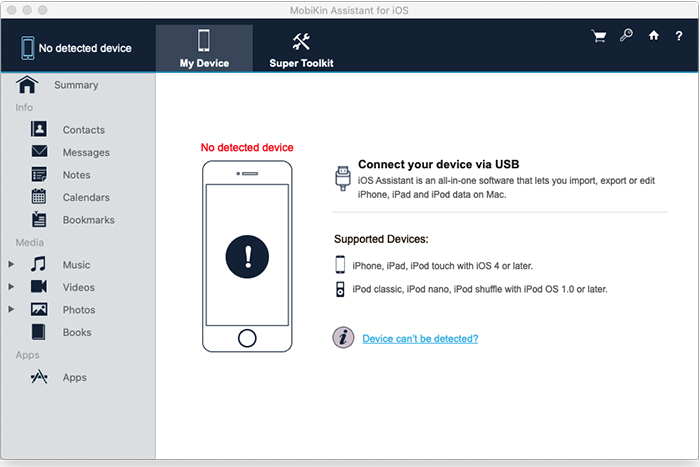
First, install and launch the software on your Mac, then connect your iPhone using a USB cable. Unlock your device and tap Trust when prompted so the program can recognize it successfully.
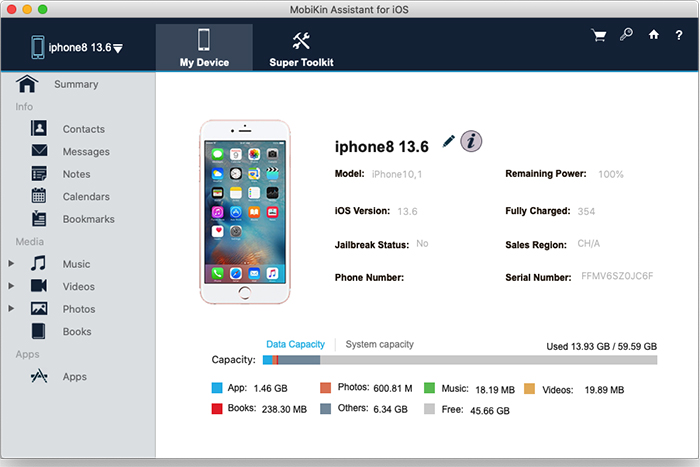
Next, once your device is detected, choose the data category you want to manage from the left panel. You can preview files, select specific items, and decide whether to export, import, or organize them.
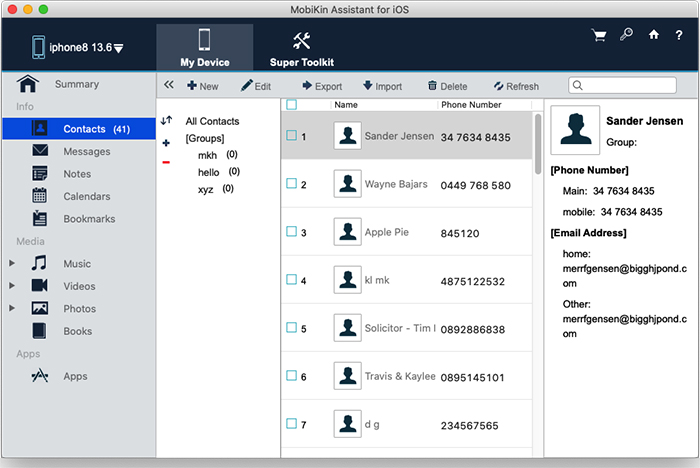
Finally, click the corresponding action button to start the process. Wait a moment for the transfer or backup to complete, and your iPhone data will be safely saved or managed as needed.
Video Guide:
2. Commander One
Commander One is a powerful dual-pane file manager for Mac designed to replace Finder with faster navigation and advanced control. It offers a clean interface, efficient file handling, and support for various storage types, making it ideal for users who frequently manage large volumes of files or need more professional file-management capabilities.
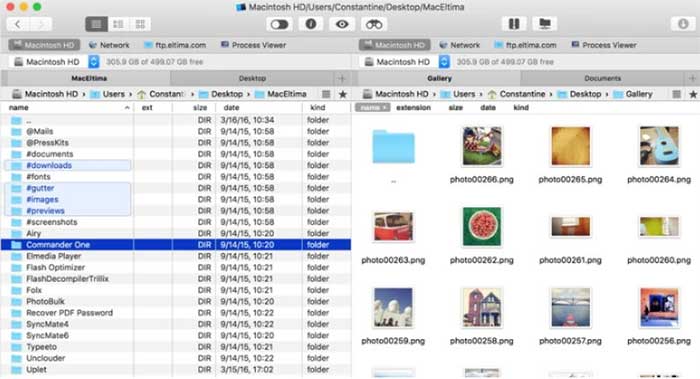
Key features:
- Dual-pane interface for easier file comparison and transfer.
- Multiple tabs for smoother multitasking and navigation.
- Built-in FTP, SFTP, FTPS, and cloud service connections.
- Advanced search with regular expressions and hidden file support.
- Archive handling, including ZIP, RAR, and TAR files.
- Queue file operations for better workflow efficiency.
Pros:
- Fast and responsive file operations.
- Powerful dual-pane layout improves productivity.
- Supports many protocols and cloud services.
- Clean, customizable interface.
Cons:
- Some advanced features require the Pro version.
- Interface may feel complex for beginners.
- Occasional compatibility issues with certain plugins.
Read Also:
3. Path Finder
Path Finder is a powerful and versatile file manager for Mac users who want far more control than Finder provides. Designed for advanced workflows, it offers dual-pane browsing, deep file access, and extensive customization. With fast navigation and built-in utilities, Path Finder helps users handle complex file operations, manage storage, and streamline daily file management tasks more efficiently than the default Finder.
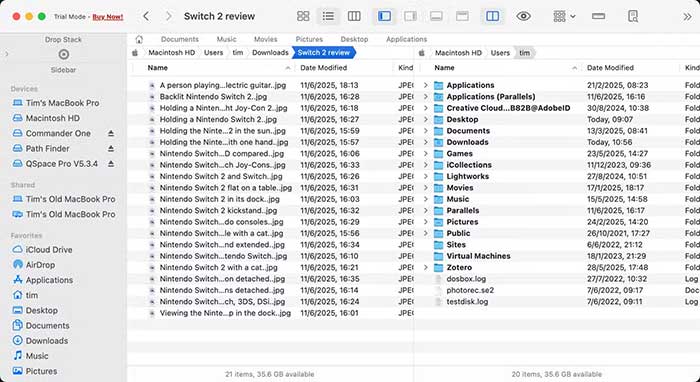
Key features:
- Dual-pane interface for faster file copying and moving.
- Advanced file search and filtering tools.
- Built-in file compression and extraction.
- Folder comparison and sync support.
- Terminal integration for advanced users.
- Customizable interface and workflow tools.
Pros:
- Powerful features for advanced users.
- Dual-pane boosts productivity.
- Highly customizable interface.
- Many built-in utilities.
Cons:
- Steeper learning curve for beginners.
- Paid software, no full free version.
- Interface may feel complex for casual users.
4. ForkLift
ForkLift is a powerful dual-pane file manager and file transfer client for macOS, designed for users who need faster navigation and advanced file control than Finder provides. With a clean interface and strong performance, it simplifies file organization, remote connections, and bulk operations, making it ideal for developers, power users, and professionals managing large amounts of data daily. (How to Transfer Files from iPhone to Mac?)
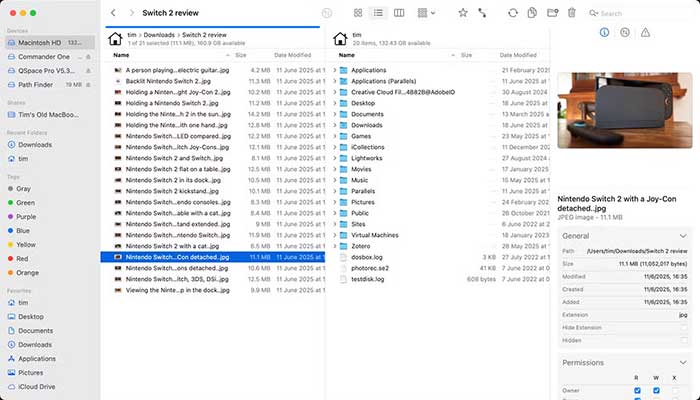
Key features:
- Dual-pane interface for faster file browsing and drag-and-drop management.
- Supports FTP, SFTP, WebDAV, Amazon S3, and other remote connections.
- Batch rename, folder sync, and advanced search tools.
- Built-in file preview and quick compare function.
- Archive management and app deletion tools.
- Tabbed browsing for handling multiple locations easily.
Pros:
- Fast and smooth performance.
- Powerful remote file transfer support.
- Clean and customizable interface.
- Great for bulk file operations.
Cons:
- Not free (paid software).
- May feel complex for beginners.
- Some advanced features require setup.
Read Also:
5. Nimble Commander
Nimble Commander is a powerful dual-pane file manager for Mac designed to boost productivity and simplify complex file operations. With a focus on speed and efficiency, it offers advanced file management tools, keyboard-driven navigation, and extensive customization options, making it ideal for power users who want more control than Finder provides.
Key features:
- Dual-pane interface for easy file comparison and transfer.
- Keyboard shortcuts for faster navigation and file operations.
- Supports multiple tabs for managing several folders at once.
- Built-in file preview for quick content checks.
- Advanced search and filter options for locating files quickly.
- Customizable interface and themes to suit your workflow.
Pros:
- Extremely fast and responsive.
- Ideal for power users and developers.
- Highly customizable with keyboard-driven commands.
Cons:
- Steeper learning curve for beginners.
- Limited integration with iOS devices.
- Lacks some drag-and-drop simplicity of Finder.
Words in the End
While Finder handles basic file management on Mac, many users find it limited in customization, advanced features, and multitasking. Power users, developers, or anyone managing large volumes of files can benefit from Finder alternatives that offer dual-pane views, cloud integration, advanced file operations, and plugin support.
Choosing the right file manager can streamline tasks and boost productivity. When exploring alternatives, consider what matters most-speed, remote access, customization, or simplicity-and select the app that fits your workflow best, ensuring smoother, faster, and more efficient file management on your Mac.
Related Articles:
How to Access iPhone Files on PC/Windows in 6 Ways
[Guide 2026] How to Transfer Files from Mac to iPhone
