
How to Restore iPhone from iTunes Backup: Complete Guide
TL;DR:
Want to restore your iPhone from an iTunes backup but worry about data loss or complicated steps? This guide will show you reliable methods to recover your iPhone data:
- Learn how to restore iPhone from an iTunes backup using iTunes, including detailed steps and important precautions before starting the process.
- Discover how to restore iPhone backups with Finder on Mac, including connection steps, backup selection, and the complete restoration procedure.
- Find out how to use MobiKin Doctor for iOS to preview, extract, and selectively recover data from iTunes backup files.
- Explore frequently asked questions about iTunes backup restoration, including data overwriting, backup location, recovery time, and common errors.
Restoring an iPhone from an iTunes backup is a practical way to get back your important data after switching devices, accidental deletion, or system issues. However, many users are unsure how to restore a backup correctly or whether the process will overwrite existing files. In this guide, we will explain how to restore an iPhone from an iTunes backup using iTunes and Finder, and introduce a flexible alternative to selectively recover data.
Part 1: How to Restore iPhone from Backup in iTunes
iTunes provides an official way to restore an iPhone from a local backup stored on your computer. If you have previously backed up your iPhone with iTunes, you can use the backup file to restore your device and bring back your data, settings, and other content. The process is simple and only requires a few steps.
Follow the steps below to restore your iPhone from an iTunes backup:
- Connect your iPhone to the computer where the iTunes backup is saved using a USB cable.
- Open iTunes and click the device icon when your iPhone appears.
- Go to the "Summary" tab and click "Restore Backup" under the Backups section.
- Select the desired iTunes backup file from the list and click "Restore" to start the process.
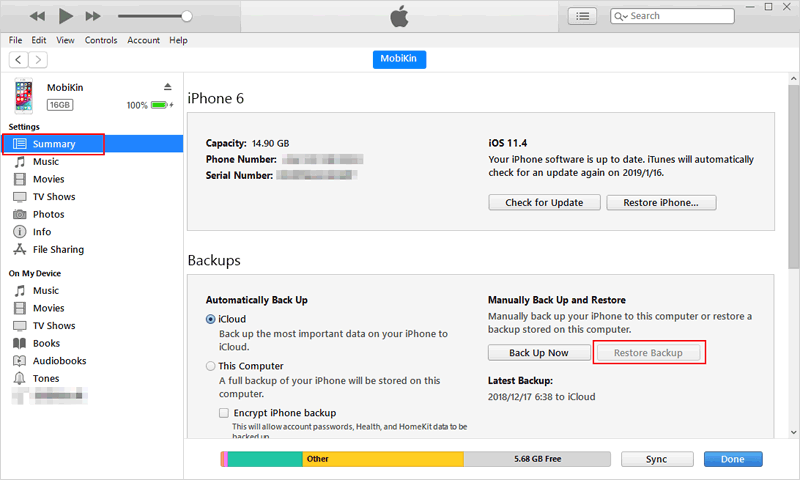
Wait patiently until the restoration process is completed. Your iPhone will restart automatically, and the selected backup data will be restored to your device.
However, restoring an iPhone with iTunes also comes with some limitations. iTunes performs a full device restoration instead of allowing you to choose specific files to recover. This means you cannot preview the backup contents or selectively restore items such as contacts, messages, or photos. Additionally, the restored backup will replace the existing data on your iPhone, which may result in the loss of newly added files.
Part 2: How to Restore iPhone Backup with Finder on Mac
For Mac users running macOS Catalina or later, Apple has replaced iTunes with Finder for managing iPhone backups and restores. Although the interface is different, the process of restoring an iPhone from a backup with Finder is very similar to using iTunes. Finder allows you to restore various types of content stored in the backup, including app data, photos, videos, settings, and other device information.
Follow the steps below to restore your iPhone backup using Finder:
- Connect your iPhone to your Mac using a compatible USB cable. Then, open Finder on your Mac.
- Open Finder and locate your iPhone under the Locations section in the left sidebar.
- Click your iPhone to open the device management page. Then, select the "General" tab to view available backup and restore options.
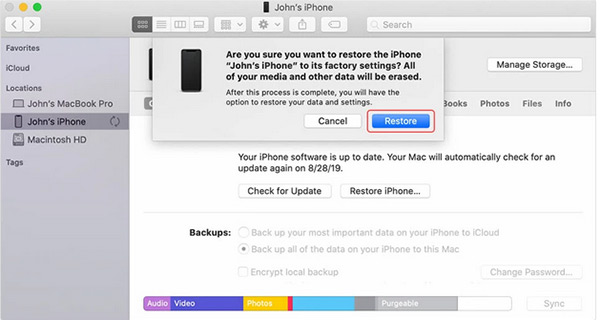
- Under the "Backups" section, click "Restore Backup".
- A pop-up window will appear with a list of available backups. Select the backup file you want to restore.
- Click the "Restore" button to begin the restoration process.
Part 3: Restore iPhone from iTunes Backup with MobiKin Doctor for iOS
If you want more flexibility than the built-in iTunes or Finder restoration methods, a professional iPhone backup recovery tool can be a better choice. MobiKin Doctor for iOS provides a convenient way to extract and recover data from iTunes backup files without restoring the entire backup to your device.
Unlike iTunes, which only supports full backup restoration and replaces existing iPhone data, MobiKin Doctor for iOS allows you to preview backup contents and selectively recover the files you need. In addition to iTunes backups, this tool can also recover data directly from iPhone devices and extract files from iCloud backups without resetting your device.
With MobiKin Doctor for iOS, you can:
- Recover data from iTunes backup files without restoring the entire backup.
- Preview backup contents before recovery and select specific files you need.
- Restore deleted or lost iPhone data directly from iOS devices.
- Extract data from iCloud backups without resetting your device.
- Support multiple data types, including contacts, photos, messages, notes, call logs, WhatsApp data, and more.


Steps to Restore iPhone Data from iTunes Backup with MobiKin Doctor for iOS:
Step 1: Select the iTunes Backup Recovery Mode
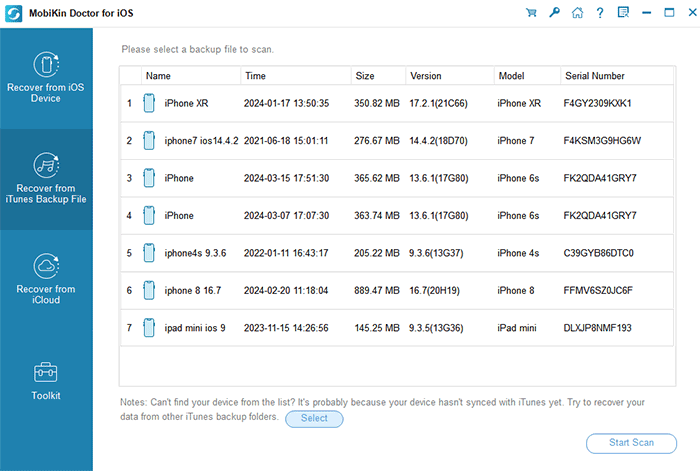
Download and install MobiKin Doctor for iOS on your computer. After installation, open the program to access the main interface. From the recovery options, choose "Recover from iTunes Backup File".
The program will automatically detect the available iTunes backup files stored on your computer. Select the backup you want to recover from and click "Start Scan" to continue.
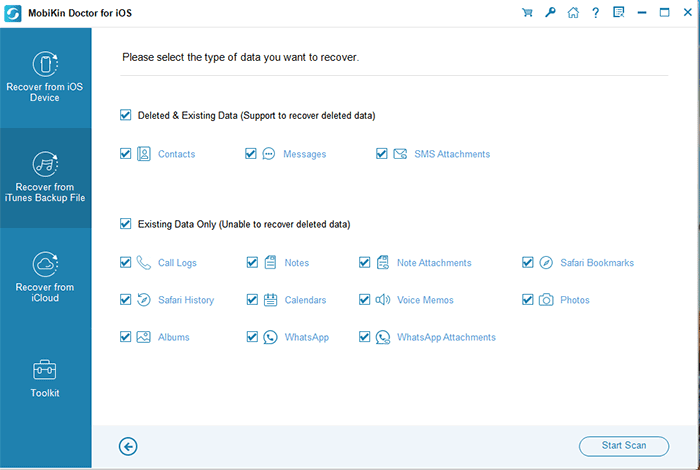
Step 2: Choose Data Types to Scan
After selecting the backup file, choose the data categories you want to recover, such as contacts, photos, messages, notes, or other supported files. Click "Start Scan" again, and the program will analyze the selected backup contents.
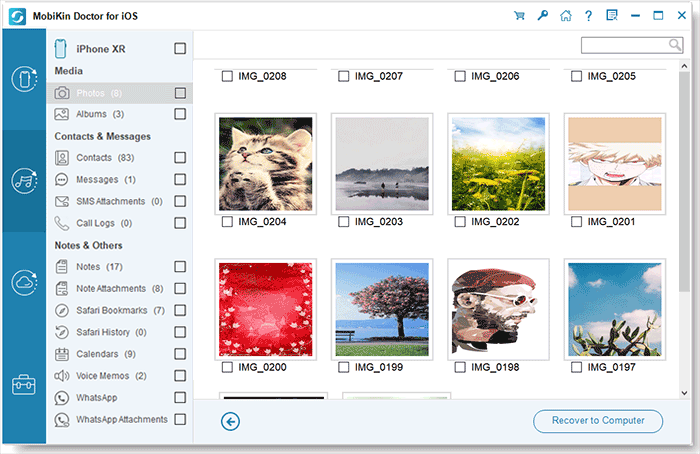
Step 3: Preview and Recover Selected Data
Once the scan is complete, preview the available files and select the items you want to restore. Click the "Recover to Computer" button to save the selected data to your computer.
Besides recovering data from iTunes backups, MobiKin Doctor for iOS also supports two additional recovery modes:
- Recover from iOS Device: Directly scan your iPhone and recover lost or deleted data without a backup.
- Recover from iCloud Backup: Access and extract data from iCloud backup files without performing a full device reset.
Video Guide:
Part 4: FAQs About Restoring iPhone from iTunes Backup
Q1: Can I restore only specific files from an iTunes backup?
No. iTunes does not allow you to select individual files or specific data types during the restoration process. It restores the entire backup package, including settings, apps, and other saved content.
To restore specific items such as contacts, photos, messages, or notes, you need a dedicated iPhone backup extractor like MobiKin Doctor for iOS.
Q2: Where is my iTunes backup stored?
iTunes backups are usually saved locally on your computer (Click here to check the iTunes Backup Location).
- Windows: iTunes backups are typically stored in:
\Users\(username)\AppData\Roaming\Apple Computer\MobileSync\Backup\ - Mac: iTunes/Finder backups are usually stored in:
~/Library/Application Support/MobileSync/Backup/
You can also check your available backups through iTunes or Finder before starting the restoration.
Q3: How long does it take to restore an iPhone from an iTunes backup?
The restoration time depends on factors such as the backup size, computer performance, USB connection speed, and the amount of data being restored.
A small backup may finish within several minutes, while larger backups containing many photos, videos, and app data may take much longer.
Q4: Why can't I restore my iPhone from an iTunes backup?
Several reasons may prevent an iPhone from being restored successfully, including:
- The iTunes backup is corrupted or incomplete.
- The iTunes version is outdated.
- There is not enough storage space on the iPhone.
- The backup was created with a newer iOS version than the current device supports.
- The encrypted backup password is incorrect.
Updating iTunes, checking the USB connection, or trying another backup file may help resolve the issue.
Q5: Can I restore an iTunes backup to a different iPhone?
Yes. You can restore an iTunes backup to another iPhone as long as the backup is compatible with the target device. This is commonly used when setting up a new iPhone or transferring data from an old device.
However, some data, such as Apple Pay information, Face ID/Touch ID settings, and certain security-related information, will not be transferred through the backup.
In Conclusion
Restoring an iPhone from an iTunes backup can help recover your data quickly, but the official methods have limitations, such as full restoration and data replacement. If you need more control over the recovery process, MobiKin Doctor for iOS provides a safer way to preview and selectively restore files from iTunes backups without overwriting your current iPhone data.
Related Articles:
[4 Methods with Pics] How to Undo a Restore on iPhone/iPad
3 Best Ways to Restore iPhone from Backup after Setup
4 Ways to Fix iPhone Data Recovery Cannot Be Completed
Where Are iPhone Backups Stored on Mac/PC? A Detailed Guide You Can't Miss
