
OPPO Clone Phone Not Working? Let's Fix It in 9 Easy Ways
"I want to migrate data from my old OPPO to my new Reno 15 but unfortunately when I select my data it says upgrading transfer chanel the it proceeds to say transfer failed. How can I fix this?" -- from Reddit
Many users encounter the frustrating issue of OPPO clone phones not working, which can disrupt daily communication, app usage, and data access. This article will explore the possible reasons behind the challenge. In addition, we will provide 9 quick solutions and 1 last-resort fix to help you restore functionality and minimize risks, giving you practical steps to troubleshoot your device effectively.
- Part 1: Why Is OPPO Clone Phone Not Working
- Part 2: How to Fix OPPO Clone Phone Not Working in 9 Easy Ways
> 1. Restart Both Phones
> 2. Update the OPPO Clone Phone App
> 3. Clear Cache or Reinstall the App
> 4. Verify the Connection Method
> 5. Disable Battery Optimization and Power Saving
> 6. Grant All Required Permissions
> 7. Try Manual Hotspot Connection
> 8. Check Storage Space Available
> 9. Factory Reset OPPO - Part 3: The Best Alternative to Clone Phones Seamlessly without Hassle
Part 1: Why Is OPPO Clone Phone Not Working
OnePlus/realme/OPPO Clone Phone often fail due to low-quality hardware, fake or unstable Android systems, missing Google services, network issues, limited storage, and pre-installed malware, making apps crash or features unresponsive. Combined with no official updates, and invalid IMEIs, these issues make clone phones unreliable and risky for everyday use. Here are the details:
- Low-quality hardware - weak CPU, RAM, battery, and screen cause freezes, lags, and random shutdowns.
- Fake or modified Android OS - system crashes, unresponsive features, wrong Android version.
- Incomplete Google services - Play Store and Google apps fail or crash.
- App incompatibility - modern apps may not install or keep crashing.
- Network/SIM issues - poor signal, dropped calls, mobile data not working.
- Invalid IMEI - SIM not recognized, network blocked, or service fails.
- Limited storage & RAM - advertised specs often fake, phone slows down quickly.
- Malware or pre-installed spyware - slows down phone, shows ads, risks privacy.
What if OPPO Clone Phone takes too long to transfer files? If you're transferring a lot of data, the process may take a long time, and you can monitor its progress by checking your phone. Do not change screens, close the app, or switch off either phone, as this will interrupt the transfer. This process consumes many system resources, so your phone may heat up while files are being copied.
Part 2: How to Fix OPPO Clone Phone Not Working in 9 Easy Ways
> 1. Restart Both Phones
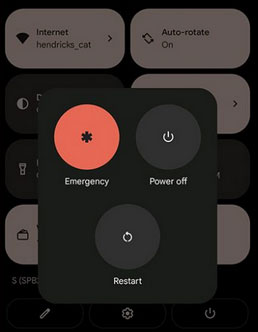
Restarting both the old and new devices can quickly fix temporary system glitches that interfere with Clone Phone. A reboot refreshes background services, resets Wi-Fi modules, and clears minor conflicts that may prevent the two phones from connecting properly. After restarting, reopen Clone Phone on both devices and start the transfer process again from the beginning.
> 2. Update the OPPO Clone Phone App
An outdated Clone Phone app may not work correctly with newer versions of Android or ColorOS. Updating the app ensures compatibility improvements, bug fixes, and better connection stability. On OPPO phones, check system app updates, while non-OPPO devices should update Clone Phone through the app store before attempting another transfer.
> 3. Clear Cache or Reinstall the App
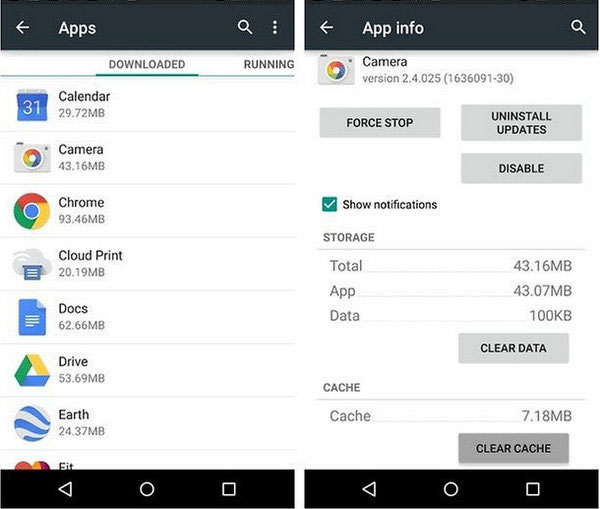
Corrupted cache files can cause Clone Phone to freeze, crash, or fail to detect nearby devices. Clearing the cache removes temporary data without affecting personal files. If clearing the cache does not help, uninstalling and reinstalling the app provides a clean setup and often resolves persistent issues.
> 4. Verify the Connection Method
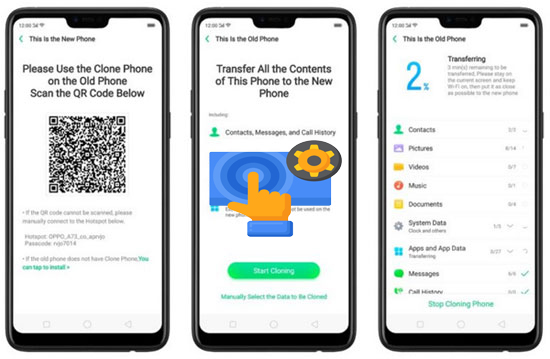
OPPO Clone Phone uses Wi-Fi Direct or a temporary hotspot rather than mobile data. If the QR code fails to scan or the connection drops frequently, ensure both phones are close together, Wi-Fi and Bluetooth are enabled, and airplane mode is turned off. Incorrect pairing steps are one of the most common reasons the cloning process fails.
> 5. Disable Battery Optimization and Power Saving
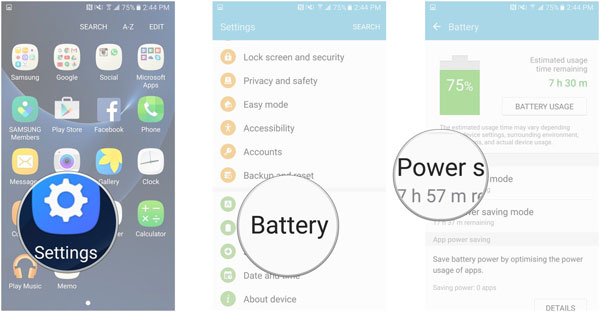
Battery saver modes may automatically limit Clone Phone's background activity, causing transfers to pause or stop unexpectedly. Disable battery optimization and any power-saving features on both devices, and allow Clone Phone to run without restrictions to ensure a stable and uninterrupted transfer.
> 6. Grant All Required Permissions
Clone Phone needs permission to access storage, contacts, photos, apps, and wireless connections. If any permission is denied, the app may fail silently or skip certain data during transfer. Manually review the app's permissions in system settings and make sure everything is enabled before starting the cloning process again.
> 7. Try Manual Hotspot Connection
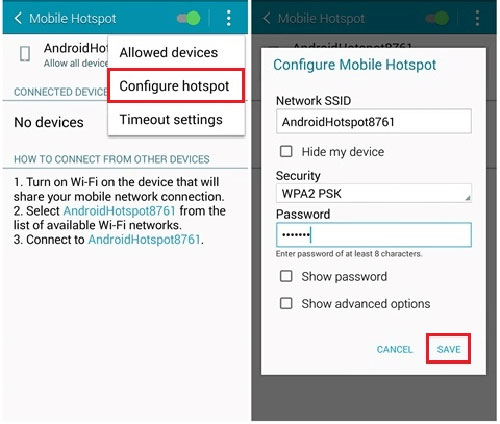
If QR code pairing repeatedly fails, try connecting manually. During the cloning process, the new OPPO Find, Reno, A, F, K Series, or realme/OnePlus usually creates a hotspot. Search for this hotspot on the old phone and connect using the on-screen password. This method can bypass QR scanning issues and improve connection reliability.
> 8. Check Storage Space Available
Insufficient storage on the target phone can cause Clone Phone to stop midway or fail without warning. Large photo libraries, videos, and app data require plenty of free space. Before cloning, free up storage by deleting unnecessary files, clearing caches, or uninstalling unused apps.
> 9. Factory Reset OPPO
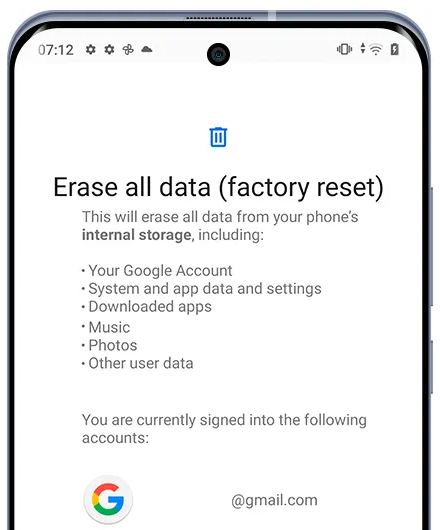
If Clone Phone does not work due to system corruption or setup conflicts, a factory reset may be necessary. Resetting restores default system settings and can eliminate deep software issues that block data transfer. Always back up important data before performing a hard reset, as this process erases all personal information.
Part 3: The Best Alternative to Clone Phones Seamlessly without Hassle
When Clone Phone continues to fail, consider alternative data transfer options. These include syncing data through a Google account, manually copying files via a computer and USB cable, or using a PC-based phone transfer tool. These methods are often more stable, especially for large or mixed data types. In this connection, tools like MobiKin Transfer for Mobile (Windows/Mac) is highly advisable.
More Features about MobiKin Transfer for Mobile:
- Always Smooth Transfers - USB-based connection avoids Wi-Fi drops, QR scan errors, and transfer interruptions.
- Works Across Devices - Supports OPPO, other Android phones, and iPhones with no brand limits (8,000+ devices).
- Covers Essential Data - Transfers contacts, messages, photos, videos, apps, and more.
- Fast & Easy to Use - Simple 3-step process with a high success rate.
- No Factory Reset Needed - Transfers data directly without erasing or resetting the target phone.
- Selective Transfer Control - Lets you choose specific data types, saving time and storage space.
- Stable for Large Data Transfers - Handles big photo libraries and videos smoothly without freezing or failing.


How to utilize the most desirable OPPO Clone Phone alternative to clone your devices without being intterrupted?
- Initially, download and install the complimentary trial version of MobiKin Transfer for Mobile.
- Once the installation is complete, open the program on your computer.
- Utilize USB cables to link both OPPO/Android/iOS devices to your computer.
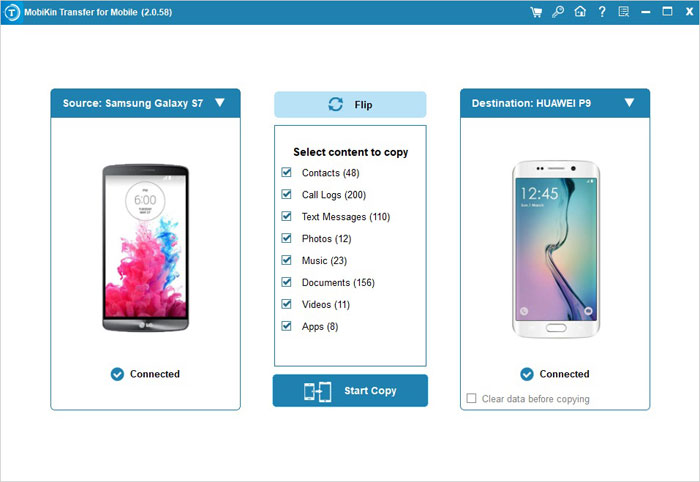
- The software will automatically detect the connected phones, showcasing all transferable data in the main interface. (If needed, follow the on-screen instructions to identify the devices.)
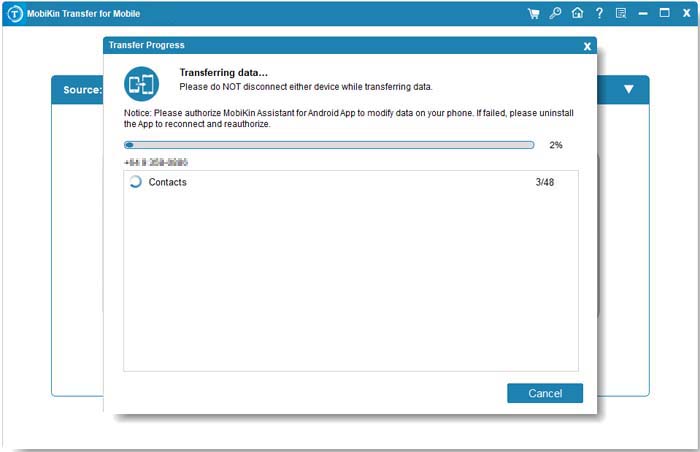
- Choose the types of data you wish to transfer, and then click the "Start Copy" button located in the center panel to commence the transfer at once.
Learn how to use this software visually?
Words in the End
While some issues on OPPO Clone Phone can be temporarily fixed, the reality is that this tool come with no warranty, no spare parts, no official repair options, no updates, no security patches, and persistent bugs, often resulting in the the transfer eventually failing.
For a reliable and hassle-free alternative, MobiKin Transfer for Mobile could be the best bet, allowing you to safely transfer data from your clone phone to a real device, ensuring smooth performance and long-term stability without the risks associated with Clone Phone.
Related Articles:
Step-by-Step Guide: How to Transfer Data from Tecno to iPhone
How to Back Up & Restore OPPO Reno/Find/R/K/A/F in 6 Trusted Ways?
How to Bypass OPPO FRP/Google Lock in 5 Easy Ways? Fixed
5 Feasible Solutions to Recover Deleted WhatsApp Messages on OPPO
