
How to Transfer Contacts from OnePlus to OnePlus? Top 4 Picks
Several practical solutions can help users transfer contacts from OnePlus to OnePlus, including built-in migration tools, cloud synchronization, and computer-based utilities. This guide introduces dependable methods to complete the task easily. By following the approaches described below, users can move their contacts efficiently and continue using their new OnePlus device without losing important connections.
- Way 1: Transfer Contacts from OnePlus to OnePlus via MobiKin Program [Expert]
- Way 2: Transfer All Contacts from One OnePlus to Another via Google Account Sync
- Way 3: Export Contacts from OnePlus to OnePlus via Clone Phone (OnePlus Switch)
- Way 4: Transfer Contacts from OnePlus to a New OnePlus Phone via SIM Card
- FAQs about Transferring Contacts from OnePlus to OnePlus
Way 1: Transfer Contacts from OnePlus to OnePlus via MobiKin Program [Expert]
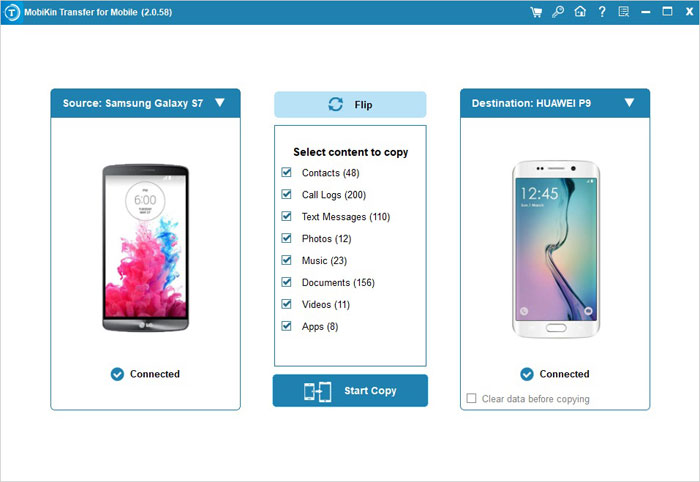
A reliable desktop-based solution can simplify moving contacts between two OnePlus devices without a complicated setup. MobiKin Transfer for Mobile (Windows/Mac) allows users to connect both phones to a computer and copy contacts directly from one device to another.
The program supports a wide range of Android models and keeps the original contact details intact during the process. With a straightforward interface and quick operation, it provides a dependable option for transferring contacts between OnePlus phones.
|
MobiKin Transfer for Mobile - Feature
|
Description
|
|
One-Click Contact Transfer |
Allows users to transfer contacts from one OnePlus phone to another with a single click after connecting both devices to a computer. |
|
Android/iOS-to-Android/iOS Compatibility |
Supports direct data migration between Android/iOS devices, including OnePlus, Samsung, Xiaomi, OPPO, Apple iPhone/iPad, and many others. |
|
Multiple Data Types Supported |
Besides contacts, it can transfer SMS, call logs, photos, videos, music, apps, and documents in one operation. |
|
Selective Data Transfer |
Users can choose only the data types they want to move (such as contacts only) instead of copying everything. |
|
Fast and Stable Migration |
Performs transfers quickly and maintains the original data quality during migration. |
|
No Data Loss |
Ensures the transferred contacts remain intact. |
|
Simple 3-Step Operation |
The transfer process typically involves installing the software, connecting both phones via USB, and clicking "Start Copy". |
|
No Wi-Fi Required |
Contacts can be moved via USB connection through a computer, eliminating the need for internet access. |
User Manual:
- Start by downloading and installing the free trial of Transfer for Mobile on your computer, then launch the program after installation.
- Next, connect both OnePlus phones to the computer using USB cables.
- The software will automatically recognize the devices, and the types of data available for transfer will appear in the center panel.
- Finally, select "Contacts" to move and click "Start Copy."
- The program will immediately begin transferring the selected content between the two devices.



Video Guide:
You May Also Like: How to Back Up Contacts in OnePlus to Different Platforms? 4 Strategies
Way 2: Transfer All Contacts from One OnePlus to Another via Google Account Sync
Many users rely on cloud services to keep their contacts synchronized across devices. Google Account Sync enables contacts stored on one OnePlus phone to be uploaded to a Google account and then downloaded to another device using the same account.
Once synchronization is enabled, contacts can automatically appear on the new phone after login. This method works without cables and is convenient for users who regularly back up their contact lists to Google.
User Manual:
- Open Settings on your old OnePlus phone.
- Scroll down and tap Accounts (or Users & accounts).
- Select your Google account and tap Account sync.
- Ensure the Contacts option is enabled.
- Tap the Menu icon and choose Sync now to upload contacts to Google.
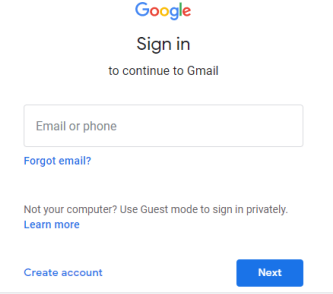
- On the new OnePlus phone, sign in with the same Google account.
- Go to Settings > Accounts > Google > Account sync.
- Turn on Contacts and tap Sync now.
- Wait a moment and all contacts will appear on the new device.
People Also Like: How to Hard/Factory Reset OnePlus with Minimum Effort? 4 Options
Way 3: Export Contacts from OnePlus to OnePlus via Clone Phone (OnePlus Switch)
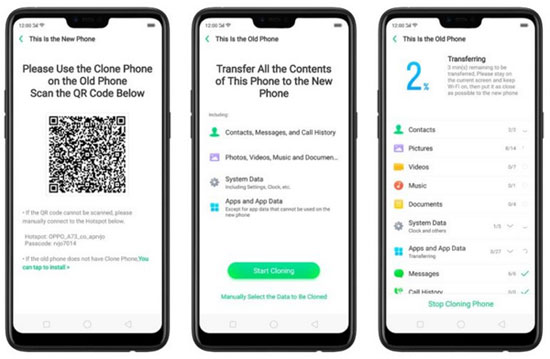
Wireless migration tools built into modern smartphones can also assist with transferring personal information. OPPO Clone Phone creates a temporary connection between two phones, allowing contacts and other data to be moved directly from one device to another.
The process usually involves scanning a QR code to establish the link and selecting the data you want to copy. Since everything happens through a local connection, contacts can be transferred quickly without relying on cloud storage.
User Manual:
- Install and open Clone Phone on both OnePlus devices.
- On the new OnePlus phone, select This is the new phone.
- On the old OnePlus phone, tap This is the old phone.
- Use the old phone to scan the QR code displayed on the new device to establish a connection.
- Choose Contacts (or select all data types you want to transfer).
- Tap Start Cloning to begin transferring contacts from the old OnePlus to the new one.
- Wait until the process finishes, and the contacts will appear on the new device. (What if OnePlus refuse to work?)
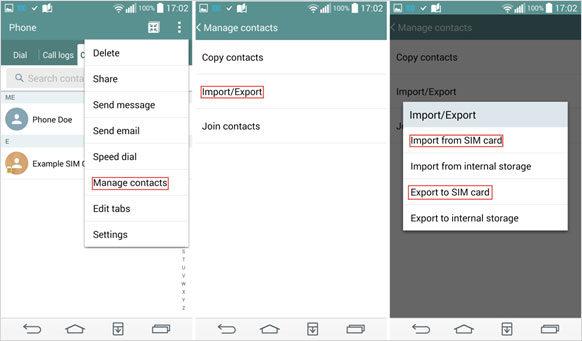
Way 4: Transfer Contacts from OnePlus to a New OnePlus Phone via SIM Card
Traditional hardware-based methods are still useful when internet access is limited. SIM Card transfer allows contacts to be exported from the old OnePlus device to the SIM and then imported into the new phone after inserting the card.
Only basic contact details such as names and phone numbers are typically stored on the SIM. Despite its limitations, this approach can be practical for quickly moving a small number of contacts between devices.
User Manual:
- Open the Contacts app on your old OnePlus phone.
- Tap the Menu icon and select Settings.
- Choose Import/Export and tap Export to SIM card.
- Select all contacts (or the ones you want) and confirm the export.
- Remove the SIM card from the old OnePlus phone.
- Insert the SIM card into the new OnePlus phone.
- Open the Contacts app on the new device.
- Go to Menu > Settings > Import.
- Select Import from SIM card.
- Choose the contacts and tap Import to save them to the phone or a Google account.
FAQs about Transferring Contacts from OnePlus to OnePlus
Q1. Will contact details remain unchanged after the transfer?
In most cases, names, phone numbers, and other saved information remain intact when the transfer is performed using reliable methods.
Q2. Can Bluetooth be used to send contacts between OnePlus phones?
Yes. Bluetooth allows users to share selected contacts or VCF files, although the process may take longer when transferring a large number of entries.
Q3. What should be done before transferring contacts to a new OnePlus device?
Creating a backup or enabling cloud synchronization is recommended to prevent accidental data loss during the transfer.
Q4: Will transferring contacts affect other data on my OnePlus phone?
No. Most reliable transfer methods, including Google Sync, Clone Phone, or MobiKin Transfer for Mobile, only copy the selected contacts without altering messages, photos, or apps.
Q5. Which tool is considered a highly practical option for transferring contacts from OnePlus to OnePlus?
For transferring contacts between OnePlus devices, MobiKin Transfer for Mobile is widely considered the most practical option. It provides a direct phone-to-phone transfer through a computer connection, ensuring that all contact details remain intact. Its simplicity, speed, and ability to selectively move contacts make it the most desirable tool for users who want a safe and efficient transfer from one OnePlus phone to another.
Related Articles:
Fix OnePlus Phone Not Connecting to PC/Computer in 11 Ways
4 Most Popular OnePlus Contacts Erasers 2026 [Expert Guidance]
How to Retrieve Deleted Data from Rooted OnePlus [5 Easy Strategies]
How to Recover Deleted WhatsApp Messages in OnePlus? 4 Approaches
