
Fix OnePlus Phone Not Connecting to PC/Computer in 11 Ways
TL;DR:
The solutions below cover the most common causes and provide practical fixes to help your OnePlus reconnect to your PC successfully. If you want to manage, back up, restore, import, and export contacts, messages, photos, videos, and other files across almost all OnePlus models without data loss, try MobiKin Assistant for Android, which offers a stable way to connect your OnePlus phone to a PC through USB or WiFi.
"My OnePlus 15 has recently stopped being recognised as a portable device when connecting to a Windows PC, and I am stumped as to why, or how to fix this." -- from xdaforums.com
A reliable connection between your OnePlus phone and PC is essential for transferring files, backing up data, and managing your device efficiently. However, when a OnePlus phone is not connecting to a PC, it can create frustration and interrupt important tasks. Now, focus on this article to explore 11 practical ways to restore the connection safely.
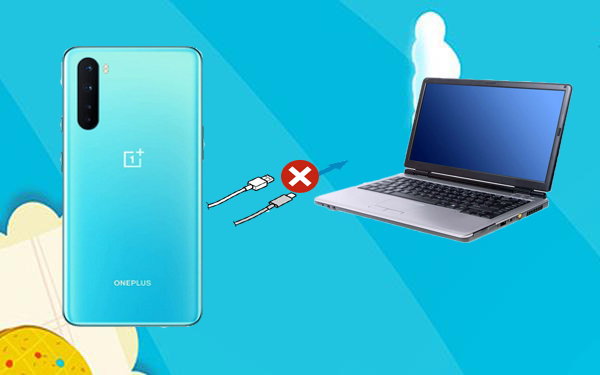
Part 1: Why Is My OnePlus Not Connecting to My PC
Several factors can prevent your OnePlus phone from connecting to your PC, ranging from simple setting issues to hardware faults. Below are the most common reasons that may cause the OnePlus usb file transfer not working:
- Incorrect USB mode selected (set to Charge only instead of File Transfer/MTP).
- Faulty or charging-only USB cable.
- Damaged or dirty USB port on the phone.
- Outdated or missing USB drivers on the PC.
- USB Debugging disabled or incorrect phone settings.
- Software glitches on the phone or computer.
- Outdated OxygenOS or Windows system.
- Faulty or incompatible USB port on the computer.
- Interference from antivirus or firewall software.
- Conflicts caused by third-party apps.
- Corrupted system cache or misconfigured settings.
- Possible hardware damage to the phone's USB interface.
Further Exploration: How to Restore Deleted Contacts on OnePlus? 5 Ingenious Methods
Part 2: 11 Ways to Fix OnePlus Phone Not Connecting to PC
Fix 1. Check the USB Cable and Port
Try switching to a different USB cable, ideally the original OnePlus cable, since some cables only support charging and not data transfer. Connect your phone to another USB port on your computer, preferably a direct port instead of using a hub for a more stable connection. You can also test the cable and port with another device to determine whether the issue lies with the accessories rather than the phone itself.
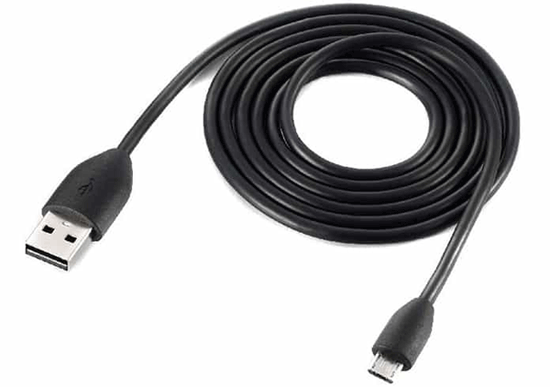
Dust, lint, or debris inside the charging port can block proper contact between the cable and connectors. Carefully clean it using a soft brush, toothpick, or compressed air, and avoid using metal objects that could damage internal pins.
Fix 2. Ensure Correct USB Connection Mode
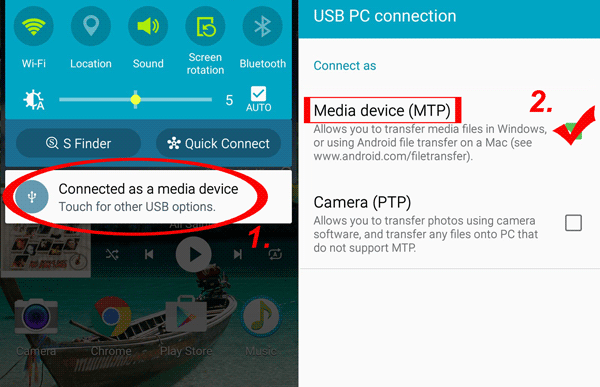
- Select Media Device (MTP) instead of "Charge only" from the notification panel.
- Toggle between USB modes (Charging, MTP, PTP) to refresh the connection.
- Reconnect the cable after switching modes so the computer can re-detect the device properly.
Fix 3. Restart Both Devices
Restart your OnePlus phone and your PC to clear temporary glitches, refresh background services, and resolve minor system errors/conflicts that may be preventing proper connection.
Fix 4. Update System Software
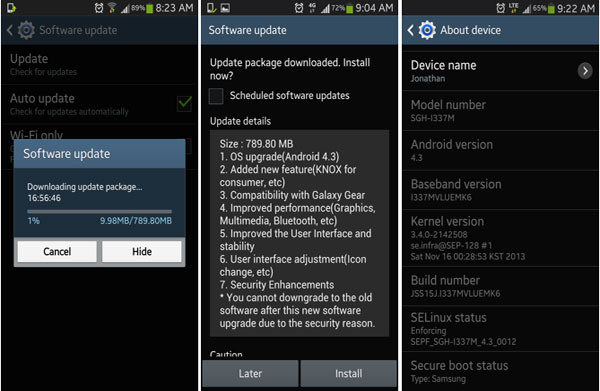
Update your phone to the latest OxygenOS version to address potential bugs affecting USB connectivity. Make sure your PC is also running the latest Windows updates to maintain proper compatibility with external devices. Keeping both systems up to date can improve overall stability and help prevent connection issues.
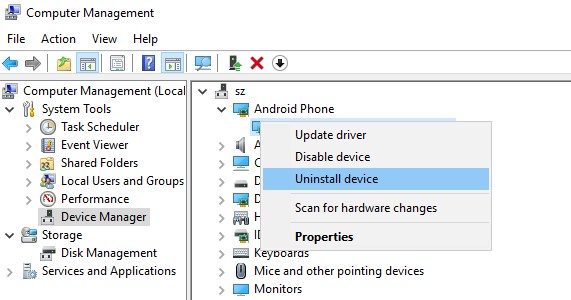
Fix 5. Install or Fix USB Drivers
- Install the latest OnePlus USB drivers so your PC can properly recognize the device.
- Update drivers via Device Manager if they are outdated or missing.
- Reinstall drivers if they appear corrupted or malfunctioning.
- Disable driver signature enforcement if installation fails (advanced users only).
Fix 6. Update PC Hardware Drivers
Outdated chipset or USB controller drivers (Intel/AMD) can affect how your PC handles connected devices. Updating these drivers ensures smoother communication and prevents OnePlus usb file transfer not working.
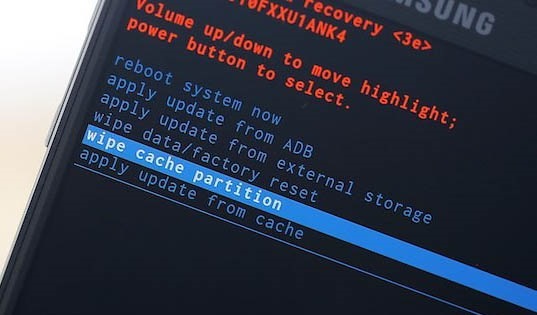
Fix 7. Clear Cache via Recovery Mode
Boot into recovery mode and wipe the cache partition to remove temporary system files. This can fix hidden glitches affecting USB functionality without deleting your personal data.
Fix 8. Check for Software Conflicts
- Temporarily disable antivirus or firewall, as they may block USB connections.
- Boot the phone into Safe Mode to check if third-party apps are interfering. (Your phone gets stuck in safe mode?)
- These steps help isolate whether external software is causing the detection problem.
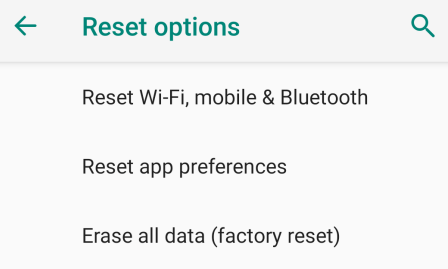
Fix 9. Reset Device Settings
- Reset all system settings to fix incorrect configurations without erasing personal files.
- Perform a factory reset as a last resort after backing up your data.
- This step can resolve deeper system issues that simple fixes cannot handle.
Fix 10. Test with Another Computer or Mode
- Connect your phone to a different PC to determine whether the issue is computer-related.
- Test Fastboot or ADB mode detection to check if the device is recognized at a deeper level.
- This helps narrow down whether the problem lies with software, drivers, or hardware.
Fix 11. Check for Hardware Damage
If your phone only charges but never allows file transfer, the USB port or internal components may be damaged. In such cases, visiting a repair center or contacting support is recommended.
Part 3: Connect OnePlus Phone to PC Stably without USB [Professional]
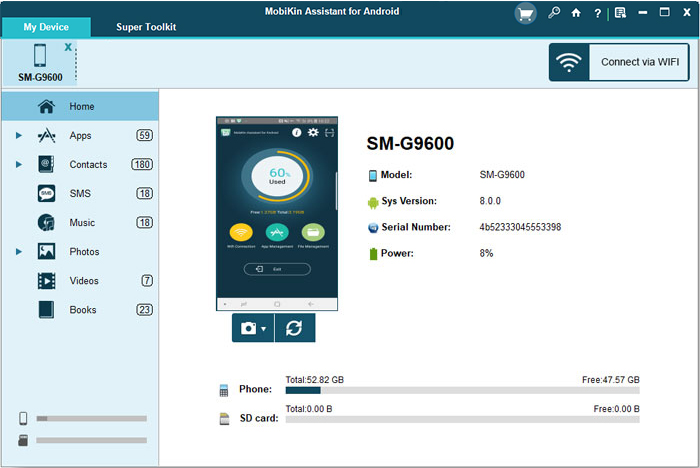
Connecting your OnePlus phone to a PC can be made smooth and reliable using MobiKin Assistant for Android (Windows/Mac), whether through USB or WiFi. It enables easy transfer and management of files, including photos, videos, contacts, and messages, without interruptions. By maintaining a steady connection, it ensures that backups and data transfers are completed efficiently and safely.
This program can easily connect your OnePlus to a PC, back up, restore, import, and export data, including both media and non-media files. It supports all Android devices, including OnePlus Number, Nord, and R Series, and ensures zero data loss with high security. A free trial and technical support are also available for convenient and safe data management.
How to connect OnePlus to PC fluently without USB via MobiKin Assistant for Android?
- Enable the "WiFi" feature on your OnePlus smartphone and connect to a dependable WiFi network.
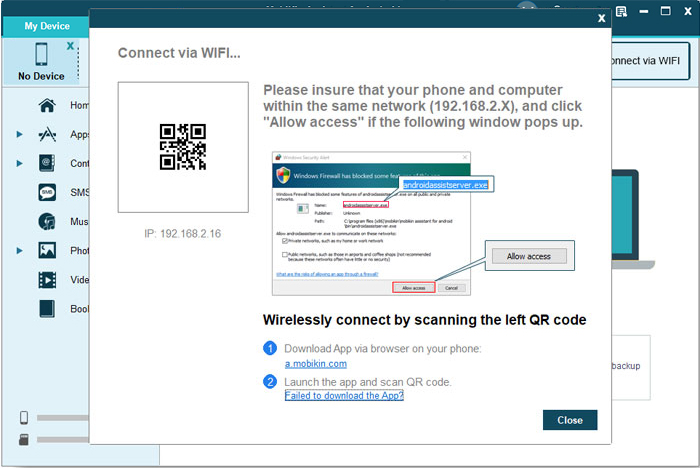
- Once you have downloaded and installed the software, choose "Connect via WIFI" from the upper-right corner.
- Install MobiKin Assistant for Android (Android Version) on your OnePlus device.
- Launch the .apk file, select "Scan QR Code," and use your OnePlus phone to scan the code shown on your computer.
- Ensure that both devices are connected to the same network.
- You have now successfully created a wireless connection between your OnePlus device and your PC.
- After the connection is established, you can manage, back up, or restore your phone as needed by following the on-screen instructions. (You have the option to copy photos from your phone to a USB stick directly)


Video Guide:
In a Nutshell
Ensuring a steady connection between your OnePlus phone and PC prevents delays and protects important data during transfers or backups. For a smooth and reliable experience, using MobiKin Assistant for Android allows you to connect your device wirelessly or via USB without interruptions. With this tool, managing files, media, and contacts becomes easier, keeping your work and personal projects organized and secure.
Related Articles:
OnePlus Screen Mirroring: 4 Easy Ways to Mirror OnePlus to PC/TV
How to Transfer Contacts from OnePlus to OnePlus? Top 4 Picks
Top 5 Best OnePlus Data Erasers to Wipe OnePlus Files Easily
Fix Photos Disappeared from OnePlus Phone with 5 Easy Options
How to Transfer WhatsApp from iPhone to OnePlus? 4 Established Ways
