
How to Transfer Contacts from Pixel to Pixel in 4 Safe Ways
"Work Pixel, just the normal contacts through the "Phone" app. Most everything transferred through the cable on startup, but not contacts. How do I get these over easily?" -- from Reddit
Upgrading to a new Google Pixel is exciting, but many users face the challenge of moving their contacts efficiently. Transferring contacts saves time compared to recreating each entry manually. Some users want selective transfer (contacts only), so guidance is needed to ensure they move just what matters without cluttering the new device.
This article will show you how to transfer contacts from Pixel to Pixel using four practical methods, helping you complete the migration quickly, safely, and with minimal effort.
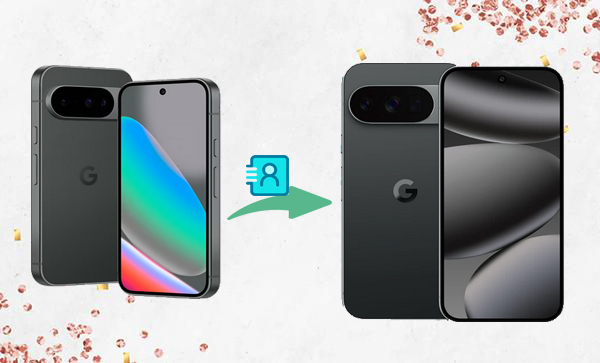
- Way 1: How to Export Contacts from Pixel to Pixel during Phone Setup
- Way 2: Transfer Contacts from Google Pixel to Google Pixel with VCF File
- Way 3: Transfer Contacts from One Pixel to Another via Data Transfer Tool
- Way 4: Transfer Contacts from Pixel to Pixel with an Expert Program
- Q&A about Transferring Contacts from Google Pixel to Google Pixel
Way 1: How to Export Contacts from Pixel to Pixel during Phone Setup
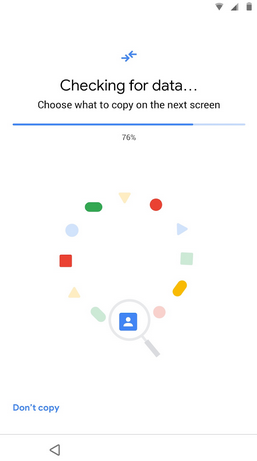
Phone Setup is the first method many users encounter when moving to a new Pixel 6-10 (Pro)/5a-8a/Fold/Fold 2/2-4 XL, etc.. It allows contacts to be copied directly from an old phone during initial setup. Using either a USB-C cable or Wi-Fi, data can be transferred efficiently without extra apps. This method ensures that contacts appear immediately on the new Pixel once setup is complete.
How to Use?
- Start setting up your new Pixel and choose the option to copy data from your old device.
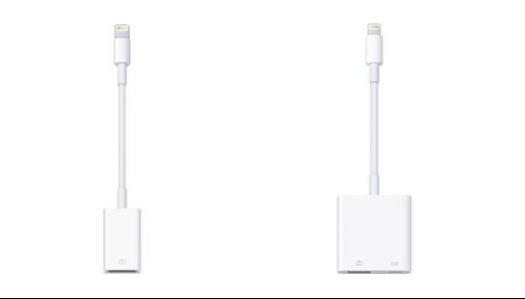
- Connect the two Pixels using a USB-C cable (with an adapter if needed) or wirelessly over Wi-Fi when prompted.
- Follow the on-screen instructions to confirm the connection.
- Select "Contacts" (and any other data you want to move).
- Begin the transfer and wait until it finishes, then complete the rest of the setup.
Way 2: Transfer Contacts from Google Pixel to Google Pixel with VCF File
"Pixel 10a was set up yesterday, but contacts and text messages did not come over from old phone; want to try again, but don't want to mess up the setup that exists as phone is working fine." -- from Pixel Phone Help
Cannot copy the contacts during setup? Try the VCF File. This provides a simple way to export and import contacts between Pixel devices. A single file containing all contacts can be saved to Google Drive, email, or internal storage. Importing the VCF on the new Pixel recreates the entire contact list quickly. Even users who prefer not to connect devices directly can complete the transfer reliably using this method.
How to Use?
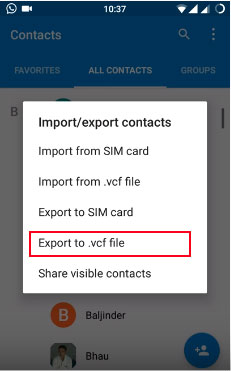
- On the old Pixel, open the Contacts app > tap Fix & manage (or Settings/Manage contacts) > choose Export to .vcf file > save the VCF file to your phone storage or Google Drive.
- Send or move that .vcf file to the new Pixel (via Drive, email, cable, etc.).
- On the new Pixel, open the Contacts app > tap Fix & manage (or Settings/Manage contacts) > choose Import from .vcf file.
- Select the VCF file and pick the Google account or device storage where you want the contacts saved.
- Wait a few moments - your contacts will appear on the new Pixel.
You Might Also Like: 4 Easy Tactics to Export Text Messages from Google Pixel 10/9/8/7/6/5/4/3
Way 3: Transfer Contacts from One Pixel to Another via Data Transfer Tool
The Data Transfer Tool from Google Play enables wired transfer of contacts and other data between two Pixels. Connecting both devices with a cable triggers the app to prompt for permissions and data selection. Contacts can be chosen specifically for transfer while leaving other data untouched. This approach is especially helpful when users want precise control over what moves to the new phone.
How to Use?
- Connect both Pixel phones using a cable and adapter (the Data Transfer Tool only works with a wired connection).
- Open the Data Transfer Tool app on your new Pixel.
- Tap "Transfer Data from an Existing Phone" and then select "Next" to begin the setup.
- When prompted on your old Pixel, grant permission for data transfer.
- Choose Contacts (and any other data you want), then tap Copy to start transferring.
- Wait for the process to finish, keeping both phones connected until completed.
Way 4: Transfer Contacts from Pixel to Pixel with an Expert Program
MobiKin Transfer for Mobile (Windows/Mac) allows full contact migration between Pixels with speed and flexibility. Only a few steps are required: connect phones, select contacts, and start the transfer process. Both Android and iOS devices are supported, making it versatile beyond just Pixel-to-Pixel moves. Large contact lists or additional data can also be transferred safely without risking loss or corruption.
Key Features of MobiKin Transfer for Mobile:
- Transfer Contacts Easily - Move contacts directly between phones (including Pixel to Pixel).
- Supports Many Data Types - Transfer SMS, call logs, photos, videos, music, and more.
- Cross-Platform Transfers - Works Android to/from Android, iOS to/from Android, and iOS to/from iOS.
- Selective Transfer - Choose only the data type you want to move.
- Fast & Secure - Quick transfers with no data loss.
- Simple to Use - Just connect, select, and transfer.
- Broad Device Support - Compatible with thousands of Android and iOS models, covering Pro: Pixel 6-9 Pro | Standard: Pixel 5-9 | a: Pixel 5a-8a | Fold: Pixel Fold/Fold 2 | Legacy: Pixel 2-4 XL, 3a XL.
- No Reset Needed - Transfer without wiping your phone.
- Optional Data Clearing - Erase data on the target device before transfer if needed.


How to Use?
- First, get the free trial of Transfer for Mobile and install it on your computer.
- After installation, launch the program to get started.
- Plug both Android phones into your computer using USB cables.
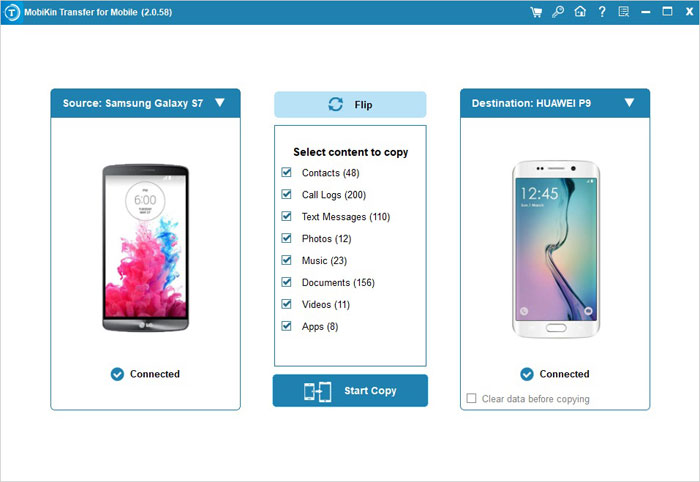
- The software will detect the devices automatically and display all transferable data in the main interface.
- Click Flip if the source phone isn't the Pixel that are to send contacts from.
- Select the types of data (Contacts) you want to move, then click the "Start Copy" button in the center panel. The transfer will begin immediately, moving your data efficiently.
Video Guide:
Q&A about Transferring Contacts from Google Pixel to Google Pixel
Q1: How long does it take to transfer contacts between Pixels?
Transfer speed depends on the number of contacts and method used. Phone Setup and MobiKin Transfer for Mobile are usually the fastest. VCF file import/export is slightly slower for large lists. Typically, even hundreds of contacts complete in a few minutes. (Contacts cannot be transferred to new Pixel?)
Q2: Are all contact details transferred, including emails and notes?
Most transfer methods, including MobiKin Transfer for Mobile and VCF files, move full contact details - phone numbers, email addresses, and notes. Minor custom fields may vary depending on the app. Standard information is preserved across Pixels.
Q3: Will transferring contacts delete data from my old Pixel?
No, all methods are non-destructive. Your old Pixel retains all contacts unless you manually delete them. Some tools offer the option to erase data on the new device before transfer. Otherwise, the transfer only copies contacts safely.
Q4: What is the easiest method for transferring a large number of contacts?
Using MobiKin Transfer for Mobile is often the easiest for large contact lists. It allows batch transfer without worrying about limits. Both contacts and other data types can be moved in one session. This method also works across Android and iOS devices if needed. So, try the free trial now after the secure download.
Related Articles:
How to Factory Reset Google Pixel 10/9/8/7/6/5/4/3? 5 Creative Ways
How to Recover Deleted Contacts on Google Pixel? 4 Reliable Options
5 Trusted Ways to Unlock/Bypass Google Pixel without Password or PIN
6 Most Reliable Google Pixel Backup and Restore Solutions 2026
